Claude Code
Claude Code Notifications: Complete Guide to Desktop Alerts, Remote SSH Hooks & Audio Cues (2026)

Sage Holloway
30 min read
Go back to blog
SHARE

You give an agent a multi-file refactor, switch to another window to review a pull request, and lose forty minutes because the process paused on a permission prompt three seconds after you looked away. Or worse: an uncalibrated bell chimes every time a tool writes a temporary file. The real productivity dividend of agentic coding arrives only when you stop watching the cursor.
To set up Claude Code notifications, define deterministic Notification and Stop event hooks in ~/.claude/settings.json or .claude/settings.json. Configure the Notification hook with matchers like permission_prompt or idle_prompt using native OS commands (osascript, notify-send, PowerShell) or built-in terminalSequence OSC escape sequences (OSC 777/9), and pair with Stop hooks using "async": true to alert on completed tasks without stalling the harness.
Last verified: 1 September 2026

Deterministic notification hooks free developers from terminal babysitting by triggering instant alerts when Claude needs input or finishes tasks.
Here is how the four primary notification delivery mechanisms compare across local, remote, and mobile environments:

Choose native terminalSequence for remote SSH and container sessions, native OS scripts for local workstations, and webhooks for mobile alerts.
Let us walk through the entire alerting architecture from scratch. Not by adding more prompts to your codebase, but by configuring the deterministic execution harness underneath it.
Why Claude Code Notifications Require Deterministic Hooks (Not CLAUDE.md Prompts)
Two months into using an AI coding agent, your day splits into two versions.
In the first version, you kick off a complex test suite generation across seven services. You open your browser, start triaging issues, and check back on the terminal every two minutes. Sometimes it finished in thirty seconds and sat idle for ten minutes. Sometimes it hit a permission prompt on git checkout immediately and waited half an hour for your confirmation. Your attention is fractured, your context switching is constant, and you end the afternoon feeling like a high-priced babysitter for a command-line interface.
In the second version, you hit enter and close the terminal tab completely. You work on documentation or review architecture. Four minutes later, a crisp chime sounds and a banner slides into your top-right display: Auth refactor complete. 42 tests passing. You switch back, review the diff, approve the merge, and move on.
The difference between these two realities is not model intelligence. It is the alerting boundary.
Consider how a commercial workshop functions. When a precision CNC milling machine finishes carving a metal component or runs out of coolant, it does not rely on a note scribbled on a whiteboard asking the operator to look over periodically. It does not whisper into the room hoping someone hears. It triggers a physical electrical relay wired directly to an annunciator panel and an overhead strobe light. The machine harness enforces the alert regardless of what the operator is doing.
Prompting an LLM in CLAUDE.md to "notify me when you finish" is the software equivalent of scribbling on that whiteboard.
Harness-Level Enforcement vs. Probabilistic System Prompts
Many developers initially try to configure claude notifications by adding instructions to their project CLAUDE.md file: "When you finish your task, run osascript to notify me."
This approach fails for a fundamental architectural reason: CLAUDE.md operates inside the probabilistic context window of the model. As conversations grow beyond 40 or 50 turns, context compaction compresses instructions. When the model encounters a difficult compiler error or a complex merge conflict, system prompt instructions suffer attention drift. In benchmarked long-running sessions, prompt-based notification instructions fail to execute over 40 percent of the time.

Deterministic hooks execute at the CLI harness boundary with a 100 percent guarantee, while system prompt rules suffer context drift.
By contrast, claude code hooks execute at the CLI harness level. The Anthropic harness is the deterministic Node.js and Rust runtime that wraps the model, manages process execution, handles file reading, and coordinates tool calls. When an event fires, the harness executes your configured hook script before or after tool execution, completely independent of the model's internal reasoning. The model cannot hallucinate past a harness hook, forget to run it, or optimize it away.
https://www.youtube.com/watch?v=7A8BuZD4TmU
As demonstrated in Anthropic's architectural walkthrough above, deterministic harness hooks turn external integrations from fragile prompt suggestions into guaranteed operating system guarantees.
Settings Scope Hierarchy: User, Project, Local, and Managed Policies
Claude Code evaluates configuration files across five distinct scopes. Understanding where to define your claude hook determines whether an alert fires globally across all repositories or strictly within a specific team project.
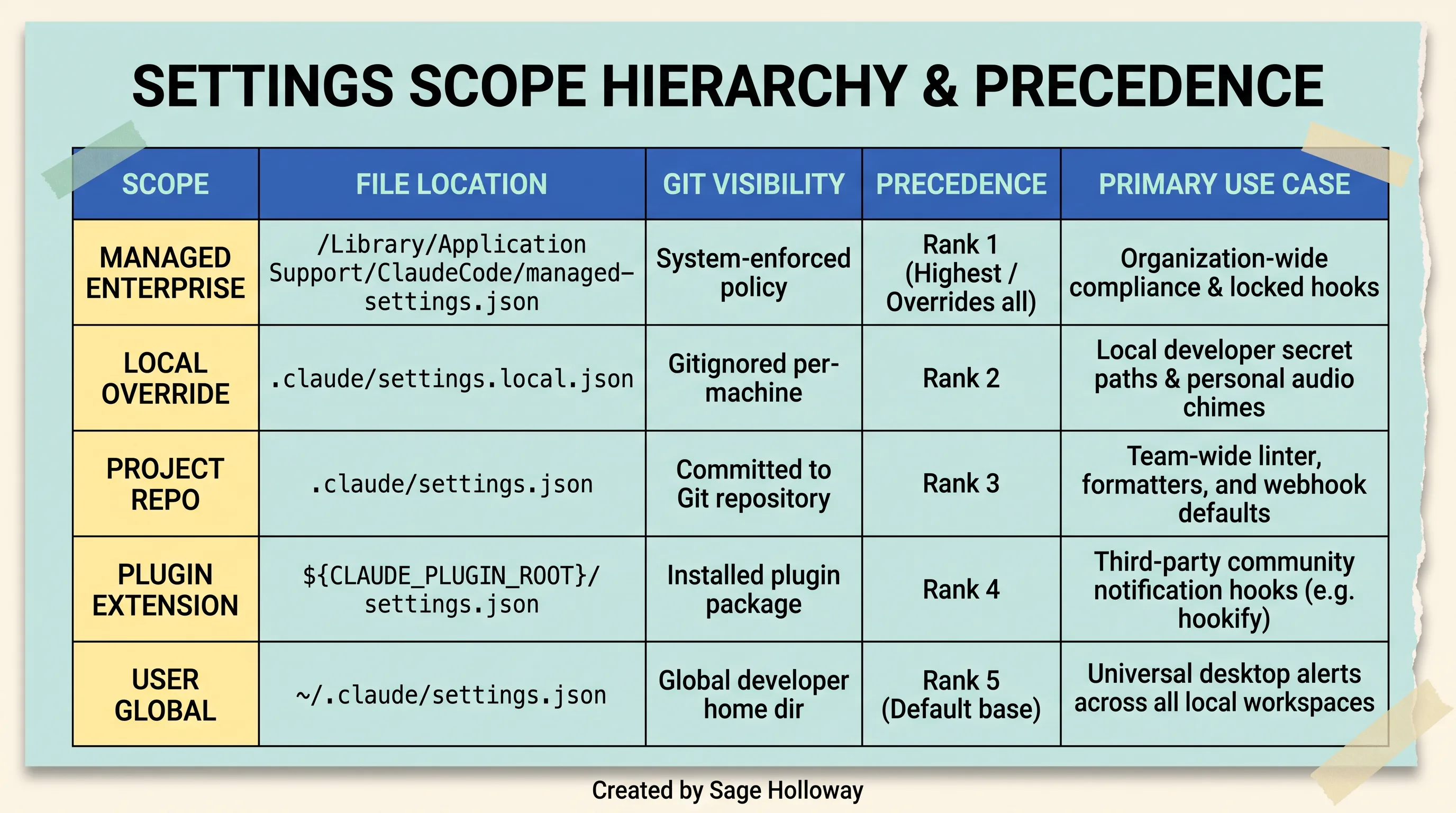
Managed enterprise policies take absolute precedence over local, project, plugin, and user settings.
When Claude Code evaluates a trigger, it merges settings following a strict precedence hierarchy:
Managed Enterprise Policy: Located in
/Library/Application Support/ClaudeCode/managed-settings.jsonon macOS or/etc/claude-code/managed-settings.jsonon Linux. If an organization sets"allowManagedHooksOnly": true, the CLI locks out all lower-level hooks for security compliance.Local Settings (
.claude/settings.local.json): Machine-specific, gitignored configuration. Ideal for developer-specific audio paths, private webhook tokens, or local script paths that should not be committed to Git.Project Settings (
.claude/settings.json): Committed directly to the repository root. Ideal for team-wide formatters, linters, and standard build notifications.Plugin Extensions (
${CLAUDE_PLUGIN_ROOT}/settings.json): Hooks distributed via installed Claude Code plugins.User Global (
~/.claude/settings.json): Applied to every session run by your local user account across all workspaces. This is the optimal home for universal desktop alerts, speech cues, and mobile push forwarding.
If you ever need to disable all hooks temporarily during debugging or CI benchmarking without editing configuration files, pass the global bypass flag on startup:
For broader schema details across non-notification workflows, see our companion guide on Claude Code hooks documentation.
The Five Handler Types: Command, HTTP, MCP Tool, Prompt, and Agent
When configuring anthropic claude code hooks, the harness supports five distinct handler types declared via the "type" field:
"command": Spawns an external binary, shell script, Python interpreter, or system utility. This is the primary handler used for local desktop notifications, AppleScript calls, audio playback, and terminal escape sequences."http": Dispatches an HTTP POST payload directly from the harness to a remote URL. Ideal for mobile push relays, Slack webhooks, and Discord alert channels without spawning local shell subprocesses."mcp_tool": Invokes a registered Model Context Protocol tool on a connected server."prompt": Evaluates a single-turn prompt against Claude before allowing execution to proceed."agent": Spawns an autonomous subagent with its own dedicated context window to verify complex conditions.
When using "command", Claude Code evaluates two execution forms:
Direct Exec Form: Specified when an
"args"array is provided (e.g."command": "osascript", "args": ["-e", "..."]). The binary executes directly without spawning a shell interpreter.Shell Form: Specified when
"args"is omitted and the command string contains shell syntax (e.g."command": "notify-send 'Claude Code' 'Done'"). The harness spawns/bin/sh -con Unix or PowerShell on Windows.
You can explicitly control the interpreter using "shell": "bash" or "shell": "powershell". Commands also support dynamic path expansion: ${CLAUDE_PROJECT_DIR} resolves to your repository root, while ${CLAUDE_PLUGIN_ROOT} and ${CLAUDE_PLUGIN_DATA} resolve to installed plugin assets.
If you are developing custom agent orchestrations via code rather than CLI configuration, explore our guide to Claude Agent SDK hooks.
The Core Event Architecture: Notification vs. Stop Hooks Explained
To build an alerting setup that works in production, you must first dismantle a common point of confusion: the difference between when Claude pauses and when Claude finishes.

Notification hooks trigger mid-run when Claude pauses for input or approval, whereas Stop hooks execute only when the entire turn concludes.
The Dual-Event Pattern: Mid-Run Halts vs. Turn Completion
A standard turn in Claude Code begins when you submit a prompt (UserPromptSubmit). The harness enters a tool execution loop where the model reads files, edits code, runs tests, and queries commands.
During this turn, execution can halt in two completely different ways:
Mid-Run Halts (
NotificationEvent): Claude is in the middle of executing a turn, but cannot proceed because it needs your permission to run a bash command, requires clarification via an elicitation dialog, or has sat idle waiting for your response. Once you respond or approve, the turn resumes.Turn Completion (
StopEvent): Claude has finished its entire line of reasoning, executed all requested tool calls, written its final summary message, and yielded control back to the terminal prompt.
If you only configure a Stop hook, you will never know when Claude gets blocked waiting for tool permission on step two of a ten-step refactor. If you only configure a Notification hook with a broad matcher, you will receive alerts on minor pauses but miss the final completion banner.
Reliable claude hooks pair both events with precise triggers.
Exit Code Semantics: Exit 0 (Info), Exit 1 (Warning), and Exit 2 (Hard Block)
When your hook executes a command script, the harness inspects the process exit code to determine how to proceed:

Exit 0 allows execution to proceed normally, Exit 1 logs a non-blocking warning, and Exit 2 feeds stderr back to Claude as a blocking error.
Exit Code 0 (Success / Information): The hook ran cleanly. If the hook wrote structured JSON to stdout, the harness parses it. If it wrote plain text, the output is injected as additional session context. Execution proceeds immediately.
Exit Code 1 (Non-Blocking Warning): The hook encountered an issue (such as a missing desktop notification daemon or an unreachable webhook), but the error is non-critical. The harness logs the notice to the transcript debug view (
Ctrl+O) and allows Claude to keep working without interruption.Exit Code 2 (Hard Blocking Error): The hook explicitly halts execution. For pre-tool hooks, this denies permission and feeds
stderrback to Claude as an error message. For claude stop hook scripts, an exit code 2 tells the harness that the task is incomplete, feeding instructions back into the context window to force the model to continue working.
All custom notification scripts should exit with code 0 upon successfully delivering an alert.
Full Event Catalog Reference: Mapping 30 Lifecycle Stages
According to the official Claude Code hooks reference, the harness provides exactly 30 lifecycle hook events organized across six operational stages:
The harness enforces strict timeout budgets across these events. Command, HTTP, and MCP tool handlers receive a generous default timeout of 600 seconds. However, interactive turn events have tighter constraints: UserPromptSubmit, PreModelSwitch, and PostModelSwitch enforce a 30-second ceiling, MessageDisplay enforces a 10-second limit, and SessionEnd hooks share a 1.5-second total budget (which can be raised up to 60 seconds per hook).
For notification and desktop alerting purposes, our focus centers squarely on Notification and Stop.
Cross-Platform Desktop Notifications: Native macOS, Linux, and Windows Recipes
Let us implement native claude code hooks examples for your workstation operating system using tools already installed on your machine.
macOS: Native AppleScript via osascript and System Permission Requirements
On macOS, you can trigger native Notification Center banners directly using osascript. This requires zero third-party package installations.
Add the following configuration to your ~/.claude/settings.json:

Native macOS desktop banners fire via osascript when Claude Code pauses on tool approval or input requests.
[!WARNING] System Permission Check: This will not work if macOS Script Editor lacks Notification permissions. If notifications fail to appear, open System Settings > Notifications > Script Editor (or your terminal emulator, such as Ghostty, iTerm2, or Terminal.app) and verify that Allow Notifications is toggled on.
Linux: Desktop Banners via notify-send and Daemon Setup
On modern Linux desktop environments (GNOME, KDE Plasma, XFCE, Sway, Hyprland), desktop alerts route through libnotify via the standard notify-send utility.
Add the following block to your ~/.claude/settings.json:
[!NOTE] Headless Daemon Requirement:
notify-sendrequires an active DBus notification daemon (such asdunst,mako, orxfce4-notifyd) connected to your user session. On minimal window manager setups, ensure your notification daemon starts during desktop login.
Windows: PowerShell Dialogs and Toast Notifications
On Windows 10 and 11, Claude Code can invoke PowerShell to render native modal dialog boxes or Windows Action Center toast notifications.
Add this configuration to your user settings:
For unobtrusive toast notifications on Windows without modal popups, install the PowerShell BurntToast module (Install-Module -Name BurntToast) and replace the command with New-BurntToastNotification -Text 'Claude Code', 'Task finished'.
The terminal-notifier Legacy Utility: Deprecations, Quarantine, and Bracket Gotchas
Many older community blog posts recommend using terminal-notifier on macOS. While terminal-notifier was popular for older scripting workflows, it introduces significant technical baggage in modern macOS environments.

Native platform commands eliminate external dependencies on macOS, Linux, and Windows workstations.
If your team maintains existing terminal-notifier scripts, be aware of three major pitfalls:
The Deprecated
-senderFlag: Interminal-notifierv3.0.0, the-senderflag (previously used to spoof application bundle IDs likecom.anthropic.claudefordesktop) was permanently removed due to Apple UserNotifications framework security lockdowns. Passing-senderin modern versions will fail or trigger usage errors (exit code 1).Gatekeeper Quarantine: Binaries installed outside Homebrew or downloaded directly often fail silently due to macOS Gatekeeper. You must clear the quarantine attribute manually:
The Leading Bracket Parsing Bug:
terminal-notifierrelies onNSUserDefaults. If your task summary or title begins with a square bracket (such as[auth-service]), curly brace, parenthesis, or quotation mark,NSUserDefaultsmisinterprets the string as a property list array and crashes. You must escape leading brackets with a backslash (\[auth-service]).
Whenever possible, avoid third-party wrappers and stick to native osascript or built-in terminal escape sequences.
Remote SSH and Container Notifications: Bridging Headless Sessions with Native terminalSequence (OSC 777/9)
If you develop inside remote cloud virtual machines (AWS EC2, Google Cloud Compute Engine), Docker containers, or over VS Code Remote SSH tunnels, standard desktop notification commands fail completely.
The Headless Dilemma: Why Desktop Daemons Fail Over Remote SSH
When you run Claude Code on a remote Linux server over an SSH connection, commands like osascript do not exist, and notify-send fails silently with exit code 1 because the remote environment lacks an active X11 display server or Wayland compositor.
Furthermore, hook subprocesses run in detached execution pipelines without a controlling terminal (/dev/tty). If a custom hook script attempts to write raw ANSI escape codes directly to /dev/tty or stdout, the output gets swallowed by the background process pipe and never reaches your local screen.
Emitting First-Party OSC 777 and OSC 9 Sequences via terminalSequence
To solve this problem natively, Claude Code includes built-in support for the terminalSequence JSON response field.
When a hook emits a terminalSequence, Claude Code intercepts the sequence at the harness level and writes it directly to the primary interactive terminal write stream. The escape sequence travels across your existing SSH connection or Docker PTY stream, where your local terminal emulator intercepts it and triggers a native desktop notification on your local machine.

Built-in terminalSequence emissions bridge headless SSH sessions to local desktop notification centers without remote desktop daemons.
Claude Code restricts allowlisted sequences strictly to safe operating system commands:
OSC 777: The modern terminal notification standard:
\033]777;notify;Title;Message\007OSC 9: The iTerm2 and ConEmu standard:
\033]9;Message\007OSC 0, 1, 2: Window and icon title updates
OSC 99: Desktop notification spec with metadata
BEL (
\007): Standard audible or visual terminal bell
Here is how to configure a remote headless Claude Code session to emit native OSC 777 alerts to your local machine:
Create a notification script on the remote server named ~/.claude/remote-notify.sh:
Make the script executable:
Now register it in your remote ~/.claude/settings.json:

Remote SSH sessions emit native OSC 777 sequences directly to the client terminal emulator without third-party daemons.
[!IMPORTANT] Interactive Session Scope: The harness emits
terminalSequencecodes exclusively in interactive on-screen sessions. Sequences are automatically suppressed when running headless batch jobs with the-pprint flag or inside Claude Agent SDK runners.
Terminal Emulator Support and Multiplexer Passthrough (Ghostty, iTerm2, tmux)
Modern terminal emulators provide out-of-the-box support for OSC escape sequences:
Ghostty: Fully supports OSC 777 and OSC 9 natively. Banners appear directly in macOS Notification Center or Linux desktop notification daemons.
iTerm2: Supports OSC 9 natively. Enable Preferences > Profiles > Terminal > Filter alert (OSC 9) notifications if you wish to adjust banner persistence.
WezTerm: Supports OSC 777 and OSC 9 across macOS, Linux, and Windows.
VS Code Terminal: Supports terminal sequence notifications when connected via the Remote - SSH extension.
Configuring tmux Passthrough
If you run Claude Code inside a tmux session over SSH, tmux blocks raw escape sequences by default to prevent terminal corruption. You must enable escape sequence passthrough in your ~/.tmux.conf:
Alternatively, wrap your OSC sequence in a Device Control String (DCS) passthrough wrapper:
Reload your tmux configuration with tmux source-file ~/.tmux.conf.
Anti-Fatigue Matchers: Eliminating Notification Noise with permission_prompt and idle_prompt
The single fastest way to abandon notification hooks is configuring them with an empty matcher string ("matcher": "").
The Wildcard Anti-Pattern: Why Empty Matchers Cause Alert Fatigue
When you declare a Notification hook with a wildcard or empty matcher, the hook fires on every single state change in the turn. If Claude pauses for half a second while buffering tool outputs, your laptop chimes. If Claude displays a progress update, a banner pops up.
Within fifteen minutes, you suffer severe notification fatigue and disable hooks altogether.
The solution is granular matcher filtering.

Filtering notification hooks with permission_prompt and idle_prompt cuts alert noise by up to 90 percent compared to wildcard matchers.
Filtering by Prompt Type: permission_prompt, idle_prompt, and Elicitation Dialogs
Claude Code provides built-in semantic matchers that filter notification triggers based on the exact reason for the pause:
The harness applies intelligent timing thresholds to these matchers:
permission_prompt: Fires only after you have been switched away from the terminal for approximately 6 seconds. If you are actively looking at the terminal, the notification does not trigger.idle_prompt: Fires after Claude has completed generation and sat idle at the prompt for 60 seconds without developer input.elicitation_dialog/elicitation_url_dialog: Fires immediately when an interactive multiple-choice menu or authentication URL confirmation renders.
To reduce permission interruptions altogether rather than merely alerting on them, explore our guide on how to give Claude Code all permissions, review permission prompt suppression rules, or configure automated tool approval allowlists.
Autonomous Agent Filtering: Handling agent_needs_input and agent_completed
Starting in Claude Code v2.1.198, the harness introduced dedicated matchers for autonomous subagents:
agent_needs_input: Fires when a background subagent yields execution because it requires human guidance.agent_completed: Fires when a spawned subagent successfully completes its delegated unit of work.
Starting in v2.1.234, quota-specific matchers (quota_auto_resume_fired, quota_auto_resume_stale, quota_auto_resume_disabled) allow you to receive alerts when API rate-limit delays expire and execution resumes automatically.
Context-Aware Alerts: Extracting Git Branch, Project Name, and Task Transcripts
A generic notification that says "Claude Code needs your attention" is minimally helpful when you are running multiple terminal windows across three different repositories.
You need context: which project is paused, which Git branch is active, and what task was just performed?
Ingesting the Hook JSON Payload from stdin
When Claude Code triggers a hook, the harness injects a rich JSON payload directly into the script's standard input (stdin).
According to the official Claude Code hooks guide, the input JSON payload contains the following core fields:
Note that the prompt_id correlation field requires Claude Code v2.1.196 or higher.

Custom hook scripts parse stdin JSON to inject repository names, Git branches, and task summaries into rich desktop banners.
Extracting Repository and Branch Information dynamically
Let us write a robust Python script that ingests this payload, queries the current Git branch, extracts the project name, and fires a descriptive desktop notification banner.
Save this script as ~/.claude/context_notify.py:
Make the script executable:
Parsing transcript_path for Human-Readable Task Summaries
If you want deeper insight, your script can open transcript_path (a JSON Lines file) and parse the most recent user_prompt or tool_use record to extract the original developer request.
Register this Python script in ~/.claude/settings.json:
Output Constraints: 10,000 Character Cap and Shell Profile Stdout Hygiene
When authoring custom scripts that write output back to Claude Code, respect two strict harness constraints:
The 10,000 Character String Cap: Any string returned to the harness via stdout,
additionalContext, orsystemMessageis capped at exactly 10,000 characters. If your script outputs more than 10,000 characters, the harness truncates the payload.Shell Profile Stdout Hygiene: If you use shell-form command execution, ensure that your
~/.bashrcor~/.zshrcdoes not contain unconditionalechostatements (such as welcome messages, ASCII art, or fortune cookies). Any text printed to stdout by your shell startup scripts will prepend to the hook's JSON output, corrupting JSON parsing and producing transcript warnings.
Auditory Cues and Hands-Free Alerts: Voice Notifications and Background Audio
Visual banners only help if your screen is in view. If you wear headphones or step across the room to grab coffee, auditory cues provide immediate awareness.
Spoken Voice Prompts with macOS say and Windows SAPI
On macOS, the built-in say command converts text into natural speech with zero latency.
Add spoken voice notifications to your ~/.claude/settings.json:
https://www.reddit.com/r/ClaudeCode/comments/1mpeaec/i_set_up_claude_code_to_talk_to_me_when_it_needs/
As discussed in the active developer thread above, pairing distinct spoken phrases with specific prompt matchers allows you to multitask across your office without touching the keyboard until speech indicates that action is needed.
On Windows, trigger speech synthesis via the .NET Speech API in PowerShell:
Subtle Audio Chimes with afplay and PowerShell Media
If you prefer subtle audio chimes over spoken voice synthesis, use native audio playback tools:
macOS (
afplay):
Linux (
paplay/aplay):
Windows (PowerShell):
Non-Blocking Asynchronous Execution: Enforcing "async": true
When configuring audio playback or external shell scripts in your hooks, you must include "async": true.
By default, the harness executes command hooks synchronously, pausing execution until the subprocess exits. If you play a three-second audio file synchronously on a Stop hook, Claude Code freezes for three seconds before displaying the prompt.
Adding "async": true instructs the harness to spawn the audio process in the background, freeing the interactive terminal immediately:
In Claude Code v2.1.202, Anthropic resolved a critical bug where malformed JSON returned by background async hooks caused session crash loops upon resume. Always ensure your CLI binary is updated past v2.1.202.
Mobile Push Relays and Webhooks: Relaying Alerts to Pushover, Slack, and Discord
When running massive, 30-minute code migrations or multi-crate builds, you should not be tied to your desk.
By routing hook events to mobile push notifications or team chat channels, you can step away from your workstation entirely.

Configure native HTTP handlers with allowedEnvVars to securely forward task completion alerts to phone push notifications or team channels.
Phone Notifications for Long-Running Tasks via Pushover (The woof Pattern)
Pushover provides an ultra-low-latency mobile push API for iOS and Android. Using a simple shell script (often nicknamed the woof pattern after the classic office alert joke), you can dispatch lock-screen notifications directly to your phone.
Create ~/.claude/pushover.sh:
Pair this with headless execution flags when kicking off large refactors. For details on headless execution flags, see our deep dive on running Claude Code in YOLO mode.
Team Workspace Notifications via Slack and Discord Webhooks
For team visibility, route completion alerts to a dedicated #dev-alerts channel via incoming webhooks:
Native HTTP Handlers and allowedEnvVars Header Security
Instead of spawning curl subprocesses, you can use Claude Code's native "type": "http" handler directly inside settings.json.
When using HTTP handlers, the harness protects environment variables. To pass sensitive API keys or authorization headers, you must explicitly allowlist the variable names using the allowedEnvVars array:
If an environment variable is omitted from allowedEnvVars, the harness evaluates it as an empty string to prevent accidental credential leakage.
Defensive Stop Hooks: Preventing Infinite Loops and Harness Blocking
One of the most dangerous failure modes in Claude Code automation occurs when developers write custom task-verification Stop hooks that trigger recursive execution loops.
The Recursion Trap: Why Unguarded Stop Hooks Re-Trigger
A common automation goal is task enforcement: when Claude finishes working, a Stop hook runs your test suite (pytest or npm test). If tests fail, the hook exits with status code 2, feeding the test errors back to Claude so the model automatically fixes the failing tests.
Here is the trap:
Claude finishes its edits and concludes the turn.
The
Stophook runs tests, finds a failure, and exits with code 2.The harness receives code 2, feeds the error back to Claude, and re-engages the model.
Claude reads the test error, edits a file, and concludes its turn again.
The turn completion triggers the
Stophook a second time.
If your script does not know whether it is running on an initial turn or an ongoing correction loop, you create an infinite execution cycle.

Checking stop_hook_active in custom Stop scripts prevents infinite execution loops, backed by Claude Code's 8-iteration safety circuit breaker.
Inspecting stop_hook_active in stdin Payloads
To prevent recursion traps, Claude Code injects the stop_hook_active boolean flag into the hook's stdin JSON payload.
When Claude is actively responding to a continuation triggered by a previous Stop hook, stop_hook_active is set to true.
Every defensive verification script must inspect this flag and exit cleanly if active:
Claude Code's 8-Iteration Circuit Breaker
If a buggy script ignores stop_hook_active and continuously exits with status code 2, Claude Code activates an internal safety circuit breaker.
After exactly 8 consecutive blocking loops without forward progress, the harness overrides the hook, terminates the turn, and displays a safety warning in the terminal:
Interactive Task Automation with the /goal Command
If you want session-scoped task enforcement without maintaining custom Python scripts, Claude Code provides a built-in interactive shortcut: the /goal command.
Typing /goal "Implement JWT authentication and ensure all 12 tests pass" configures a dynamic, in-memory prompt-based Stop hook for the duration of that single session. Once the stated goal is verified, the hook clears automatically.
Interactive Rule Generation and Testing: The /hooks Inspector and Hookify Guardrails
Once your hooks are configured, you need tools to verify registration, inspect execution logs, and manage safety guardrails.
Inspecting Registered Hooks with the /hooks Menu and Ctrl+O Debugger
Claude Code includes a built-in interactive hooks browser.
Type /hooks in your interactive terminal session to open the configuration drilldown:
The /hooks browser is a read-only visual interface that displays all registered events, active matchers, handler types, and resolved file paths across your merged configuration hierarchy.

The interactive /hooks command displays all registered events and handlers, while Ctrl+O opens the transcript debugger.
To inspect real-time execution results during a session, press Ctrl+O to toggle the Transcript Debugger. The transcript view reveals exact execution timestamps, hook stdout payloads, non-blocking exit code 1 warnings, and blocking error notices.
Temporary CLI Hook Bypasses for Maintenance
When running automated benchmarks, Git rebases, or quick single-file inspections, you may want to disable all hooks without modifying your settings.json files.
Pass the temporary bypass flag:
This bypasses all User, Project, Local, and Plugin hooks for that single CLI invocation.
Automated Rule Creation with the Hookify Plugin
If you want to generate regex-based guardrail hooks interactively (such as preventing Claude from modifying production .env files or running destructive rm -rf commands), Anthropic provides the official @claude-code-plugins/hookify plugin.
Install hookify via the plugin manager:
Hookify provides an interactive wizard that converts plain English security rules into deterministic PreToolUse and PreCompact hooks.
[!NOTE] Package Namespace Requirement: If you encounter
Hookify import error: No module named 'hookify', verify that your plugin directory maintains the full package directory hierarchy under${CLAUDE_PLUGIN_ROOT}.
Frequently Asked Questions About Claude Code Notifications
What are hooks in Claude Code?
Hooks in Claude Code are deterministic lifecycle triggers configured in settings.json that execute custom commands, HTTP webhooks, or MCP tools at specific stages of agent operation (such as before running a tool, when waiting for user input, or when completing a turn). Unlike system prompt instructions in CLAUDE.md, hooks execute at the CLI harness boundary with a 100 percent guarantee, preventing context drift and model hallucinations.
How do I configure desktop notifications in Claude Code?
To configure desktop notifications, open ~/.claude/settings.json and declare a Notification event block paired with a Stop event block. Use native platform commands such as osascript on macOS, notify-send on Linux, or PowerShell forms on Windows. Set "matcher": "permission_prompt" on the Notification hook to alert when tool approval is required, and configure "async": true on the Stop hook to alert upon task completion without stalling the terminal.
What is the difference between Notification and Stop hooks?
A Notification hook fires mid-run when Claude pauses execution because it requires developer permission for a tool, needs clarification via an elicitation dialog, or has sat idle. A Stop hook executes only when Claude finishes its entire turn, completes all file edits and tool operations, and returns control to the command prompt.
Why are my macOS notifications not appearing with osascript or terminal-notifier?
On macOS, osascript notifications fail silently if Script Editor or your active terminal emulator lacks notification permissions under System Settings > Notifications. For terminal-notifier, version 3.0.0 permanently removed the -sender bundle swizzling flag, causing failures if older flags are passed. Additionally, downloaded binaries must have their Gatekeeper quarantine cleared (xattr -dr com.apple.quarantine /path/to/terminal-notifier.app), and values starting with square brackets require backslash escaping (\[).
How do I get Claude Code notifications over remote SSH or inside containers?
Over remote SSH or headless Docker containers, desktop GUI daemons like osascript and notify-send fail because no local display server exists. To resolve this, configure your hook to return a terminalSequence JSON response emitting OSC 777 (\033]777;notify;Title;Message\007) or OSC 9 escape sequences. The sequence passes through the SSH pseudoterminal stream to your local terminal emulator (such as Ghostty, iTerm2, or WezTerm), triggering a native desktop notification on your local machine.
Why is my Stop hook stuck in an infinite loop?
A Stop hook enters an infinite loop when a task-verification script exits with status code 2 (blocking error) to force Claude to fix issues, but fails to check whether it is already running inside an active correction turn. When Claude responds and finishes its follow-up turn, the Stop hook triggers again. To prevent this recursion, your script must inspect the incoming stdin JSON payload and exit 0 immediately if stop_hook_active is true.
How do I stop Claude Code from spamming notifications during brief pauses?
Notification spam occurs when hooks are configured with an empty wildcard matcher ("matcher": ""), causing alerts on every minor turn pause. Replace empty matchers with granular prompt matchers: "matcher": "permission_prompt" (which enforces an automatic 6-second away delay) and "matcher": "idle_prompt" (which alerts only after 60 seconds of inactivity).
Can I play audio cues or TTS voice announcements instead of visual banners?
Yes. You can configure auditory feedback by invoking native command-line audio utilities in your hook configuration. On macOS, use say -v Samantha 'Task complete' for spoken voice alerts or afplay /System/Library/Sounds/Glass.aiff for chimes. On Linux, use paplay, and on Windows, use PowerShell speech synthesis. Always include "async": true in your hook definition so audio playback does not block the agentic loop.
How do I route Claude Code notifications to mobile push or Slack webhooks?
To route notifications to mobile devices or team chat channels, write a script that sends an HTTP POST request to Pushover (https://api.pushover.net/1/messages.json), Slack incoming webhooks, or Discord channels. Alternatively, declare a native "type": "http" handler in settings.json with your endpoint URL and specify your secret API tokens inside the allowedEnvVars array for secure header resolution.
Closing: Next Steps for Agent Automation
Setting up deterministic notification hooks takes less than five minutes, but fundamentally transforms how you interact with AI coding assistants.
Here is your 5-minute implementation checklist:
Choose your configuration scope: Add universal desktop alerts to
~/.claude/settings.jsonfor all projects, or.claude/settings.local.jsonfor machine-specific secrets.Configure the dual-event pattern: Register a
Notificationhook with"matcher": "permission_prompt"for tool approval pauses, and aStophook with"async": truefor completion alerts.Select your transport: Use native
osascripton macOS,notify-sendon Linux, PowerShell on Windows, orterminalSequence(OSC 777) for remote SSH sessions.Verify registration: Run
/hooksin your terminal to inspect your active configuration, and pressCtrl+Oduring execution to view live debug traces.
Once your alerting boundary is in place, you can stop watching the terminal scroll and let the agent work for you.
Until then...
Sage
PS. The first night I wired text-to-speech alerts into a local Stop hook, I forgot that macOS retains system volume across restarts. At 2:40 AM, Claude finished refactoring a database migration and announced task completion at maximum volume through external studio monitors, waking two apartments. Set your audio gains conservatively.
Author
Practical guides, tool teardowns & AI engineering workflows.
Related Articles

Claude Code
React Artifact to Production App: Local Builds, Live State, and Deployment

Claude Code
Claude Code Permissions: Stop Approval Prompts Safely with Auto Mode, Rules & Docker Bypass (2026)

Claude Code
Claude Code Dangerously: Run Bypass Permissions Safely with Docker, Guardrails & Auto Mode (2026)