AI Agents
Grok Bot Tutorial for Beginners: Cursor Sign-In First

Sage Holloway
29 min read
Go back to blog
SHARE


Grok Bot is a desktop app that keeps working after you close the lid, not a grok.com chat tab.
You downloaded the thing from a thread that numbered the evening for you. Sign-in looked like a choice. The first teammate already had a title. The plugin list looked finished. Then a login wall appeared in a window that was not your laptop, and the advice in the thread was to type the secret into the chat. That is how a first night goes sideways.
Grok Bot is the desktop app at x.ai/bot (macOS, Windows, Linux, plus a companion), not grok.com chat. This grok bot tutorial for beginners is the first-run: Sign in with your Cursor account. Create a named Bot, connect plugins from Marketplace, Teach a task to draft a skill, then add a schedule or event. All Bots share one cloud computer, so work continues after you close the lid.
The Computer card said Action needed. A login wall sat on Agent Computer, the in-app preview of Grok Bot's Computer, the cloud machine the Bots drive. I almost pasted the password into the thread because that is how every other chat agent had trained me. Cursor Help on how-to is blunt: take over the cloud computer and type the secret there.
A Bot is one persistent named teammate with a job, a conversation, and context that compounds. Grok Bot is the desktop and mobile app those Bots live in. How the metal works sits on how Grok Bot works. This grok bot tutorial for beginners is the grok bot guide for how you use it: grok bot how to, from install through a first crew, without the viral 10-step's wrong labels.
What this will not cover: model cards, eval tables, and the harness-loop vocabulary some essays import. Trial credit and Cancel Trial live on does Grok Bot have a free trial. iPhone depth lives on a later Grok Bot iOS spoke. One line here, then we install.
This will not work if Legacy Privacy Mode is on, or if you have no paid Cursor plan, no linked SuperGrok / X Premium+ grant, and no Grok Business seat. SuperGrok Lite is not included.
Last verified: 10 October 2026 (official Help, docs, and R3 research; no live CLI verify)
Table of contents
Download Grok Bot for Mac, Windows, or Linux
Sign In with Cursor, then name the first Bot
Give the Bot a job title and a never-do line
All your Bots share one cloud computer
Connect plugins from Marketplace, once for the whole roster
Take over at the login wall; never paste a password in chat
Teach a task to draft a skill, then attach a routine
Hire specialists by domain, then a group of two to six
Park irreversible work with Auto Review
Read routine history and kill what you would not miss
FAQ
A grok bot tutorial video can show the clicks. Charlie Chang's beginner walkthrough matches the primary search. It is not official docs. Use the screens and Help links in this grok bot tutorial youtube path for labels.
https://www.youtube.com/watch?v=q1IwR88mhaA
Download Grok Bot for Mac, Windows, or Linux
The viral post said you download it for macOS. That sentence is false as a platform map. Grok Bot is a grok bot desktop app for macOS, Windows, and Linux, plus companion apps on phone and tablet. The grok bot download, grok bot app download, and grok bot install job is the same URL on two official pages: x.ai/bot and cursor.com/download/bot.
Do not teach a grok.com tab as the install path. "Not a browser tab" is true versus grok.com chat. It is not the whole surface. Bots also sync to the companion app, and tagging @bot on X can start a task if an X account is connected to a Grok account (not in every region).
Access sits next to the installer, not as a pricing chapter. As of 10 October 2026, Grok Bot is included with paid individual Cursor plans (Pro, Pro+, Ultra) and Cursor Teams. You can also grant usage by linking SuperGrok / Plus / Heavy or X Premium+, or Sign in with Grok for a self-serve Grok Business seat. SuperGrok Lite is not included.
Launch day, 11 August 2026, still said beta. The product page now says generally available for Enterprise. If you are still hunting a trial credit, that is the free trial URL.

Official desktop builds: Mac (Apple Silicon and Intel), Windows (x64 and ARM64), Linux (.deb, .rpm, or AppImage). Companion apps are a one-line pointer, not this install path.
macOS (Apple silicon and Intel)
Grok bot for mac and grok bot macos are the same desktop app, not two products. Cursor's download matrix ships Mac (Apple Silicon) and Mac (Intel). Grok bot for intel mac is the Intel row. Grok bot download mac and grok bot install mac: disk image, drag Grok Bot to Applications, Open if Gatekeeper asks. The app checks for updates; Settings → Updates → Check for Updates.
Onboarding after this install still uses Sign In with Cursor. The silicon choice does not change the account.
How to install grok bot on mac is that disk-image path. Grok bot on mac in a table is still this H3, not a web wrapper.
Windows (x64 and Arm64)
Grok bot for windows and grok bot windows download are the Windows (x64) and Windows (ARM64) installers on the same matrix. Grok bot install windows, grok bot download windows, grok bot windows, grok bot on windows, grok bot on pc, and how to use grok bot on pc all land here: pick the matching architecture, run the installer, open the app, then Sign In with Cursor in the next section.
There is no separate "PC edition." It is the grok bot desktop app on Windows.
Linux (.deb, .rpm, or AppImage)
Grok bot on linux is a first-class desktop build. Docs: Linux on x64 and Arm64 as a .deb package, an .rpm package, or an AppImage. Grok bot for linux, grok bot linux, grok bot install linux, and grok bot ubuntu sit on those three package types, not on a terminal-only how-to. Install the package that matches your distro, open the app, then sign in the same way as Mac and Windows.
iPhone and iPad (iOS 18 or later / iPadOS 18 or later) and Android 9 or later are companion apps. They are not this install path. Grok bot on iphone depth belongs on Grok Bot iOS. One line, then back to the desktop.
After install you land in something that looks like a messaging client: a sidebar of named Bots on the left, a conversation on the right. Visible chrome: New, Marketplace or Plugins, Settings. Sidebar states you will actually see as words: Needs attention, Unread activity, Working. Compact the sidebar with Cmd/Ctrl+B. Jump Bot 1 through 9 with Cmd/Ctrl+1 through Cmd/Ctrl+9.
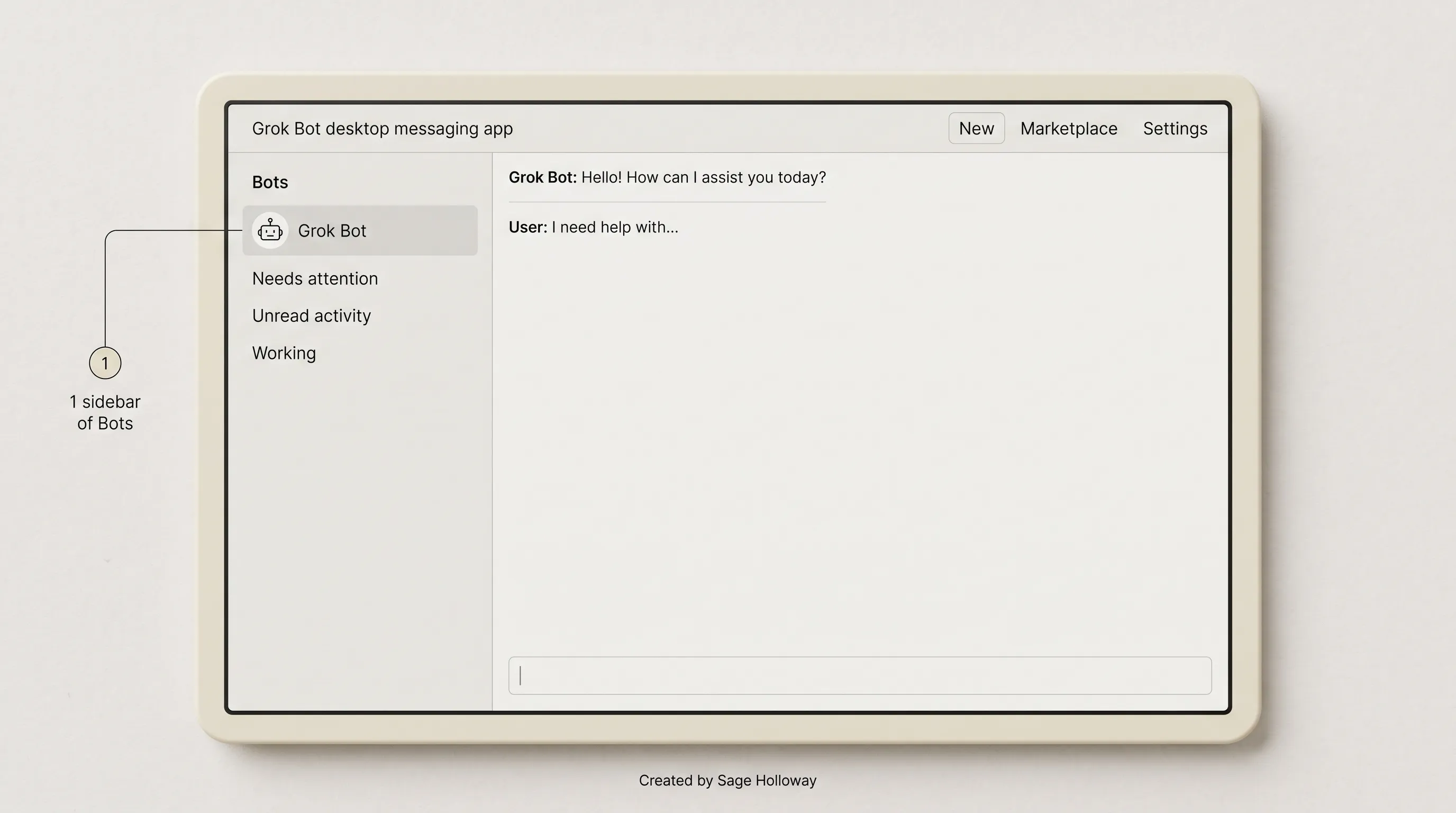
After install you get a desktop messaging client, not a grok.com tab. First Bot in the sidebar is named Grok Bot or New Bot.
The official Grok channel launch film is the category picture: a cloud computer, work in real tools, follow-along teaching. Pair it with the OS matrix. It is not the grok bot how to install walkthrough.
https://www.youtube.com/watch?v=F1_0Lkp16Rc
Sign In with Cursor, then name the first Bot
Grok bot with cursor is the default account, not a crossover gimmick. Cursor Help on sign-in: "Grok Bot uses your Cursor account. There is no separate Grok Bot login." Grok bot cursor, grok bot in cursor, grok bot on cursor, and grok bot and cursor all mean this desktop app signing in through Cursor. They do not mean a Composer panel.
The viral line was "sign in with your Grok or Cursor account," as if those were two equal welcome buttons. That is the wrong first screen.
Grok bot access and grok bot how to get are this H2: eligible plan, then Sign in, then a named first Bot. Grok bot getting started in Help is the same spine.
Sign In with Cursor
Choose Sign in on the welcome screen. If you are already in the app, use Sign In with Cursor from Settings. Finish in the browser window, then return to the app. Org SSO uses the normal Cursor organization flow. Get started says the same sentence Help does.

Grok Bot uses your Cursor account. There is no separate Grok Bot login. Sign in with Grok is only for a Grok Business seat.
How to use grok bot with cursor, how to set up grok bot, and how to use grok bot in cursor fold into this click. There is no second identity named "Grok Bot user."
Link SuperGrok as a usage grant
After Cursor auth, you can link SuperGrok from Settings → Usage & Billing (Link SuperGrok Heavy, or the tier that applies) or, on mobile, Link Grok Account, then Finished Linking? Refresh My Status. X Premium+ links the same way. Linking is a usage grant, not a second Grok Bot login, and it does not stack with an already-included Cursor plan.
Do not paint SuperGrok on the welcome screen as a peer of Sign In with Cursor. It is not there.
Sign in with Grok (Grok Business seats only)
The one documented Grok-first path: if access comes from a self-serve Grok Business seat, sign out and choose Sign in with Grok with the Grok account that holds the seat. Help reserves that button for that seat. Do not use it because a blog said "sign in with Grok."
Onboarding after a clean Sign in sets up your first Bot, named Grok Bot, and opens a chat with it. Later, New (Cmd/Ctrl+N) → Create new Bot opens a Bot named New Bot. Then Bot menu / Edit Profile / Bot settings: Name, Label, Description, Avatar. You may rename it Chief of Staff if that is the job. Chief is not a factory persona in the sidebar.

Onboarding names the first Bot Grok Bot. Create new Bot opens New Bot. Chief of Staff is a job you type, not a shipped persona.
Get-started also describes Meet a future teammate or Create your own (short name, one primary job, description). Example in that doc: Name Piper, Job Product performance. Docs want a clear finish line on the first task, not a 30-second party trick. Official starter is a document summarize with no connector ("five bullets"), then a tool task that may ask for sign-in.
Matt Palmer's getting-started film walks create a Bot, Plugins, Auto Review, and a conversational schedule versus Slack or GitHub events. Use the reconstructed screens here for the exact labels.
https://www.youtube.com/watch?v=jwogmXNt7o4
Give the Bot a job title and a never-do line
You borrowed a night driver for the airport run. You sat in the back for the first miles and pointed at the garage, the gate pad, the neighborhood the company card must never enter. Then you went inside and closed the door. The car kept moving. You did not park a second car in the driveway for the grocery stop. You handed one set of keys, several clipboards on the dash, and a map with roads crossed out.
That is the grok bot how to that actually compounds. A prompt is a request. A Bot is a role. It persists, accumulates memory, owns a domain, and gets better at that domain because you keep coming back to the same thread. So name it after a job someone could actually hold.
Official chrome for that briefing is Name, Label, Description, Avatar. The charter lives in Description, not in a secret Rules field. Write it the way you would brief a new hire on day one: what it owns, what good looks like, and what it must never do without asking.
Bots that have to ask about everything are useless. Bots that never ask are dangerous. The never-do line is what lets you leave it running, because you defined where authority stops.
Official example jobs from use-cases and the product page, not a cover-diagram org chart: Sales Outbound, Talent Scout, Expense Manager, Account Health, Chief of Staff. Paid Media, Product Performance, and Bug Reproduction are on that list too. Inbox manager appears on the more-plans post.
Cover "Accounts" is not a template. Closest official name is Account Health. Do not reconstruct a factory Bot named Chief.
Best grok bot setup on day one is one job, one never-do, one checkable result. Docs: "Start with the smallest useful roster." Anti-pattern job name is General Helper. It sounds friendly. It is a permission to wander.
Paste this into Description if Chief of Staff is the job you actually want. Operating advice mapped onto official fields, not a shipped template:
The first task should have a finish line you can see. Author posts love "thirty seconds." Docs do not require a stopwatch. They require a result that does not change an external service until you trust the next click.
All your Bots share one cloud computer
The night driver did not get a second engine when you added a second clipboard. Same car. Same gate pad. Same keys.
Official names: cloud computer, Grok Bot's Computer, Agent Computer. Hosted as a Firecracker microVM in Cursor's cloud. A Firecracker microVM is a lightweight virtual machine that isolates one user's computer from every other user's. Isolation is between users. It is not between Bots on your account.
Overview: "All of your Bots use the same cloud computer, sharing its files, browser sessions, and app logins." "The computer belongs to your account, not to an individual Bot." FAQ: "The computer is assigned per user, not per Bot. Do not use separate Bots as a security boundary."
The viral post said each bot gets its own computer in the cloud. That claim is false. Marketing copy that says "their own computer" means the product has a cloud computer. It does not mean a VM per Bot. Each Bot gets its own screen on that shared computer (one computer-use task per Bot at a time). Screens are work surfaces, not a security boundary.
Shared: files, browser sessions, cookies, command-line credentials. Separate: each Bot's screen, conversation, and learned role. Alignment on the same account is the sharing model, not a contradiction of isolation. You stay aligned because they share the machine, not because someone invented a vault.

The computer belongs to your account, not to an individual Bot. Screens are work surfaces, not a security boundary. Close the lid; work continues.
But here is the thing. Closing the app, laptop, or phone does not stop a background turn or routine. That lid-shut story is true, and it is why people search this grok bot desktop app in the first place. It is also why a polite Description is not a lock. A Bot can act while you are asleep because the computer is in Cursor's cloud, not because each Bot rented a private box.
If two jobs need genuinely different trust levels, separate the Cursor users or the credentials. Do not hire a second Bot and call it containment. Mechanism depth stays on how Grok Bot works. This page only needs you to stop designing a first run around a per-Bot VM that does not exist.
Computers run in the United States today. Cursor's US-only residency program does not apply to Grok Bot by default. Idle computers hibernate. Hibernate is not deletion.
Connect plugins from Marketplace, once for the whole roster
Connectors install as plugins from Marketplace (sidebar, or Cmd/Ctrl+Shift+M). Cursor Help calls the same surface Plugins. Grok bot settings in search often means this shortcut plus Settings (Cmd/Ctrl+,), not a hidden ACL for who may use Gmail.
The viral eight-row panel named Notion, Slack, Google Drive, AWS Agents, AWS SageMaker, Browserbase, Composio, and Context7, plus a custom row, and called them one-click. I treated that list as the catalog for a day. Help never showed AWS Agents.
Add, then Authorize
Browse, Add, then Authorize or Authenticate in the browser. Installed versus Needs auth / Disconnected. In chat, @ attaches a connector and / references a skill. Connect cards can appear in-thread.
Official Help / docs names (not a closed catalog): Gmail, Notion, Slack, Google Calendar, Drive, Docs, Sheets, Slides, plus a GitHub plugin and an X plugin. Gmail connects one mailbox at a time. Google signs in as Grok, not Cursor. Zoom is named; desktop auth currently fails with error 4700. Custom / MCP exists as Teams connector policy, not as a beginner row.

Connectors install as plugins from Marketplace. Add, then complete Authorize in the browser. Shortcut Cmd/Ctrl+Shift+M.
AWS Agents, AWS SageMaker, Browserbase, Composio, and Context7 are not on the official catalog pages fetched on 10 October 2026. Third-party directories list hundreds of plugins. Those lists are not a citation.
You are not paying for more computers. You are deciding how many jobs may drive the mailbox you just authorized.
Account-wide blast radius
Installed plugins belong to the signed-in account. Connect plugins: "An installed plugin is available to every bot on that Grok Bot account. Disconnect Gmail if a bot should not use that mailbox." Browser sessions persist on the shared computer, so signing in for one Bot makes the session available to the others. Notion-class plugins can Add Another Account; every Bot can use every connected account.
There is no per-Bot inheritance picker in the fetched docs. Team policy can show Disabled by team admin. Blocking a plugin does not block that service's website.
The source was right that connections are shared, and right that Gmail or GitHub connected once is available to the rest of the roster. It was wrong that the catalog is those eight rows, and wrong that the click is one-click. The "during a beta, connect only what you need" caution is dated as an access label. The blast-radius rule is current.

An installed plugin is available to every Bot on the account. Disconnect Gmail if a Bot must not use that mailbox.
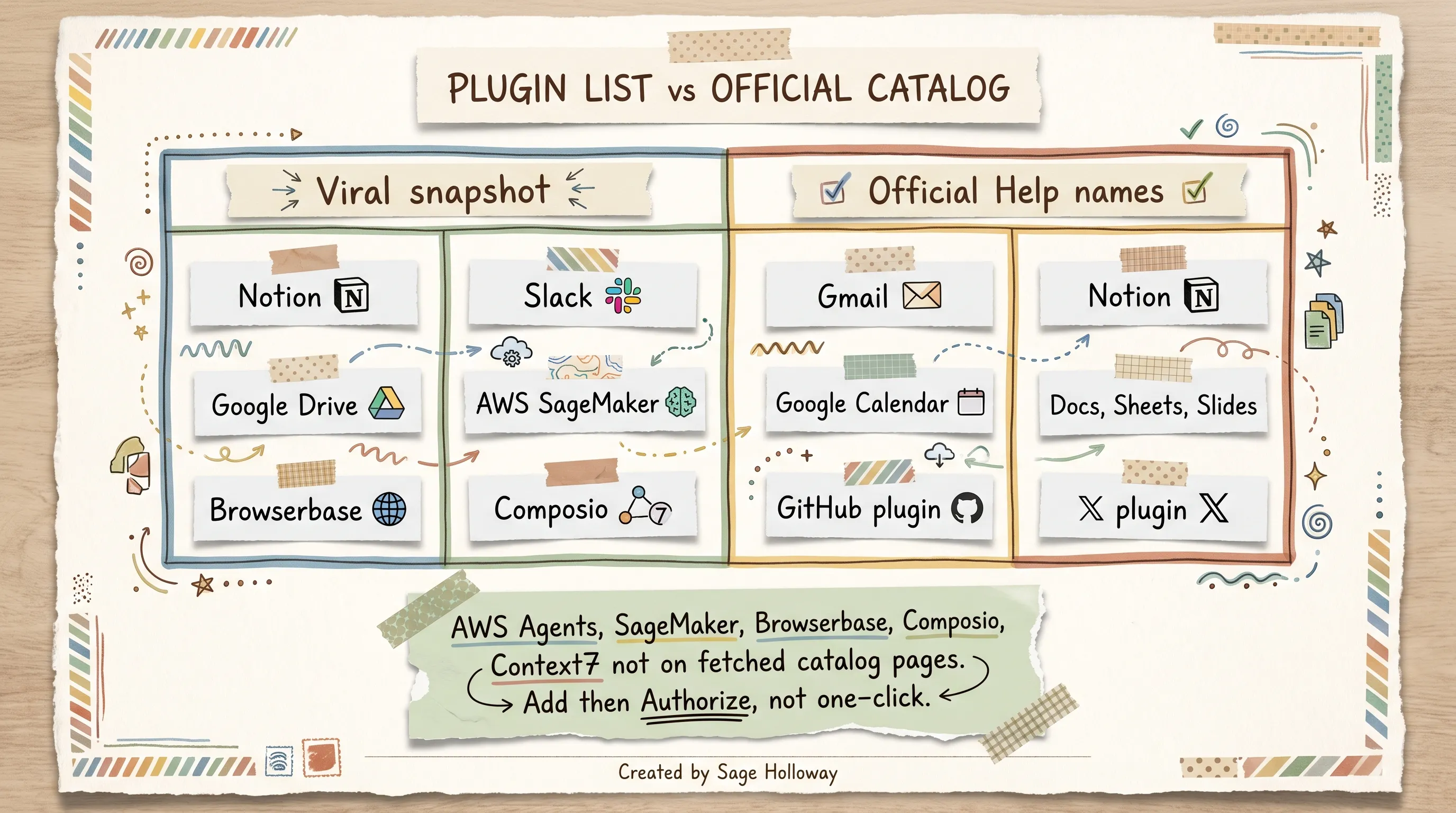
The eight-row panel is an author snapshot, not the official catalog. Help names Gmail, Notion, Slack, Calendar, Drive, Docs, Sheets, Slides, plus GitHub and X plugins.
Connect the tools the job actually needs. Leave the rest alone. The fifth Bot is fast because the pipe is already on the account, which is exactly why you should be slow to open Gmail.
Take over at the login wall; never paste a password in chat
This is the mechanic that makes the product work on sites with no API and no MCP server. MCP (Model Context Protocol) is an open standard for connecting models to tools. Computer use is what you do when a connector does not exist: the Bot drives a browser on the cloud computer until a human is required.
Official path:
The Bot reaches a login, 2FA, CAPTCHA, payment, or other human-required page.
The conversation shows a Computer card marked
Action needed.Open Agent Computer and choose
Take over.Type the password, passkey, 2FA, or CAPTCHA yourself on the cloud computer. Laptop biometrics and local passkeys do not work there.
Choose
I'm done. The Bot continues.Skipif you do not want to sign in now. Docs also say return control and tell the Bot to continue.
The viral post said authenticate, click done, resume. Close. The control is I'm done, not a lone Done. The start control is Take over.

When the Bot hits a login wall, take over the cloud computer and type the secret there. Never paste a password into chat.
You never type a credential into a chat message. The Bot gets a session, not a secret in the transcript. Supported connections can present a secure secret request (masked, not shown to the model) and Help Secrets: Save securely. Computer and apps: "Avoid pasting passwords or one-time codes into chat." Do not type them during Teach a task either.
If a tool ever asks you to paste a password into a conversation, that is the wrong path. Identity-provider sign-in on the computer is comparable to enrolling a new laptop. A site can still block automation, expire a session, or demand a human. Take over exists so you stay in the loop for exactly that part.
The grok bot how to for internal tools is the same handoff: no connector, computer use, Action needed, Take over. It is not a promise that every internal app will cooperate.
Serious Though's quick guide is useful here for Take over / return control, Teach a task (ten minutes), and a group of two to six. Labels in this article follow official docs, not ad-libbed button names.
https://www.youtube.com/watch?v=-Y0FDFtR0D4
Teach a task to draft a skill, then attach a routine
Grok bot setup and grok bot setup guide, in the docs, are not a node canvas. Overview: "Setup is a message, not a workflow builder." A skill is how. A routine is when. Official pair for when: a schedule, or where supported an event. The product word is event, not Trigger.
Start with a one-time task. Make it reliable. Save the method as a skill. Only then automate it.
Teach a task (draft skill)
When Teach a task is available:
Open a one-to-one Bot conversation and its computer view.
Choose
Teach a task.Describe the result you are about to demonstrate.
Perform the workflow once.
Stop the recording and review the skill the Bot creates.
Test on a safe example before scheduling.
Teaching records visible computer interaction for up to ten minutes. It does not record microphone audio. Rollout may be gradual. If the control is missing, ask the Bot to create a skill from written instructions. The learned skill is a draft.
The viral post said watch-once saves the routine. The product page is looser still: "It saves it as a routine and runs it on its own next time." Skills, routines, and automations is the procedure: it drafts a skill. A routine is a later step.

Teach a task drafts a skill. A routine (schedule or event) is a later step. Recording is limited to ten minutes. No microphone.
Author color likes a dashboard-to-doc-to-Slack demo with a 15% drop. Treat that as a shape, not a shipped recipe. Best first recording, as operating advice: something you do at least weekly, that involves two or more tools, and where the steps rarely change. Recurring, multi-tool, stable.
Launch copy says Bots remember conversations, learn how you like things done, and over time become more proactive. That is an official direction of travel. It is not a toggle. Do not plan a first run around work-before-you-ask.
Schedule or event (the routine)
Ask the owning Bot conversationally. Docs shape: every weekday at 8:00 AM, run this skill, in the Timezone from Settings → General → Bot → Timezone. Also manage in View conversation details → Routines: enable or pause, Test run, edit schedule or instructions, inspect recent runs, delete.
Documented event examples: a Slack message, or a GitHub notification. Those Cursor account integrations are separate from Slack or GitHub plugins. Docs warn against broad listeners ("every new message"). Inbound-email-pattern and document-change are not named event types on the pages fetched. Source 7am briefings, Friday pipelines, and month-end filing are plausible uses, not named trigger types.

A skill is how. A routine is when. Ask the owning Bot, or open View conversation details, then Routines. Test run does real work.
Two-minute, single-prompt setup is author anecdote. Drop it as fact.
Limits you will actually hit:
A Bot can own up to 50 routines.
The app keeps the 20 most recent run records per routine.
Schedules must be at least five minutes apart.
Teach a task: ten minutes.
Group chat (next section): two to six Bots.
Unattended approvals expire after about 10 minutes.
Delete is immediate, with no undo.
Test run performs real work.
After a long period away, Grok Bot may ask whether to keep routines running and pause them if there is no response.

Limits the first run actually hits: 50 routines per Bot, 20 run records, ten-minute Teach a task, group of two to six, schedules at least five minutes apart.
Nate Herk's ten-minute week of lessons is the skill-then-routine correction in motion. That order is the docs, even when a product-page line says "saves it as a routine."
https://www.youtube.com/watch?v=TMPUUyQC5aM
Type this once the skill is clean. Timezone from Settings → General → Bot. Documented events only if you add a second example: Slack message or GitHub notification.
Hire specialists by domain, then a group of two to six
You can run multiple Bots in parallel, each handling a different area. Separate Bots mean separate memory, separate context, separate accountability, and still one computer. An Expense Manager that only ever thinks about receipts gets good at your receipts. A generalist juggling expenses, recruiting, and outbound is worse at all three, and gives you no clean thread when something goes wrong.
The right split is by domain, not by task size. Official guidance is still the smallest useful roster. Launch post: people inside SpaceXAI often run multiple Bots in parallel, with one to manage the others. Internal uses named there include sales outreach, marketing, office operations, and bug fixes. Those are launch-post examples, not a required hire list.
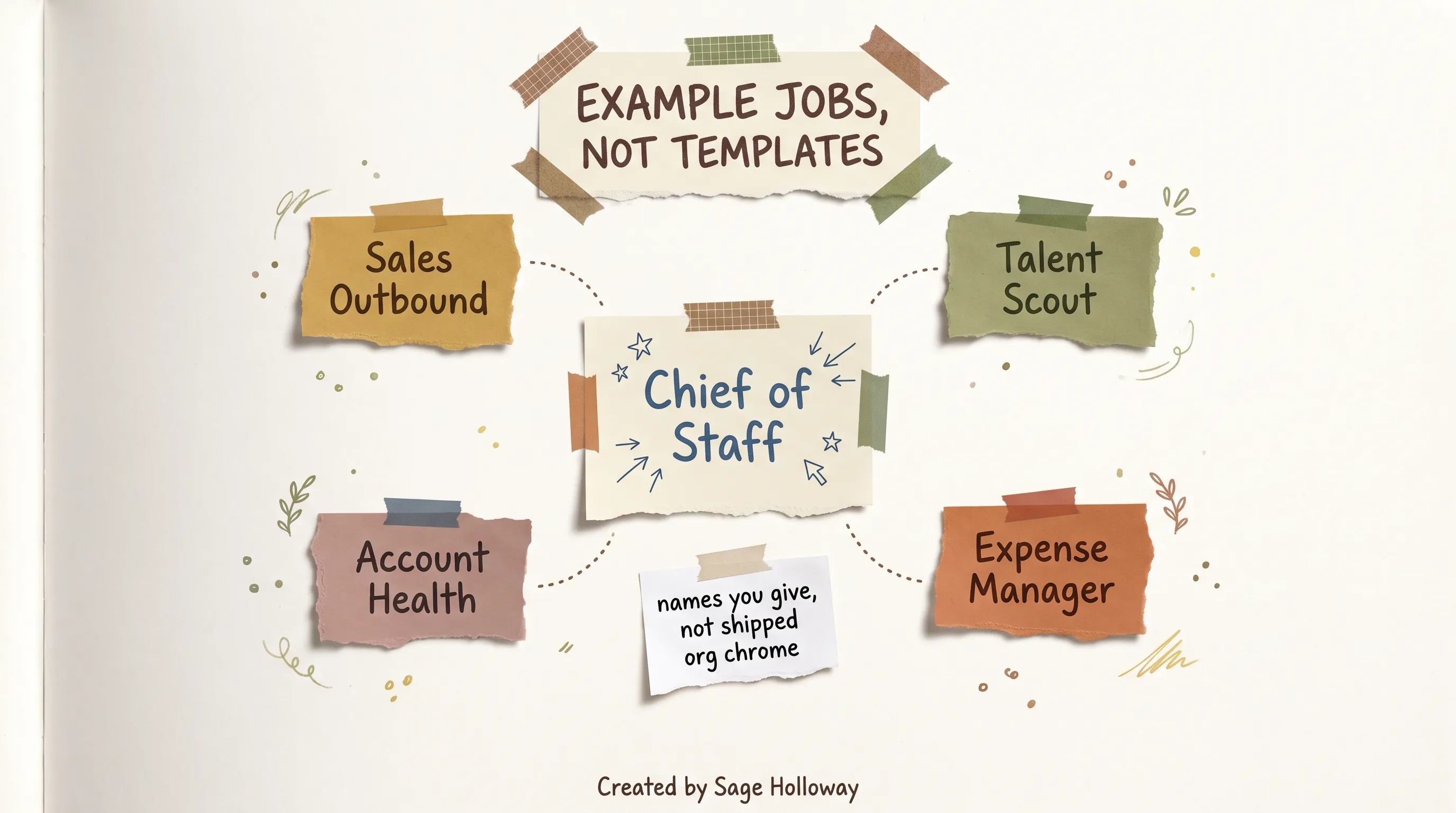
These are example jobs you name, not a shipped org chart. Cover "Accounts" is not a template; closest official name is Account Health.
The source announced "a workable starting roster looks like this =" and then the list never appeared in the text. Fill from official example jobs. Never import Research, Build, or Review from the mechanism essay. Marketplace can Add / Import Bot from a template. That is a copy of someone else's configuration, not a cover-diagram node.
Then put them in a group. New → New chat → select two to six Bots. Mobile: + → New Group Chat. Direct with @, use @everyone sparingly.
Kickoff is a shared outcome, not a task list. A task list means you already did the decomposition. An objective lets them split it.
A Bot can send an asynchronous message to another Bot. The receiver wakes, handles it, can reply later. You can see the handoff. Launch post engineering example: a Bot reproduces a bug in the product UI, files the ticket, and hands the fix to a debugging Bot. Author rhetoric that this "does not exist in any tool you have used before" is not a product fact.

In New chat, select two to six Bots. Approvals, secrets, and email or Slack drafts do not appear in a group.
Honest constraint: approvals, secret/login requests, and email or Slack drafts do not appear in a group. Bot-to-group handoff messages are currently text-only. Group size is two to six, not unbounded. Separate Bots are still not a security boundary.
Cursor's product best-practices talk covers specialist Bots, group chat, and handoffs. Do not copy that video's demo names as this article's roster.
https://www.youtube.com/watch?v=x5OawRpQxII
This grok bot tutorial section is coordination, not architecture. If you wanted the metal (screens versus VMs), that remains how Grok Bot works.
Park irreversible work with Auto Review
Grok Bot's premise is that a Bot finishes jobs end to end and comes back when something needs approval. That puts the burden on you to define what "needs approval" means, because the default the Bot picks may not match yours.
Official controls, not a mode named Reversibility:
Standing boundaries in the Bot
Descriptionand in the request.Settings → General →
Auto-review:Ask firstversusAllow automatically. Ask first wins. Team rules can be locked.When a card appears, copy is
Review an action. Buttons:Allow once,Always allow,Deny.Email / Slack: editable draft, then
Send email/Send messageorDiscard.Docs explicitly park: sending, publishing, purchases and transfers, deleting or overwriting, changing permissions, production changes, accepting legal terms.
Unattended approvals (routine, event, message from another Bot) expire after about 10 minutes (Expired). May offer Always allow this in the future.
An approval does not reverse work already completed. Stop now does not undo completed actions.

Park send, publish, purchase, delete, permissions, production, and legal terms. Unattended approvals expire after about 10 minutes.
Operating advice that matches that park list: anything the Bot can undo (drafting, filing, tagging, summarizing, researching, preparing) it should finish alone. Anything the outside world sees, or that moves money, or that cannot be taken back, gets parked. Label that as advice. It is not a product switch.
Sales Outbound official starter: "Return a review list; do not send or enroll anyone." More-plans: leaves every send for you to approve. Drop "36 drafts queued, 0 sent" as measured fact. Do not paint those numbers on a queue widget.
Prompt injection controls "reduce, but do not eliminate, risk." Auto Review does not review every side effect. Memory writes and most settings changes are examples. Local execution default is Ask every time; recommend Never allow unless needed.
Best grok bot setup for sleep is Ask first on send, publish, purchase, delete, permissions, and production. Then one Description line that says the same thing in plain language. Two layers. Same decision.
Read routine history and kill what you would not miss
Automation rots quietly. A site changes its layout. A routine starts producing garbage. Because the Bot runs while you sleep, nobody notices for a stretch. Grok bot instructions that only live in a forgotten thread will not catch that.
There is no product feature named Weekly Review. Author pacing that says "put fifteen minutes on the calendar" is pacing, not a timer in Settings.
What you actually have:
View conversation details → Routines: recent success and failure history (20 most recent runs per routine).
Sidebar Needs attention / Unread activity.
Command palette
Cmd/Ctrl+Kfor prior messages, files, links, routines.The conversation transcript: tool activity, computer use, files, questions, approval requests.
For each routine, three questions as operating advice: did it run, was the output actually right, and would I miss it if I killed it? The third question matters because the natural drift is a pile of half-useful automations nobody has the nerve to delete. Delete has no undo, which is a good reason to be sure, and a good reason not to hoard.
Asking Bots to report on themselves is useful color. They keep the threads. Then spot-check one output per routine by hand, because a Bot reporting on its own work has the same blind spot you do. Memory is not a source of truth for consequential decisions. Ask the Bot to check the current source.
If you would not miss it, kill it. The 50-routine cap is generous. Your attention is not.
FAQ
What is Grok Bot and how do I use it?
Grok Bot is the desktop and companion app at x.ai/bot, not grok.com chat. Sign in with a Cursor account, name a Bot, connect Marketplace plugins the job needs (or Take over at a login wall), Teach a task to draft a skill, then attach a schedule or event. All Bots share one cloud computer.
Mechanism depth (what it is, how the computer is assigned) lives on how Grok Bot works. This URL is how to use it.
What is Grok Bot in Cursor?
It is the teammate app that signs in with your Cursor account. There is no separate Grok Bot login. It is not a Composer panel and not a model picker inside the editor. How to use grok bot in cursor folds into Sign In with Cursor, then the desktop sidebar of Bots.
How to access grok bot in cursor?
Install the desktop app from x.ai/bot or cursor.com/download/bot. Choose Sign in on the welcome screen, or Sign In with Cursor from Settings, and finish in the browser.
Access is included with paid Cursor plans and Cursor Teams, or you link SuperGrok / X Premium+, or you Sign in with Grok for a Grok Business seat. SuperGrok Lite is not included. Trial credit is a different URL.
How to use grok bot on linux?
Download the Linux build (x64 or Arm64) as .deb, .rpm, or AppImage from the official matrix. Open the app, Sign In with Cursor, then follow the same first-run as Mac and Windows: named Bot, Marketplace or Take over, skill, then routine. Grok bot ubuntu is that package path, not a separate product.
How to use grok bot effectively?
One job per Bot, a never-do line in Description, Marketplace only for tools that job needs, Take over at login walls, skill before routine, Ask first on send / publish / pay / delete / production, then prune routines you would not miss. Docs: smallest useful roster. Do not use separate Bots as a security boundary. Test run does real work.
How to use grok bot on mac?
Download Mac (Apple Silicon) or Mac (Intel), drag to Applications, Open if Gatekeeper asks, then Sign In with Cursor. Same first-run as every other desktop. Companion iPhone / iPad apps are iOS 18 or later; that depth is the iOS spoke, not this install.
How to start using grok bot?
Eligible plan, install, Sign In with Cursor, accept the first Bot named Grok Bot (or Create new Bot → New Bot), give it a Description never-do, run one task with a clear finish line, connect one plugin or Take over once, save a skill, skip the routine until a test run is clean. How to start using grok bot is that spine, not a ten-node crew on night one.
Is grok bot part of cursor?
Grok Bot uses your Cursor account and runs computers in Cursor's cloud. Docs and Help live on x.ai under SpaceXAI-branded pages. Company legal name is SpaceXAI LLC, separate from X Corp.
Anysphere (Cursor) holds ISO 27001 and 42001; Grok Bot is in that ISO scope. It is not a Cursor sidebar tab, and it is not grok.com chat.
Is grok bot only on mac?
No. Desktop: macOS (Apple silicon and Intel), Windows (x64 and Arm64), Linux (.deb / .rpm / AppImage). Companion: iPhone (iOS 18+), iPad (iPadOS 18+), Android 9+. The viral macOS-only line is false.
The night driver will still be in the car after you close the door. The gate pad will still open for every clipboard on the dash. Marketplace will still be account-wide in October, and Auto Review will still miss side effects it does not claim to catch. I would rather you finish one checkable job with a never-do line than collect five names you cannot park.
Tonight, install the desktop app for the OS you actually use. Sign In with Cursor. Leave the first Bot named Grok Bot, or rename New Bot to a job you could hire a person for. Paste a never-do into Description. Connect one Marketplace plugin, or Take over once at a login wall. Do not schedule a routine until a test run is clean.
Tomorrow, open View conversation details → Routines even if the list is empty, so you know where history will live. If Teach a task is missing, write the skill as instructions and keep going. Gradual rollout is an honest constraint, not a failed install.
The keys are still one set. Keep them that way.
If you want the next first-run piece in your inbox, that is what the newsletter is for.
Until then...
Sage
PS. The product page and the procedure page still disagree on one verb. One says follow-along teaching saves a routine. The other says the demonstration drafts a skill. I now open the procedure page before I trust a sentence that sounds like a finished automation.
Related Reading
How Grok Bot works: named Bots, one computer per user, skills versus routines. This URL stays on first-run how-to.
Does Grok Bot have a free trial: usage credit, 7-day window, Cancel Trial. Not this install path.
Can Grok Bot make me money: official jobs and Auto Review stop conditions. Not this first-run install.
Grok Bot iOS: companion app on iPhone and iPad. One-line pointer from Download, depth there.
Get started (docs): install, Sign In with Cursor, first Bot, takeover.
Sign in (Cursor Help): Cursor account; Sign in with Grok only for Grok Business.
Overview: shared computer, platforms, paid-plan inclusion.
x.ai/bot: product page and downloads.
Author
Practical guides, tool teardowns & AI engineering workflows.


