AI Agents
n8n Self-Hosted AI Starter Kit: Architecture, Docker Setup, and Production Hardening Guide

Sage Holloway
28 min read
Go back to blog
SHARE

You can clone a multi-container repository in ninety seconds, launch four Docker services, and watch a local language model answer chat prompts in your browser. Then you attempt to index an internal PDF directory, and n8n quietly blocks the file node for security while your CPU pins at 100 percent because your Mac GPU was never exposed to the container. The Docker Compose template was never the hard part. Understanding hardware bridges, node permission boundaries, and production network isolation is what turns a fragile desktop demo into a dependable private automation engine.
The n8n self-hosted AI starter kit is an open-source Docker Compose template combining n8n, Ollama, Qdrant, and PostgreSQL into a private, local AI development stack. It enables developers to build local AI agents and retrieval-augmented generation (RAG) pipelines without cloud API subscriptions, data leakage risks, or vendor lock-in.
Last verified: 31 August 2026
That is the direct answer. But if you want to deploy a reliable, self-contained AI infrastructure that your team can run against production workloads, following a generic quickstart will leave you stranded at the first hardware bottleneck or security boundary.
The developer ecosystem spent the last two years routing sensitive company data through third-party proprietary APIs. By 2026, privacy regulations, API rate limits, and recurring subscription overhead forced engineering teams to rethink that dependency. The idea of running an autonomous automation engine entirely on your own silicon is intoxicating: zero per-token billing, zero external data leakage, and total control over your orchestration layer.

The n8n self-hosted AI starter kit provides a private, containerized automation stack combining n8n, Ollama, Qdrant, and PostgreSQL.
Yet most developers who clone the repository hit a wall within their first afternoon. They launch the containers, only to discover that Docker cannot access their Mac GPU, forcing inference onto a crawling CPU. They attempt to process local documents, only to find that modern n8n security updates silently disabled local disk triggers. And when they push the stack to a cloud virtual machine, they realize the default setup exposes unauthenticated database and model ports directly to the public web.
This guide bridges the gap between a toy local demo and a production-grade private automation stack. We will dissect the multi-service architecture, walk through hardware-specific execution profiles for Nvidia, AMD, and Apple Silicon, unlock local file processing under n8n v2+ security policies, wire an end-to-end local RAG pipeline directly on the visual canvas, and lock down the entire deployment behind automated TLS reverse proxies.
What this guide covers
Architecture breakdown: the minimal upstream 4-service engine versus extended community stacks
Hardware execution paths: configuring Docker Compose profiles across Nvidia CUDA, AMD ROCm, CPU, and Apple Silicon Metal bridging
Unlocking local disk access: resolving disabled file nodes in n8n v2+ using the
NODES_EXCLUDE=[]environment overrideFirst-run initialization: local owner account setup, Qdrant dummy API key bypass, and automated model downloads
Canvas workflow engineering: step-by-step wiring for local document ingestion, vector embeddings, and autonomous agent loops
Hardware sizing and VRAM rubrics: memory allocation benchmarks across 3B, 8B, and 14B+ model tiers to prevent container crashes
Bridging the PoC warning: production network segmentation, automated Caddy TLS termination, and basic authentication
Lifecycle maintenance and troubleshooting: zero-data-loss container upgrade sequences and common failure mode fixes
Nine verified technical FAQs addressing hardware constraints, bare-metal quirks, and operational boundaries
Production self-hosted AI audit checklist and implementation next steps
Stack Architecture: Core 4-Service Engine vs. Extended Community Ecosystem
To understand how the n8n self hosted ai starter kit operates, consider how a precision manufacturing cleanroom is partitioned.
You do not place raw chemical refinement, parts fabrication, inventory warehousing, and quality inspection inside a single open room. If you do, dust from the machining lathe contaminates the chemical vats, and inventory overflows the assembly line. Instead, you build four sealed, climate-controlled chambers connected by dedicated pneumatic airlocks. Each chamber runs its own specialized machinery on its own power circuit, passing workpieces across sealed boundaries only when summoned.
That modular containment is exactly how the official starter kit structures its local automation stack. It is not an opaque virtual machine or a tangled monolithic binary. It is a choreographed suite of four independent container services isolated within a private Docker bridge network.
The Minimal Upstream Engine (n8n, Ollama, Qdrant, PostgreSQL)
The canonical repository maintained by n8n (n8n-io/self-hosted-ai-starter-kit) and the official Self-hosted AI Starter Kit documentation bundle four purpose-built services into a single Docker Compose deployment:
n8n Workflow Engine (
n8n-ai-starter-kit): The visual orchestration hub exposed on port5678. It executes workflows, runs the LangChain agent loop, manages credentials, and translates incoming webhooks into node actions. Persistent state sits in then8n_datanamed volume, while local document interactions mount to./data/shared.Ollama LLM Runner (
ollama): The local inference engine exposed on internal port11434. It downloads, manages, and executes quantized open-weights models (such as Llama 3.2, Mistral, or Qwen) and generates dense vector embeddings via models likenomic-embed-text. Model weights persist inside theollama_datavolume.Qdrant Vector Database (
qdrant): The high-performance similarity search engine exposed on internal port6333. It stores high-dimensional embeddings generated from your documents and executes approximate nearest neighbor (ANN) vector queries when an agent searches for relevant context. Vectors persist in theqdrant_datavolume.PostgreSQL Database (
postgres): The relational persistence engine exposed on internal port5432. It stores n8n internal execution history, workflow metadata, user authentication records, and provides long-term chat session memory for autonomous agent conversations via thedb_datavolume.
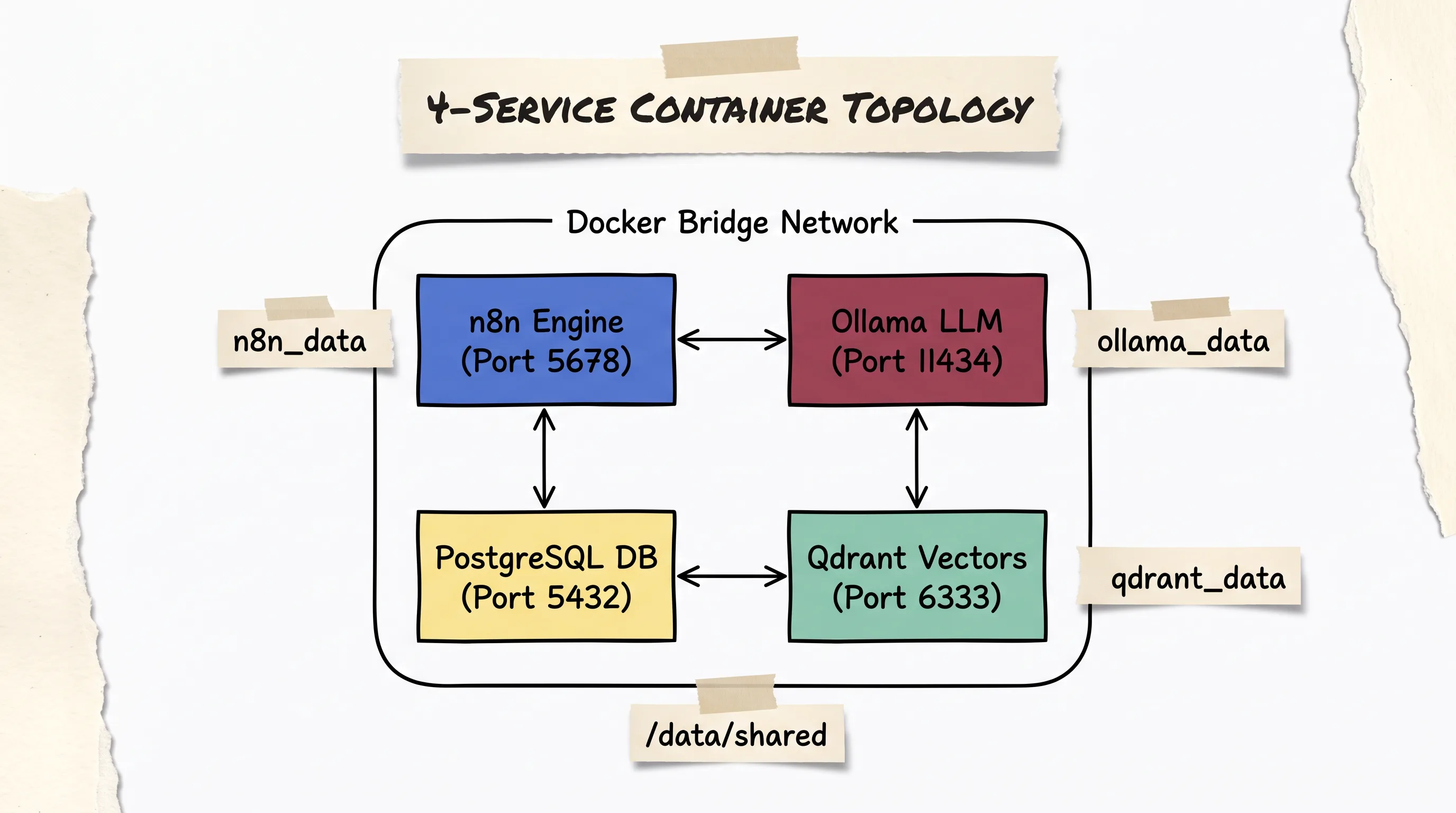
The official starter kit isolates four core container services inside a dedicated Docker bridge network with external persistent volume mounts.
Disambiguation: AI Docker Kit vs. Generic n8n Starter Kits If you search for
n8n starter kitacross community forums or social platforms, you will frequently encounter downloadable JSON workflow packs, CRM automation templates, or marketing roadmaps (such as Skool community bundles). Those are static template files designed to be imported into an existing n8n instance. In contrast, the officialself hosted ai starter kitis a full infrastructure bundle designed to run local language models and vector databases entirely on your own hardware.
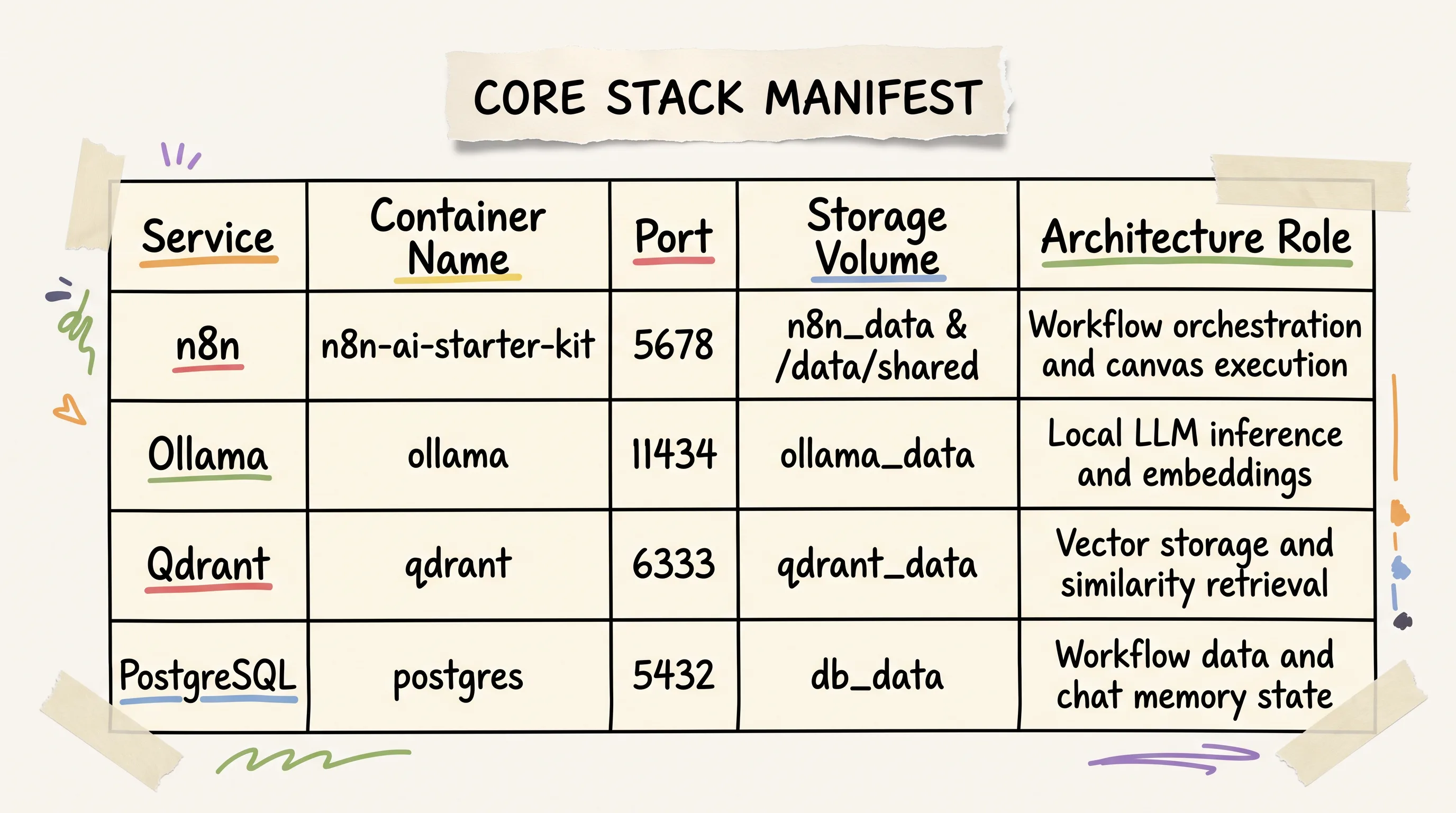
Core component manifest for the official self-hosted AI starter kit deployment.
Extended Multi-Service Stacks (Supabase, Open WebUI, and Langfuse)
While the official upstream repository focuses strictly on a minimal 4-service footprint, the open-source community created extended distributions for teams requiring a broader ecosystem. The most prominent community fork is Cole Medin's local-ai-packaged repository (coleam00/local-ai-packaged).
The extended stack expands the core 4-container foundation into an 8 to 12 container environment by introducing:
Supabase (pgvector & Studio): Replaces standalone PostgreSQL with a full Supabase suite, offering an administrative database GUI, built-in vector extensions via
pgvector, and object storage APIs.Open WebUI: Provides a polished, ChatGPT-style web interface connected directly to your local Ollama instance, allowing human team members to chat with local models outside of n8n canvas runs.
Langfuse: Adds open-source LLM observability, tracking token consumption, latency metrics, and agent reasoning traces across complex multi-step workflows.
Flowise / Neo4j / SearXNG: Optional modular add-ons providing alternative drag-and-drop agent builders, graph database storage, and private self-hosted web search.
Pre-Configured Caddy: Automates reverse proxy routing and SSL certificate generation out of the box.

Choose between the lightweight upstream 4-service stack for fast prototyping or the extended community stack for full enterprise services.
The architectural tradeoff comes down to resource overhead. The official 4-service starter kit runs comfortably with less than 2 GB of idle RAM, making it fast to spin up, easy to audit, and rock-solid for single-node development. The extended community stack provides an enterprise-like platform, but demands 16 GB or more of system RAM just to sustain background container overhead before loading a model into memory.
Hardware Execution Paths: Deploying Docker Compose Profiles across GPUs, CPUs, and Apple Silicon
The single biggest failure point when deploying the n8n ai starter kit is assuming that Docker handles GPU acceleration automatically. It does not.
Accelerating local language model inference requires passing raw hardware compute instructions from the host operating system directly into containerized runtimes. Because hardware architectures handle containerized acceleration differently across Linux, Windows, and macOS, the starter kit uses targeted Docker Compose profiles.
Linux & Windows Deployments: NVIDIA (gpu-nvidia), AMD (gpu-amd), and CPU (cpu)
To deploy the upstream starter kit on Linux or Windows (via WSL2), start by cloning the official repository and creating your local environment file:
Open .env in your editor to verify default credentials and encryption keys. Once configured, launch the stack using the Docker Compose profile matching your physical graphics hardware:
When running --profile gpu-nvidia, Docker utilizes the NVIDIA Container Toolkit to map host CUDA drivers directly into the Ollama container. On AMD Linux systems, --profile gpu-amd passes /dev/kfd and /dev/dri device nodes to expose ROCm acceleration. If you lack a supported GPU, --profile cpu compiles the fallback CPU runner, though inference speeds will be constrained by system memory bandwidth.

Select the exact Docker Compose profile command matching your host hardware architecture and GPU configuration.
The macOS and Apple Silicon Exception: Host-to-Container Routing via host.docker.internal:11434
If you are running on an Apple Silicon Mac (M1, M2, M3, or M4), do not run Ollama inside a Docker container.
Docker Desktop on macOS runs inside an isolated Linux virtual machine. Apple's Metal graphics framework and unified Neural Engine drivers cannot pass through this virtualization boundary into Linux containers. If you launch a containerized Ollama instance on a Mac, Docker cannot access your unified GPU memory and forces all tensor operations onto virtualized CPU threads. An 8B parameter model that runs at 35 tokens per second on bare metal will crawl at 2 tokens per second inside Docker.

Docker cannot access Apple Silicon GPUs directly; native macOS Ollama routing via host.docker.internal unlocks Metal acceleration.
To achieve full hardware acceleration on Apple Silicon, separate model execution from your containerized workflow services:
Install and run Ollama natively on macOS: Download the native macOS Ollama desktop application or install it via Homebrew (
brew install ollama). Launch the Ollama app so it runs as a native host process, binding to127.0.0.1:11434with direct access to Apple Metal.Configure n8n host routing in
.env: Open your starter kit.envfile and define the host network gateway variable:
Launch Docker without GPU profile flags: Start the remaining stack services (n8n, Qdrant, and PostgreSQL) using standard Compose without activating an internal Ollama container:
Inside the Docker bridge network, n8n resolves host.docker.internal to the host machine's IP address. When n8n executes language model queries or vector embedding transformations, it routes requests across the virtual network bridge directly into your native macOS Ollama engine, unlocking full Metal GPU acceleration.
Official step-by-step repository installation and Docker container startup walkthrough.
Unlocking Local Disk Access: Overriding n8n v2+ Security with NODES_EXCLUDE
Once your containers are running, you will likely want to build document-processing pipelines: watching a local folder for incoming PDF reports, extracting raw text, chunking passages, and writing embeddings into Qdrant.
However, if you open the n8n canvas and search for the Local File Trigger or Execute Command nodes, you will discover that they are completely missing from the node selector.
Why Local File Trigger and Execute Command Nodes Disappear in n8n v2+
Starting with the release of n8n v2.0, the core engineering team updated default security postures across all distributions. Because n8n is frequently deployed in multi-user and cloud environments, file-system interaction nodes (Local File Trigger, Read/Write Files from Disk, and Execute Command) are disabled out of the box.
This default prevents unauthorized users from inspecting underlying host directories or executing arbitrary shell binaries inside the container. In a private, self-hosted developer environment, however, this safeguard breaks local document ingestion pipelines before you can index a single file.

n8n v2+ disables local file nodes by default; setting NODES_EXCLUDE=[] and mounting /data/shared unlocks local document pipelines.
Configuring Mount Paths (/data/shared) and Compose Environment Variables (NODES_EXCLUDE=[])
To restore disk access, you must explicitly clear the node exclusion filter in your Compose configuration and map a shared storage volume between your host machine and the n8n container.
Open docker-compose.yml and locate the x-n8n shared configuration block (or the n8n service definition). Set NODES_EXCLUDE to an empty array and verify the volume mount:
Understand how path translation works across the container boundary:
On your host operating system, files live in the local project subfolder:
./self-hosted-ai-starter-kit/data/shared/.Inside the n8n container environment, that directory is mounted to
/data/shared/.

Configuring the Local File Trigger node inside /data/shared allows n8n to ingest local files dropped into the host directory.
When configuring the Local File Trigger or Read/Write Files from Disk nodes on the n8n canvas, you must always reference the internal container path /data/shared/ rather than your host filesystem path (/Users/username/... or C:\...). Dropping a file into ./data/shared/documents/contract.pdf on your host desktop will immediately trigger the n8n workflow listening on /data/shared/documents/contract.pdf.
First-Run Initialization: UI Setup, Credential Mapping, and Automated Model Pulls
With your Docker Compose services active, navigating to http://localhost:5678/ in your browser opens the n8n web interface.
Local Instance Account Creation on localhost:5678
The first screen you encounter is the initial owner account creation modal.
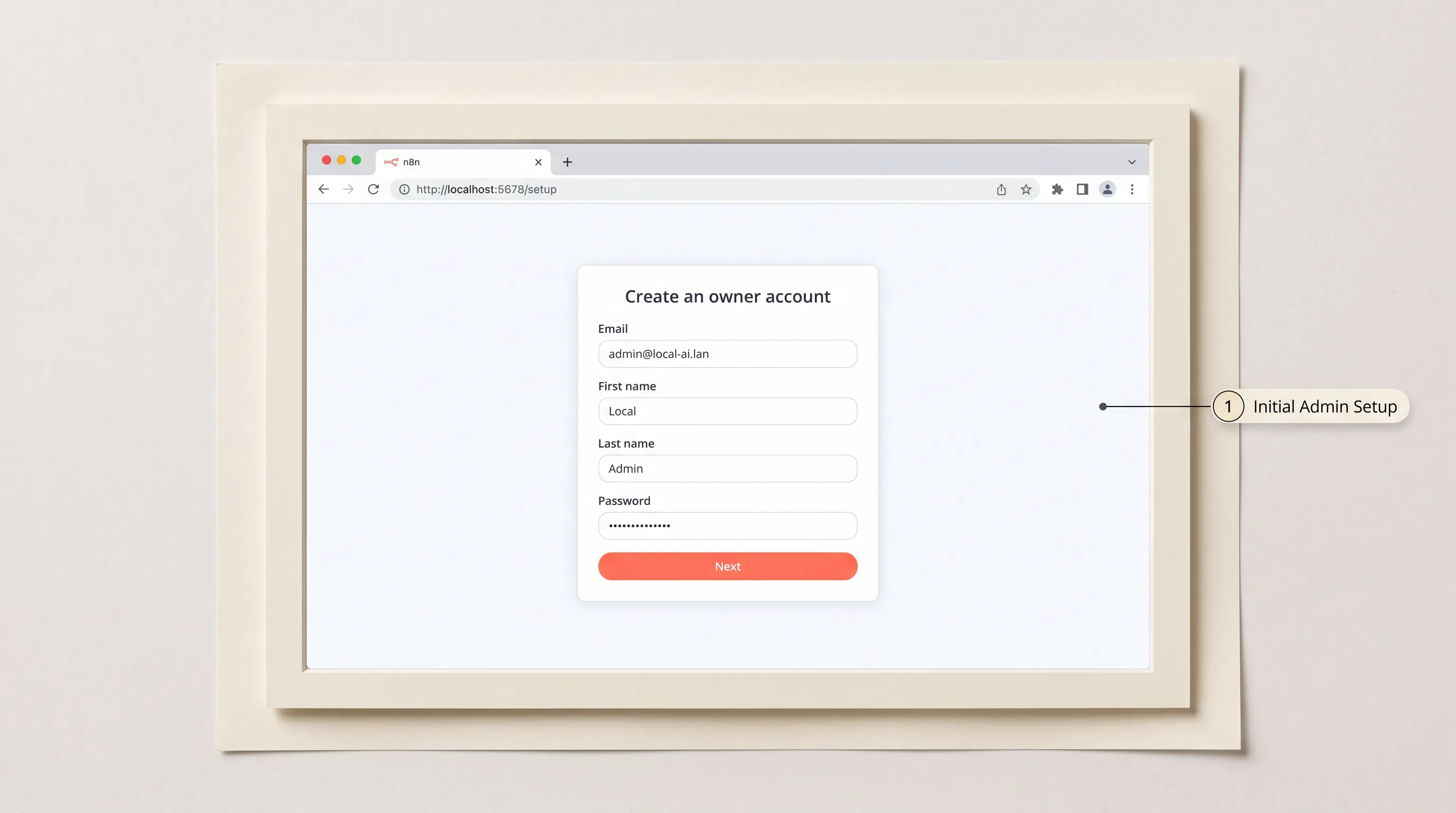
The first step after container spin-up is creating the primary administrative owner account on localhost:5678.
Enter an administrative email address, first name, last name, and a secure password. It is worth emphasizing: you are not registering an account with n8n's cloud service. This setup creates a local cryptographic identity stored exclusively inside your containerized PostgreSQL database (db_data). No telemetry, credentials, or workflow definitions leave your local network.
Credential Configuration and the Qdrant Dummy Key Bypass
Before running AI workflows, you must verify that n8n can communicate with its sibling container services. Navigate to Credentials in the left sidebar.
The starter kit comes with pre-configured credential stubs, but you must confirm their endpoint settings:
Ollama Credentials:
For Linux/Windows (Containerized Ollama): Set Base URL to
http://ollama:11434.For macOS / Apple Silicon (Native Host Ollama): Set Base URL to
http://host.docker.internal:11434/.
Qdrant Vector Store Credentials:
Set Host URL to
http://qdrant:6333.Set API Key to
dummy-local-key(or any arbitrary string).
PostgreSQL Credentials:
Set Host to
db(orpostgres), Port to5432, and enter the database name, user, and password specified in your.envfile.

Local Qdrant instances do not require authentication, but entering any dummy string satisfies n8n's UI validation requirement.
The Qdrant Dummy Key Validation Quirk: In standard self-hosted deployments, local Qdrant instances run without authentication enabled. However, the n8n Qdrant node modal enforces client-side validation that refuses to save if the API Key input field is empty. Because the local Qdrant engine does not validate authentication tokens, entering any placeholder string (such as
dummy-local-key) satisfies n8n's UI validator while allowing queries to pass through unimpeded.
Triggering First-Run Inference and Handling ollama pull Timeouts
The starter kit comes pre-loaded with an initial demonstration workflow accessible directly at:
This canvas connects a basic When chat message received trigger to an AI Agent root node powered by an Ollama Chat Model sub-node.
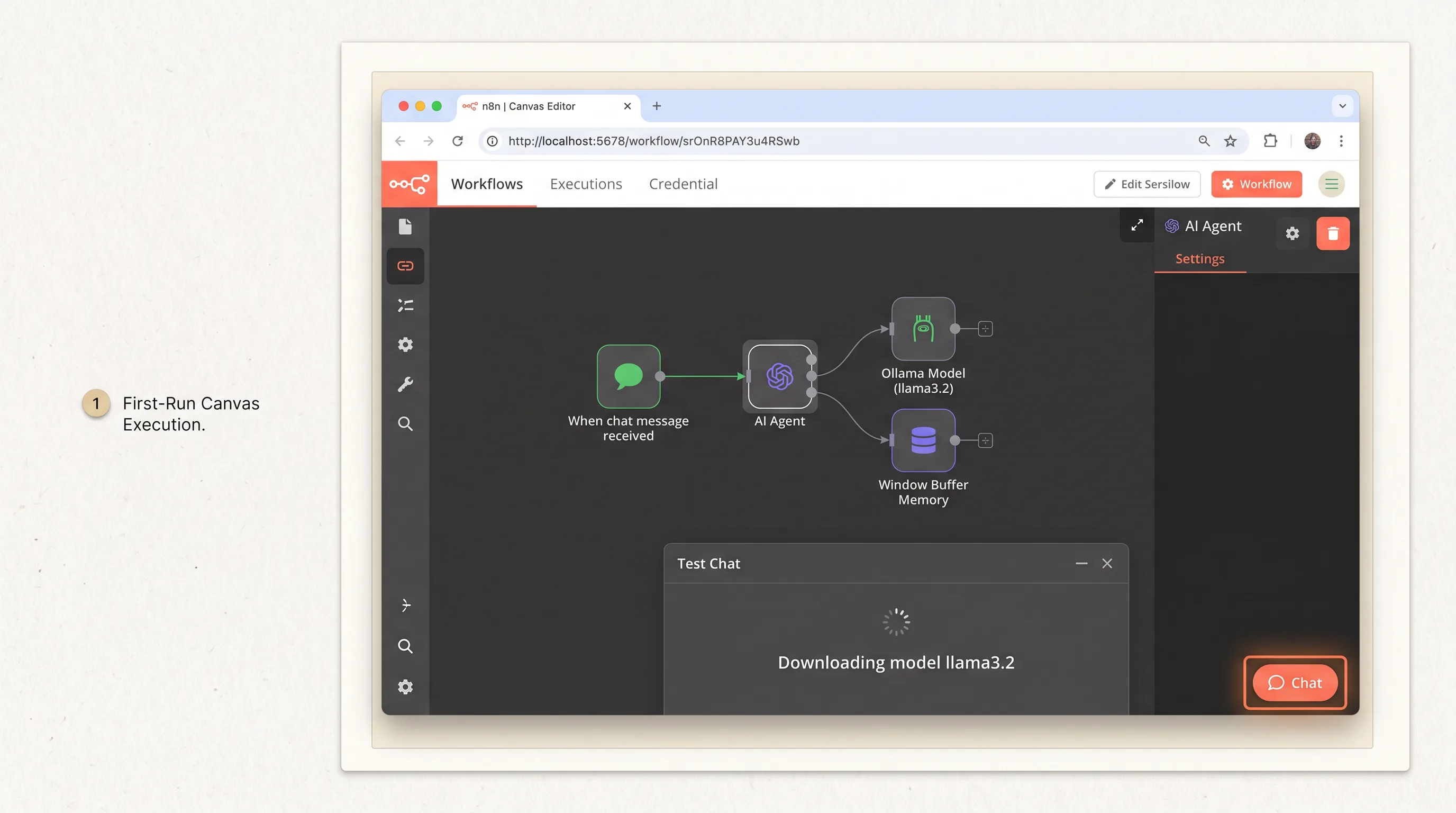
Clicking the Chat button at the bottom of the demo workflow canvas initiates the first-run Ollama model pull for Llama 3.2.
To test the installation:
Open the demo workflow and click the Chat button on the bottom canvas toolbar.
Type a greeting into the test drawer and hit send.
Observe the execution indicator.
On your initial execution, n8n instructs Ollama to load its default model (llama3.2). If Ollama has not downloaded these model weights yet, it initiates a background download over your network. Because model weights span between 2 GB and 5 GB, n8n may appear unresponsive while Ollama pulls the layers into storage.
If your network connection drops or n8n times out during the initial download, open your host terminal and trigger the model pull manually via the CLI:
Once the weights exist in local storage, subsequent inferences execute instantly without network delays.
Official demo walkthrough showing first-time canvas navigation and running the demo workflow.
Building Local AI Workflows: End-to-End Canvas Wiring for RAG and Autonomous Agents
Now that your container infrastructure is stable, let's assemble a complete, end-to-end local Retrieval-Augmented Generation (RAG) system directly on the visual canvas.
We will build two interconnected pipelines: an Ingestion Pipeline that parses local files into vectorized storage, and an Agent Query Loop that searches those vectors to answer questions with conversational memory.
Assembling the Local RAG Topology (Chat Trigger -> Text Splitter -> Ollama Embeddings -> Qdrant Vector Store)
To build the document ingestion workflow:
Add the Ingestion Trigger: Place a
Local File Triggernode on the canvas. SetTrigger OntofileCreatedandFile Pathto/data/shared/documents/. EnableWatch Subfolders.Attach the Document Loader & Text Splitter: Connect the trigger output to a
Default Data Loadernode. Attach aRecursive Character Text Splittersub-node to its tokenizer socket, settingChunk Sizeto500characters andChunk Overlapto50characters.Configure the Embedding Model: Connect an
Embeddings Ollamasub-node. Point credentials to your Ollama service and selectnomic-embed-textas the embedding model.Insert into Vector Storage: Route the chunked documents into a
Qdrant Vector Storenode. SetOperationtoInsert Documents,Collection Nametolocal_docs, and connect your Qdrant credentials.

The complete local RAG architecture routes documents through text splitters and embeddings into Qdrant, queried by an AI Agent node with Postgres memory.
Whenever you place a new document into ./data/shared/documents/ on your host machine, n8n detects the file, divides the text into overlapping chunks, generates high-dimensional embeddings through Ollama, and indexes the vectors into Qdrant automatically. For deeper optimizations around semantic chunking and vector index tuning, explore our guide on how to build an end-to-end local RAG pipeline.
Connecting the AI Agent Node and Postgres Chat Memory
To query your document repository conversationally:
Add the Root AI Agent: Place an
AI Agentroot node on the canvas and wire its main input port to aWhen chat message receivedtrigger.Attach the Reasoning Model: Connect an
Ollama Chat Modelsub-node to theai_languageModelsocket on the AI Agent. Selectllama3.2:3b(orllama3.1:8bif your hardware allows) and setTemperatureto0.2for grounded answers.Attach the Vector Retriever: Connect a
Qdrant Vector Storesub-node to theai_retrieversocket on the AI Agent. SetOperationtoRetrieve Documents, specify Collectionlocal_docs, and attach anEmbeddings Ollamasub-node (nomic-embed-text) so the retriever can vectorize incoming user queries.Attach Persistent Memory: Connect a
Postgres Chat Memorysub-node to theai_memorysocket on the AI Agent. SetSession Keyto={{ $json.sessionId }}and select your Postgres credentials.

Connecting Ollama Model, Qdrant Vector Store, and Postgres Chat Memory directly to typed AI Agent sockets enables full local document QA.
When a user asks a question in the chat drawer, the AI Agent node evaluates the query, uses Qdrant to retrieve the most semantically relevant text passages from your local files, loads prior conversation turns from PostgreSQL, and synthesizes a grounded response entirely inside your private network. For a granular analysis of socket bindings and dynamic parameters, review our deep dive on n8n agent node architecture and setup guide.
Hardware Sizing & VRAM Planning: Quantization, Context Windows, and Memory Rubrics
The most common point of operational failure in self-hosted AI is memory starvation. When an AI pipeline fails, developers often assume their workflow logic is broken. In reality, the underlying container engine was terminated by the Linux Out-Of-Memory (OOM) killer.
The Hidden Bottleneck: Why CPU Inference Collapses Under Real-Time Document Chunking
Running local AI workflows introduces compute demands that differ fundamentally from standard webhook automations.
In a traditional automation, n8n parses JSON strings, which consumes negligible CPU cycles and a few megabytes of RAM. In a local RAG workflow, however, ingesting a single 50-page document requires generating hundreds of sequential vector embeddings while simultaneously keeping an LLM weights matrix loaded in memory.

CPU inference chokes when processing concurrent vector embeddings and LLM generation; dedicated VRAM or unified memory prevents pipeline stalling.
If you run this pipeline on CPU:
Vector embedding generations choke system memory bandwidth, causing CPU utilization to spike to 100 percent across all cores.
While the CPU is thrashing on document embeddings, n8n's Node.js event loop stalls, delaying incoming webhook processing.
When a user query triggers the 8B LLM, generation speeds drop below 3 tokens per second. If the prompt context expands beyond 4,000 tokens, the request breaches n8n's default HTTP timeout window and crashes the run.
Dedicated GPU VRAM (or Apple Silicon unified memory) eliminates this bottleneck by executing vector math in parallel, generating embeddings in milliseconds and maintaining generation speeds above 30 tokens per second without stalling the host operating system.
VRAM Allocation Rubric: Sizing 3B, 8B, and 14B+ Models Across Memory Budgets
To prevent OOM crashes, size your language models and container memory limits according to available physical memory:

Plan system memory and VRAM allocation based on model parameter count and quantization format to avoid container OOM crashes.
Key sizing rules to maintain in production:
The 4-Bit Standard (
Q4_K_M): For general agentic workflows, always default to 4-bit medium quantization (Q4_K_M). It preserves roughly 98 percent of unquantized model intelligence while cutting memory requirements in half.Context Window Growth: Remember that model memory is not static. An 8B parameter model requires ~5.5 GB of VRAM at idle, but expanding its context window to 16,000 tokens adds an additional 2 GB to 3 GB of VRAM overhead for the Key-Value (KV) cache.
Concurrent Embedding Overhead: Keep at least 1 GB of headroom for your embedding model (
nomic-embed-text). If Ollama attempts to load an 8B LLM and an embedding model simultaneously without sufficient memory, it will evict the LLM from VRAM on every search, causing severe disk thrashing.
For multi-GPU server sizing and quantization benchmarks, consult our comprehensive hardware sizing and quantization guide.
Bridging the PoC Warning: Production Hardening, Reverse Proxies, and Network Isolation
If you review the official n8n documentation for the starter kit, you will find a prominent callout:
"For testing only: While it's not fully optimized for production environments, it combines robust components that work well together for proof-of-concept projects... Secure and harden it before using in production."
Most tutorials ignore this warning entirely. If you deploy the default docker-compose.yml to a public cloud VPS (such as DigitalOcean, AWS, or Hetzner), your instance is exposed to immediate compromise.
Network Segmentation: Exposing Ports 80/443 while Isolating Internal Services
By default, the starter kit binds ports 5678, 11434, 6333, and 5432 directly to host interface 0.0.0.0. This means anyone scanning your server's public IP address can connect to your Qdrant vector database, query your Ollama models, or access your PostgreSQL instance without authentication.

Production hardening routes external traffic through Caddy TLS on ports 80/443, locking database and LLM ports within a private Docker network.
To harden network segmentation:
Remove Public Port Bindings: In your production
docker-compose.yml, remove theports:directives fromollama,qdrant, andpostgres. They only need to communicate with n8n over the internal Docker bridge network.Bind n8n to Localhost Only: Modify n8n's port binding so it accepts connections only from the local reverse proxy:
Configure Cloud Firewalls: Configure your VPS cloud firewall (UFW, AWS Security Groups, or DigitalOcean Cloud Firewalls) to drop all incoming traffic except ports
80(HTTP) and443(HTTPS).
Automated TLS Termination with Caddy and Enforcing N8N_BASIC_AUTH_ACTIVE
To expose n8n securely to external webhooks and browser traffic, deploy Caddy as a reverse proxy container. Caddy automatically requests, provisions, and renews Let's Encrypt SSL/TLS certificates without manual cron jobs.
Create a Caddyfile in your project root:
Next, enforce multi-layer authentication in your .env file:

Bridge the official testing warning by implementing network isolation, basic auth, TLS termination, and volume backups.
Ephemeral Remote Ingress via Pinggy SSH Tunnels
If you are developing locally on a laptop and need to receive live webhook payloads (from Slack, Stripe, or GitHub) without deploying a public cloud server, you can open an authenticated SSH tunnel using Pinggy:
Pinggy outputs a temporary public HTTPS URL that forwards incoming webhooks into your local container while enforcing basic auth credentials on the public tunnel gateway. When evaluating self-hosted enterprise licensing constraints versus managed instances, review our breakdown on n8n self-hosted limitations and pricing tiers.
Stack Lifecycle and Troubleshooting: Upgrades, Bare-Metal Quirks, and Container Failures
Maintaining a self-hosted AI stack requires understanding how to update container images safely and resolve edge-case failures across underlying libraries.
Zero-Data-Loss Container Upgrade Sequence
Because the starter kit isolates state inside named Docker volumes (n8n_data, ollama_data, qdrant_data, db_data), upgrading container images will not overwrite your workflows, credentials, or vector indexes.
To execute a zero-downtime upgrade:
Warning for Community Stack Users: In extended stacks like
local-ai-packaged, running wrapper scripts likepython start_services.pywill only restart existing local container instances. To pull upstream security patches, you must explicitly rundocker compose pullprior to executing the startup script.
Resolving Common Failures: Bare-Metal IP Bindings, Environment Stubs, and Character Parsing
When deploying and maintaining the starter kit, you may encounter several documented community failure modes:

Resolve common deployment failures: bare-metal IP bindings, Qdrant dummy keys, n8n v2 node exclusions, and Supabase S3 stubs.
Bare-Metal
127.0.0.1vslocalhostBug: If you run n8n and Qdrant outside of Docker as native binaries, connection requests tohttp://localhost:6333often fail due to IPv6 socket resolution conflicts. Always set connection strings to explicit IPv4 loopbacks (http://127.0.0.1:6333/).Supabase Storage Startup Crash: If using the extended community stack with Supabase,
storage-api v1.37.8crashes on boot withRegion is missing. AddGLOBAL_S3_BUCKET=stub,REGION=stub, andSTORAGE_TENANT_ID=stubto.envto satisfy internal S3 configuration checks.PostgreSQL
@Special Character Encoding Failure: If yourPOSTGRES_PASSWORDcontains an@character, connection string parsers misinterpret the symbol as a host delimiter, breaking n8n database routing. Use alphanumeric passwords or URL-encode special characters.SearXNG Permission Crash: If the private search container fails to create
uwsgi.ini, apply execution permissions to the host mount directory viachmod 755 searxng.
Frequently Asked Questions
Is the n8n self-hosted AI starter kit ready for production use?
The upstream starter kit is explicitly documented by n8n as a testing and proof-of-concept template. It combines production-grade engines (n8n, Ollama, Qdrant, PostgreSQL), but its default configuration leaves ports unauthenticated on 0.0.0.0 without SSL/TLS encryption. To run it in production, you must harden the stack: isolate internal ports within a private Docker network, deploy a Caddy reverse proxy for automated HTTPS, enable N8N_BASIC_AUTH_ACTIVE=true, and configure cloud firewall rules.
How do I run the AI starter kit on Mac / Apple Silicon without forcing Ollama onto CPU?
Docker Desktop on macOS cannot access Apple Silicon Metal GPUs or Neural Engines, forcing containerized Ollama instances onto CPU mode. To run with full hardware acceleration, install and run Ollama natively on macOS as a host application. Then, set OLLAMA_HOST=host.docker.internal:11434 in your starter kit .env file and start n8n, Qdrant, and PostgreSQL inside Docker using standard docker compose up. In n8n credentials, configure the Ollama Base URL to http://host.docker.internal:11434/.
Why are the Local File Trigger and Execute Command nodes missing or disabled in n8n?
Starting in n8n v2.0, local filesystem and shell execution nodes are disabled by default as a security precaution. To re-enable them in your self-hosted Docker deployment, add - NODES_EXCLUDE=[] under the x-n8n environment block in docker-compose.yml and mount your local directory (./data/shared:/data/shared). Inside n8n nodes, reference files using the internal container path /data/shared/.
Can I set up and run the n8n AI starter kit without Docker on bare metal?
Yes, but you must manually install, configure, and maintain each of the four underlying services (Node.js for n8n, Ollama, Qdrant, and PostgreSQL) as native host daemons. When running on bare metal, configure service connection strings using explicit IPv4 loopbacks (http://127.0.0.1:6333/) rather than localhost to avoid IPv6 socket rejection, and create manual filesystem symlinks for Qdrant's static web UI assets.
Why does Qdrant require an API key in the n8n credential UI when running locally?
The n8n Qdrant node modal enforces a client-side validation check that requires a non-empty API key field before saving credentials. Because local Qdrant instances run without authentication by default, the database ignores incoming auth headers. Entering any placeholder text (such as dummy-local-key) satisfies n8n's UI validator while allowing queries to execute normally.
What should I do if the initial workflow run hangs or Ollama models fail to download?
During the first execution of a workflow, n8n instructs Ollama to load its configured model (such as Llama 3.2), triggering an automated multi-gigabyte download in the background. If the canvas appears frozen or times out, check container logs with docker logs -f ollama. If the download stalls, open your terminal and pull the model weights manually using docker exec -it ollama ollama pull llama3.2:3b.
How do I upgrade containers in the starter kit without losing workflow data or vectors?
Because the starter kit isolates all state inside named Docker volumes (n8n_data, ollama_data, qdrant_data, db_data), upgrading images will not alter your workflows or vector indexes. Execute a safe upgrade by pulling the latest images for your hardware profile (docker compose --profile <profile> pull), recreating container instances (docker compose create --profile <profile>), and restarting the stack (docker compose --profile <profile> up -d).
How do I expose my local n8n AI starter kit instance securely over the internet?
For temporary development and webhook testing, open an authenticated SSH tunnel using Pinggy: ssh -p 443 -R0:localhost:5678 -t free.pinggy.io b:username:password. For permanent production deployments, map a domain to your server's public IP, route traffic through a Caddy reverse proxy container for automated Let's Encrypt TLS termination, set N8N_BASIC_AUTH_ACTIVE=true, and block internal service ports (11434, 6333, 5432) at the cloud firewall level.
How much VRAM and system memory do I need to run local models smoothly?
For compact 3B models (Llama 3.2 3B or Phi-3.5 at 4-bit quantization), allocate 6 GB to 8 GB of VRAM or unified memory and 4 GB of container RAM. For standard 8B models (Llama 3.1 8B or Mistral 7B), you need 12 GB to 16 GB of VRAM to handle active context windows alongside concurrent embeddings (nomic-embed-text). For heavy 14B to 32B models or multi-agent supervisor architectures, budget at least 24 GB to 32 GB of dedicated VRAM. Running models on CPU is not recommended for production RAG pipelines due to severe token latency and event loop blocking.
Closing: Production Self-Hosted AI Checklist, Next Steps, and P.S.
Building a private AI automation stack changes the economics and security posture of your organization. When you eliminate per-token cloud billing and keep proprietary business documents on your own hardware, you unlock the freedom to experiment with autonomous agentic architectures without artificial constraints.
Before pushing your self-hosted AI starter kit to live workflows, verify your deployment against this production checklist:
Hardware Profile: Activated
--profile gpu-nvidiaor--profile gpu-amdon Linux, or configured native macOS Ollama withhost.docker.internal:11434routing.Security Overrides: Enabled
NODES_EXCLUDE=[]in Compose and mounted./data/shared:/data/sharedfor local document processing.Memory Limits: Validated that model parameter sizes (3B vs 8B) match available VRAM to prevent container OOM termination.
Network Segmentation: Removed public port bindings on Qdrant (
6333), Ollama (11434), and PostgreSQL (5432).Reverse Proxy & Auth: Deployed Caddy with automated HTTPS and enforced
N8N_BASIC_AUTH_ACTIVE=truein.env.Persistence & Backups: Mapped named volumes (
n8n_data,qdrant_data,db_data) and scheduled automated database snapshots.
Take thirty minutes this week to clone the repository, map your hardware profiles, and build your first local document QA agent. Once you see an autonomous agent vectorize and summarize internal company data in real time on your own hardware, you will never want to send sensitive documents over an external cloud API again.
If you want the next production-hardening checklist in your inbox, subscribe to the newsletter.
Until then...
Sage
PS. The first time I deployed a local vector pipeline on an M-series Mac inside Docker, I spent four hours profiling my JavaScript code because a simple 10-page document took nearly twelve minutes to summarize. I was convinced n8n had a memory leak in its vector retriever node. When I finally ran top in the terminal, I saw Docker virtualizing eight CPU threads at 100 percent while my 38-core Metal GPU sat at zero percent utilization. The minute I pulled Ollama out of Docker and routed requests through host.docker.internal, the exact same 10-page document processed in 4.2 seconds. Never let a container virtualization layer hide your hardware from your models.
Author
Practical guides, tool teardowns & AI engineering workflows.


