AI Coding Tools
How to Cancel GitHub Copilot: The Irreversibility Trap, the Missing Button Fix, and Every Cancellation Path

Sage Holloway
25 min read
Go back to blog
SHARE

You open your settings tab to shave ten dollars off your monthly tooling bill after a slow sprint, click through the cancellation prompt, and expect to resubscribe whenever your next project begins. Forty seconds later you realize you did not just pause a tool. You walked through a one-way turnstile during an active sign-up freeze, permanently forfeiting your seat.
To cancel GitHub Copilot, open your GitHub profile photo, go to Settings, then Billing & licensing, then Licensing (or go straight to github.com/settings/billing/licensing). Under GitHub Copilot, open the Manage subscription dropdown and click Cancel subscription, then confirm. Access continues until your billing cycle ends, then your account downgrades to Copilot Free automatically. Canceling an individual Pro or Pro+ plan cannot be undone while new sign-ups stay paused.
Last verified: 1 September 2026
That is the direct answer. If your account sits on standard billing, your buttons load cleanly, and you never plan to purchase an individual Pro seat again, those five clicks will stop your recurring charges.
Cancel GitHub Copilot: stopping the subscription vs. locking yourself out
The practical reality is that canceling GitHub Copilot in 2026 is rarely that simple. Hundreds of developers navigate to their account settings every week only to find that the Manage subscription button has vanished entirely, that their local editor continues to poll background tokens, or that recurring credit card debits persist long after a trial was ended. More critically, GitHub has introduced architectural changes to individual licensing that make hitting Cancel a permanent, irreversible decision.
This guide walks through every cancellation route, the exact diagnostic tree for missing interface buttons, the token economics behind recent quota frustrations, and the post-cancellation steps needed for a clean local disconnect.
What this guide covers
The irreversibility trap: why canceling Pro or Pro+ forfeits grandfathered access
Token economics: understanding AI Credits, quota resets, and rate limit errors
Step-by-step cancellation workflows across current and legacy GitHub settings platforms
The missing Manage subscription button: diagnosing organization seats, student grants, and UI cache bugs
Trial cancellations, self-service refund windows, and the ghost billing recovery ladder
End-of-cycle grace periods, automatic Copilot Free downgrades, and annual plan phase-outs
Special account policies: Student Developer Packs, open-source maintainers, and organization seats
Clean local disconnection: disabling VS Code and JetBrains extensions, model training opt-outs, and chat privacy
Disambiguating GitHub Pro, GitHub Copilot Pro, and Microsoft 365 Copilot billing
Nine verified GitHub Copilot cancellation FAQs
Before You Click Cancel: The Irreversibility Trap
Imagine renting an apartment in a rent-controlled building where the city has permanently banned all new residential leases. You can stay in your unit for as long as you pay your monthly rent on the first of the month. You can adjust your utility usage, lock your doors, or leave the apartment empty for three weeks while traveling. But the moment you hand your keys back to the landlord and break your lease, the apartment is sealed. You cannot sign a new lease next month, next quarter, or next year.
That is the exact mechanism governing individual GitHub Copilot accounts today.
GitHub has paused new sign-ups for individual github copilot pro+, githubcopilot pro, and Student plans across its platform. While existing subscribers are permitted to maintain their active tiers, any user who terminates an active subscription immediately forfeits their seat.
If you cancel your individual subscription today because you are taking a two-month break from coding, your account will be processed as a standard downgrade to Copilot Free at the end of your billing cycle. When you return in sixty days and attempt to resubscribe, the billing engine will identify you as a new subscriber. Because individual registrations remain frozen, the system will block you from purchasing a replacement seat.
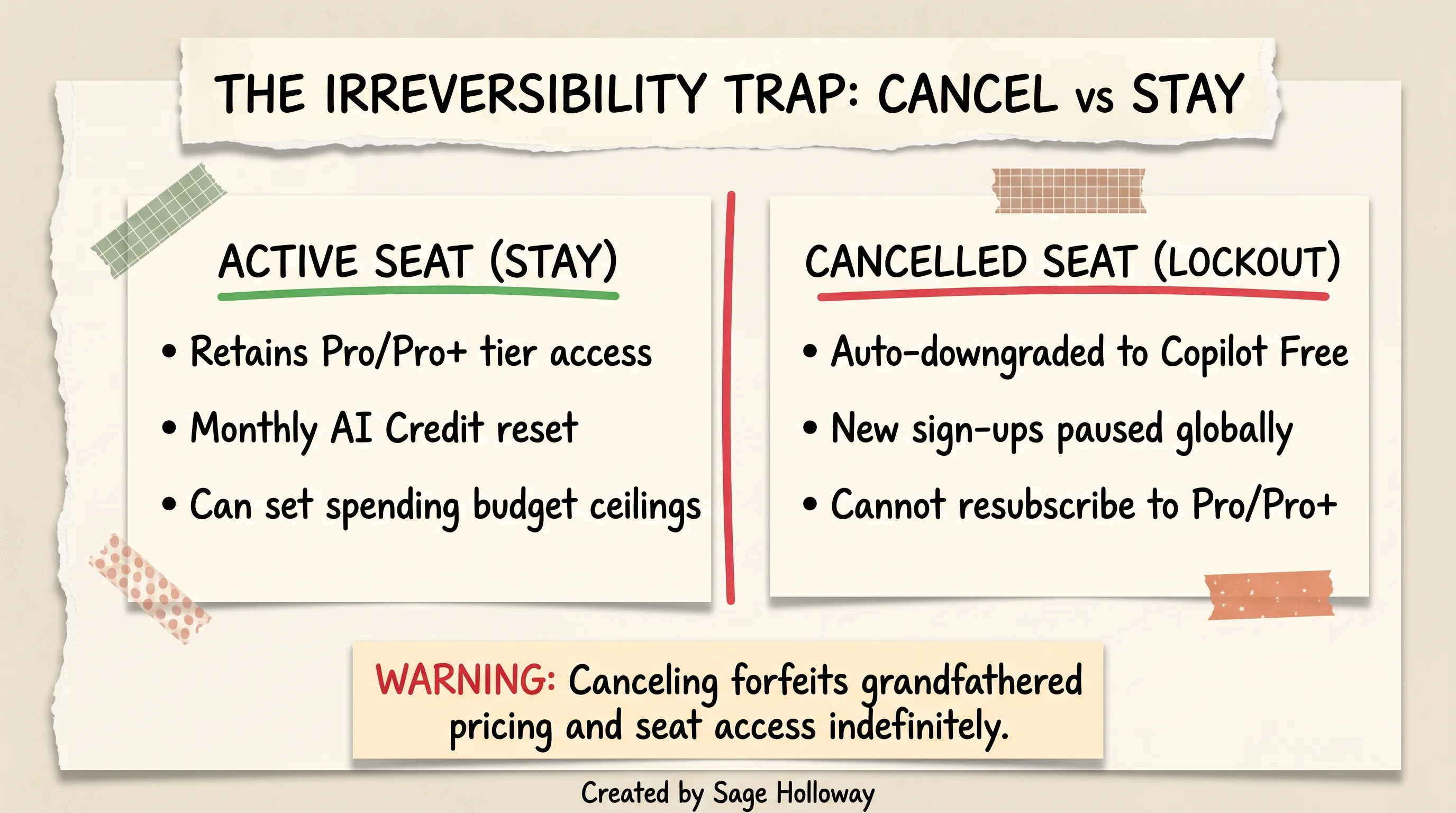
Canceling an individual Pro or Pro+ seat cannot be reversed while new sign-ups stay frozen
The reframe is straightforward: you are not toggling off a disposable software license. You are abandoning a grandfathered seat in a closed ecosystem.
If your motivation for canceling stems from hitting monthly usage walls or wanting to avoid surprise overages, terminating your subscription is the bluntest and most costly instrument available. Before pulling the plug, consider setting a strict spending budget ceiling of zero dollars at GitHub Billing Budgets. That prevents out-of-pocket charges while preserving your grandfathered account status. If you are certain you want a permanent exit, proceed through the operational steps below.
Why Cancel? Premium Requests, AI Credits, and Rate Limits Explained
Most developers seeking to cancel github copilot are not leaving because they suddenly decided they dislike code completion. They are leaving because recent architectural shifts in GitHub's billing engine have transformed predictable flat-rate subscriptions into complex, quota-constrained environments.
Understanding these mechanisms clarifies whether your issue is a temporary quota exhaustion or a fundamental mismatch with the platform.
From legacy request quotas to token-based GitHub AI Credits
Historically, GitHub measured advanced interactions through request counters known as github copilot premium requests (or PRUs). For individual developers tracking github copilot pro premium requests, an active Pro subscription historically provided 300 requests per month, while a Copilot Free user received 50 requests and enterprise tiers received pooled team allowances.
Starting in mid-2026, GitHub deprecated PRUs across all active tiers in favor of GitHub AI Credits. Under this consumption-based architecture, every prompt, chat query, code generation, and automated review burns credits calculated from raw input tokens, output tokens, and cached context windows.

GitHub Copilot individual plan limits: monthly costs, base AI credits, and flex allowances
Under the updated credit schedule documented in GitHub's individual plans reference:
Copilot Free ($0/month): Limited to 2,000 code completions and 50 chat requests per month, locked strictly to auto-selected lightweight models.
Copilot Pro ($10/month): Allocates 1,000 base AI credits plus a 500 flex credit buffer (1,500 total monthly credits).
Copilot Pro+ ($39/month): Allocates 3,900 base AI credits plus a 3,100 flex credit buffer (7,000 total monthly credits).
Copilot Max ($100/month): Allocates 10,000 base AI credits plus a 10,000 flex credit buffer (20,000 total monthly credits).
Two operational constraints catch developers off guard:
Zero Rollover: Unused AI credits expire on your monthly billing date at 00:00:00 UTC. They do not accumulate or carry over into the next cycle.
Heavy Model Multipliers: High-reasoning features burn credits at accelerated rates. Automated Copilot code reviews on pull requests enforce a model multiplier of 13, meaning a single review reduces your monthly allowance by 13 credits. Furthermore, top-tier reasoning models like Claude Opus 4.5 and 4.6 were removed from standard Pro plans entirely, reserving Opus 4.7 strictly for Pro+ and Max subscribers.
Diagnosing rate limit errors and quota consumption
When a developer burns through their credit allotment mid-month, the IDE does not fail gracefully with an explanatory billing breakdown. Instead, it throws sudden, disruptive error popups.
If you encounter the editor popup:
or receive a generic rate limit exceeded response inside inline chat, you have collided with short-term concurrency throttling or exhausted your monthly flex pool. This rate limit github copilot behavior occurs when rapid multi-file refactoring or continuous agent loops saturate your plan's burst capacity. Understanding your github copilot rate limits prevents unexpected interruptions; when an active session hits the internal github copilot rate limit, the editor temporarily halts prompt completions until the cooldown window expires.

Tracking your consumption: VS Code status bar vs. GitHub web billing analytics
To inspect my github copilot usage before making a final cancellation decision:
In Visual Studio Code: Click the Copilot icon in the lower status bar to open the consumption widget. It displays a real-time progress bar showing the exact percentage of your monthly quota consumed and the hours remaining until reset.
In JetBrains IDEs: Click the Copilot status widget in the bottom right toolbar to view your active session quota and reset date.
On GitHub Web: Navigate directly to GitHub Metered Usage (see GitHub's monitoring usage guide) and select Premium request analytics to view a granular breakdown of consumption across chat, completions, and code reviews.
If you find that your workflow consistently exceeds these github copilot limits within the first ten days of every cycle, switching to dedicated local models or exploring specialized agentic alternatives may offer a better economic fit. For a detailed comparison of editor alternatives and agent capabilities, review our analysis of Claude Code vs GitHub Copilot, Cursor vs GitHub Copilot, and broader GitHub Copilot alternatives. If your cancellation is driven by persistent connection failures rather than quota caps, see our diagnostic guide on GitHub Copilot language model unavailable errors. If you are running remote environments or web containers, check our guide to installing GitHub Copilot on code-server.
How to Cancel GitHub Copilot: Step-by-Step
When you have evaluated the sign-up freeze, checked your credit consumption, and determined that terminating your subscription is the appropriate path, executing a verified github cancel copilot sequence ensures your billing ceases cleanly without lingering entitlements.
Following this five-step github copilot cancel subscription procedure through account licensing guarantees that your subscription is not left in an ambiguous renewal state.
GitHub operates two co-existing settings architectures documented in GitHub Docs on managing your Copilot plan: the current Billing & licensing interface and the legacy Billing and plans interface. Both paths are detailed below.
Step 1: Open your GitHub account settings
Open your web browser, ensure you are logged into the GitHub account that holds the active Copilot subscription, and click your profile photo in the upper right corner of any GitHub page. From the dropdown menu, select Settings.
Step 2: Navigate to subscription settings
Depending on which version of GitHub's billing infrastructure your account currently runs, select the matching sub-navigation path.
If You See "Licensing" (Current Platform)
In the left-hand sidebar under the Access group, click Billing & licensing, and then select Licensing.
To bypass all nested sidebar navigation entirely, navigate straight to the direct deep link: github.com/settings/billing/licensing.
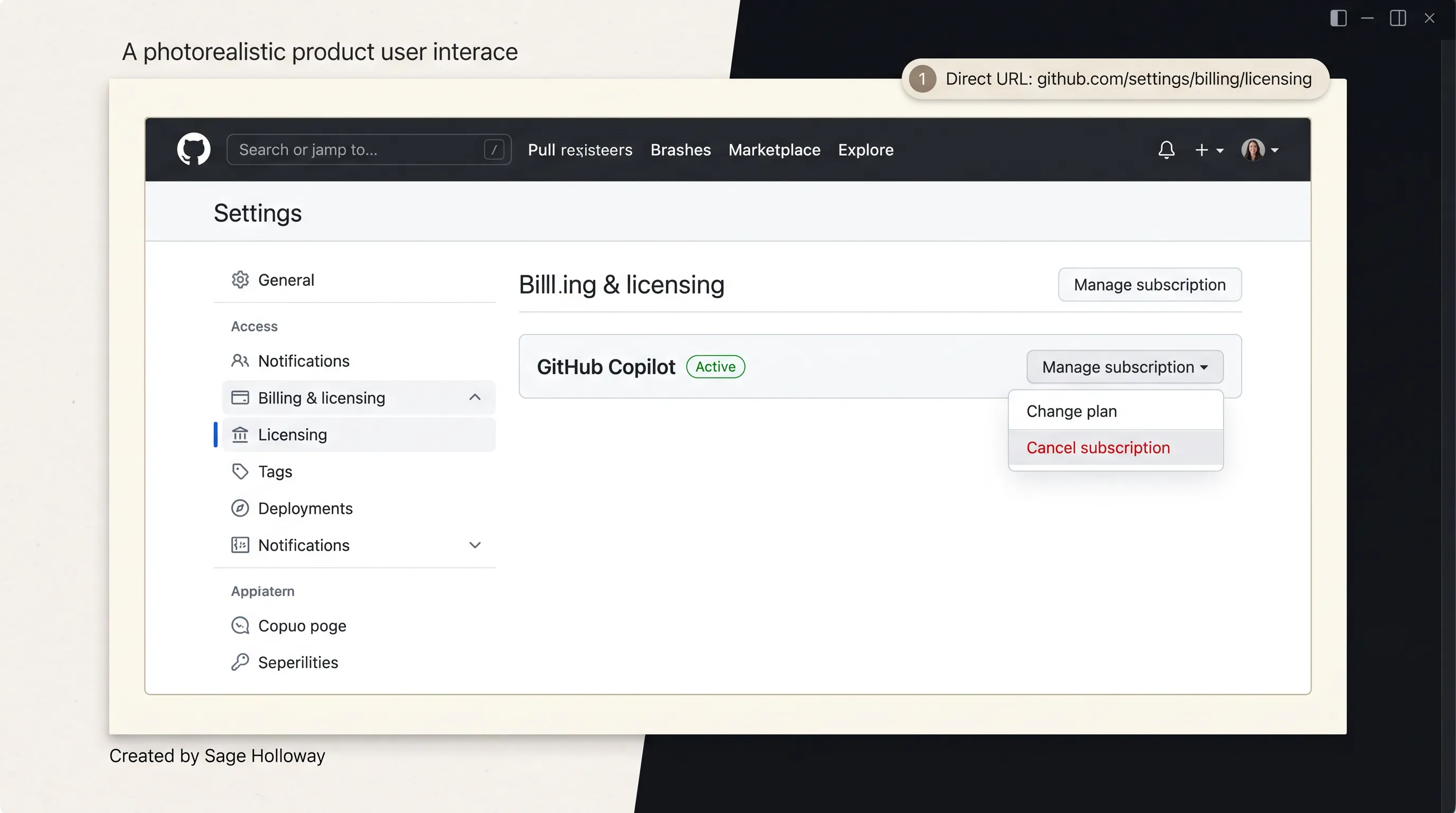
Settings → Billing & licensing → Licensing: finding the Cancel subscription option
If You See "Plans and Usage" (Legacy Platform)
If your account has not yet migrated to the standalone licensing pane, look in the left sidebar for Billing and plans (or Billing & plans) and click Plans and usage.
Step 3: Trigger subscription cancellation
On the licensing management page, locate the row labeled GitHub Copilot. An active plan displays an Active status badge alongside your current tier designation (such as Copilot Pro or Copilot Pro+).
On the far right side of the GitHub Copilot row, click the Manage subscription dropdown menu.
From the expanded menu options, click Cancel subscription.
Trial note: If you are currently operating on an active evaluation period, this dropdown option will read cancel free trial instead.
Refund note: During designated administrative transition windows, this option may display as Cancel and refund subscription.
Step 4: Confirm plan cancellation and downgrade
Clicking the cancellation option opens a centered confirmation modal dialog. GitHub requires an explicit confirmation step to ensure you understand the downstream entitlement changes.

The cancellation confirmation prompt: access continues until the current cycle ends
The modal displays the following confirmation notice:
Review the terms, then click the confirmation button labeled Cancel Copilot Pro (or Cancel Copilot Pro+ / Cancel Copilot Max). Once clicked, your cancel github copilot subscription request is registered in GitHub's billing engine.
Step 5: Verify confirmation and billing history
Never close your browser tab assuming the cancellation completed successfully without verifying the transaction. UI caching bugs and network timeouts can leave an account active.
Check the primary email address associated with your GitHub account. GitHub automatically dispatches a cancellation confirmation receipt within two to five minutes of processing.
Return to your settings and navigate to
Settings->Billing & licensing->Payment history.Verify that your next recurring billing date for GitHub Copilot has been cleared and that no pending renewals are scheduled.
For a complete visual walkthrough of this exact click path across GitHub's interface, watch this step-by-step video demonstration:
https://www.youtube.com/watch?v=g7rnfg2l334
Watch: Step-by-step video walkthrough of canceling GitHub Copilot in account settings
"Manage Subscription" Button Missing? Troubleshooting the UI
The most frequent complaint across developer community forums is that the Manage subscription button is simply not there. You open your billing tab, scroll to GitHub Copilot, and find either a blank row, a non-clickable link redirecting to feature marketing pages, or no cancellation control whatsoever.
This missing button problem is almost never a random glitch. It is an entitlement routing failure caused by one of four specific account conditions.
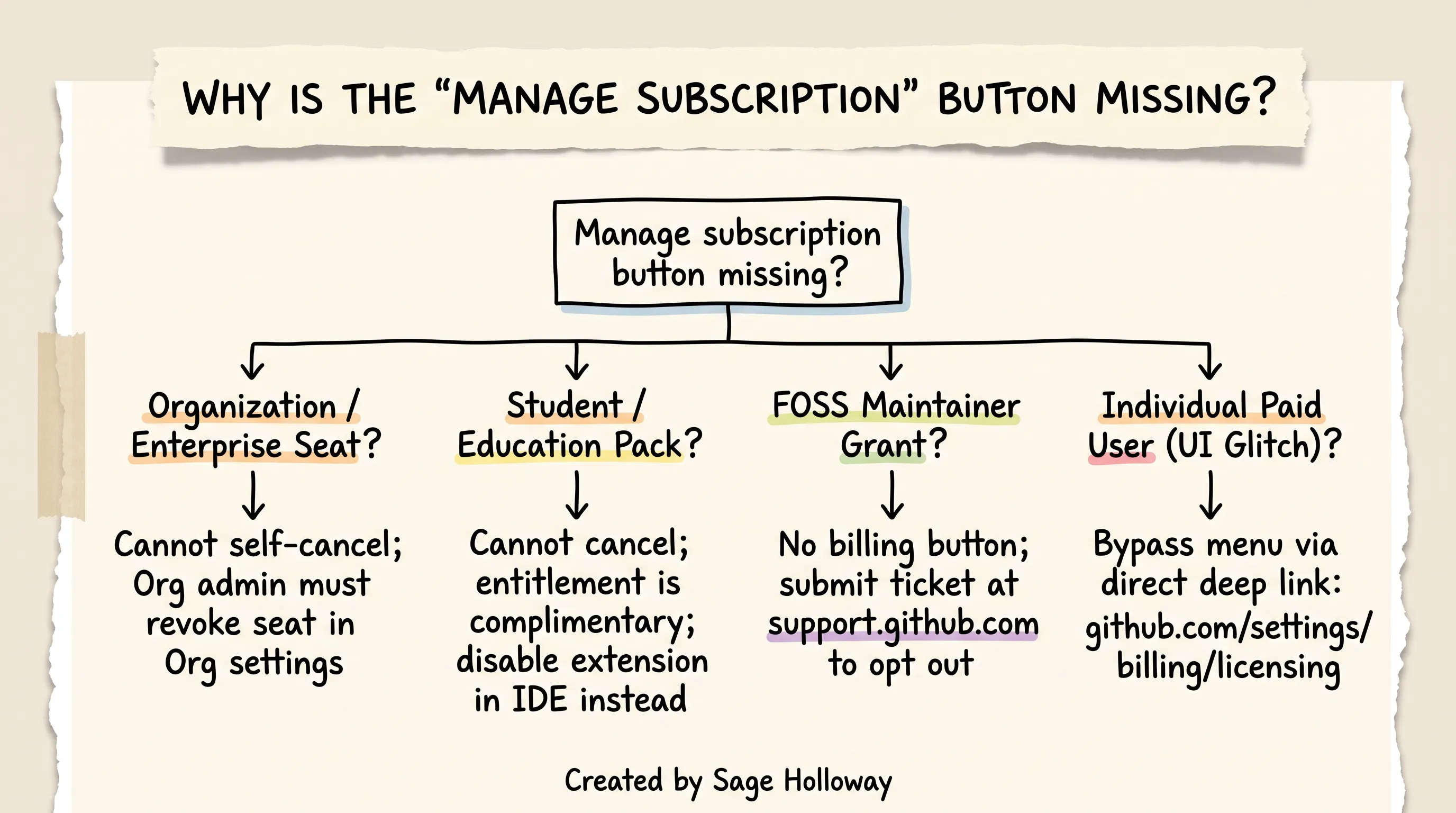
Troubleshooting a missing cancel button: account type diagnostics and direct URL bypass
Root Cause 1: Organization or Enterprise managed seat
If you use GitHub Copilot through your employer, an open-source team, or an enterprise organization, your personal account does not hold the billing license. The license is owned and paid for by the organization.
Because you are not the billing owner, GitHub intentionally hides the Manage subscription button in your personal profile settings. You cannot self-cancel an organization-assigned seat. To remove the seat, your organization owner or billing administrator must de-provision your license inside the organization's seat management console.
Root Cause 2: GitHub Student Developer Pack entitlement
Students, faculty, and academic researchers verified through the GitHub Student Developer Pack receive complimentary Copilot access. Because your account is not charged a monthly fee, there is no recurring commercial subscription attached to your credit card.
Consequently, GitHub omits the billing management dropdown. You cannot "cancel" a free educational grant through the billing dashboard. Your access remains active until your academic verification term expires upon graduation. If you wish to stop Copilot from generating code in your editor, execute a local IDE disconnect as outlined later in this guide.
Root Cause 3: Open-source maintainer grant
Maintainers of popular open-source repositories receive free, complimentary Copilot access directly from GitHub. Similar to educational packs, these maintainer grants possess no active credit card billing schedule.
There is no self-service button in GitHub settings to opt out of a maintainer grant. If you do not want Copilot associated with your account, you must submit a manual support ticket requesting removal or toggle the integration off inside your local editor.
Root Cause 4: Frontend UI routing glitch (individual paid users)
If you pay for an individual subscription out of pocket and the button is missing, your browser is caught in a stale UI cache redirect between GitHub's legacy and modern billing routes.
To resolve this immediately:
Clear your browser cookies and cache for
github.com.Disable any ad-blocking or script-blocking extensions on the page.
Open an Incognito or Private browsing window.
Navigate directly to the explicit deep link: https://github.com/settings/billing/licensing.
This direct URL bypasses the client-side JavaScript navigation routers and renders the server-side licensing controls directly.
Canceling a Free Trial, Refunds, and Contacting GitHub Support
Canceling a trial or resolving unexpected credit card charges requires navigating GitHub's formal billing escalation ladder. If you find yourself billed after an intended cancellation, follow this escalation protocol in strict order.
How to cancel a Copilot Pro free trial
When you enroll in an evaluation trial, GitHub captures your credit card details and schedules an automatic renewal for the full monthly plan price upon trial expiration.
To prevent your card from being debited:
Navigate to github.com/settings/billing/licensing.
Locate the GitHub Copilot trial card.
Open the Manage subscription dropdown and select cancel free trial.
Confirm the prompt.
Trial freeze notice: If you encounter the error message Unable to start task for '...': Copilot Pro trials have been temporarily paused. Please upgrade your account or revert to Copilot Free, GitHub has temporarily frozen trial-to-paid transitions in your region. In this state, clicking cancel free trial immediately restores your account to Copilot Free without charging your payment method.
Self-service refunds vs support tickets
Under standard GitHub terms of service, subscription payments are non-refundable once billed. However, during major platform migrations and billing shifts, GitHub occasionally activates an automated self-service refund mechanism directly inside the licensing portal.
If your account is eligible, navigating to Settings -> Billing & licensing -> Licensing -> Manage subscription will display a Cancel and refund subscription button. Clicking this option automatically terminates access immediately and issues a prorated refund back to your original payment method within five to ten business days.
If that self-service button is absent, any refund request must be evaluated manually by a GitHub billing representative.

The ghost charge escalation ladder: from verification to payment method removal and support
The Ghost Charge Escalation Ladder
If GitHub continues to debit your bank account or PayPal after you have canceled, execute these four escalation steps:
Step 1: Verify cancellation and payment history
Open Settings -> Billing & licensing -> Payment history. Review your past invoices. Ensure that the charge originates from GitHub Copilot rather than a separate service like GitHub Pro, Git LFS data storage packs, or GitHub Actions compute overages.
Step 2: Delete saved payment methods
To physically prevent future automated rebilling while a support dispute is pending, delete your payment information entirely.
Navigate directly to github.com/settings/billing/payment_information.
Locate your stored Credit Card or PayPal agreement.
Click the trash icon or select Remove payment method.
Operational warning: If you maintain active paid private repositories or organization plans on the same account, removing your primary payment method will eventually place those services into a past-due state.
Step 3: Open a formal support ticket
Do not attempt to send an email to support@github.com. GitHub has deprecated inbound email support on that address, and messages sent there bounce with an automated notification.
Navigate to the official web ticketing portal at support.github.com.
Select Account and billing -> Copilot billing.
Provide your GitHub username, the last four digits of the billed payment card, the transaction dates, and a screenshot of your canceled licensing status.
For urgent escalations, send a direct inquiry to
billing@github.comor contact the official support handle@githubsupporton X.
Step 4: Execute a bank or PayPal merchant block
If GitHub support experiences ticket backlog delays and your billing cycle approaches another renewal, contact your financial institution directly. Instruct your bank or log into your PayPal dashboard under Automatic Payments to place a merchant block on GitHub Inc. This rejects any incoming debit attempts without requiring a full credit card replacement.
What Happens After You Cancel: Grace Period, Downgrade, and Annual Plans
Understanding the lifecycle of a canceled account prevents confusion regarding what happens to your code, your IDE extensions, and your billing schedule once the confirmation modal closes.
The end-of-cycle grace period
Canceling your subscription does not cut off your editor access immediately. GitHub operates on a prepaid billing cycle.
When you click confirm:
You retain full access to your paid tier (including your remaining AI Credit allocation) until the exact final minute of your active billing month.
No prorated refund is issued automatically unless you utilized a designated Cancel and refund subscription portal.
Your billing dashboard will display the pending cancellation alongside the expiration date (e.g.,
Plan cancels on October 14, 2026).
The automatic downgrade to Copilot Free
Once your prepaid term expires, your account does not get deleted, suspended, or locked out of GitHub. Instead, the billing engine automatically transitions your user profile to Copilot Free.
Under Copilot Free:
You receive 2,000 code completions per calendar month.
You receive 50 chat queries per month.
Model selection is disabled; your queries are routed automatically to GitHub's default base model.
Advanced features such as multi-file agentic editing and automated pull request code reviews are deactivated.
If you leave the Copilot extension enabled in your editor, it will continue to provide inline tab completions until those 2,000 monthly completions are exhausted. Once exhausted, the extension ceases generating suggestions until the first day of the next calendar month.
The retirement of annual subscription plans
A key driver of user confusion in 2026 has been the phase-out of annual billing. GitHub retired annual Copilot plans, migrating the entire subscriber base toward monthly AI Credit allocations.
For users reviewing historical documentation or evaluating legacy pricing, the standard commercial rate is structured at the monthly rate: copilot pro price per month 2026 sits at $10 per month for Pro, $39 per month for Pro+, and $100 per month for Max. If you were previously on an expiring annual plan, canceling prevents your account from automatically rolling over into the new monthly usage-based credit model.
Special Cases: Students, Maintainers, and Organization Seats You Can't Cancel Yourself
Non-standard account tiers operate under unique administrative rules. If your account falls into one of the categories below, your cancellation path diverges from the standard user interface.

Cancellation rules across account types: who can self-cancel vs. who needs an admin or support ticket
Verified Students and Academic Grants
If you acquired Copilot access via the GitHub Student Developer Pack:
Self-Service Billing Status: You cannot cancel through the billing dashboard because no credit card is associated with the grant.
Access Duration: Access continues uninterrupted until your academic status expires (typically re-verified annually).
How to Disconnect: To stop Copilot suggestions, disable or uninstall the extension within your local IDE settings.
Open-Source Maintainers
GitHub grants free, perpetual access to maintainers of popular open-source software projects.
The Missing Button Reality: There is no UI setting in GitHub to revoke a maintainer grant.
The Opt-Out Procedure: In notable developer cases (such as Drew DeVault's documented maintainer opt-out process), removing the grant required filing an explicit request through GitHub Support to have engineering manually purge the entitlement flag from the account backend.
Practical Recommendation: Unless you require complete account-level detachment for licensing or ideological reasons, simply toggling off the extension locally achieves the same practical outcome without navigating long support queues.
Organization and Enterprise Seats (Copilot Business vs Enterprise)
When an enterprise or engineering team provisions Copilot, the seat allocation is controlled at the organization level.
Key operational policies governing organizational seats:
No Individual Cancellation: Individual developers cannot cancel an assigned organizational seat. You must request that your organization owner navigate to
Organization Settings->Copilot->Access managementand revoke your assigned seat.Automatic Personal Plan Cancellation: Under official GitHub billing rules, if you hold an active personal Copilot Pro or Pro+ subscription and an organization subsequently assigns you a seat under
copilot business vs enterprise(Copilot Business at $19/user/month or Copilot Enterprise at $39/user/month), GitHub automatically terminates your individual personal plan to prevent double billing.Concurrent Account Restriction: Community staff guidelines note that an individual Pro or Pro+ seat cannot operate concurrently on the exact same GitHub account that has an assigned Copilot Business or Enterprise license.
Disabling GitHub Copilot in VS Code and JetBrains (Clean Disconnect)
Canceling your billing stops recurring charges, but it does not remove the extension from your local machine. If you want a complete exit, you must clean up your IDE extensions, disable background telemetry polling, and review your code privacy settings.
Disabling Copilot in Visual Studio Code
If you leave the extension installed after downgrading to Copilot Free, it will continue to send background context tokens to GitHub's servers on every keystroke.

Disabling Copilot in VS Code: status bar toggle to stop background token polling and completions
To execute a clean local disconnect:
Method A: Status Bar Quick Toggle
In Visual Studio Code, look at the bottom right corner of the status bar.
Click the GitHub Copilot icon (the small robot head or status indicator).
From the popup action menu, select Disable Completions (Globally).
Alternatively, select Disable Completions for 'language' to mute suggestions for specific sensitive file formats while leaving it available elsewhere.
Method B: Complete Extension Uninstallation
Open the Extensions pane (
Ctrl+Shift+Xon Windows/Linux orCmd+Shift+Xon macOS).Type
GitHub Copilotinto the search field.Click the gear icon beside GitHub Copilot and click Uninstall.
Repeat the uninstallation step for GitHub Copilot Chat.
Reload the editor window.
Disabling Copilot in JetBrains IDEs (IntelliJ, PyCharm, WebStorm)
Open IDE Settings (or Preferences on macOS).
Navigate to Plugins -> Installed.
Locate GitHub Copilot.
Uncheck the checkbox to disable the plugin, or click the dropdown arrow and select Uninstall.
Click Apply and restart the IDE.
Data Privacy, Chat History, and Model Training Opt-Out
Many developers cancel their subscription due to intellectual property concerns or enterprise compliance rules. Terminating your plan does not automatically purge your account-level data sharing preferences.
To ensure your code context is completely isolated:
Model Training Opt-Out: In your web browser, navigate directly to github.com/settings/copilot/features.
Locate the policy setting labeled Suggestions matching public code and configure it to Block.
Locate the setting labeled Allow GitHub to use my code snippets from the code editor for model training and toggle it Off.
Managing Local History: For developers managing
github copilot chat history, GitHub stores active chat threads locally within your editor workspace state rather than providing a central cloud deletion dashboard. To purge local chat cache, open the Copilot Chat panel in VS Code, click the ellipses (...) at the top of the chat view, and select Clear All Chats.
Not the Same Product: GitHub Pro vs GitHub Copilot vs Microsoft 365 Copilot
Search engines and billing dashboards frequently conflate three distinct services that share the "Copilot" and "Pro" naming conventions. Canceling the wrong service is one of the most common reasons developers continue to see surprise charges on their statements.

Product disambiguation: GitHub Pro vs. GitHub Copilot Pro vs. Microsoft 365 Copilot
Before concluding your cancellation audit, verify which exact product appears on your invoice:
GitHub Copilot (Pro / Pro+ / Max): The AI pair programmer inside your IDE. Managed at github.com/settings/billing/licensing ($10 to $100 per month).
GitHub Pro ($4/month): Platform enhancements for personal GitHub repositories (increased GitHub Actions minutes, advanced wiki controls, and code owners). Managed under
Settings->Billing and plans->Plans and usage. Canceling GitHub Pro does not cancel GitHub Copilot, and canceling Copilot does not alter your GitHub Pro account tier.Microsoft 365 Copilot ($20 to $30/user/month): Microsoft's enterprise AI assistant integrated into Word, Excel, PowerPoint, and Teams. Managed through your Microsoft account portal at account.microsoft.com/services, completely independent of GitHub's billing infrastructure.
Frequently Asked Questions
How to cancel GitHub Copilot subscription?
To cancel your subscription, click your profile photo in the top right corner of GitHub, select Settings, and navigate to Billing & licensing followed by Licensing (or go directly to github.com/settings/billing/licensing). Under the GitHub Copilot section, open the Manage subscription dropdown, click Cancel subscription, and confirm the prompt in the modal dialog. Your paid entitlements will continue until the final day of your current billing cycle, at which point your account automatically downgrades to Copilot Free.
How to cancel GitHub Copilot?
Open your GitHub profile settings, navigate to Billing & licensing -> Licensing, open the Manage subscription menu on the GitHub Copilot row, and click Cancel subscription. If your account is still on GitHub's legacy settings interface, navigate to Settings -> Billing and plans -> Plans and usage -> GitHub Copilot -> Manage subscription -> Cancel. Confirming the cancellation stops all future recurring debits on your payment method.
Does Copilot have a limit?
Yes, GitHub Copilot enforces both monthly token-based AI Credit consumption limits and short-term concurrency rate limits across all tiers to prevent server degradation. Copilot Free is capped at 2,000 code completions and 50 chat requests per month, while paid tiers receive fixed monthly AI Credit pools (such as 1,500 total credits on Pro). Rapid prompt bursts or automated agent loops trigger short-term session throttling requiring a multi-hour cooldown.
Does Copilot Pro have a limit?
Yes, Copilot Pro is not an unlimited plan. It provides 1,000 base AI credits plus a 500 flex credit buffer per monthly billing cycle, for a total monthly allotment of 1,500 AI credits. Unused credits reset on your billing date and do not roll over. Once your credit allowance is exhausted, advanced agentic features and high-tier models become unavailable until the next cycle begins unless an optional spending budget is configured.
What are premium requests in GitHub Copilot?
Premium requests were GitHub's legacy request-based metric for measuring advanced features such as Copilot Chat, multi-file agent edits, and CLI interactions. Effective mid-2026, GitHub deprecated premium requests (PRUs) across active individual plans in favor of token-based GitHub AI Credits. For legacy annual accounts that still reference this metric, requests expired on the first of each month without rolling over.
How to check GitHub Copilot usage?
To check your usage on the web, navigate to Settings -> Billing & licensing and scroll down to the Metered usage section to view your Copilot usage analytics and credit consumption. In Visual Studio Code, you can check your live consumption directly by clicking the Copilot status bar icon in the bottom right corner of the editor window to reveal a percentage tracker and cycle reset timer.
How to bypass GitHub Copilot limit?
GitHub does not offer unofficial workarounds, CLI flags, or exceptions to bypass active rate limits or credit quotas. When your monthly allocation is depleted, your options are to wait for your monthly billing reset date, upgrade to a higher tier like Pro+ or Max, or navigate to github.com/settings/billing/budgets to set a paid spending limit that purchases additional metered AI credits.
How to disable GitHub Copilot in VS Code?
To address how to disable GitHub Copilot in vscode without canceling your paid subscription, click the small Copilot icon located in the bottom right status bar and select Disable Completions (Globally). To remove the extension entirely from your editor environment, open the Extensions sidebar (Ctrl+Shift+X or Cmd+Shift+X), search for GitHub Copilot, click the gear settings icon, and select Uninstall.
How to clear Copilot history?
GitHub's cloud servers do not provide a centralized web dashboard to delete stored prompt history. To clear your local conversation threads, open the GitHub Copilot Chat panel in Visual Studio Code, click the three horizontal dots (...) at the top of the chat pane, and select Clear All Chats. To prevent GitHub from using future code context for model training, navigate to github.com/settings/copilot/features and toggle off the model training data collection setting.
The difference between a frustrating cancellation experience and a clean exit comes down to understanding the boundaries of the system. If you need to cut costs immediately, verify your grandfathered status before hitting confirm, use direct deep links to bypass interface caching bugs, and always remove saved payment methods if support response times lag.
Take five minutes this afternoon to open your billing settings, check your active renewal date, and ensure your editor telemetry reflects exactly what you intend to share.
Until then...
Sage
PS. If you ever want to see how protective billing engines can get, try filing an automated refund request on a corporate enterprise account where two subsidiary GitHub organizations assigned you duplicate seats under different Single Sign-On domains. The resulting multi-tenant reconciliation loop generated four separate prorated credit memos totaling $0.00 across three weeks before an actual human engineer stepped in to untangle the billing graph. Sometimes the cleanest solution really is opening your banking app and setting a merchant block.
Author
Practical guides, tool teardowns & AI engineering workflows.
Related Articles

AI Coding Tools
Best GitHub Copilot Alternatives in 2026: Choose by Coding Surface, Not a Top-10 List

AI Coding Tools
GitHub Copilot Agent Mode in VS Code: How It Works, How It Differs From Ask and Edit, and How to Control It

AI Coding Tools
GitHub Copilot \"Language Model Unavailable\": Decode the Logs and Fix It in VS Code