AI Coding Tools
GitHub Copilot \"Language Model Unavailable\": Decode the Logs and Fix It in VS Code

Sage Holloway
20 min read
Go back to blog
SHARE

You sit down with a fresh cup of coffee, open your editor to build a new feature, and watch the chat panel return a cold red banner declaring that the language model is unavailable. Before you touch your settings, reboot your machine, or start reinstalling extensions, look at what the backend is actually telling you. The error is almost never a mystery if you know where the logs hide.
"Language model unavailable" means Visual Studio Code Copilot Chat cannot reach or list models from https://api.individual.githubcopilot.com/models. Open the Output tab and select GitHub Copilot Chat first: "trials have been temporarily paused" means you must convert your 30-day Pro trial to paid under GitHub Billing; HTTP 403 forbidden means your corporate proxy or WSL DNS is dropping the endpoint; PermissiveAuthRequiredError means GitHub is having a platform outage.
Last verified: 1 September 2026
That is the direct answer. If you are mid-sprint and need the fastest path back to a working editor, opening that log channel will pinpoint your exact issue in thirty seconds.

Decode the break: log-first diagnosis for GitHub Copilot in VS Code
The unfortunate reality is that most developers facing github copilot language model unavailable do the exact opposite. They assume their local extension installation corrupted itself overnight. They uninstall the plugin, reinstall it, delete cached workspace directories, restart their machine, and even clear their web browser cookies. None of those actions resolve the issue because none of them address the underlying mechanism.
When Copilot Chat fails to initialize, it is not guessing what went wrong. It writes a precise, timestamped failure signature directly into your editor logs.
This guide walks through the log-first diagnostic method, the silent rate-limit trap on 30-day Pro trials, how to resolve proxy and WSL DNS drops, how to verify real-time platform outages, and how to configure temporary Bring Your Own Key (BYOK) endpoints so an outage never blocks your work.
What this guide covers
Why blind extension reinstallation fails and what the diagnostic logs reveal
The three core log signatures: trial rate-limit pauses, 403 proxy blocks, and platform outages
The silent 30-day Pro trial pause: active billing dashboard vs. backend API lockout
The agent skills collision bug (
TypeError: e is not iterable) and how to clear itReal-time outage triage: identifying status page lag and backend HTML error responses
Stale OAuth credentials: the three-step token refresh sequence in VS Code
Core editor and extension version synchronization rules
Network routing, corporate proxy allowlists, and the permanent WSL2
/etc/resolv.conffixConfiguring custom endpoint fallbacks (BYOK) via
chatLanguageModels.jsonto keep working during outagesDisambiguating VS Code errors from Microsoft 365 "Service communication is currently unavailable" alerts
Nine verified GitHub Copilot troubleshooting FAQs
Decode the error first: what your Output log actually says
When a modern vehicle stumbles at highway speeds, a seasoned mechanic does not start ripping out the fuel pump, swapping the spark plugs, or ordering a replacement transmission based on intuition. They walk to the driver footwell, snap an OBD-II diagnostic cable into the port, and read the exact hexadecimal error code broadcast by the engine control unit. The scanner tells them immediately whether a five-dollar airflow sensor failed or the catalytic converter disintegrated.
That is the exact discipline required when language model unavailable strikes your editor.
When you see copilot not working in Visual Studio Code, the user interface merely displays a generic warning banner. The user interface does not explain why the model registry failed to populate. But in the background, the extension recorded the raw HTTP status code, the failing endpoint URL, and the server response payload.
To inspect the raw logs:
Open the bottom panel in VS Code using the keyboard shortcut
Ctrl+~(orCmd+~on macOS), or go to the top menu and select View -> Output.Locate the channel dropdown selector in the top right corner of the Output pane (it often defaults to Tasks or Extension Host).
Click the dropdown and select GitHub Copilot Chat.
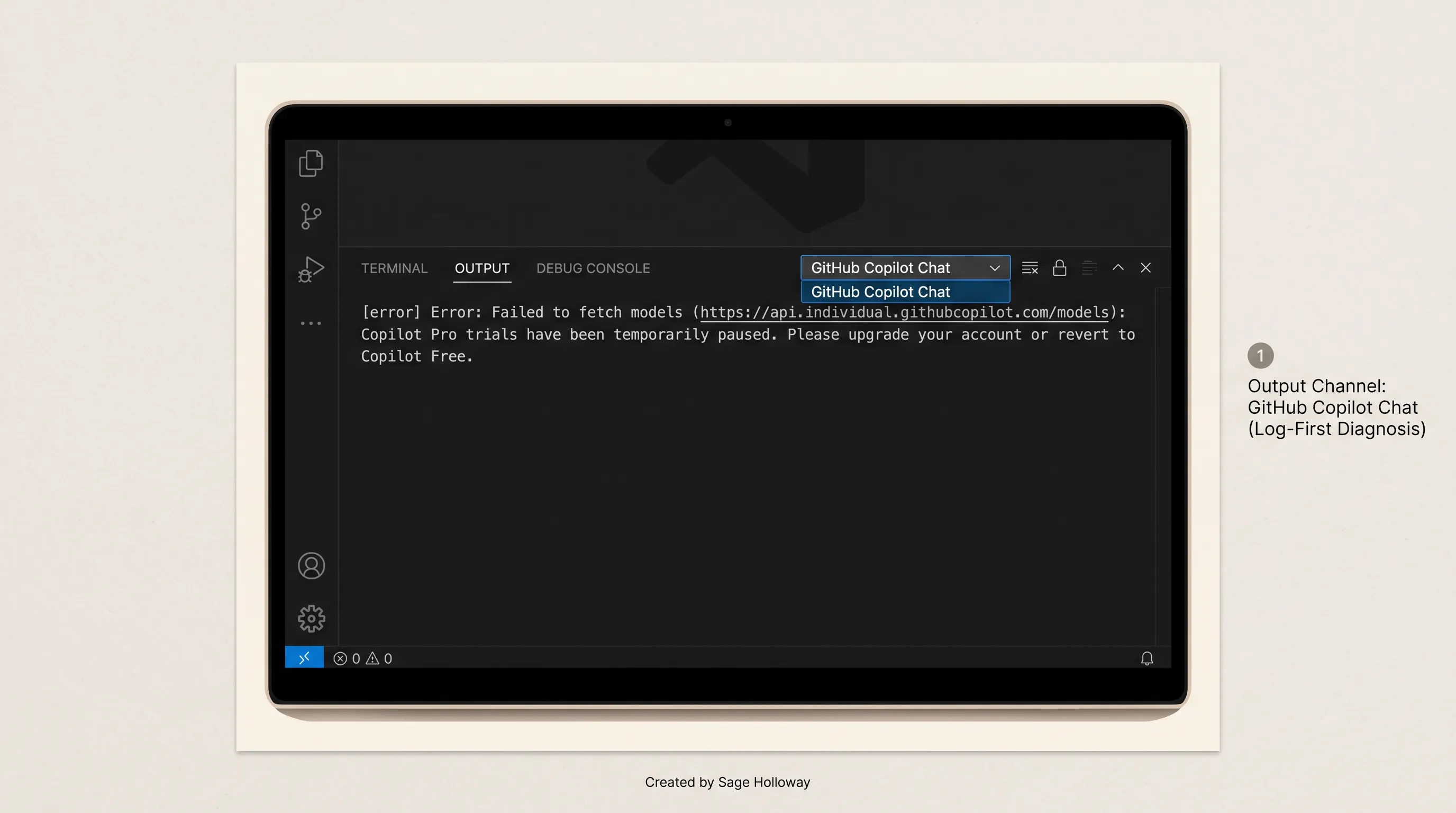
Output -> GitHub Copilot Chat: where the true error signature lives
Once the channel is open, scroll to the bottom of the log stream. When language model unavailable github copilot occurs, you will find a distinct error trace.
Matching the text following that URL to the diagnostic decision tree below tells you the exact root cause before you modify a single configuration file.

The log-first decision tree: match your error trace to the exact fix
The three log signatures and what they mean
Nearly every instance of copilot language model unavailable maps directly to one of three signatures in your log output.

GitHub Copilot log decoder: matching error signatures to root causes
Here is how to interpret each signature:
Signature 1: The Trial Rate-Limit Pause. The log reads
[error] Error: Failed to fetch models: Copilot Pro trials have been temporarily paused. Please upgrade your account or revert to Copilot Free.This indicates that automated abuse-prevention heuristics have locked your 30-day evaluation trial due to high context volume.Signature 2: The Endpoint Proxy or DNS Block. The log reads
Failed to fetch models: forbidden: access deniedor throws anECONNREFUSED/ETIMEDOUTerror specifically againstapi.individual.githubcopilot.com/models. This means your machine reached GitHub authentication successfully, but your local DNS, VPN tunnel, or corporate firewall is intercepting the dedicated model discovery endpoint.Signature 3: The Platform Outage. The log reads
PermissiveAuthRequiredErroror throwsSyntaxError: Unexpected token '<', "<!DOCTYPE "... is not valid JSON. This means GitHub API gateways are failing and returning HTML 500 or 503 error pages instead of valid JSON payloads.
When developers report that copilot is not working or my copilot is not working on developer forums, eighty percent of those threads describe one of these three exact log states.
Silent 30-day Pro trial rate-limit pause
The most confusing failure mode in modern Copilot occurs on active 30-day evaluation trials.
You sign up for a Copilot Pro trial, open VS Code, enable Agent mode, and start working across a large codebase. Two days later, your editor throws github copilot language model unavailable. You open your web browser, navigate to your GitHub billing dashboard, and see that your subscription status clearly reads Active (Pro Trial).
This happens because GitHub enforces automated heuristic rate limits on evaluation accounts. When an evaluation account submits massive multi-file context prompts or continuous agent loops, backend risk engines temporarily pause API access to prevent credential abuse. The billing frontend does not reflect this operational freeze; it only shows that your trial period has not expired.

The 30-day Pro trial rate-limit trap: active dashboard status vs backend API block
When an account is in this state, no amount of extension reinstalling or cache clearing will restore access. The backend /models endpoint will reject every request until the account transitions out of trial status.
To resolve this immediately:
Open your web browser and navigate directly to GitHub Billing Settings.
Under the Copilot section, click Start paid subscription to convert your evaluation seat into a standard ten-dollar monthly paid seat.
Return to Visual Studio Code, click the Accounts icon in the bottom-left corner, and select Sign Out.
Open the Command Palette (
Ctrl+Shift+PorCmd+Shift+P), run Developer: Reload Window, and sign back in.
The paid OAuth token bypasses the trial evaluation gateway, and model discovery restores immediately. If you plan to manage subscription lifecycle changes or evaluate spending limits, review our complete breakdown on how to cancel GitHub Copilot and our analysis of GitHub Copilot rate limits and quotas.
Agent skills collision crash (TypeError: e is not iterable)
A newer and increasingly common failure mode stems from local agent configuration conflicts. In recent releases of VS Code, the editor introduced automated agent skills discovery. By default, Copilot Chat scans local directory paths defined under chat.agentSkillsLocations, including .github/skills, .claude/skills, ~/.copilot/skills, and ~/.claude/skills.
If you use multiple AI development tools (such as Claude Code or custom agent sidecars) that write configuration files to your user home directory, Copilot Chat attempts to parse those skill definitions during extension initialization.
When a local skill file contains duplicate skill identifiers, invalid JSON-LD properties, or raw XML formatting tags, the parser crashes internally:
Because the error occurs inside the discovery lifecycle, the extension aborts the remaining setup sequence, leaving the model registry empty. The chat interface fails silently and displays language model unavailable.
To fix an agent skills collision:
Check your user directory for conflicting skill manifests in
~/.claude/skillsor~/.agents/skills.Temporarily rename or move the folders outside your search path to test if model loading succeeds.
Open the Command Palette in VS Code and execute GitHub Clear Cloud Agent Caches.
Reload the editor window.
If you are exploring multi-agent workflows or comparing agentic environments, see our architectural comparison of Claude Code vs GitHub Copilot and our practical tutorial on GitHub Copilot Agent Mode in VS Code.
Is GitHub Copilot down right now?
When an error strikes, the immediate question is whether the break is local to your workstation or platform-wide across GitHub infrastructure.
When an AI tool fails in your editor, the instinct is to assume your local installation is broken. In reality, the server is almost always the one lying to you.
During major platform incidents, GitHub API gateways often become saturated. When this happens, client requests to https://api.individual.githubcopilot.com/models do not receive clean JSON error payloads. Instead, the load balancers return raw HTML error pages (such as standard Nginx 502 or 503 pages). When VS Code attempts to parse that HTML as a JSON model array, the parser fails with Unexpected token '<', and the interface displays language model unavailable.

Platform outage vs. local configuration fault: how to tell the difference
To verify a suspected github copilot outage:
Check the official operational dashboard at GitHub Status. Look specifically at the Copilot and Copilot AI Model Providers component rows.
Note the status lag: official status dashboards frequently lag real-world API degradations by fifteen to forty-five minutes while telemetry aggregates.
Verify community telemetry: search for
copilot statusorgithub copilot downon developer forums, Hacker News, or ther/GithubCopilotsubreddit. If dozens of developers report simultaneous disconnects within the last ten minutes, do not modify your local settings.
If the platform is down, modifying your editor configuration will not help. Jump to the custom endpoint section below to switch your editor to a direct API key and keep coding.
Fix stale sign-in: refresh your GitHub token in VS Code
If GitHub Status is operational and your Output logs indicate an authorization failure (such as HTTP 403 without trial warnings), your local OAuth session token has desynchronized from the backend authentication service.
This occurs when:
Your GitHub password, personal access tokens, or Two-Factor Authentication (2FA) methods were updated.
Your user account was added to or removed from a corporate GitHub Organization seat.
You maintain multiple GitHub accounts in VS Code (for example, a personal profile and an enterprise Single Sign-On profile) and the extension attached to the unlicensed identity.
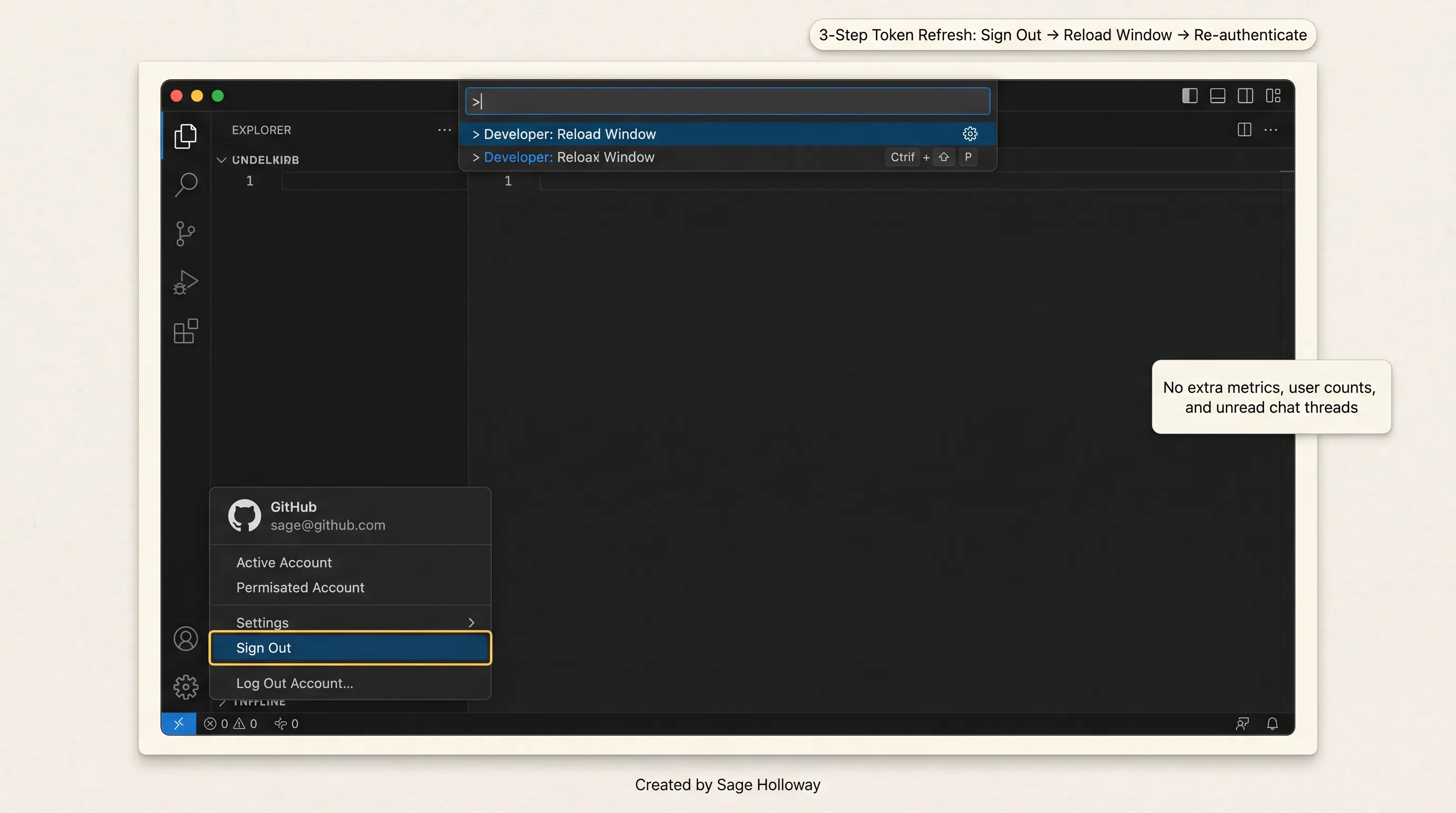
3-step token refresh: Accounts Sign Out -> Developer Reload Window -> Sign In
To execute a clean, verified token refresh:
Step 1: Sign out of GitHub in VS Code
Look at the bottom-left corner of the Visual Studio Code window and click the Accounts icon (the small user profile silhouette). Hover over your active GitHub account name, click the gear or context menu, and select Sign Out. If multiple accounts are listed, sign out of all active GitHub profiles.
Step 2: Reload the editor window
Do not simply close and reopen the app. Force the Electron runtime to flush in-memory authentication caches. Press Ctrl+Shift+P (or Cmd+Shift+P on macOS) to open the Command Palette, type Developer: Reload Window, and press Enter.
Step 3: Re-authenticate with your licensed account
After the window reloads, open Copilot Chat or click the Accounts icon and select Sign in with GitHub. Complete the authorization flow in your default web browser, ensuring you log into the specific GitHub account that holds your active Copilot license.
The browser cookie myth debunked
A widespread piece of advice on low-quality video channels suggests that clearing Google Chrome browser cookies and site cache resolves how to sign out of github copilot in vscode and fixes IDE connection errors. This is technically incorrect. Visual Studio Code runs on a standalone Electron runtime that manages its own encrypted credential store via the operating system keychain. Clearing browser cookies in Chrome or Safari has zero effect on the internal OAuth tokens stored inside VS Code. Follow the three-step Accounts menu refresh instead.
VS Code and Copilot extension version mismatch
Another major cause of vscode language model unavailable is version divergence between the core Visual Studio Code application and the Copilot extensions.
Copilot Chat is not a simple webview; it hooks deeply into internal VS Code language model proposed APIs. When GitHub deploys updates to model routing endpoints (such as transitioning from legacy completions to multi-modal reasoning streams), the extension requires matching API hooks in the host editor.
If your core VS Code client updates automatically while your extensions remain pinned to older versions (or if your extensions update while VS Code is restricted on an older enterprise build), the communication layer fails. The extension attempts to query modern endpoints using deprecated interface methods, triggering language model unavailable github copilot vscode.
To ensure version parity:
Open the Extensions sidebar (
Ctrl+Shift+XorCmd+Shift+X).Search for
GitHub CopilotandGitHub Copilot Chat.Check for available updates on both extensions and install them.
Verify your core editor version by going to Help -> About (or Code -> About Visual Studio Code on macOS) and confirm you are on the current stable release.
If you are experiencing a known bug on the stable channel, click the gear icon on the GitHub Copilot Chat extension card and select Switch to Pre-Release Version. The pre-release channel frequently ships rapid patches for backend API shifts days before they land in the stable build.
Network, proxy, and WSL DNS fixes for "took too long to get ready"
When your logs show network timeouts or error strings like copilot took too long to get ready and you are currently offline copilot, the failure is rooted in network transport.
A common scenario in enterprise and developer environments is that basic web browsing and git push commands succeed, but Copilot Chat fails completely. This happens because authentication takes place over api.github.com, while model streaming and chat completions route through separate endpoints like api.individual.githubcopilot.com and api.business.githubcopilot.com. If a firewall or virtual network bridge drops traffic to the model subdomain, authentication passes but the model list remains blank.
Quick fix: /etc/resolv.conf in WSL2
When running Visual Studio Code connected to Windows Subsystem for Linux (WSL2), the virtual Linux environment relies on an auto-generated network bridge. When switching between office Wi-Fi, home networks, or corporate VPNs, the auto-generated /etc/resolv.conf file frequently retains stale nameserver IPs, causing DNS resolution to *.githubcopilot.com to time out.
To apply an immediate quick fix in your WSL terminal:
Save the file and test Copilot Chat in your editor. If model discovery restores immediately, your issue was a DNS lookup failure.
Permanent fix: /etc/wsl.conf
The quick fix above is temporary; WSL automatically overwrites /etc/resolv.conf every time the virtual machine boots. To make the fix permanent, you must instruct WSL to stop auto-generating the resolver file.

WSL2 DNS resolution: why auto-generation drops Copilot endpoints and how to fix it
Follow these steps in your WSL terminal:
Create or edit
/etc/wsl.conf:
Add the network configuration block to disable automatic generation:
Remove the existing symlink and create a static file:
Close VS Code, open Windows PowerShell, and shut down WSL completely:
Reopen Visual Studio Code and reconnect to your WSL workspace. The static nameservers will persist across all reboots and VPN toggles.
Corporate proxy allowlist
In enterprise environments operating behind SSL-inspecting forward proxies (such as Zscaler, Blue Coat, or Palo Alto Networks), network security appliances often drop encrypted WebSocket streams or reject unfamiliar subdomains.

GitHub Copilot network endpoints: domains, ports, and proxy allowlist rules
Ensure your network engineering team allowlists the following required endpoints on port 443 (HTTPS):
api.individual.githubcopilot.com(Language model enumeration and chat streaming)api.business.githubcopilot.com(Business and Enterprise model routing)api.github.com/copilot_internal/v2/token(OAuth session validation)*.githubcopilot.com(Wildcard telemetry and proxy routing)default.exp-tas.com(Feature flags and experiment telemetry)
To test endpoint reachability directly from your terminal:
If your proxy requires explicit authentication, configure your proxy URL directly in VS Code settings:
Keep working during an outage: BYOK custom endpoints
When GitHub Copilot experiences an infrastructure outage or when billing disputes interrupt your subscription, you do not have to stop using AI in your editor. Visual Studio Code includes native support for Bring Your Own Key (BYOK), allowing you to connect custom language model providers directly to the editor's chat interface.
Historically, configuring third-party models required editing the legacy github.copilot.chat.customOAIModels setting. In modern VS Code releases, github.copilot.chat.customOAIModels is deprecated. It has been replaced by the official Custom Endpoint model provider, configured via chatLanguageModels.json.

VS Code language model settings: chatLanguageModels.json, custom endpoints, and deprecations
Configuring chatLanguageModels.json
To configure a direct fallback connection (for example, using an Anthropic, OpenAI, or local endpoint):
Press
Ctrl+Shift+P(orCmd+Shift+P), type Chat: Manage Language Models, and press Enter.Select Add a custom endpoint model. This opens or creates your user configuration file at
chatLanguageModels.json.Paste the following configuration block:
For Anthropic Claude endpoints, set "apiType": "messages" and point the endpoint to https://api.anthropic.com/v1/messages. For local models running through Ollama, note that the legacy built-in Ollama provider is deprecated; install the official Ollama extension from the Visual Studio Marketplace to register local endpoints cleanly.
What BYOK covers vs what requires Copilot
Configuring a custom endpoint restores full functionality to the Copilot Chat panel, multi-turn reasoning, and custom prompt commands. However, note the architectural boundaries:
Supported on BYOK: Chat panel interactions, inline code explanations, test generation, and agent reasoning.
Requires active GitHub Copilot: Fast inline ghost-text completions (tab completions), semantic codebase search indexing, and server-side embeddings.
Having a standby custom endpoint configured in chatLanguageModels.json guarantees that an upstream GitHub platform outage never halts your active development sprint. If you are evaluating other independent editors that support direct API keys natively, explore our comprehensive guide to GitHub Copilot alternatives and our side-by-side analysis of Cursor vs GitHub Copilot. For alternate development environments, review our setup instructions for installing GitHub Copilot on code-server and Emacs.
Not GitHub Copilot? Microsoft 365 "Service communication is currently unavailable"
A frequent source of search confusion comes from product naming overlap. If you arrived at this guide searching for copilot service communication is currently unavailable or service communication is currently unavailable, you are likely encountering a Microsoft 365 enterprise service alert rather than a Visual Studio Code IDE issue.
This specific error string appears inside Microsoft Teams, Microsoft Word, Excel, and the Edge browser sidebar. It indicates a tenant-level connectivity failure between your corporate Microsoft 365 account and Microsoft's enterprise cloud infrastructure.
Common causes include:
Microsoft 365 Service Health incidents affecting your organization's Azure region.
Corporate Conditional Access policies blocking Edge sidebar tokens.
M365 tenant license expiration managed by your company's IT administrator.
If you are debugging Microsoft 365 enterprise tools rather than GitHub Copilot in VS Code, refer to our dedicated guide on Microsoft 365 Copilot service communication errors.
Frequently Asked Questions
Is Copilot down?
You can verify if Copilot is experiencing an outage by checking the official operational dashboard at githubstatus.com under the Copilot and Copilot AI Model Providers component headers. During platform-wide incidents, backend API gateways fail to serve model listings, returning HTTP 500 errors, PermissiveAuthRequiredError, or raw HTML error pages in VS Code instead of JSON model registries.
Why is Copilot not working?
Copilot typically stops working due to one of four verified causes: stale OAuth session tokens in VS Code, an undocumented rate-limit pause on a 30-day Pro trial, corporate firewalls or WSL DNS timeouts blocking api.individual.githubcopilot.com, or an active GitHub platform outage. Opening the editor's diagnostic trace via Output -> GitHub Copilot Chat is the fastest way to extract the exact HTTP error code and identify the underlying issue.
Is GitHub Copilot down?
To confirm whether GitHub Copilot is down platform-wide, inspect the real-time status components on githubstatus.com or review developer incident threads on GitHub Community and Reddit. If the platform is experiencing an incident, VS Code will display language model unavailable and return HTML error traces while waiting for GitHub engineers to restore the API gateways.
Is Copilot down right now?
To check if Copilot is down right this second, check real-time telemetry across developer forums and incident trackers like StatusGator or Downdetector. Official status dashboards often lag live API failures by fifteen to thirty minutes. If thousands of developers report simultaneous disconnects, the service is undergoing an active disruption and local editor troubleshooting should be paused.
How to change GitHub account in VS Code?
To switch your active GitHub account in Visual Studio Code, click the Accounts icon (the user profile silhouette) in the bottom-left corner of the editor, hover over your current username, and select Sign Out. Next, open the Command Palette (Ctrl+Shift+P or Cmd+Shift+P), run Developer: Reload Window, and then click the Accounts icon to sign in with the specific GitHub account that holds your active, paid Copilot license.
Why Copilot is not working after an editor update?
When Copilot stops working immediately following an update, the cause is almost always a version mismatch between core VS Code and the Copilot extensions. Newer Copilot extension releases rely on updated language model proposed APIs inside the editor. If extensions update without updating core VS Code (or vice versa), model registration fails. Update both core VS Code and your extensions simultaneously, or toggle the extension to the Pre-Release channel.
How to sign out of GitHub Copilot in VS Code?
To sign out cleanly, click the Accounts icon located at the bottom of the left-hand Activity Bar, click your GitHub profile, and select Sign Out. To completely flush the cached session from memory, open the Command Palette and execute Developer: Reload Window. Once reloaded, you can re-authenticate or leave the extension unlinked.
What does "Copilot Pro trials have been temporarily paused" mean?
This error message indicates that GitHub's automated abuse-prevention systems have temporarily locked API model access on your 30-day Copilot Pro trial due to heavy context traffic or extensive Agent mode usage. Even though your web billing dashboard still displays your subscription as "Active", the backend blocks requests to /models. To restore access, navigate to your GitHub billing settings, click Start paid subscription to transition to a standard paid seat, and re-authenticate in VS Code.
Can I keep using AI models in VS Code while GitHub Copilot is down?
Yes. Visual Studio Code includes a native Bring Your Own Key (BYOK) system accessible via the Chat: Manage Language Models command in the Command Palette. By adding a custom endpoint configuration into chatLanguageModels.json using "vendor": "customendpoint", you can connect direct API keys from Anthropic, OpenAI, or local Ollama instances to continue chatting and generating code during GitHub service downtime.
The difference between losing an entire afternoon to broken editor tools and solving the break in under two minutes comes down to diagnostic discipline. When an error strikes, ignore the urge to blindly reinstall extensions or clear browser caches. Open your Output tab, let the log signature name the failure, and apply the exact fix that matches the trace.
Take sixty seconds today to open your Command Palette, run Chat: Manage Language Models, and register a standby BYOK endpoint in your chatLanguageModels.json. When the next upstream platform incident rolls across the status dashboard, you will stay in your flow while everyone else waits for the green light.
Until then...
Sage
PS. If you want to see how confusing network debugging can get, try diagnosing a developer whose Copilot failed every day at precisely 2:00 PM. After checking tokens, re-authenticating accounts, and testing DNS resolvers, the issue was traced to a scheduled enterprise antivirus scan that temporarily locked the local named pipes used by VS Code IPC channels to stream worker telemetry. Sometimes the hardest part of software troubleshooting is remembering that five different abstractions are all trying to talk through the same straw.
Author
Practical guides, tool teardowns & AI engineering workflows.
Related Articles

AI Coding Tools
Best GitHub Copilot Alternatives in 2026: Choose by Coding Surface, Not a Top-10 List

AI Coding Tools
GitHub Copilot Agent Mode in VS Code: How It Works, How It Differs From Ask and Edit, and How to Control It

AI Coding Tools
How to Cancel GitHub Copilot: The Irreversibility Trap, the Missing Button Fix, and Every Cancellation Path