Claude Code
Claude Canvas Explained: Three Tools, Three Workflows, One Name

Sage Holloway
19 min read
Go back to blog
SHARE

You search for one workspace and find a design studio, a terminal full of split panes, and a university admin screen. Each result looks credible. Each uses the same familiar word. Following the wrong one does not produce a small detour. It puts you in a completely different building.
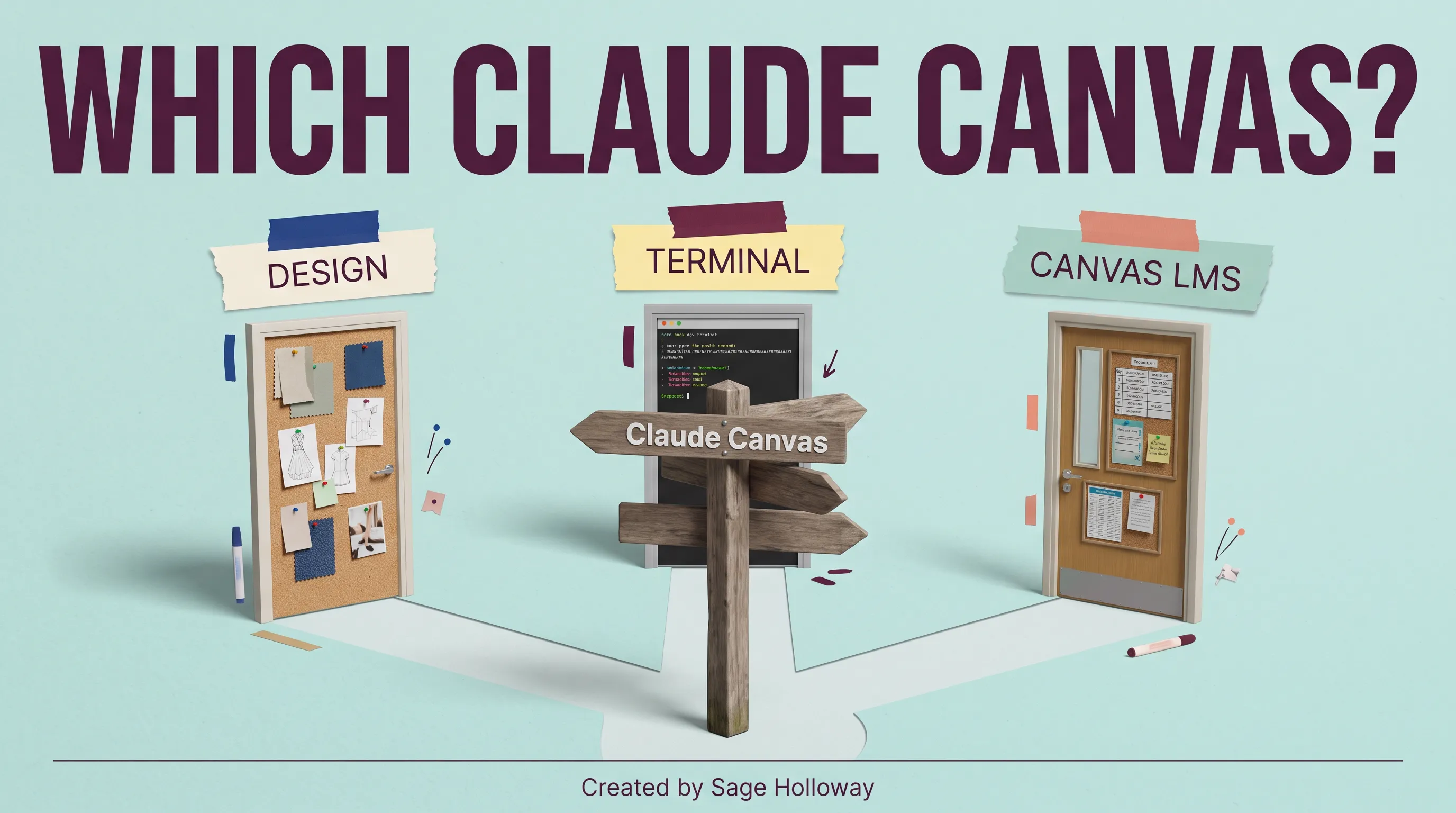
Claude Canvas is a naming collision, so start by choosing the door that matches your job.
Claude Canvas can refer to three separate tools: Anthropic's Claude Design web product for visual prototyping, David Siegel's open-source claude-canvas terminal plugin for interactive tmux panes, or Claude's LTI integration with Instructure Canvas LMS. They are not interchangeable. Choose the web route for design work, the terminal route for Claude Code interfaces, or the LMS route for education administration.
Last verified: 1 September 2026
That is the direct answer, and it prevents the most expensive mistake on this page. A designer does not need to install tmux. A developer installing a terminal plugin will not unlock Anthropic's visual design workspace. A university administrator does not need either of those routes to connect Claude to a course.
This guide will not treat the three products as one ecosystem, because the sources do not support that claim. It will show you how to identify the right one, configure only what that route needs, and recognize the output you should expect.
In this guide
First, identify which Claude Canvas you mean
What each canvas changes
Choose the right setup path
What happens after setup
Practical examples
Improve weak design output
Frequently asked questions
First, identify which Claude Canvas you mean
Picture a station with three trains leaving from platforms that share one destination board. One train reaches a workshop. One goes to a server room. One stops at a campus. The sign above them says the same thing, but the tracks never meet and a ticket for one does nothing on the others.
That is the Claude Canvas problem. Search results use canvas as a generic idea for a flexible working surface, as the name of an open-source terminal project, and as the proper name of Instructure's learning management system. A learning management system, or LMS, is software a school uses to organize courses, assignments, and access. The shared word creates proximity in search results, not technical interoperability.
Claude Design, the official visual web product
Choose this route if your job is to create or refine visual work such as prototypes, wireframes, or slides. Claude Design is an official Anthropic Labs web product at claude.com/product/design. Anthropic describes it as powered by Claude Opus 4.7 and available in research preview for Pro, Max, Team, and Enterprise subscribers. Enterprise organizations have it turned off by default, so an administrator may need to enable access.
The operative word is visual. You bring a prompt, images, documents, or a codebase. You refine a designed result. Then you export it or package it for a development handoff.
claude-canvas, the open-source terminal plugin
Choose this route if you use Claude Code and want interactive terminal interfaces inside tmux. tmux is a terminal multiplexer, a utility that can divide one terminal session into several persistent panes. The open-source 0 repository installs as a Claude Code plugin and can render interfaces such as calendar choices or seat maps in adjacent panes.
This project is not an official Anthropic product. Its repository calls it an unsupported proof of concept. That warning belongs beside the install instructions, not buried after them.
Claude LTI for Instructure Canvas LMS
Choose this route if you administer Canvas for an educational institution and need to connect it to Claude for Education. LTI, or Learning Tools Interoperability, is a standard that lets an external learning tool launch securely from an LMS. This route uses a Canvas developer key, a Client ID, a Deployment ID, and a connector in Claude organization settings.
It does not create visual prototypes or terminal panes. It gives the Claude integration an approved place inside a course environment.

The same phrase points to three unrelated routes: visual design, terminal interfaces, or education administration.
If you remember one routing rule, use this: designers open a web product, developers install a plugin, and education administrators configure LTI. The nouns around the phrase tell you which path you are on.
What each canvas changes about working with Claude
The three routes do not merely look different. They change different kinds of state, which means the information that persists while you work and the action that can happen next.

Three canvases, three mechanisms: design handoff, two-way terminal state, and LMS access.
Visual design workspace
Claude Design turns a conversation into a visual working surface. You can begin with a text prompt, upload images, provide DOCX, PPTX, or XLSX documents, or point Claude at a codebase. The source material supplies context. The generated design becomes the object you inspect and revise.
The important mechanism is refinement. Anthropic's product announcement describes inline comments, direct text edits, and controls for details such as spacing, color, and layout. Instead of asking for a complete replacement every time, you can narrow the change to the part that needs work. When the design is ready, you can export to Canva, PDF, PPTX, or standalone HTML, or create a handoff bundle for Claude Code.
If your actual question is whether Claude can create pixel-based pictures, that is a different job. The Claude image generation guide separates coded visual output from external raster image generation. This route is about designed compositions and prototypes, not a blanket promise that every prompt becomes a finished image asset.
Two-way terminal interface
The terminal plugin changes a text-only exchange into a two-way interface. Claude can update what a tmux pane displays. You can interact with that display, and the result flows back into the Claude Code session.
Consider a scheduling task. Claude can show two calendars side by side instead of describing their overlap in twelve lines of prose. You choose a free slot in the interface. That selection becomes new input for the ongoing task. The display is not decoration attached to the answer. It is part of the conversation loop.
This is the quiet engineering truth: an interface earns its keep when it removes ambiguity from the next action. A prettier pane is pleasant. A selectable pane that returns state changes the workflow.
LMS course access
The Canvas LMS route changes access and placement. An administrator establishes trust between Canvas and Claude through LTI configuration, installs the app by Client ID, and enables the Canvas connector in Claude for Education. Course Navigation and Assignment Edit are the recommended placements in Anthropic's setup documentation.
Here, the useful output is not a file or pane. It is an approved launch point inside a course. The configuration tells Canvas where to send an LTI launch, where Claude begins OpenID Connect login, and where Canvas can retrieve public keys. OpenID Connect is an identity layer that helps the two services establish who is launching the tool. A JWK, or JSON Web Key, is a public key representation used to verify signed messages.
Nothing about that mechanism implies that course data flows into Claude Design or that the terminal plugin can operate a Canvas course. Same word. Separate boundary.
Choose and follow the right setup path
Pick one route below. Do not complete all three as if they were stages in a larger installation.
Route A: Open Claude Design and confirm access
Go to claude.com/product/design.
Confirm that the account belongs to an eligible Pro, Max, Team, or Enterprise subscription during the research preview described by Anthropic.
If you use an Enterprise organization and Design is unavailable, ask an organization administrator to check the relevant organization settings. Anthropic says Enterprise access is off by default.
Start with one defined visual job. Provide a text prompt, images, a DOCX, PPTX, XLSX, or a codebase as source material.
Refine the result through comments, text edits, and the available visual controls.
Export to Canva, PDF, PPTX, or standalone HTML, or create the handoff bundle for Claude Code.

Claude Design accepts prompts, files, images, or a codebase, then exports or hands off the result.
Research preview matters here. It means the product is available for evaluation while its behavior, access model, or interface can still change. Treat the source-backed capabilities as the current map dated in this article's frontmatter, not a promise that every account will show identical controls forever.
This route will not work if what you need is an installed Claude Code terminal interface. Opening Claude Design does not install claude-canvas, Bun, or tmux. For a deeper product walkthrough rather than this routing guide, use the how-to guide for Claude Design.
Route B: Install the open-source terminal plugin
Before installing anything, understand the support boundary. The repository labels this project an unsupported proof of concept. Use it where experimentation is acceptable. Do not quietly make it a dependency for a critical workflow and assume Anthropic support will cover it.
You need two prerequisites:
Bun to run the skill tools. Bun is a JavaScript runtime, meaning it executes the JavaScript-based tooling the plugin depends on.
tmux so canvases can appear in split terminal panes.
Then run the two commands documented by the repository inside Claude Code:
The first command registers the repository as a plugin marketplace. The second installs the canvas plugin from that marketplace. These are Claude Code slash commands, not shell commands, so enter them in a Claude Code session rather than prefixing them with a shell prompt.

Add the marketplace, install the plugin, and verify Bun and tmux before expecting split panes.
After installation, test one reversible interface job. A calendar comparison is safer than asking an experimental interface to complete an external booking. The goal of the first test is to prove three things: the pane appears, Claude can update it, and your selection returns to the session.
I would resist adding automation before that loop works. An experimental interface becomes much harder to debug when tool calls, external accounts, and irreversible actions arrive in the same first run. Prove the state exchange first. Then widen the job.
If Claude Code itself is unfamiliar, start with the broader Claude Code guide. The plugin instructions assume you already know where slash commands run and how your local terminal environment behaves.
Route C: Configure Claude LTI in Canvas LMS
This is the administrator route. Anthropic's official Canvas LTI setup guide is the authority for the fields below. Account-specific identifiers should come from your own Canvas and Claude environments. Do not copy example IDs from screenshots or tutorials.
1. Create the LTI developer key
In Canvas, go to Admin > Developer Keys, select + Developer Key, and then select + LTI Key. Configure these values:
The Redirect URI and Target Link URI happen to use the same address. The OpenID Connect initiation URL and JWK URL do not. Copying one address into every field is a small-looking error that breaks the trust chain.

The developer key uses Claude's launch, login, and key URLs plus two recommended placements.
2. Install the app by Client ID
After Canvas generates the Client ID, go to Admin > Settings > Apps, open View App Configurations, select + App, and choose By Client ID as the Configuration Type. Enter the generated Client ID and select Install.
A Client ID identifies this configured integration to the platform. It is not interchangeable with the Deployment ID you will use in the Claude connector.
3. Enable the Canvas connector in Claude for Education
In Claude for Education, go to Organization settings > Connectors. Find Canvas and select Enable. Enter the institution's Canvas Domain, Client ID, and Deployment ID, then select Save Changes.

Install by Client ID in Canvas, then enable the connector with the domain, Client ID, and Deployment ID.
Keep those values blank in shared documentation until the responsible administrator supplies them. A configuration guide can publish endpoints because Anthropic publishes them. It should not publish an institution's identifiers.

Copy each value into its matching Canvas or Claude for Education field.
Finally, verify the placement in a test course with the appropriate institutional controls. The source pack establishes the configuration path and recommended placements. It does not license assumptions about your institution's permissions, data policy, or rollout procedure.
How the three workflows behave after setup
Setup creates access. Workflow creates value. This is also where the three routes become impossible to confuse.

After setup, each route has a different input, feedback loop, and destination.
Refine, export, and hand off from Claude Design
The Design loop begins with source material and moves through visual revision. You might import a presentation, ask for a cleaner narrative hierarchy, comment on one crowded slide, adjust spacing, and export a PPTX. You might instead point at a codebase, refine a product screen, then package a handoff bundle for Claude Code.
The handoff bundle matters because it preserves design intent beyond a screenshot. It gives the implementation workflow a package to work from. That does not mean the production result writes, tests, and deploys itself. A design handoff reduces interpretation loss. It does not remove engineering review.
The Claude Imagine guide explains the historical generative-interface experiment that often gets mixed into current Design searches. Use it when you need the timeline. Stay on this page when the problem is deciding which canvas route a result describes.
Send terminal interactions back to Claude Code
The terminal canvas loop begins with a Claude Code prompt. The plugin renders a task-specific pane. You interact with the pane. The interaction returns to Claude as state, and Claude can continue the task with that choice.
That feedback loop is the feature. A normal terminal program can display a list. A two-way canvas lets the model revise the list and receive a selection without forcing you to translate the choice back into prose. For dense spatial choices, such as overlapping calendars or a seat map, that can be considerably clearer.
One long-form source in the research pack reports a 200k-token Claude Code context window. A context window is the amount of information the model can consider in one interaction. That figure is time-sensitive, so it should not drive your decision or your architecture. Check current product documentation before treating any reported context limit as fixed.
Administer the LMS connection
The LTI workflow is governed by administration, placement, and access. Once configured, the integration appears in the supported Canvas course locations. Administrators remain responsible for the developer key, app installation, connector values, and whatever institutional review surrounds the deployment.
There is no visual export stage. There is no tmux feedback pane. Success looks like a correctly configured course integration that launches through the approved LTI path.
This sounds almost too obvious after the routes are separated. Before separation, it is where searchers lose an afternoon.
Practical examples and the right output for each route
The fastest way to choose well is to name the artifact or action you need at the end.
<iframe width="560" height="315" src="https://www.youtube.com/embed/lYH3NhSgN2k" title="Claude Code terminal workflow walkthrough" frameborder="0" allow="accelerometer; autoplay; clipboard-write; encrypted-media; gyroscope; picture-in-picture; web-share" allowfullscreen></iframe>
Watch a terminal workflow in motion, then use the static examples below to identify the canvas pattern. This long-form video URL appears in the C03 source pack and passed oEmbed verification on 2026-09-01.
Prototypes, slides, and design handoffs
Use Claude Design when the desired output is a visual composition you can discuss, refine, export, or hand to implementation. Good starting jobs include a single product screen, a short slide sequence, a wireframe for a known user flow, or a design treatment grounded in existing brand material.
A strong request includes the audience, the job of the screen, the exact content that must appear, the source material, and the desired export. If you need a PPTX at the end, say so early. If the design must reflect components from a codebase, provide that context instead of hoping a generic prompt recreates the system.
The right output may still be a prototype. That is useful. A prototype settles questions about hierarchy, flow, and visual direction before production code makes every disagreement more expensive.
Email, calendar, and seat-map terminal displays
The terminal project's creator demonstrates interface-shaped tasks such as drafting email, comparing calendars, and showing flight options with seat maps. These examples share a property: a spatial or form-like display communicates the available action better than a paragraph does.
For email, a pane can expose fields such as recipient, subject, and body. For calendars, adjacent panes can make mutual availability visible. For a seat map, a spatial layout can preserve the relationship between choices. Claude updates the display, then your interaction flows back.

The terminal canvas can show side-by-side calendars, and a selection can flow back to Claude.
Do not confuse demonstration with authorization. A proof of concept showing a booking flow does not establish that you should connect it to payment, email, or travel accounts without review. Start with read-only or reversible examples. Add consequential actions only after you understand the plugin and the permissions around the tools it can reach.
Course navigation and assignment access
Use the LTI route when the desired result is Claude available through Canvas course placements. Course Navigation provides a course-level entry point. Assignment Edit supports the assignment-authoring surface named in Anthropic's configuration instructions.
The final test should therefore look like an education workflow, not a design export. Can the approved user launch the integration from the configured placement? Does the test course show the intended access? Can the administrator trace the Client ID and Deployment ID to the correct configuration? Those checks match the mechanism you installed.
Improve weak design output with a constrained brief
But here is the thing. Access to a visual tool does not make a vague brief specific.
One community thread in the source pack describes unconstrained canvas-design output as basic or unattractive. Another commenter recommends asking for one screen, exact copy, explicit layout constraints, and HTML/CSS in a single file. This is medium-confidence community evidence, not an official Anthropic guarantee. It may also describe an earlier skill or workflow rather than every result from the current Claude Design product.
Still, the underlying practice is sound: constrain the decision before judging the execution.

A tighter brief asks for one screen, exact copy, examples, layout bounds, and single-file HTML/CSS.
Define one screen, exact copy, and layout bounds
Give the tool a box it can actually solve. Specify:
one screen or state, not an entire application
the exact headline, labels, and body copy
the audience and the action that screen should drive
one or two references, with the trait you want from each
a maximum content width and minimum readable type size
the required sections and their order
elements that must not appear
the intended export or handoff
References only help when you explain what to borrow. “Make it like this site” leaves color, density, typography, hierarchy, and interaction mixed together. “Use the reference's generous spacing and restrained type scale, but keep our supplied colors and copy” turns taste into instructions.
I tried leaving that translation to the model in visual work, and the result was polished in the least useful direction. It solved the mood while quietly missing the job. Exact copy and layout bounds are not creative handcuffs. They stop the easy decisions from consuming attention that belongs on the hard ones.
Request a single-file HTML/CSS prototype when appropriate
If your goal is a functional browser prototype rather than a concept image, ask for one self-contained HTML file with its CSS included. HTML defines the page structure. CSS defines its visual presentation. Keeping both in one file makes the first prototype easy to save, open, inspect, and share.
Use a prompt shape like this:
Replace every bracket with a real decision. Do not invent measurements merely to sound precise. Use the viewport, width, and type requirements your project actually needs.
Will that always produce production-ready design? No. It produces a more inspectable first pass. You can open it in a browser, identify concrete problems, and ask for narrow revisions. That is much more useful than debating whether a generic concept image somehow feels off.
Frequently asked questions
What does Claude Canvas mean?
It can mean one of three separate things: the official Claude Design web workspace, the open-source claude-canvas terminal plugin, or Claude's LTI connection for Instructure Canvas LMS. The right meaning depends on whether the searcher's job is visual design, Claude Code terminal interaction, or education administration.
Is Claude Canvas the same as Claude Design?
Not as a precise product name. Claude Design is Anthropic's official visual product at claude.com/product/design. People may use “Claude Canvas” informally when discussing its workspace, but the same phrase also points to an unrelated terminal plugin and to Canvas LMS, so the names should not be treated as interchangeable.
Is claude-canvas an official Anthropic product?
No. The dvdsgl/claude-canvas repository is an open-source project by David Siegel, and its own documentation labels it an unsupported proof of concept. That makes it suitable for careful experimentation, not something to present as an Anthropic-supported core feature.
What does the terminal plugin require?
The repository lists Bun and tmux as requirements. Bun runs the skill tools, while tmux creates the split panes where the interactive terminal canvases appear. You also need a working Claude Code environment in which to enter the plugin slash commands.
How do I install the claude-canvas plugin?
Inside Claude Code, run /plugin marketplace add dvdsgl/claude-canvas, followed by /plugin install canvas@claude-canvas. These commands come from the project's repository. Verify Bun and tmux first, and remember that the plugin is unsupported proof-of-concept software.
How does its two-way terminal interface work?
Claude updates an interactive display inside a tmux pane, and your action in that display returns to the Claude Code workflow. A calendar pane, for example, can show mutual free slots and return the selected slot without requiring you to restate the choice in prose.
Why can canvas-design output look basic?
A community report says unconstrained requests can produce loose instructions or generic concept output. That evidence is subjective and medium-confidence, but the suggested remedy is practical: request one screen, supply exact copy, define layout bounds, and ask for single-file HTML/CSS when a browser prototype is the real goal.
How does Claude connect to Instructure Canvas LMS?
An administrator creates an LTI developer key in Canvas using Anthropic's published launch, login, and JWK URLs, sets privacy to Public, and adds the recommended placements. The administrator then installs the app by Client ID and enables the Canvas connector in Claude for Education with the Canvas Domain, Client ID, and Deployment ID.
Pick one route and test the smallest useful workflow
Open the route that matches your role and make the first test deliberately small. Designers can refine one screen and export it. Developers can render one reversible calendar choice and confirm that the selection returns. Education administrators can configure a test course according to institutional policy and verify one approved placement.
The shared name will probably keep producing messy search results because canvas is too useful a metaphor for any one product to own. Your defense is not memorizing every feature. It is asking what kind of state you need to change: a visual design, an interactive terminal session, or access inside a course.
Try that question before you click the next Claude Canvas result. It takes ten seconds and can save the entire setup.
Until then...
Sage
PS. Open three blank notes and label them “make,” “interact,” and “connect.” Drop your actual task into one. If it lands cleanly, you already know which door to use.
Author
Practical guides, tool teardowns & AI engineering workflows.
Related Articles

Claude Code
React Artifact to Production App: Local Builds, Live State, and Deployment

Claude Code
Claude Code Notifications: Complete Guide to Desktop Alerts, Remote SSH Hooks & Audio Cues (2026)

Claude Code
Claude Code Permissions: Stop Approval Prompts Safely with Auto Mode, Rules & Docker Bypass (2026)