Claude Code
How to Use Claude Code in VS Code: The Complete Workflow Guide

Sage Holloway
17 min read
Go back to blog
SHARE

Toggling between an external terminal emulator and an editor window is the fastest way to bleed developer focus. You inspect a stack trace in your terminal, copy the file path, search for the symbol in your editor, tweak five lines, jump back to run tests, and repeat the cycle until your afternoon vanishes.
Claude Code changes this equation. When integrated directly into Visual Studio Code, Anthropic's autonomous coding assistant operates inside your editor environment. It navigates your directory tree, reads compiler diagnostics in real time, proposes side-by-side code diffs, and executes terminal workflows without forcing you to leave your editor canvas.
Autopilot reasoning in your editor: review side-by-side diffs in the sidebar, or run full terminal depth.
Direct Answer: To use Claude Code in VS Code, install the official Anthropic extension from the Extensions Marketplace, open a trusted project folder, and sign in to your Claude account. Use the sidebar panel or Spark icon to reference code with fuzzy @-mentions and Option+K (Alt+K) line selections, then review changes in native side-by-side diffs. For deep operations like git worktrees, MCP server configuration, and shell pipes, run
claude --resumein the integrated terminal for a seamless hybrid workflow.
Last verified: August 2026 against official Anthropic extension specifications and VS Code agent harness protocols.
What Claude Code in VS Code Actually Is
To understand how to use Claude Code in VS Code effectively, you must understand what category of tool it represents.
Most developers entering the AI tooling space assume every editor plugin is an inline autocomplete helper like GitHub Copilot. Copilot operates at the character level, predicting the next three words or completing a single boilerplate function as you type.
Claude Code is different. It is an autonomous reasoning agent built for holistic engineering tasks. Instead of guessing your next variable name, Claude Code analyzes entire codebases, reads multi-file dependencies, creates execution plans, edits dozens of files simultaneously, and executes command-line tests to verify its own work.
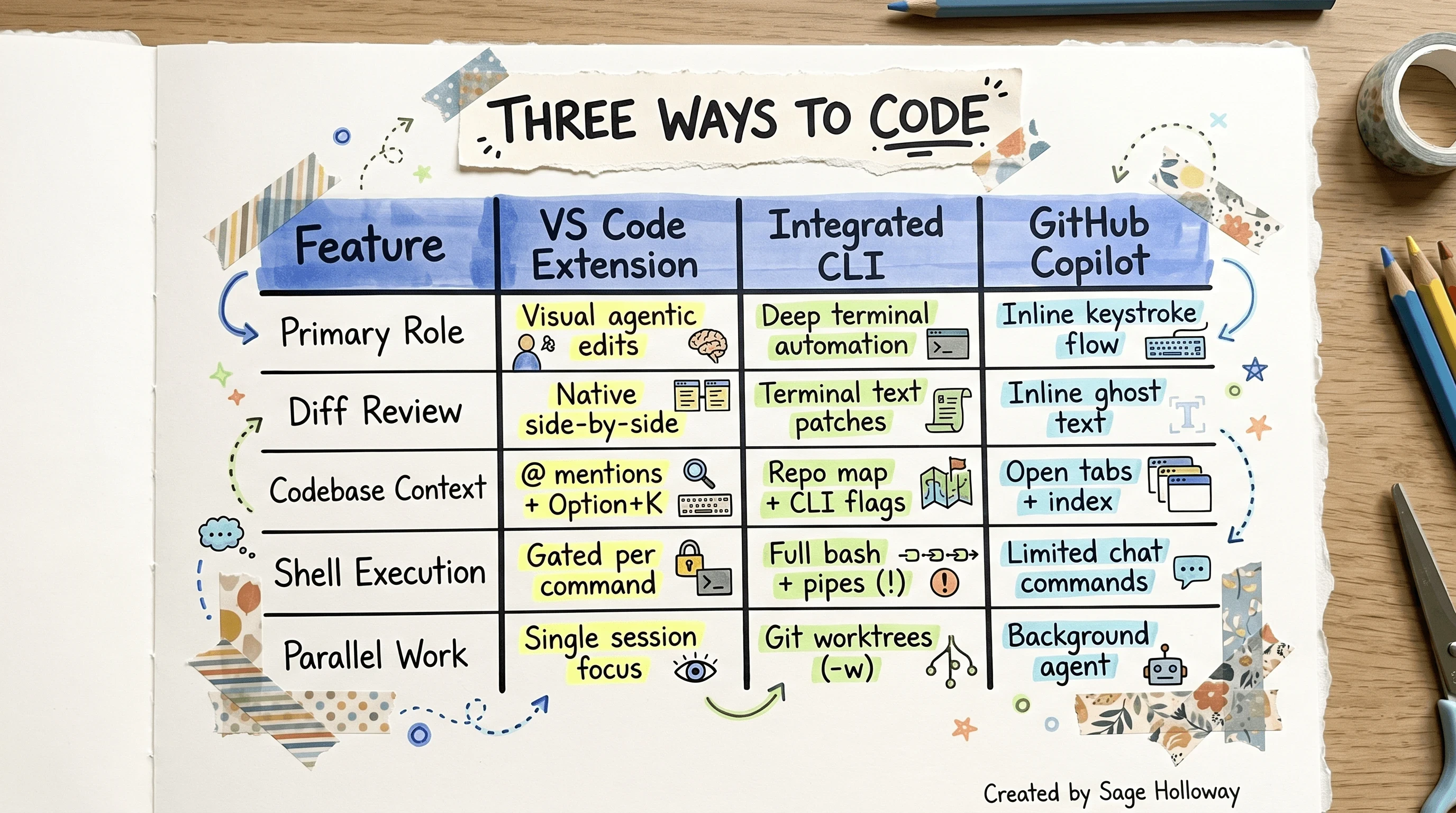
Claude Code is an autonomous reasoning collaborator for multi-file edits and diffs, not an inline autocomplete line engine.
Disambiguating the Claude Ecosystem
Developers often confuse the various ways Anthropic models appear in their desktop workflows:
Claude Code VS Code Extension: The official native sidebar and panel interface connecting VS Code to the Claude Code agent engine.
Claude Code Terminal CLI: The standalone, headless terminal client that runs in bash, zsh, or tmux.
Claude via GitHub Copilot: Anthropic models (Claude 3.5 Sonnet / Claude 3.7 Sonnet) selected inside the GitHub Copilot Chat dropdown menu. This uses GitHub's prompt harness, not Anthropic's agent loop.
Claude Desktop App: The standalone GUI client designed for conversational chats, project artifact windows, and desktop computer use.
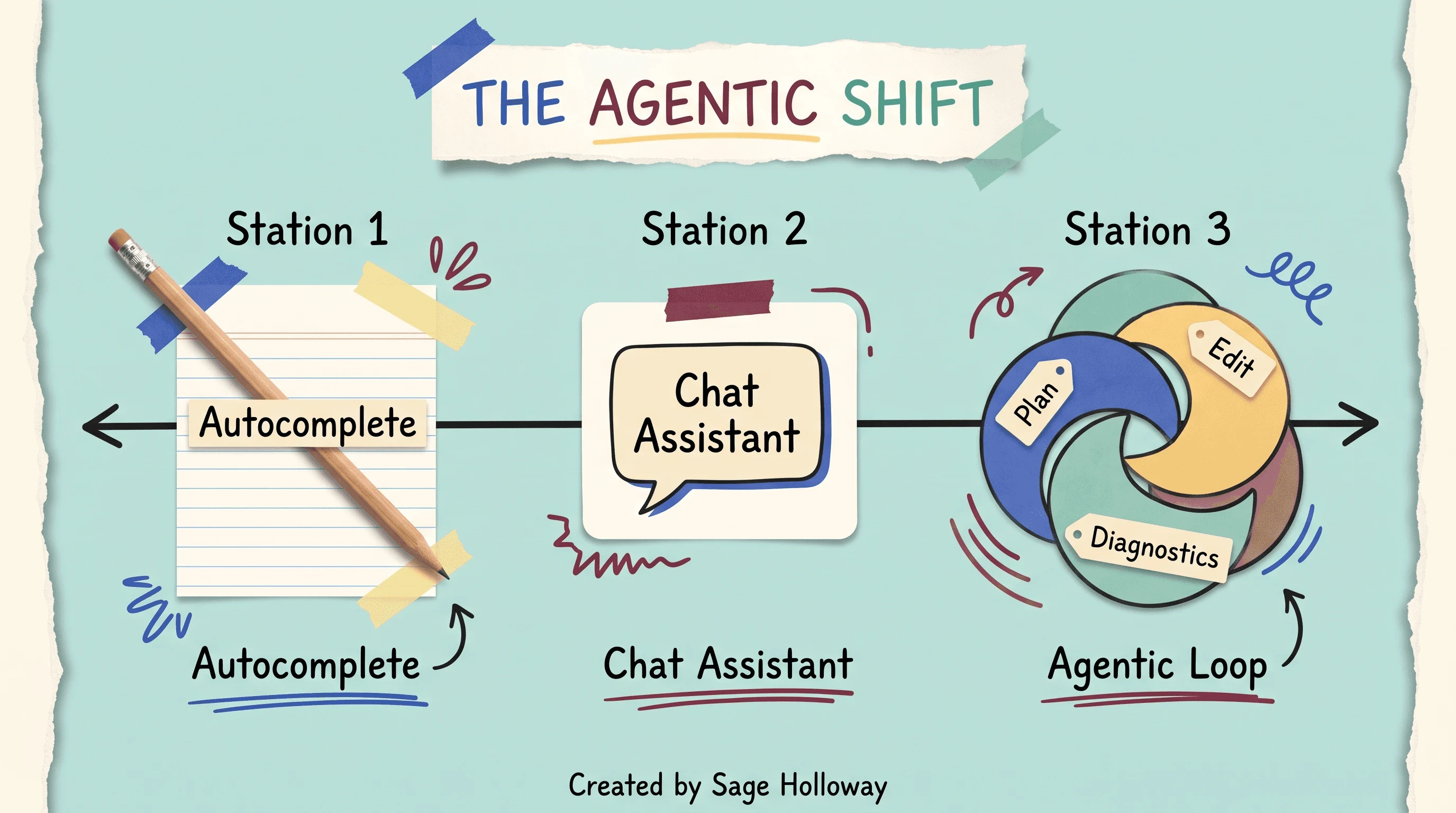
Autocomplete finishes lines; chat answers questions; Claude Code plans, modifies files, and reads editor diagnostics.
Prerequisites and System Requirements
Before installing the extension, verify that your local development environment meets Anthropic's baseline system requirements.
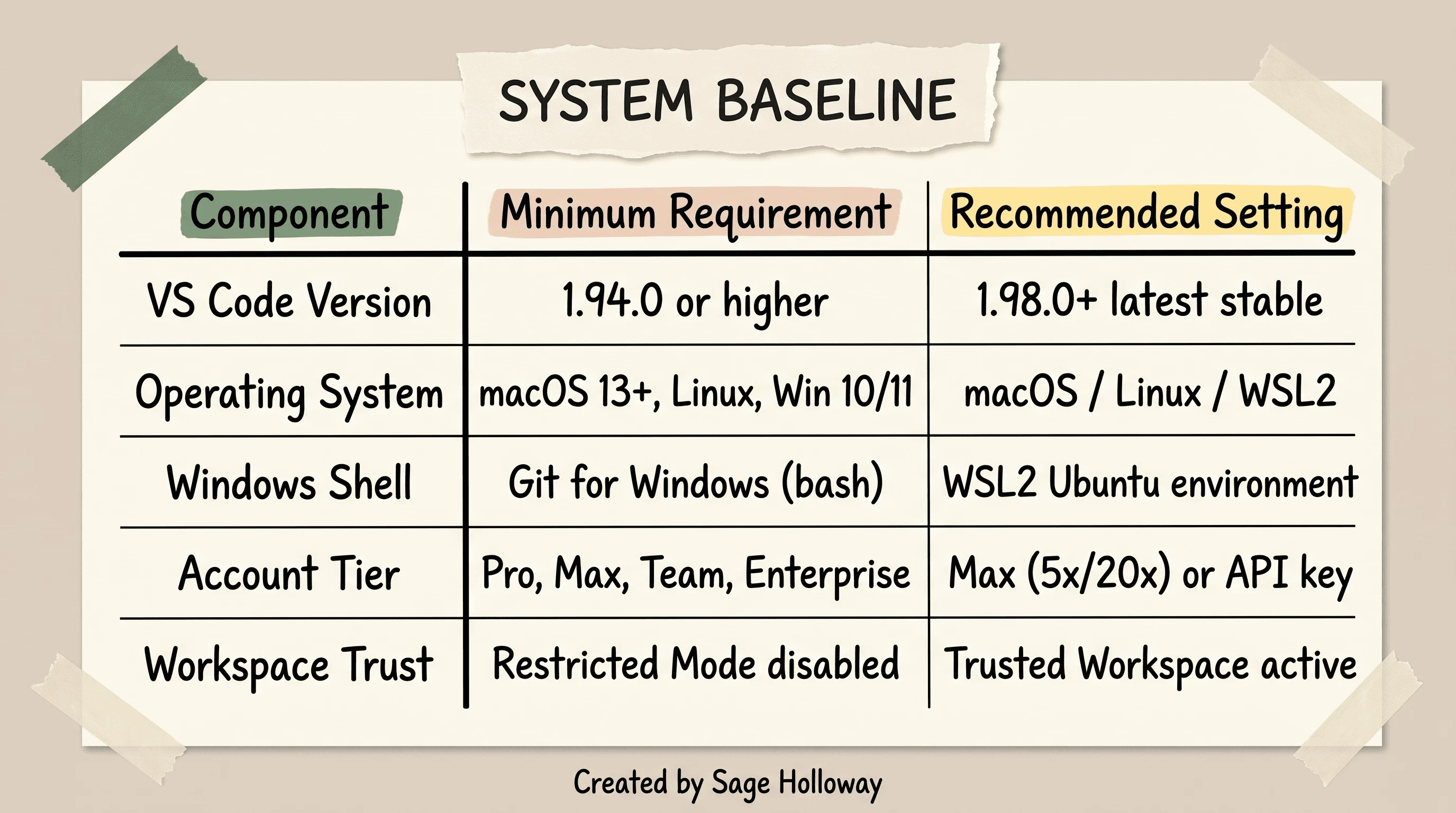
VS Code 1.94+ baseline (1.98+ recommended), trusted workspace required, and Pro/Max/Team or API key authentication.
Account Tiers and Access Paths
Claude Code in VS Code supports several authentication paths:
Claude Pro / Team / Max Subscriptions: Flat monthly access with 5-hour rolling token quotas.
Anthropic Console API Key: Pay-as-you-go billing with direct API access.
Enterprise Bedrock / Vertex AI: Cloud proxy credentials configured through environment variables.
Third-Party Open Models: Local Ollama or OpenRouter models routed via custom local proxy endpoints.
Installing and Configuring the Extension
Setting up Claude Code in VS Code takes less than two minutes. Follow these verified installation steps:
Open the Extensions View: Press
Cmd+Shift+X(macOS) orCtrl+Shift+X(Windows/Linux).Search for Extension: Type
Claude Codein the marketplace search bar. Verify the publisher isAnthropic.Click Install: VS Code will automatically download the extension package and bundle the underlying agent runtime.
Sign In: Click the Claude Spark icon (✱) in your activity bar. Follow the OAuth prompt in your default browser to authenticate with your Anthropic account.
<div class="video-embed-card" data-video-id="0FmT0uasKWw"> <iframe width="100%" height="400" src="https://www.youtube-nocookie.com/embed/0FmT0uasKWw" title="How To Install Claude Code Extension in VS Code" frameborder="0" allow="accelerometer; autoplay; clipboard-write; encrypted-media; gyroscope; picture-in-picture" allowfullscreen></iframe> <p class="caption">Watch the step-by-step marketplace installation and layout configuration walkthrough by Mike Murphy.</p> </div>
The Day-1 Core Interaction Loop
Once installed, your daily interaction with Claude Code in VS Code centers around four core actions: line-scoped prompt submission, fuzzy file referencing, side-by-side diff review, and checkpoint rollback.
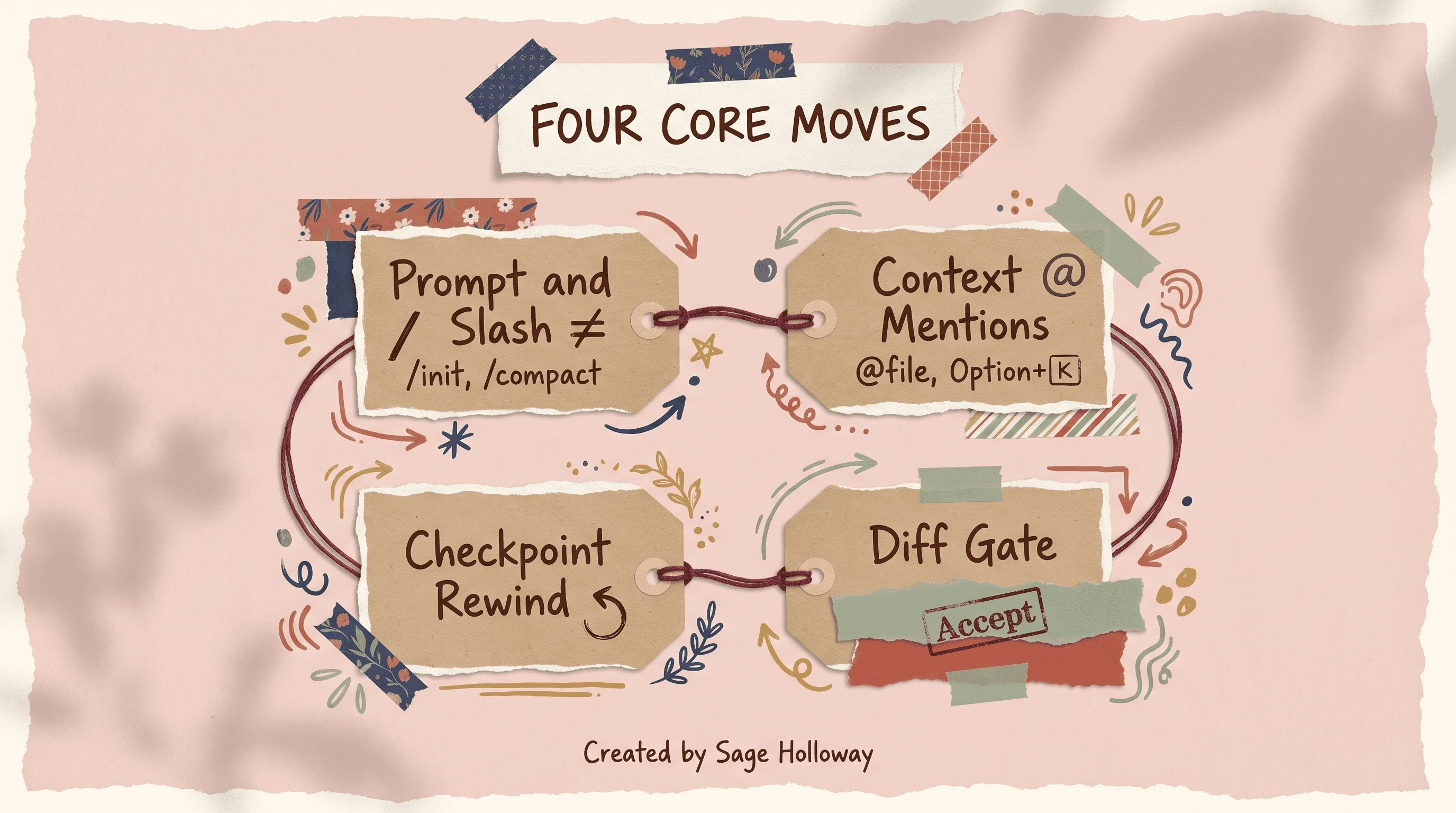
Master the four core moves: slash commands, line-scoped mentions, side-by-side diff reviews, and checkpoint rewinds.
Move 1: Focus and Slash Commands
Press Cmd+Esc (or Ctrl+Esc) to immediately focus the Claude Code prompt input box. Use built-in slash commands to manage your session:
/init: Scan the codebase and generate a tailoredCLAUDE.mdmemory file./compact: Condense conversation history into a concise architectural summary to reclaim token context./clear: Wipe active session memory and reset the context window./rewind: Revert the last batch of code changes and step back one checkpoint.
Move 2: Fuzzy Mentions and Selection Context
Never copy-paste entire files into chat. Instead, reference context dynamically:
Type
@filenameto attach a specific file or symbol directly into your prompt.Highlight lines in any open editor tab and press
Option+K(Alt+K) to pass the highlighted snippet with exact line numbers into the agent prompt.Drag and drop tabs from the editor header directly into the prompt box.
Move 3: Side-by-Side Visual Diff Reviews
When Claude Code edits files, VS Code opens a native split-screen diff view. Additions appear in green, deletions in red. You can inspect every modified line before clicking Accept or Reject.
Move 4: Checkpoints and Instant Rollbacks
If an agentic modification breaks tests or heads down the wrong architectural path, you do not need to fight with git manual resets. Double-tap Esc to halt active generation immediately, or use /rewind to return the codebase to the state before the prompt was executed.
<div class="video-embed-card" data-video-id="ph5DRCX_g6s"> <iframe width="100%" height="400" src="https://www.youtube-nocookie.com/embed/ph5DRCX_g6s" title="How to Use Claude Code in VS Code in 3 Minutes" frameborder="0" allow="accelerometer; autoplay; clipboard-write; encrypted-media; gyroscope; picture-in-picture" allowfullscreen></iframe> <p class="caption">Watch Nic Conley's 3-minute onboarding demo to see prompt submission and file editing in action.</p> </div>
How the Extension Runs Under the Hood
Understanding the underlying communication layer between VS Code and Claude Code helps resolve editor edge cases.
The VS Code extension does not inject code directly into editor memory. Instead, it spawns a local, unencrypted loopback WebSocket server on 127.0.0.1 using an ephemeral high-numbered TCP port.
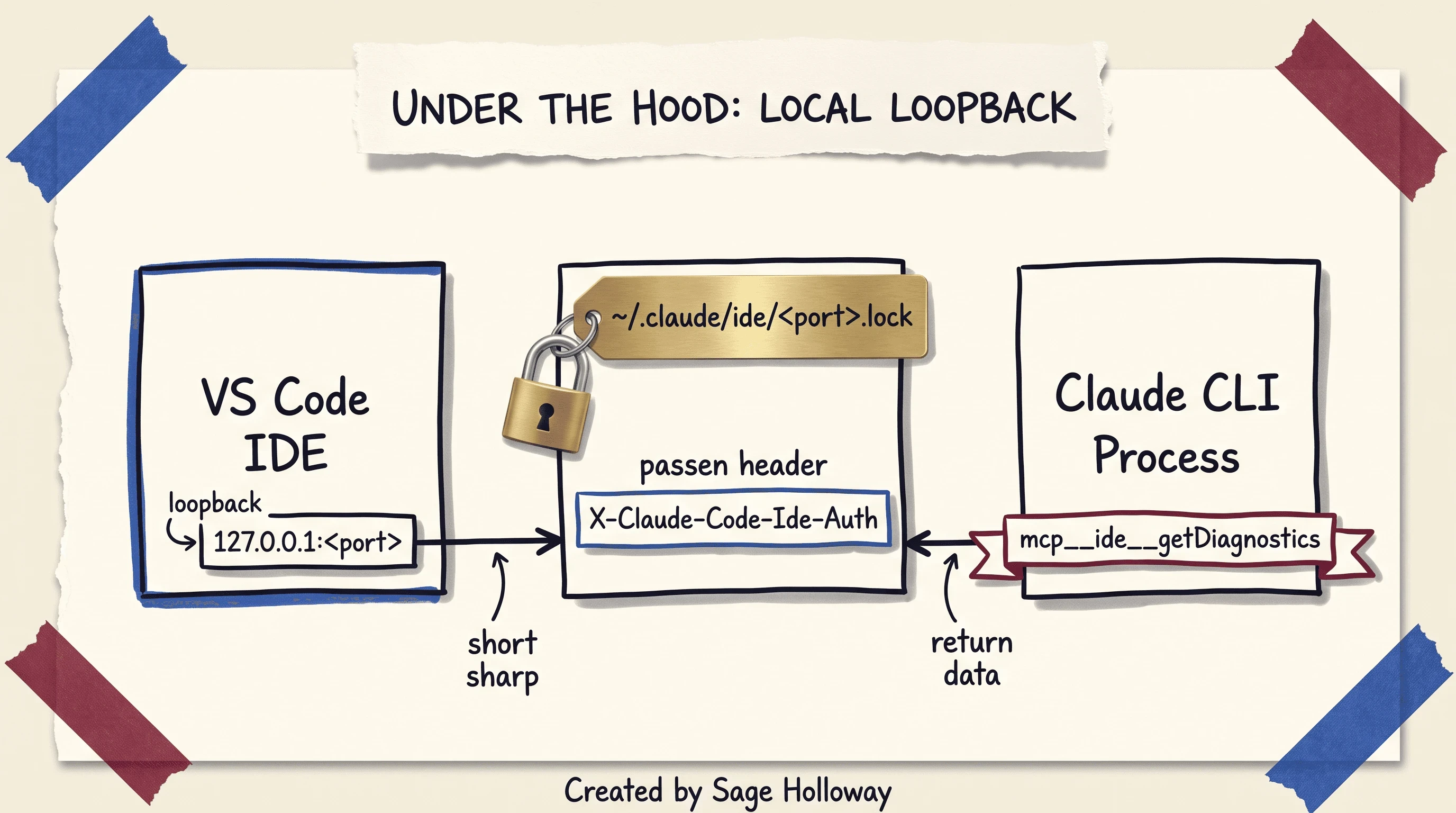
The extension spawns a local WebSocket server on 127.0.0.1; the CLI authenticates via lockfile to pull compiler diagnostics.
When active, the extension writes a lockfile to ~/.claude/ide/<port>.lock containing a secure handshake token. When you run claude in your integrated terminal or trigger the extension sidebar, the client reads this lockfile, authenticates via custom HTTP headers, and communicates over the local WebSocket interface.
Through this channel, Claude Code exposes specialized IDE Model Context Protocol (MCP) tools:
mcp__ide__getDiagnostics: Reads TypeScript, Python, or Rust compiler errors directly from the VS Code Problems panel.mcp__ide__openFile: Opens and highlights target source files automatically.mcp__ide__getSelectedText: Reads the user's active editor cursor selection.
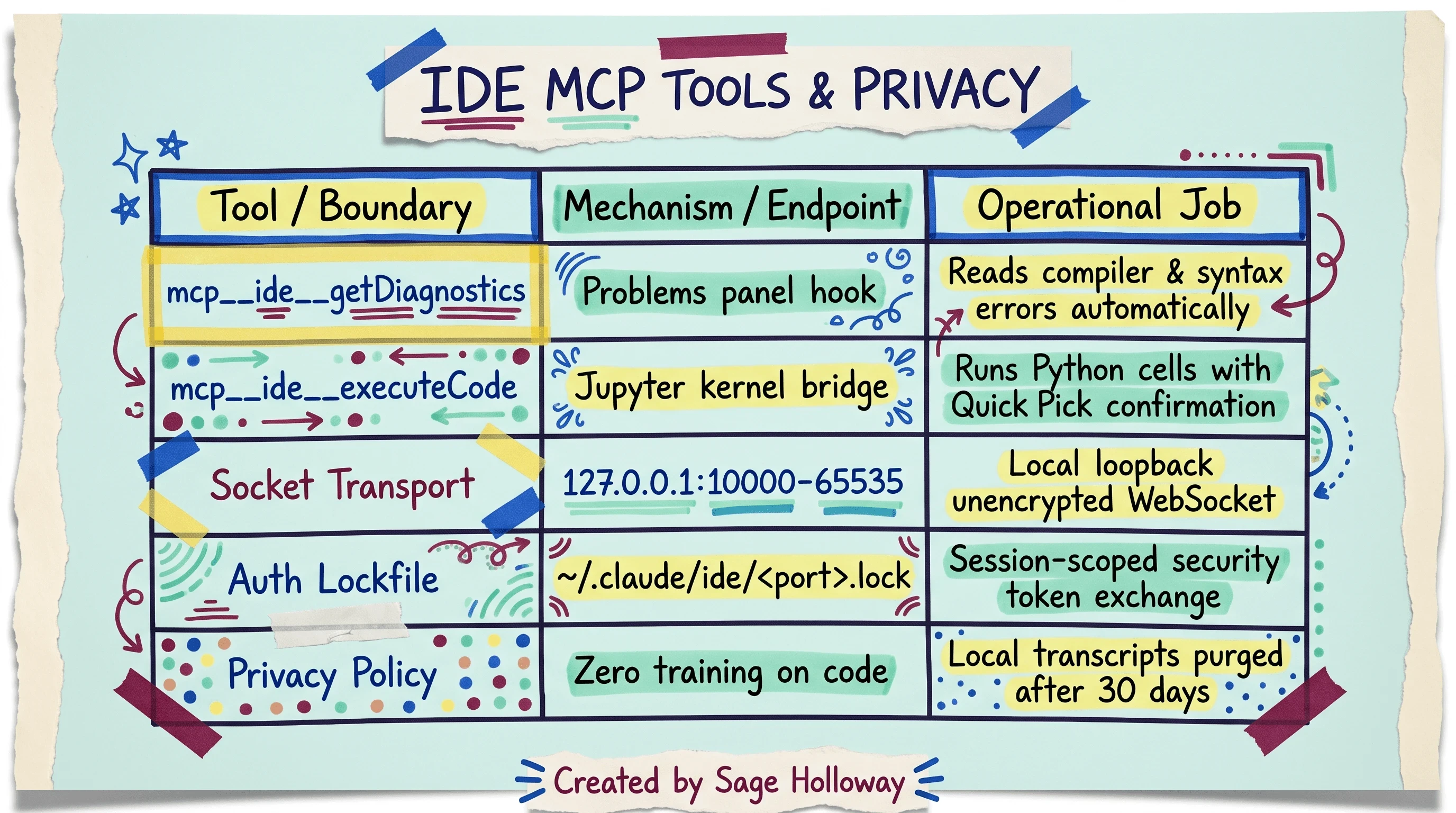
Local unencrypted loopback transport binds to 127.0.0.1 high ports with strict token authentication and zero model training.
Permission and Operation Modes
Autonomous agents need clear safety boundaries. Claude Code in VS Code provides four distinct operational modes to match your risk tolerance.
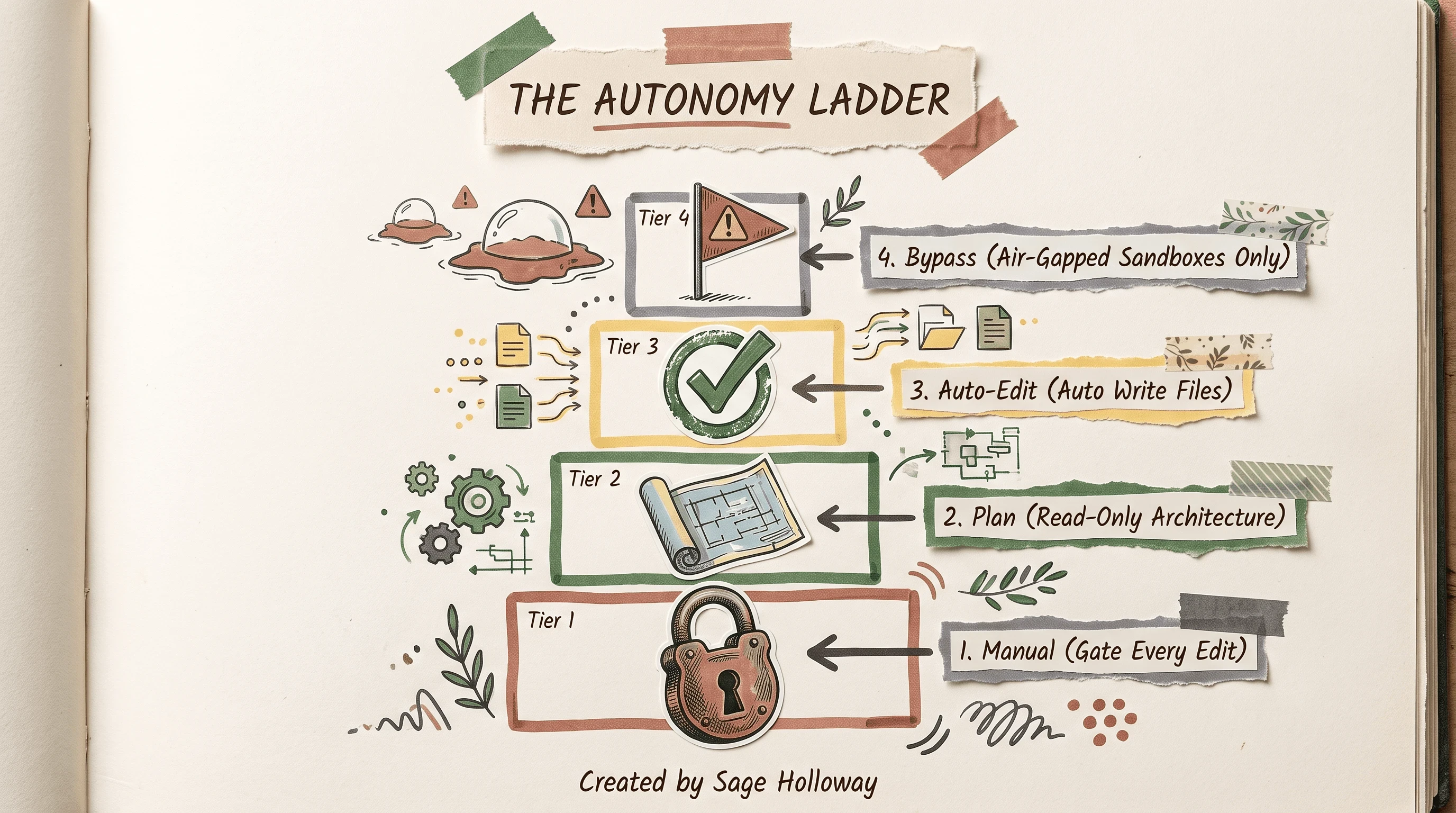
Choose your control tier: Manual for step-by-step gates, Plan for architecture, Auto-edit for rapid diffs, Bypass for air-gapped sandboxes.
Press Shift+Tab inside the prompt input box to cycle through these operational modes:
Manual Mode (Default): Prompts for human approval before executing file writes, command-line tests, or network calls. Ideal for unfamiliar codebases.
Plan Mode: Prohibits file modifications and shell execution entirely. The agent researches the codebase and writes a comprehensive implementation blueprint first.
Auto-Edit Mode (
acceptEdits): Automatically applies file edits directly to disk while still gating shell command executions behind approval prompts. Perfect for rapid refactoring.Bypass Mode (
allowDangerouslySkipPermissions): Auto-approves all tool and terminal permissions. Use this mode only in air-gapped development containers or sandbox environments.
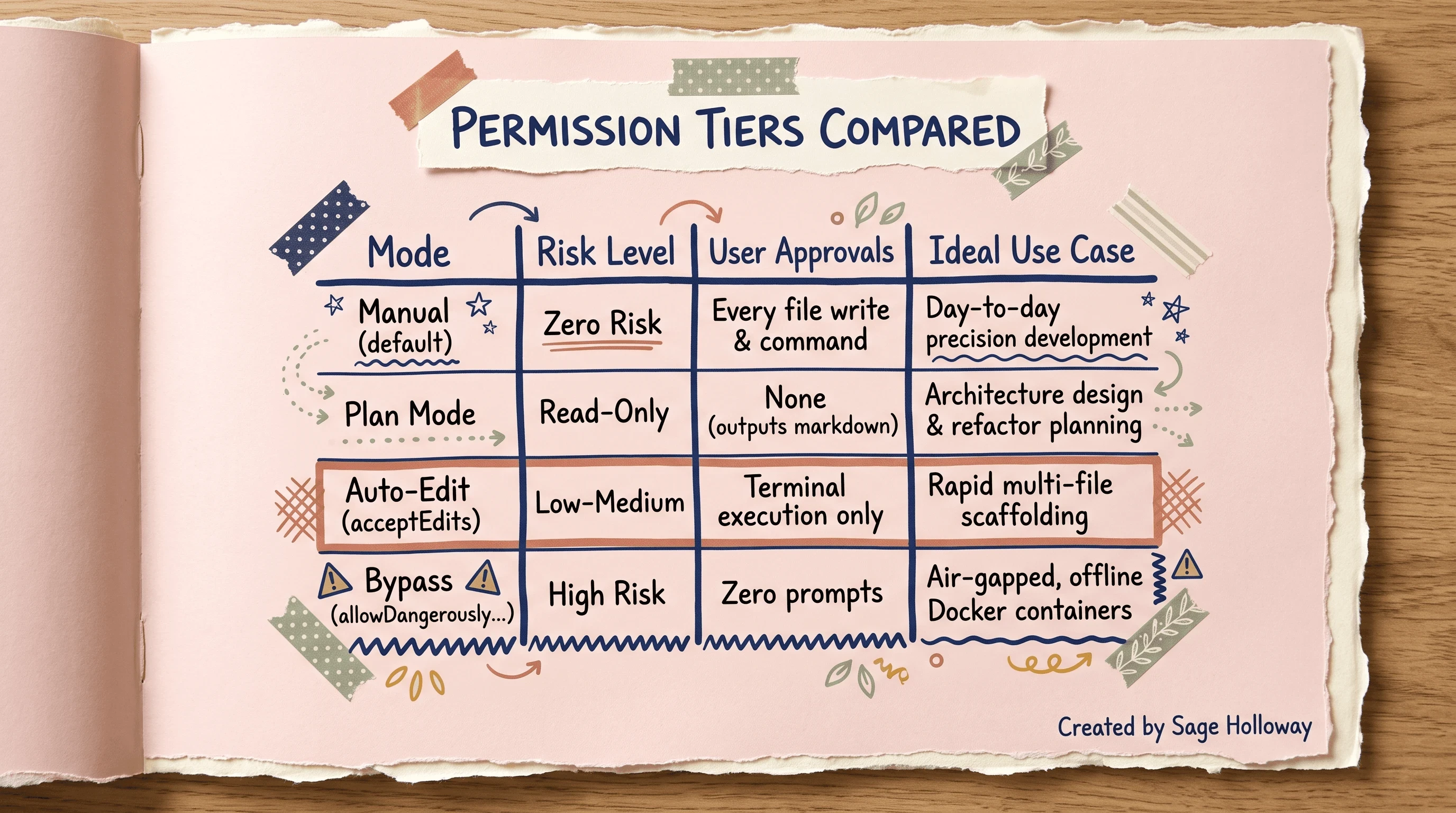
Plan mode generates markdown blueprints first; Auto-edit writes files while gating terminal execution; Bypass is sandbox-only.
The CLI vs. Extension Dilemma: Mastering Hybrid Execution
A common beginner mistake is treating the VS Code GUI extension and the standalone terminal CLI as competitors. In reality, senior developers use a state-shared hybrid workflow.
Because both the extension sidebar and the integrated terminal communicate over the same loopback WebSocket connection, you can switch between visual and terminal workflows without losing state.
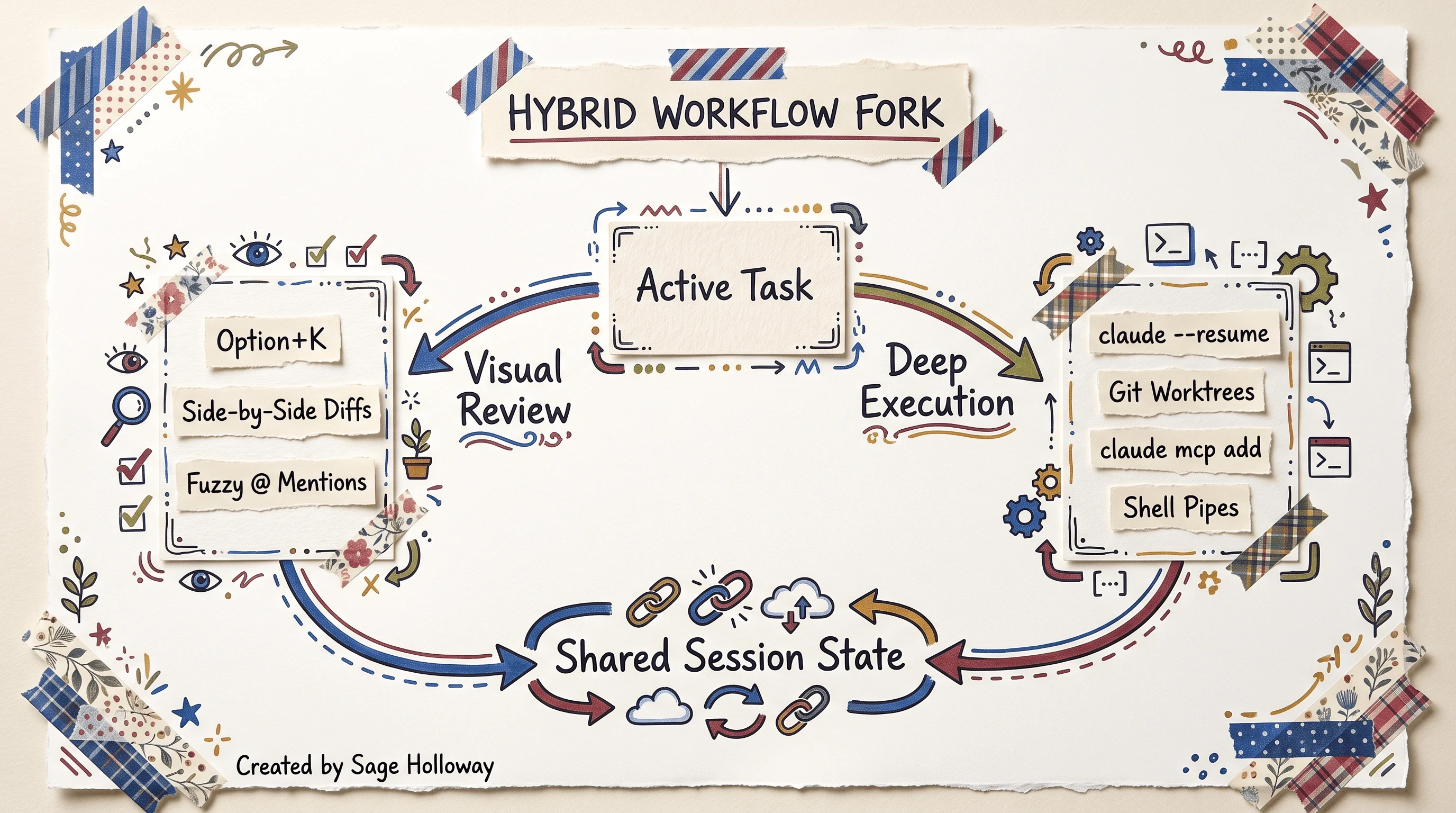
Use the extension GUI for visual diff reviews and selection context; jump to the integrated terminal for worktrees and MCP setup.
Use the GUI Extension when:
Reviewing complex, multi-file side-by-side diffs.
Selecting specific lines with
Option+Kto ask targeted questions.Monitoring editor compiler diagnostics in real time.
Use the Integrated Terminal CLI when:
Piping shell outputs or log files into Claude (
cat logs.txt | claude).Managing MCP servers with
claude mcp add.Running long unattended tasks or git worktree isolation branches.
<div class="video-embed-card" data-video-id="0lL94h1z72A"> <iframe width="100%" height="400" src="https://www.youtube-nocookie.com/embed/0lL94h1z72A" title="Getting Started With Claude Code With VS Code" frameborder="0" allow="accelerometer; autoplay; clipboard-write; encrypted-media; gyroscope; picture-in-picture" allowfullscreen></iframe> <p class="caption">Watch Krish Naik's practical tutorial on building and debugging applications using Claude Code in VS Code.</p> </div>
Project Memory, Context Compaction, and Token Hygiene
Every interaction with Claude Code consumes token quota. If you allow sessions to accumulate dozens of stale file outputs, model reasoning degrades and rolling 5-hour rate limits trigger prematurely.
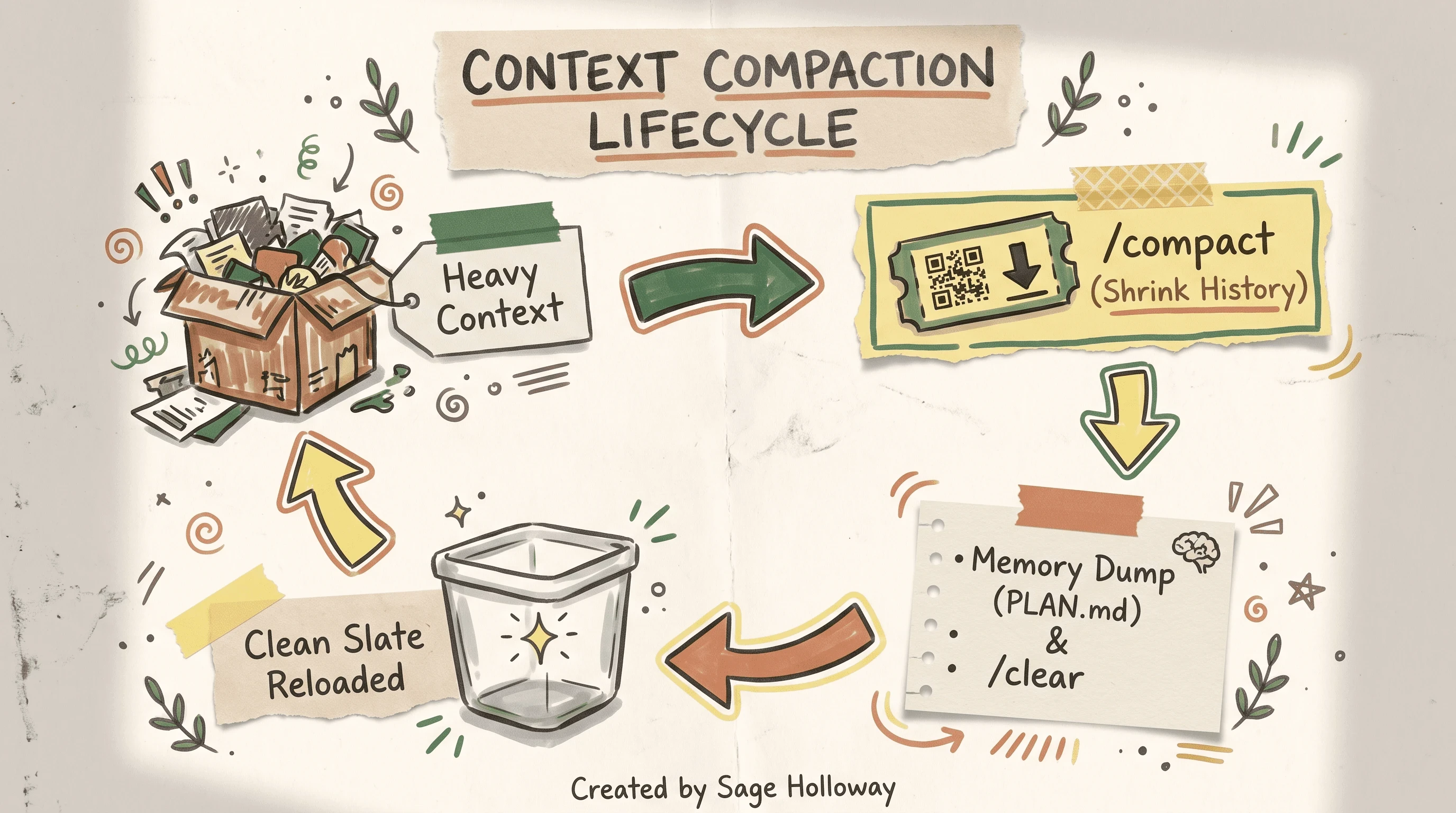
Context bloat degrades model reasoning: compact active sessions and use memory dumps to maintain clean token headroom.
The CLAUDE.md Memory Standard
Create a CLAUDE.md file in your project root to store durable codebase rules. Claude Code reads this file on startup, preventing you from repeating build commands and styling guidelines:
The Memory Dump Routine
Before running /clear to start a new task, ask Claude to record key architectural findings into your project memory file:
<div class="video-embed-card" data-video-id="2Go2mNMmGdQ"> <iframe width="100%" height="400" src="https://www.youtube-nocookie.com/embed/2Go2mNMmGdQ" title="I Wish Someone Had Explained Claude Code Like This When I Started" frameborder="0" allow="accelerometer; autoplay; clipboard-write; encrypted-media; gyroscope; picture-in-picture" allowfullscreen></iframe> <p class="caption">Watch Rick Mulready explain the Autopilot mindset, CLAUDE.md project memory, and token preservation.</p> </div>
Essential Day-One Settings and Environment Config
Configure your VS Code settings.json and ~/.claude/settings.json to lock down your preferred layout and permissions:
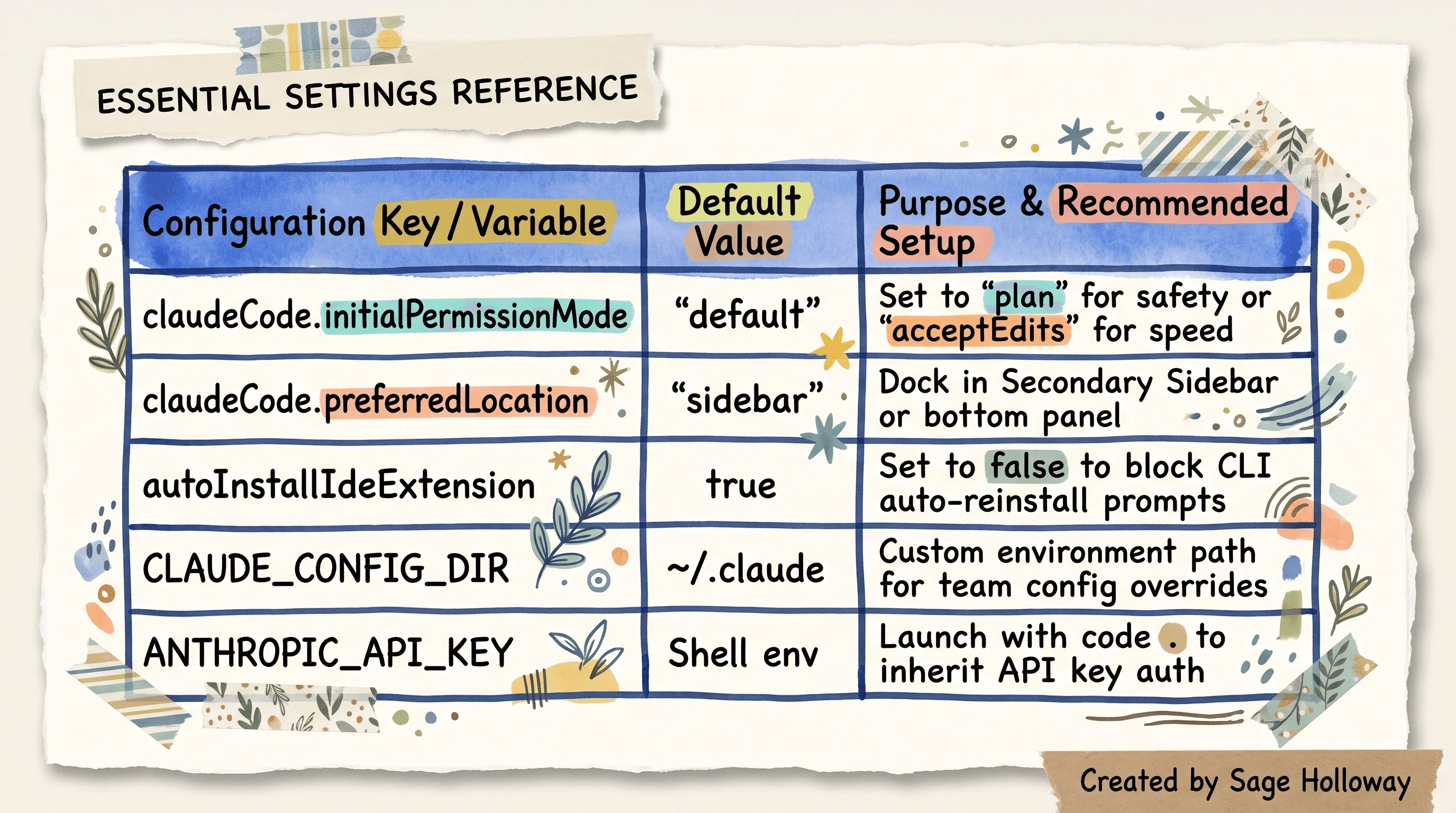
Configure initialPermissionMode, preferredLocation, and autoInstallIdeExtension to lock down your preferred layout.
Keyboard Shortcut Cheat Sheet
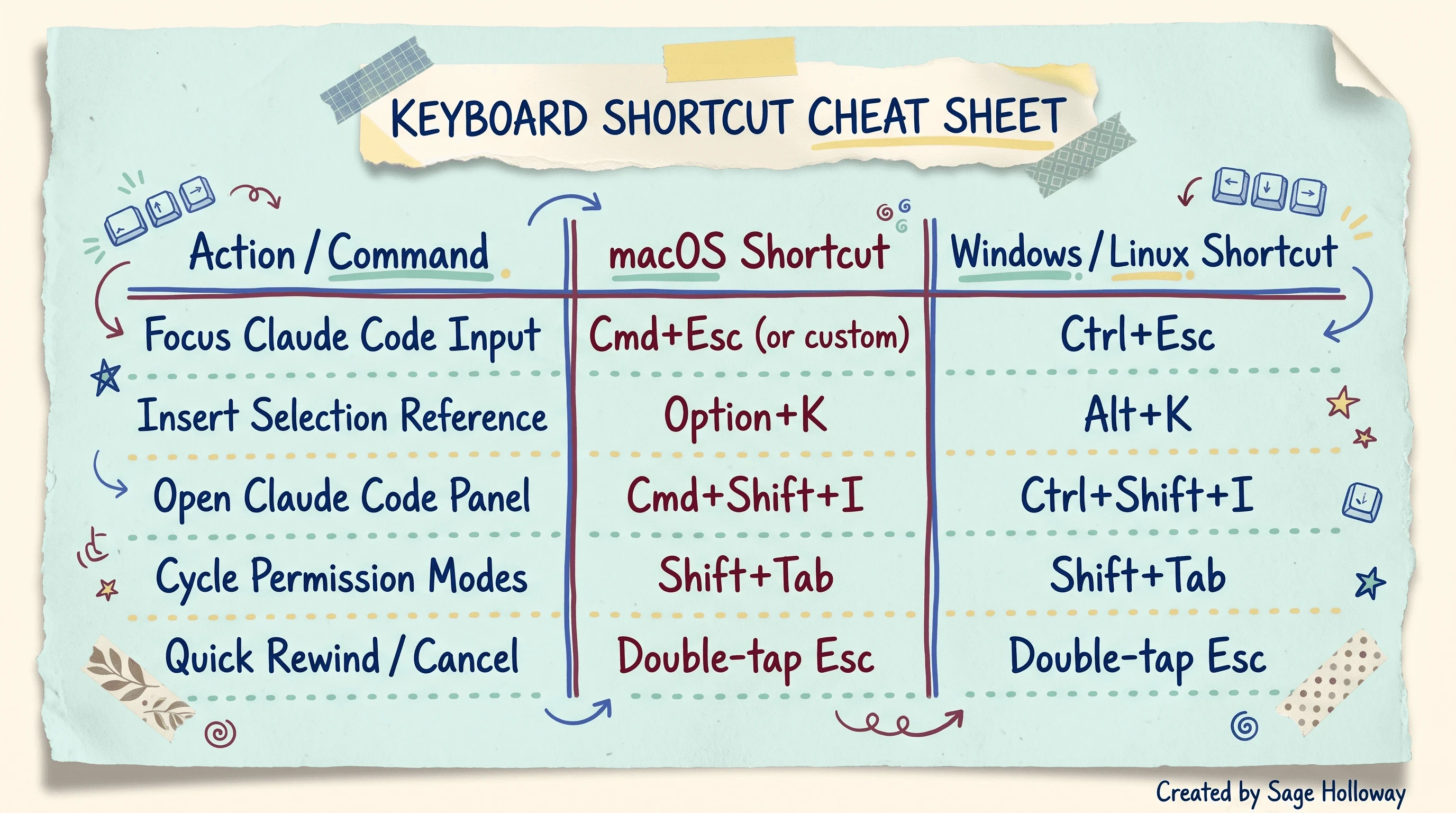
Essential shortcuts: Cmd+Esc for prompt focus, Option+K for selection reference, Cmd+Shift+I for sidebar, Shift+Tab for mode cycling.
Troubleshooting and Platform-Specific Fixes
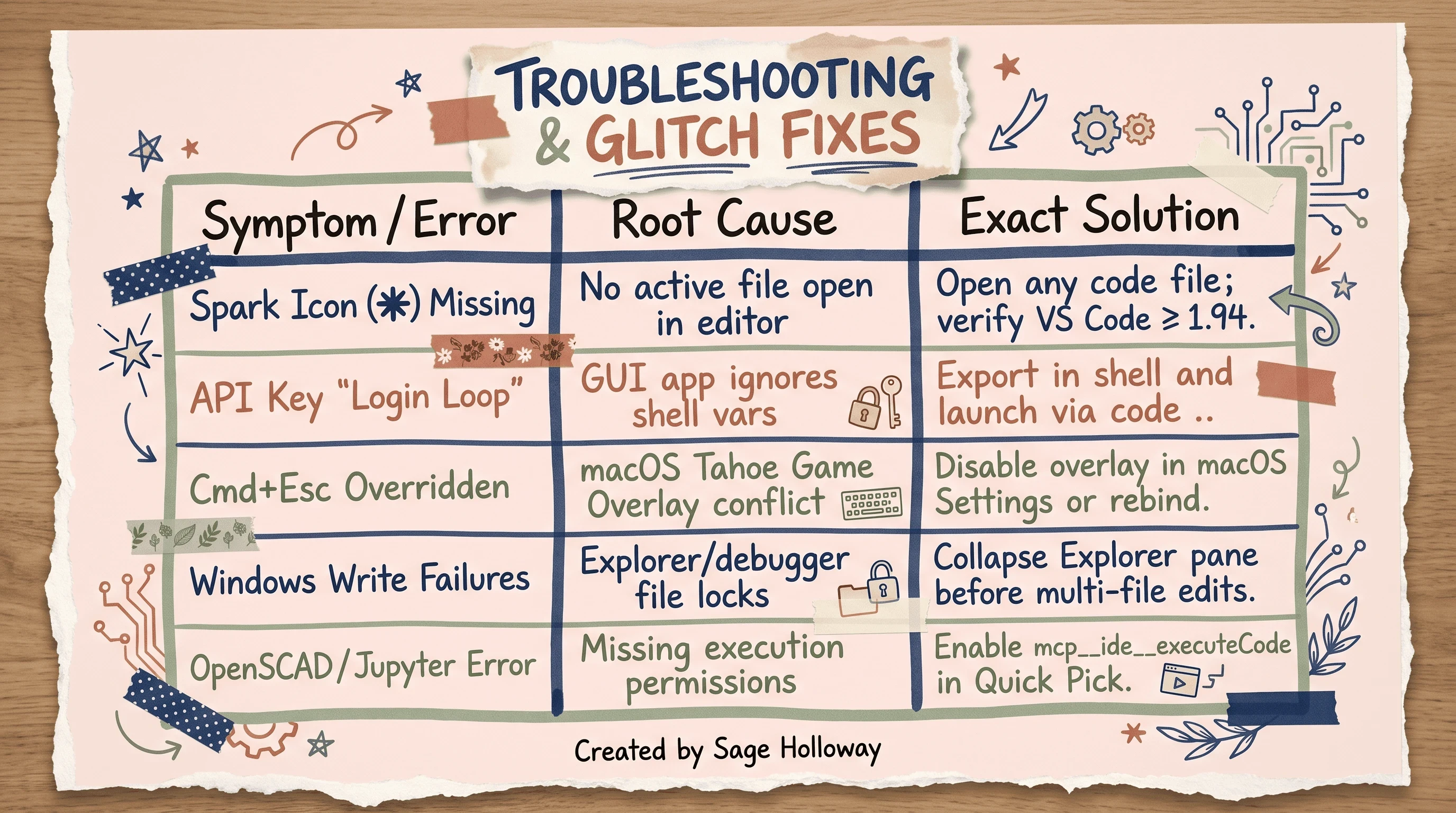
Fix vanishing Spark icons by opening active files, resolve login loops with terminal code ., and rebind Tahoe Cmd+Esc shortcuts.
1. The Disappearing Spark Icon
If the Claude Code Spark icon disappears from your editor header or activity bar, verify that you have an active file open in the editor pane. The extension suppresses contextual actions when no workspace file is focused.
2. Environment Variable & API Key Inheritance
If the extension repeatedly prompts you to log in despite having ANTHROPIC_API_KEY defined in your .zshrc or .bashrc, you launched VS Code from your macOS Dock or Windows Start Menu. GUI launchers do not inherit shell environment variables. Open VS Code directly from your terminal using code . to pass environment variables cleanly.
3. macOS Tahoe Cmd+Esc Shortcut Conflict
On macOS 15+ (Tahoe), Apple binds Cmd+Esc to the system Game Overlay. To prevent shortcut hijacking, open VS Code Keyboard Shortcuts (Cmd+K Cmd+S), search for claudeCode.focus, and rebind it to Cmd+Shift+C.
Frequently Asked Questions
Do I need to install the CLI separately before using the VS Code extension?
No. The official VS Code extension bundles its own internal runtime. However, installing the standalone CLI (npm install -g @anthropic-ai/claude-code or native package) is recommended so you can take advantage of the state-shared hybrid terminal workflow.
Is the Claude Code VS Code extension free?
The extension itself is free to download from the Extensions Marketplace, but using it requires an active Anthropic account tier (Claude Pro at $20/month, Max, Team, or direct API billing). Alternatively, you can configure the runtime to point to local Ollama endpoints for open models.
Does Claude Code in VS Code offer inline autocomplete like GitHub Copilot?
No. Claude Code is an autonomous reasoning agent designed for multi-file planning, refactoring, and test execution. It does not provide character-by-character keystroke autocomplete while typing in source files.
How do I roll back code changes if Claude makes a mistake?
You can use the /rewind slash command in the prompt box, click the checkpoint rollback button in the extension interface, or double-tap Esc during active generation to immediately halt modifications.
Does the VS Code extension support Model Context Protocol (MCP) servers?
Yes. You can manage connected MCP servers via the extension settings panel or add custom servers using the integrated terminal CLI command claude mcp add <server-name> <command>.
How can I use VS Code with OpenSCAD and Claude?
For specialized 3D CAD modeling workflows using OpenSCAD in VS Code, install both the OpenSCAD syntax extension and Claude Code. Use Claude Code to generate parametric 3D geometry scripts (.scad), while the OpenSCAD preview extension renders the compiled CSG models in an adjacent editor tab.
Next Steps
Now that you have configured Claude Code in VS Code, put the hybrid workflow into practice on your active codebase:
Initialize your project memory by running
/initto generateCLAUDE.md.Test line-scoped context by highlighting a function and pressing
Option+K.Switch to Plan Mode with
Shift+Tabbefore executing your next major architectural refactor.
Sage
PS. If you find your sessions hitting rate limits during heavy refactoring, run /compact every four prompts to keep your active context lean and model reasoning sharp.
Author
Practical guides, tool teardowns & AI engineering workflows.