Claude Code
Claude Delete Artifacts: What You Can Remove and the Safe Workarounds

Sage Holloway
20 min read
Go back to blog
SHARE

The work is finished, but the thing that made it is still sitting in the middle of the room. Every familiar cleanup instinct points toward a button that is not there. Worse, the button you can find may remove something you meant to keep.
If you searched for how to make Claude delete artifacts, here is the direct answer: you cannot delete one private Claude artifact from an existing chat because it is part of the assistant message. To clear the clutter, branch from an earlier point or move the essential material into a new conversation. Published artifacts are different. You can unpublish them to revoke access, but doing so permanently deletes associated persistent storage and prevents that artifact from being published again.
That distinction sounds small. It changes the whole cleanup job.
A private artifact is the code, document, or interactive output Claude placed beside a conversation for you. A published artifact has a public link. An organization-shared artifact is available only to authenticated members of a Team or Enterprise organization. The word artifact stays the same in all three cases, but the removal controls and consequences do not.
This guide starts with the failed delete attempt, then gives you the least destructive path for each state. It does not turn into a broad creation tutorial. If you need the panel, format, and capability basics first, read what a Claude artifact is.
On this page:
Why one private artifact cannot be deleted
Choose the right removal path
Work around private artifact clutter
Unpublish a public artifact
Unshare an organization artifact
Stop new artifacts from appearing
Fix missing Remix or disabled Publish
FAQ
A private artifact stays attached to its chat, while a published artifact has a separate access path you can revoke.
Why you cannot delete one private artifact from a Claude chat
You open the conversation, find the artifact, and look for a delete control. There is no reliable individual-delete action because the artifact is not a loose file in a folder. It belongs to the assistant message that created it. Removing only the artifact would mean modifying that earlier message, and Claude does not expose that operation.
The best available evidence for this exact limitation comes from the community troubleshooting thread captured in the research pack. That makes the limitation well supported for this job, but it also tells us something important about language: do not mistake a workaround for a hidden official delete feature. Branching helps you leave the clutter behind. It does not rewrite the original conversation.
Picture a receipt stapled into a paper account book. You can open a clean page and continue the record there. You can copy the totals into a new book. You can even throw away the whole book if you no longer need any of it. What you cannot do neatly is pull out only the receipt without changing the page it belongs to.
That is the private artifact constraint. The chat is the account book, the assistant message is the page, and the artifact is part of that recorded entry.
This explains three symptoms that people often combine into one complaint:
Visual clutter: old iterations remain available in the conversation even after you move on.
Broken iteration: you keep editing the wrong version because several similar artifacts sit in the same history.
Community-reported lag: users report slower or failed generations in long conversations with many artifacts. Treat this as a reported symptom, not a quantified performance guarantee or a documented threshold.
The cause stays the same. Private artifacts remain in message history. The workaround changes where you continue working, not what already happened.
But could deleting the entire chat solve it? Yes, in the bluntest possible way. It removes the conversation rather than one artifact. If published artifacts are associated with that chat, third-party guidance in the research pack says deleting the conversation also unpublishes them. That is a batch consequence, not a precise cleanup control. Preserve anything you need before considering it.
This is also where deletion and access revocation split apart. Deletion removes stored content or its containing conversation. Access revocation stops other people reaching a published or shared artifact. Unpublish and unshare are access controls. Neither one surgically removes a private artifact from the chat that created it.
The dangerous click is rarely the one that looks permanent. It is the one that solves the wrong layer.
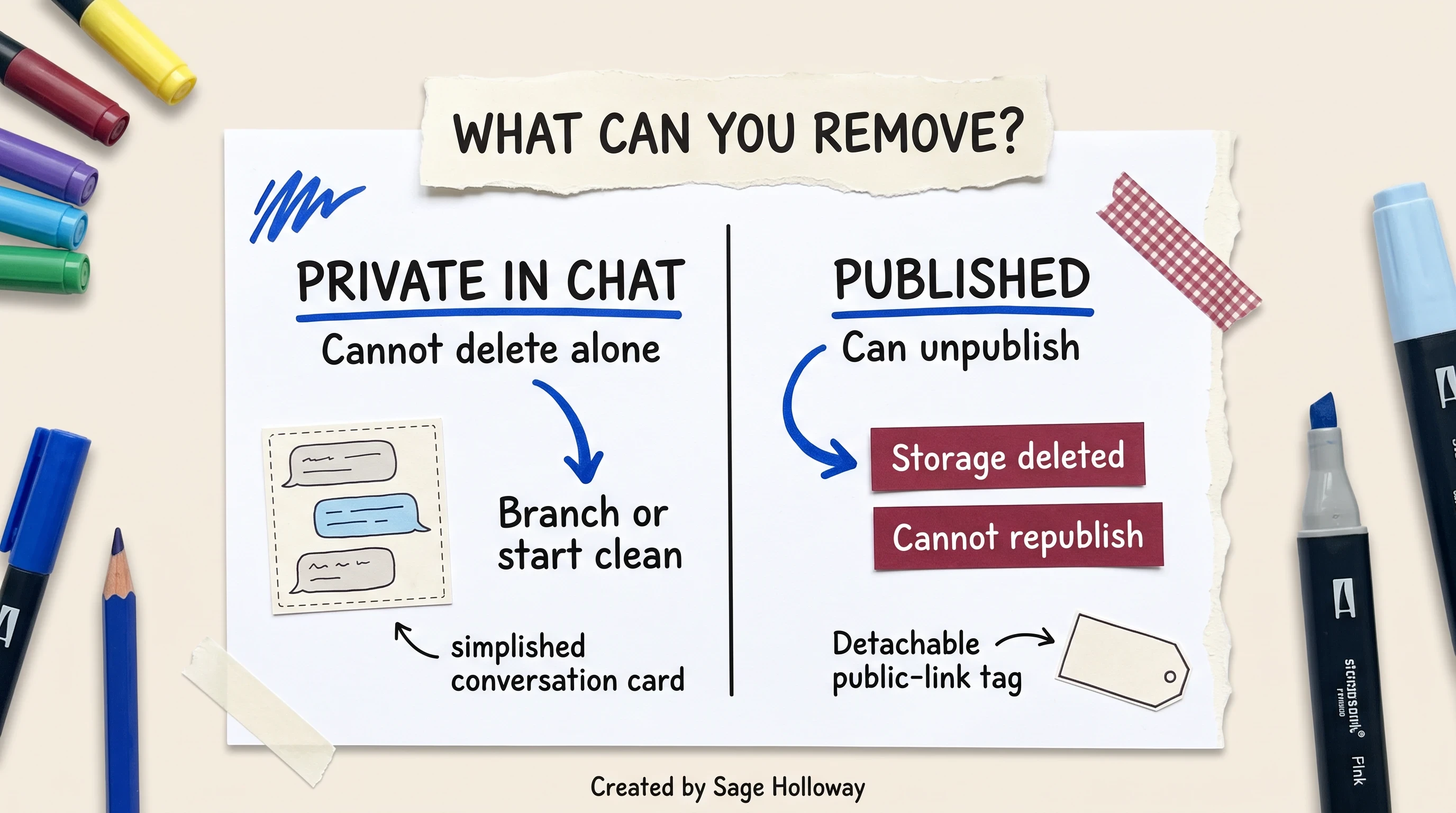
Private chat artifact: branch or start clean. Published artifact: unpublish, then accept the irreversible storage consequence.
Choose the right removal path before you click anything
First identify the artifact state. Do not start with the button you happen to see.
One product label leads to three removal states: private, public, and organization-only. That is the contrast to hold onto.
The quick test is about audience. Is the artifact visible only inside your own conversation? Does it have a public link anyone can open? Or did you share it with authenticated colleagues inside an organization? Those are three different paths.
Private chat artifact
A private chat artifact cannot be removed on its own. Your safest options are to branch from an earlier message, start a new conversation, or copy the useful material somewhere clean. The original conversation and its artifact remain unless you delete the entire chat.
Use this path when your goal is a cleaner working context, not public access control. If the artifact contains useful code, copy it before leaving. If it contains a Markdown document, try editing the existing artifact before creating another version.
Published artifact
A published artifact is publicly accessible through its published link. You can unpublish it to revoke that access. According to Anthropic's publishing and sharing documentation, this action has two irreversible effects: it permanently deletes associated personal and shared persistent storage, and you cannot publish that same artifact again.
Persistent storage means saved text data that an artifact can keep between visits, like preferences or form entries. Anthropic documents a 20 MB cap per artifact and text-only input. That limit does not make the data disposable. Export or copy anything you need before unpublishing.
Organization-shared artifact
An organization-shared artifact is not public. Authenticated members of the relevant Team or Enterprise organization can access it. Unshare it when you want to revoke member access.
There is a security catch: sharing an artifact also gives viewers access to attachments and uploaded files from the conversation that created it. Review the entire creating conversation before sharing, not just the polished artifact panel. If something sensitive slipped through, unshare first and investigate second.
One product boundary belongs here. Live artifacts created in Claude Cowork cannot be published publicly on any plan, according to the official sharing documentation. They are not an alternate public-delete path, so this guide does not expand into a Cowork tutorial.
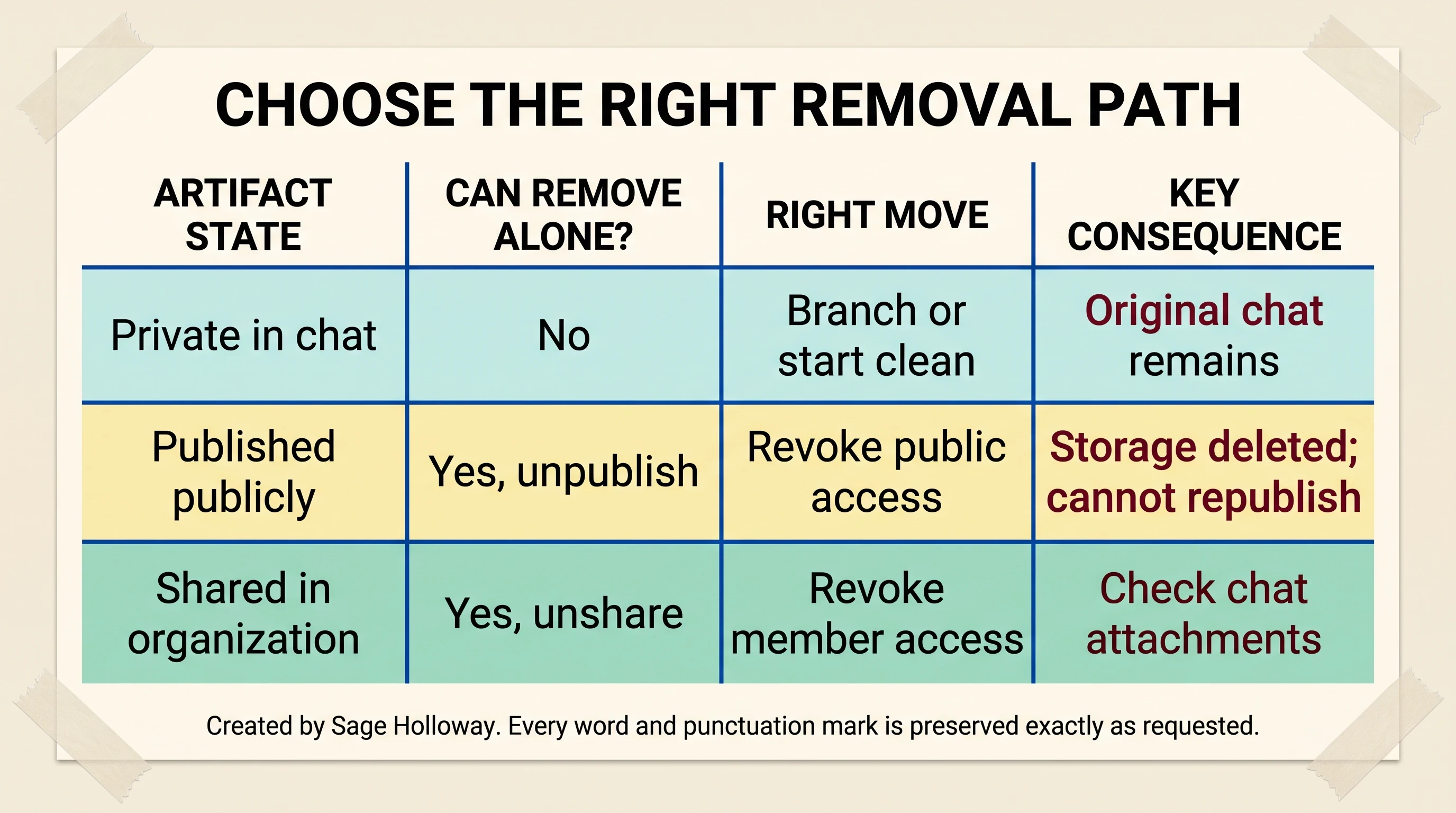
Choose by artifact state first because delete, unpublish, and unshare have different effects.
Workarounds for private artifact clutter and broken iterations
There is no secret control to unlock here. The practical answer is to change the working surface while preserving the parts you still need.
I tried treating every artifact iteration as if Claude were a file manager. It did not work the way I expected. I ended up with nearly identical outputs, a muddier conversation, and no cleaner deletion option than when I started. The useful shift was deciding which version deserved to travel forward.
Branch or start clean
Branching creates a new conversational path from an earlier point. Think of it as continuing from a copied checkpoint rather than editing history. Use it when the conversation was healthy before a burst of unwanted artifacts and the earlier context still matters.
A careful branch workflow looks like this:
Find the last message before the unwanted artifact sequence began.
Note any decision made after that point that the new branch still needs.
Branch from the earlier point if the control is available in your current interface.
Add one compact message containing only those later decisions.
Continue with one clearly named artifact goal.
Branching will not work if the essential decision exists only inside the artifact you are trying to leave behind and you do not copy it first. That is the quiet failure mode. A clean context with missing requirements is just a faster route to the wrong output.
Starting a new conversation is more decisive. Copy the latest useful code, text, or requirements into a fresh chat and add a short state note: what the artifact does, what currently fails, and what must not change. This costs a few minutes upfront. It often saves far more time than asking a crowded conversation to remember which of six versions is canonical.
If your real problem is managing accumulated instructions rather than artifact panels, the broader guide to Anthropic context management explains why clean context changes model behavior. The job here remains narrower: carry only the useful artifact state into the next conversation.
Edit Markdown in place
Do not create a fresh artifact for every wording change. Anthropic's artifact usage guide says Markdown documents support in-place editing. Highlight the text inside the artifact, choose Edit with Claude, and describe the change.
Markdown is a plain-text formatting system that uses characters such as # for headings and - for list items. In-place editing matters because it keeps a small revision attached to the current work instead of adding another full artifact iteration to the conversation.
Use a precise edit request. “Make this better” invites a broad rewrite. “Shorten this paragraph to three sentences and preserve the API names” limits the change. The aim is not fewer artifacts at any cost. It is fewer redundant artifacts.
For a deeper look at which outputs belong in the artifact panel at all, see the Claude artifact format guide. A small prose correction and a complete interactive rebuild should not use the same iteration habit.
Fix a rendering error
If the artifact will not render, deleting it is usually the wrong first move. A rendering error means Claude produced content the preview cannot display correctly, often because generated code has a compilation or layout problem. Compilation is the step that turns source code into something the preview can execute.
Look for Try fixing with Claude near the error message. The official guide says this action passes the artifact error logs into the chat prompt. Error logs are the diagnostic messages that describe what failed and where. Giving those logs back to Claude is more useful than saying “it is broken” without evidence.
If the repair creates another broken iteration, stop after one or two targeted attempts. Copy the last known good code into a fresh conversation and state the error exactly. Endless repair prompts inside an already confused chat do not create certainty. They create archaeology.
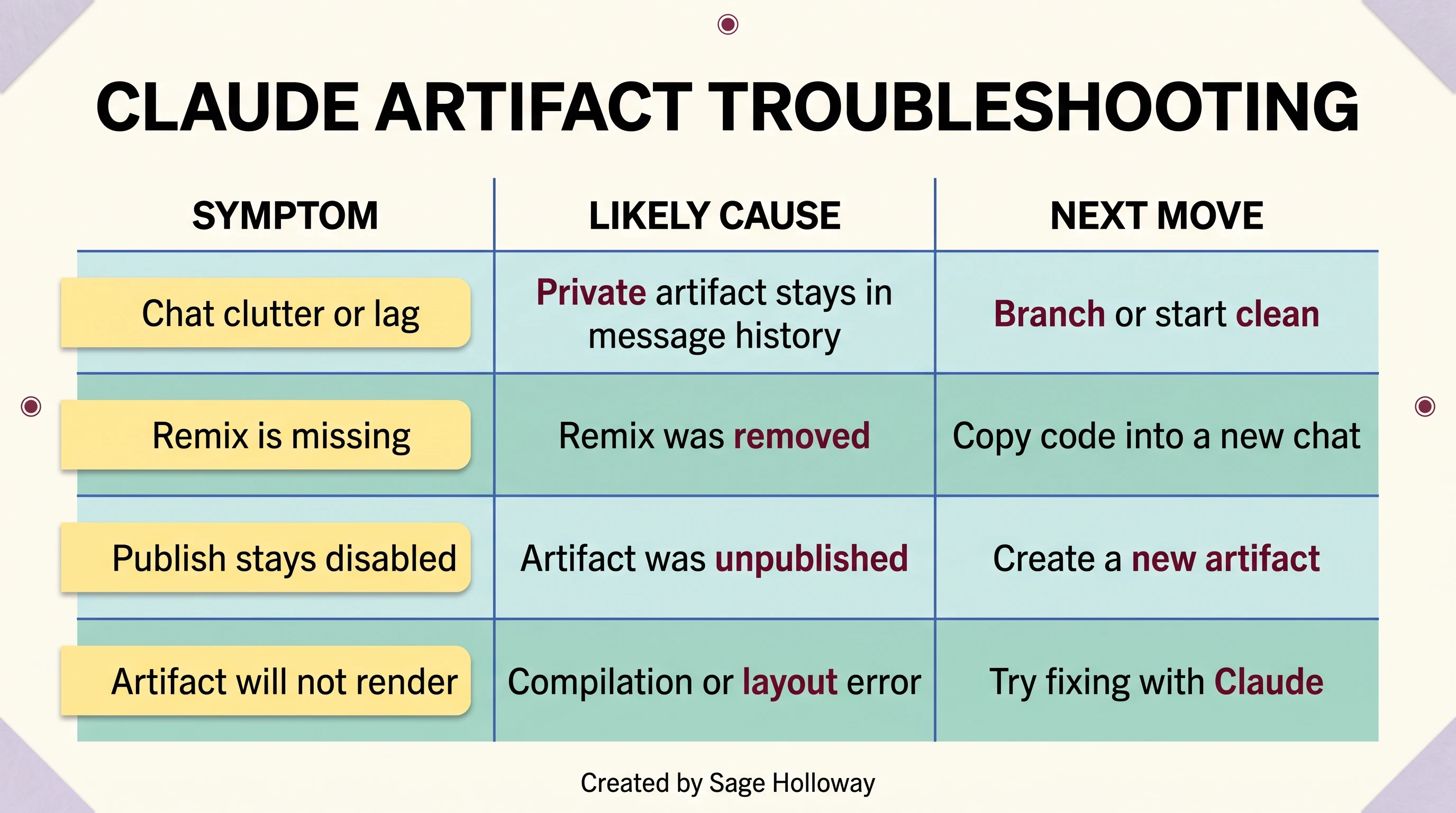
Match the symptom to the least destructive next move before deleting or revoking anything.
Unpublish a public artifact and understand the irreversible effects
Unpublishing is the correct path when your actual goal is to revoke a public link. It is not a cleanup trick for private chat history.
Before you act, preserve three things: the artifact's source or text, any data you need from its persistent storage, and a note of where the public link appears. Revoking the Claude link does not update a blog post, document, or message that still contains that old URL. Those references may continue to exist even though the destination no longer works.
Then follow the current artifact's publishing controls and choose the unpublish action presented there. Confirm only after you accept the consequences. Interface placement can change, so the stable instruction is the action name and the official consequence, not a brittle tour of button coordinates.
Before you unpublish: associated personal and shared persistent storage is permanently deleted. The same artifact cannot be published again. If you want a public version later, you will need to create a new artifact.
But here is the thing. “I can rebuild it later” sounds safer than it is when the artifact stores state. You may have copied the visible code and still lose saved text data that lives behind it. The 20 MB storage cap is a ceiling, not an automatic backup. Confirm what the artifact remembers before you revoke it.
Use this sequence:
Open the published artifact you intend to revoke.
Confirm that it is the public version, not merely a private artifact in chat.
Copy or export the source and any visible content you need.
Preserve required persistent storage data separately.
Record every important page or message that links to the artifact.
Choose the current unpublish action and read the confirmation.
Accept only if permanent storage deletion and the no-republish rule are acceptable.
Test the old public link after revocation, then update the places where you shared it.
What if you delete the parent chat instead? The synthesis records third-party evidence that deleting a conversation automatically unpublishes its associated published artifacts. That can revoke several artifacts in one batch, but it also removes the containing conversation. Do not use chat deletion as a substitute for a reviewed unpublish process unless you genuinely want the entire conversation gone.
There is no supported centralized bulk-unpublish dashboard in the evidence pack. Do not follow a guide that invents one. Handle known public artifacts deliberately, or delete a parent conversation only with full awareness of the batch consequence.
If you plan to rebuild a complex artifact later, copy its underlying code and requirements into your own storage first. A future guide on React artifacts can cover the build mechanics. The deletion decision here stays simple: save the source, save the data, then revoke access.
Unshare an organization artifact without exposing chat attachments
Unsharing revokes authenticated organization access. It does not unpublish a public URL because organization sharing and public publishing are different systems.
The security check comes before the click. When you share an artifact inside a Team or Enterprise organization, viewers also gain access to attachments and uploaded files in the conversation that created it. A polished dashboard can therefore become a doorway to a spreadsheet, PDF, or image you forgot was in the same chat.
If exposure may already have happened:
Open the artifact and use the current sharing control.
Choose
Unshareto revoke organization access.Review every attachment and uploaded file in the creating conversation.
Identify who had access and what they could see.
Follow your organization's incident process if any file was sensitive.
Recreate the artifact in a clean conversation before sharing again.
Why recreate it? Because the safest shared conversation contains only material intended for that audience. Removing a sensitive file elsewhere does not prove every viewer failed to access it earlier. Access revocation stops future visibility. It cannot reverse a download or a screenshot someone already made.
Public and organization audiences also deserve different language in your own notes. Label one PUBLIC and the other ORG ONLY. That tiny habit prevents someone from treating an internal sharing control like a public publishing control months later.
If your organization uses separate Claude Projects for controlled context, compare the boundary in the Claude Projects guide. Projects do not turn a conversation full of attachments into a safe artifact-sharing package. Review still matters.
Stop new artifacts from appearing without following outdated settings guides
To stop Claude creating new artifacts, use the current capability that supports them: Code execution and file creation. Older tutorials may tell you to disable a standalone Artifacts toggle. The official documentation says that artifacts now require Code execution and file creation, so those standalone-toggle instructions are stale.
For Free, Pro, or Max accounts, the documented path is Settings, then Capabilities. For Team or Enterprise administration, it is Organization settings, then Capabilities. Turn off Code execution and file creation only if you want to disable the broader capability, not merely hide one existing artifact.
This is an important tradeoff. The capability name includes more than artifact presentation. Disabling it can affect code execution and file creation behavior as well. There is no source-backed setting in this pack that says “keep code execution but never show an artifact.”
Why do artifacts appear in the first place? Claude typically creates one when the output is significant, self-contained content, often more than 15 lines of code. Self-contained means the output can stand as its own document, component, or mini application instead of functioning as a short conversational snippet. The 15-line detail is a typical trigger from the official guide, not a promise that every sixteenth line becomes an artifact.
If you still want the capability but not an artifact for one request, ask for a concise answer directly in chat. That is a prompting preference, not a guaranteed account-level switch. Be explicit about the desired format and keep the requested output small enough to make conversational delivery sensible.
The exact-topic video below passed YouTube oEmbed verification for this cluster. Use it as an additional visual aid, then compare any interface steps against the current official capability labels and irreversible-effect documentation above.
https://www.youtube.com/watch?v=EH4X-s-q65g
Optional visual walkthrough for the same removal problem. Follow the current official documentation for labels and irreversible effects.
If Remix is missing or Publish is disabled
Both symptoms can look like broken interface controls. They have different causes.
Remix was removed
The Remix button is no longer available. Anthropic's publishing guide says copying the code into a new chat replaces the old remix flow. Tutorials that tell you to find Remix Artifact on a shared page preserve an obsolete interface.
The replacement workflow is manual but clear:
Copy the published artifact's underlying code.
Start a new conversation.
Paste the code with a short explanation of what it does.
State the exact change you want.
Ask Claude to create a new artifact from that source.
Manual copying also gives you a useful checkpoint outside the original conversation. Store the code somewhere appropriate before making destructive publishing changes.
Recreate an unpublished artifact
If Publish remains disabled after you unpublished an artifact, that is expected. The same artifact cannot be published again. Create a new artifact from the saved source or code, review it as a new object, and publish that fresh version if you still need public access.
Do not interpret a disabled Publish control as a temporary cooldown. The evidence says it is permanent for that artifact. Waiting, refreshing, or searching for Remix will not reverse the state.
FAQ
How to delete artifacts in Claude?
You cannot delete one private artifact from a Claude chat. Branch from an earlier message or move the useful material into a new conversation. For a published artifact, use unpublish to revoke public access, but save its data first because persistent storage is permanently deleted and the same artifact cannot be published again.
Can you delete a private artifact without deleting its chat?
No. A private artifact is part of the assistant message that created it, so Claude does not expose an individual-delete control. Branching or starting clean leaves the original chat intact while giving you a less cluttered place to continue.
What happens when you delete a chat that contains published artifacts?
The research pack records that deleting the parent conversation automatically unpublishes its associated published artifacts. Treat that as a batch consequence. Preserve the conversation, artifact source, and required storage data before deleting anything.
Can you republish an artifact after unpublishing it?
No. Anthropic says the same artifact cannot be published again after unpublishing. Copy its source before revocation and create a new artifact if you later need a public version.
Does unpublishing delete persistent storage data?
Yes. Unpublishing permanently deletes associated personal and shared persistent storage. Persistent storage is saved text data used by the artifact, with an official limit of 20 MB per artifact and no image, file, or other binary input.
How do you stop Claude from creating new artifacts?
Turn off Code execution and file creation under Settings, then Capabilities. Team or Enterprise administrators use Organization settings, then Capabilities. This is broader than an artifact-only preference, and older directions to a standalone Artifacts toggle are outdated.
Where did the Remix Artifact button go?
Anthropic removed it. Copy the artifact's code, paste it into a new chat, explain the intended change, and ask Claude to create a fresh artifact.
Can teammates see chat attachments when you share an artifact?
Yes. Anthropic warns that organization members who can view a shared artifact can also access attachments and uploaded files in the conversation that created it. Review the full chat before sharing and unshare immediately if the conversation contains sensitive material.
Pick the least destructive next move
Open the artifact you are worried about and write down one word before touching anything: PRIVATE, PUBLIC, or ORG. Then take the matching safe action. Branch or start clean for private clutter. Preserve source and storage before unpublishing a public artifact. Review attachments before unsharing an organization artifact.
Try it with the least important artifact first. The interface will keep changing, and old tutorials will keep fossilizing around yesterday's buttons. The durable skill is knowing which layer you are changing: conversation history, public access, organization access, or stored data. Once you can name the layer, the missing delete button stops being a mystery.
Until then...
Sage
PS. Pick one old conversation and give yourself a sixty-second test: can you identify its last useful artifact without opening every version? If not, copy that version's source into a clean note today. Future you will think this was wildly considerate.
Author
Practical guides, tool teardowns & AI engineering workflows.