Claude Code
Claude Desktop Cowork Tab Missing: Fix UI Relocations, CoworkVMService, and Network Errors

Sage Holloway
27 min read
Go back to blog
SHARE

You launch your desktop workspace expecting to delegate a complex three-hour data reconciliation, only to find the dedicated interface tab has vanished without a warning. You restart the application twice, inspect your account profile, and find yourself staring at a plain text prompt that behaves like a standard chatbot.
If the Cowork tab is missing in Claude Desktop, first check if the app updated: Anthropic moved Cowork from the top navigation bar to an "Allow Claude to Act Autonomously" toggle inside the Home chat composer. If the option is entirely absent, verify plan eligibility (paid Pro, Max, Team, or Enterprise subscription required) and system requirements (Apple Silicon on macOS Sonoma 14.0 or later, or Hyper-V virtualization on Windows 11 Pro). On Windows, start the background service with sc start CoworkVMService in elevated PowerShell.
Last verified: September 1, 2026 (NotebookLM research synthesis, official Anthropic Help Center documentation, and verified developer bug trackers; no live CLI run on this pack).
Nothing drains developer momentum faster than an interface control that disappears overnight. A builder who relies on autonomous desktop agents to parse directory trees, format spreadsheets, and clean raw data suddenly finds their daily workflow frozen. The natural reaction is panic: re-running installation packages, deleting configuration folders, or assuming an account was flagged.
Yet when claude desktop cowork tab missing reports flood developer forums, the breakdown almost always traces back to one of two structural causes: a silent user interface relocation, or a background virtualization daemon that quietly stalled. The app interface may look identical on the surface, but the engine beneath it has either shifted controls or failed to initialize its local virtual machine container.
This guide delivers an authoritative, cross-platform diagnostic manual. We provide a 60-second triage protocol to separate cosmetic UI updates from system-level crashes, document the exact location of the relocated autonomous composer toggle, break down paid plan and hardware gates across macOS and Windows, deliver copy-paste PowerShell scripts to revive stalled background daemons, fix misleading "Can't reach Claude API" network collisions, and show you how to safely reclaim over 10 GB of disk space consumed by orphaned virtual machine bundles.
This URL focuses strictly on troubleshooting and restoring missing or broken Claude Desktop Cowork interfaces. If you are looking for an end-to-end setup and workflow guide, read How to Use Claude Cowork. For subscription costs and seat tiers, review Claude Cowork Pricing. If you need to understand the architectural differences between desktop file agents and command-line developer tools, see Claude Code vs Cowork. For corporate compliance questions, visit Claude Cowork Legal.
On this page
Unified triage protocol: diagnosing UI redesigns vs. background VM crashes
Silent UI redesigns: locating the "Act Autonomously" composer toggle
System and subscription eligibility: plan tiers and hardware gates
Windows virtualization stack recovery: repairing CoworkVMService and HCS
Misleading network errors: fixing "Can't reach Claude API" and WinNAT collisions
Windows Home storage traps: resolving the EXDEV cross-device link error
Log diagnostics and disk maintenance: purging claudevm.bundle bloat
Frequently Asked Questions
Your 60-second recovery checklist: restoring Cowork access

Diagnosing missing Claude Desktop Cowork: separating silent UI composer relocations from background virtualization service failures.
Unified triage protocol: diagnosing UI redesigns vs. background VM crashes
Think of a mechanical wristwatch that stops ticking. Before you unscrew the waterproof caseback and poke tweezers into the delicate balance wheel, you check whether the crown was accidentally pulled out or the mainspring simply wound down. If the watch was merely paused by an extended crown, tearing down the gear train will introduce three new mechanical failures into an otherwise pristine mechanism.
That principle applies directly to desktop software. When your interface breaks, running elevated administrative scripts before verifying basic interface layout is the fastest way to corrupt a healthy system.
When you encounter claude cowork not working, your immediate task is to classify the failure into one of two categories: cosmetic interface migration or backend daemon failure.
The 4-step diagnostic decision framework
To isolate the root cause in under sixty seconds, execute these four sequential checks in strict order:
Step 1 (UI Redesign Check): Inspect the Home chat input composer. Look for a toggle switch that alternates between standard chat and autonomous execution. If that toggle exists, your backend is healthy; Anthropic merely reorganized the navigation chrome.
Step 2 (Plan and Hardware Gate): Confirm that you are logged into an active, paid subscription account (Pro at $20/month, Max, Team, or Enterprise) and running on supported hardware (Apple Silicon on macOS Sonoma 14.0 or later, or Hyper-V enabled on Windows 11 Pro). Free accounts and Intel Macs hide the feature automatically.
Step 3 (Service Health Check): On Windows, verify whether the underlying background daemon (
CoworkVMService) is running. If the service is stopped or set to manual startup, the desktop client fails to spin up its container.Step 4 (Network Conflict Check): If the interface loads but presents an immediate connection error modal upon task launch, diagnose whether local virtual adapters (such as corporate VPNs or Docker bridges) are colliding with Cowork's internal NAT subnet.

Diagnostic triage tree: Follow 4 sequential checks to isolate UI relocations, plan gates, stopped services, and subnet collisions.
Distinguishing cosmetic UI migration from system-level daemon failures
Why do so many users assume their installation is corrupted after an automatic update?
Because early builds of the Claude Desktop application featured a prominent, top-level navigation tab bar reading "Chat / Cowork / Code". In desktop client versions starting at v1.2581.0, Anthropic flattened the interface. The top tab bar was removed entirely. Instead of switching tabs at the top of the application window, users initiate autonomous tasks directly from the main conversation composer.
If your application updated silently in the background, the sudden absence of that top tab looks identical to a crashed installation. The distinction is simple: if the application launches smoothly, allows standard chatting, and displays an autonomous toggle or sidebar tasks icon, your virtualization backend is operating normally. If the application displays error modals, grays out action buttons, or stalls indefinitely on a loading spinner, you are dealing with a daemon or virtualization stack failure.
Quick symptom checklist: grayed-out buttons, missing toggles, and fatal error modals
Before running deep system commands, match your specific application symptom against this quick diagnostic matrix:
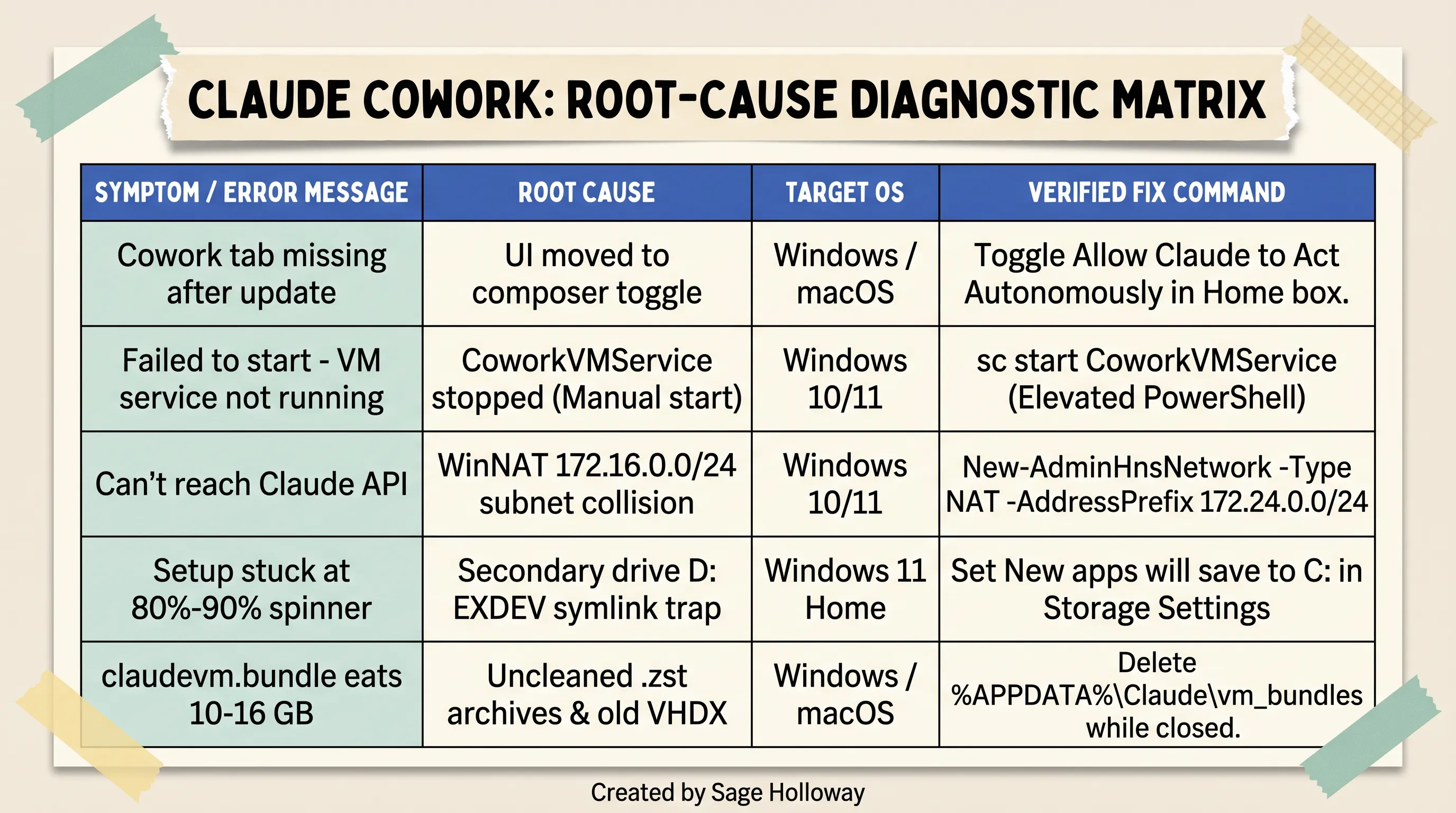
Root-cause diagnostic matrix: Quick-reference symptom lookup for resolving Claude Cowork startup crashes across Windows and macOS.
Top tab bar is gone, but chat works: UI relocation. The top tabs were retired; Cowork is now engaged via the "Allow Claude to Act Autonomously" switch inside the prompt composer.
"Failed to start Claude's workspace - VM service not running": Service crash. The background Windows service (
CoworkVMService) stopped or failed to launch on boot."Can't reach the Claude API from Claude's workspace": Local subnet collision. A local network bridge or VPN adapter is blocking internal packet translation over
172.16.0.0/24.Setup hangs indefinitely at 80% to 90%: Storage symlink failure. Windows default storage is assigned to a secondary drive (such as
D:), triggering a cross-device filesystem lock (EXDEV).Feature completely absent on macOS: Hardware or OS gate. The machine is either powered by an legacy Intel processor or running macOS Ventura or older.
The difference between a broken install and an updated interface is subtle. Recognizing that difference saves hours of unnecessary troubleshooting.
Silent UI redesigns: locating the "Act Autonomously" composer toggle
When software interfaces change without an onboarding tooltip, users naturally assume the feature broke. This exact scenario unfolded when claude cowork not showing up became the top trending query across developer community channels.
The v1.2581.0 interface shift: removal of the top "Chat / Cowork / Code" tab bar
In early release versions of Claude Desktop, the user interface was partitioned into dedicated workspaces accessible via a horizontal tab bar across the top of the window. You clicked "Chat" for conversational queries, "Cowork" for local directory automation, or "Code" for software development tasks.
Beginning with desktop version v1.2581.0, Anthropic consolidated these disparate modes into a unified conversation interface. The dedicated top tab bar was completely decommissioned. Instead of forcing users to switch operational modes before formulating a request, the app allows users to toggle execution permissions directly inside their prompt workflow.
If you open Claude Desktop and search for the word "Cowork" in the top title bar, you will not find it. The feature was not deprecated; it was integrated into the main composer as outlined in Anthropic's official Cowork guide.
Finding the "Allow Claude to Act Autonomously" switch inside the Home chat composer
To activate autonomous desktop execution in the updated interface:
Open the Claude Desktop application and navigate to the Home view.
Locate the main chat input box where you normally type prompts (displaying placeholder text such as "How can Claude help you today?").
Look directly at the bottom or right edge of the input composer frame.
Locate the toggle control labeled "Allow Claude to Act Autonomously" (or the mode switch toggling between Chat and Autonomous Action).
Flip the switch to the active position.

Interface update: Anthropic moved Cowork from a top tab bar to an autonomous action toggle directly inside the Home chat composer.
When enabled, Claude Desktop initializes its sandboxed execution environment, mounts your designated local working directory, and grants the model permission to read, edit, and create local files as part of its execution plan.
Sidebar icons vs. composer controls across macOS and Windows builds
Depending on your specific desktop client version and operating system, Anthropic has also surfaced autonomous tasks through the left-hand navigation sidebar.
In current builds, the collapsible sidebar displays conversation history alongside an action button labeled "+ New task" (or a dedicated folder icon sitting directly above your recent chats). Clicking "+ New task" immediately instantiates a scoped autonomous workspace session, prompting you to select a local directory boundary.
Video: 30-second visual demonstration of Claude Cowork operating on Windows with active autonomous execution toggle.
If both the composer toggle and the sidebar task icons are entirely missing from your application window, your desktop client is not experiencing a simple UI relocation. You are hitting a hard account entitlement check or a platform virtualization requirement.
System and subscription eligibility: plan tiers and hardware gates
Before diving into low-level operating system daemons, you must verify that your account tier and hardware profile meet Anthropic's strict operational gates.
The intelligence was never the bottleneck. The hardware virtualization boundary is.
Subscription tier requirements: why Free plans hide Cowork (Pro $20, Max, Team, Enterprise)
Claude Cowork requires significant computational overhead. Coordinating multi-step autonomous execution, maintaining isolated virtual machine sandboxes, and executing concurrent sub-agent routines consumes substantial cloud resources. Consequently, Anthropic strictly restricts Cowork access to paid subscription tiers.
Cowork is available exclusively on:
Claude Pro: $20 per month individual tier.
Claude Max: $100 to $200 per month high-volume tier.
Claude Team: $30 per user per month organizational tier.
Claude Enterprise: Custom organization-wide contracts.
If your paid subscription lapses, if your billing method fails, or if you sign into the desktop app using a secondary Free tier account, the client silently hides all autonomous execution controls. The app reverts to standard conversational chat without presenting an explicit error message explaining why the features disappeared. For a complete financial breakdown of usage tiers and rolling token allocations, review our detailed guide on Claude Cowork Pricing.
macOS hardware gates: Apple Silicon (M1/M2/M3/M4) and macOS Sonoma 14.0+ requirements
If you are searching for claude cowork not loading on desktop mac reddit threads, the root cause is almost always hardware architecture.
On Apple hardware, Claude Desktop relies on the Apple Virtualization Framework (a native macOS hypervisor technology that allows guest operating systems to run with hardware acceleration). Anthropic implemented this framework specifically for Apple Silicon system-on-chip architectures:
CPU Architecture: Apple Silicon processors (M1, M2, M3, M4, including Pro, Max, and Ultra variants) are fully supported. Intel-based Macs (Core i5, Core i7, Core i9, and Xeon models manufactured prior to 2020) are strictly unsupported.
Operating System Version: macOS Sonoma (version 14.0) or later is strictly required. Older versions, including macOS Ventura (13.0) and macOS Monterey (12.0), lack the essential hypervisor APIs and will not load the Cowork backend.
If you attempt to run Cowork on an Intel MacBook Pro or an older macOS release, the application will not display an autonomous toggle. There is no software workaround or community patch for Intel Macs; hardware virtualization on macOS requires Apple Silicon.

Compatibility matrix: Cowork requires Apple Silicon on macOS Sonoma+ and Hyper-V or WSL2 on Windows 11.
Windows platform prerequisites: Hyper-V, Virtual Machine Platform, and BIOS VT-x/SVM virtualization
On Windows systems, Cowork executes inside an isolated Hyper-V utility virtual machine managed by Microsoft's Host Compute Service (HCS). To establish this environment, three system layers must be active:
CPU Virtualization in BIOS/UEFI: Hardware virtualization (Intel VT-x or AMD SVM) must be enabled in your computer's motherboard firmware. If hardware virtualization is disabled at the firmware level, Windows cannot host guest hypervisors.
Virtual Machine Platform: The core Windows feature that powers lightweight containers must be enabled in the operating system.
Windows Edition Compatibility: Windows 11 Pro, Enterprise, or Education editions contain the complete Hyper-V management stack out of the box. Windows 11 Home lacks native Hyper-V management services and requires a specific WSL2 configuration (detailed below).
Disambiguating desktop OS folder permissions from Claude Code CLI permission rules
A frequent source of confusion in community forums involves claude missing permissions warnings. It is critical to separate two distinct permission layers across the Anthropic ecosystem:
Desktop Cowork OS Permissions: Refers to native operating system file boundaries. When you launch a Cowork task, Claude Desktop requests access to a designated local folder path. If macOS Privacy & Security (Files and Folders access) or Windows folder access controls block the application, Cowork cannot read or write deliverables to disk.
Claude Code CLI Permission Rules: Refers to terminal configuration flags (
auto,plan,acceptEdits, orbypassPermissions) used when running Anthropic's command-line developer utility.
If you are debugging terminal shell permissions or command execution rules for developer scripting, consult our dedicated Claude Code Permissions Guide. If you are assessing organizational data privacy boundaries, see Claude Cowork Legal.
Windows virtualization stack recovery: repairing CoworkVMService and HCS
If your account is active, your hardware is compatible, and you still encounter claude cowork not starting, the failure lives in the Windows background virtualization subsystem.
Understanding the Windows architecture: Microsoft Host Compute Service (HCS), vmcompute, and CoworkVMService
To safely run agentic operations on your PC, Claude Desktop does not execute arbitrary scripts directly on your host operating system. Instead, the Electron client orchestrates an isolated, headless Linux virtual machine container.
On Windows, this architecture operates across four distinct layers:
Layer 1 (Electron Desktop App): The front-end user interface that accepts user prompts and manages conversation state.
Layer 2 (Background Service Layer): The
CoworkVMServicedaemon communicating with Microsoft Host Compute Service (vmcomputeandhns).Layer 3 (Hyper-V Utility VM): An isolated Linux guest virtual machine initialized from a local virtual hard disk (
rootfs.vhdx).Layer 4 (Bridge and Storage): An internal Windows NAT network (
cowork-vm-nat) providing internet connectivity and VirtioFS mounting your local project folder into the VM container.

Virtualization architecture: Claude Desktop interacts with Microsoft HCS and CoworkVMService to orchestrate an isolated Hyper-V utility VM.
If any single component in this chain fails to start, the entire interface collapses, presenting the dreaded failed to start claude's workspace modal dialog.
Resolving "VM service not running": restarting CoworkVMService via elevated PowerShell
The most common Windows failure occurs when the background service stalls. By default, the CoworkVMService is installed with its startup type set to Manual. If your computer enters sleep mode, reboots after a Windows Update, or experiences a process crash, the service stops running. When the desktop app opens, it attempts to communicate with a dead service and presents the error: "Failed to start Claude's workspace - VM service not running".

Desktop error modal: "Failed to start Claude's workspace - VM service not running" indicates the background daemon is stopped.
To resolve vm service not running claude errors, restart the daemon manually:
Press
Windows Key + Xand select Terminal (Admin) or PowerShell (Admin).Terminate any orphaned Claude Desktop processes:
Start the background virtualization service:
Verify that the service entered the
RUNNINGstate:
Relaunch Claude Desktop.
Fixing service persistence: automating sc config CoworkVMService start= auto and resolving SYSTEM ACL locks
Manually starting a background service after every system reboot is tedious. To force Windows to launch CoworkVMService automatically on boot, configure its startup property:
(Note: In Windows sc.exe syntax, the space immediately following start= is strictly mandatory).
If executing sc.exe config returns an Access is denied error despite running inside an elevated Administrator prompt, your system is hitting a known Access Control List (ACL) lock. In certain Windows builds, the service security descriptor is locked exclusively to the NT AUTHORITY\SYSTEM account.
To bypass this permission lock, use PowerShell's native service management cmdlet:
Windows 11 Home workaround: bypassing missing vmms by installing WSL2 via Microsoft Store
A major point of failure documented across community bug trackers involves Windows 11 Home edition.
Early iterations of Anthropic's setup tool erroneously reported Windows Home machines as "ready" because they only evaluated the Windows build number. In reality, Windows 11 Home omits the full Hyper-V stack, specifically lacking the Virtual Machine Management Service (vmms). Without vmms, the native Hyper-V backend cannot provision the utility container.
Video: Step-by-step walkthrough for configuring Windows background services, permissions, and Cowork workspace initialization.
If you are running Windows 11 Home, you do not need to purchase an expensive Windows Pro upgrade. You can supply the required virtualization engine by installing Windows Subsystem for Linux (WSL2):
Open PowerShell as Administrator.
Enable the Virtual Machine Platform subsystem:
Install the WSL2 kernel engine:
Alternatively, open the Microsoft Store, search for Windows Subsystem for Linux, and install the official Microsoft package.
Restart your computer to apply the hypervisor configurations.
Once WSL2 is installed, Windows Home possesses the necessary hypervisor components to spin up Cowork's container backend.
Resetting corrupted virtual disk state: rebuilding sessiondata.vhdx
If the service is running but workspace initialization crashes after several seconds of disk activity, the local virtual machine state disk is likely corrupted. This occurs when the computer is shut down abruptly while a Cowork task is actively writing files.
Cowork separates its virtual storage into two disks: rootfs.vhdx (the immutable base Linux system) and sessiondata.vhdx (the dynamic user session disk).
To reset corrupted session state without reinstalling the entire desktop application:
Close Claude Desktop completely and stop the service:
Navigate to your local VM bundles directory:
(For Windows Store MSIX installations, the path is $env:LOCALAPPDATA\Packages\Claude_*\LocalCache\Roaming\Claude m_bundles\claudevm.bundle).
Rename the session disk to force the app to build a clean state:
Restart the service and relaunch Claude:
Upon relaunch, Claude Desktop automatically provisions a fresh, uncorrupted sessiondata.vhdx disk.
Misleading network errors: fixing "Can't reach Claude API" and WinNAT collisions
Few errors generate more confusion than opening a local desktop application with full gigabit internet access, only to be greeted by a modal declaring: "Can't reach the Claude API from Claude's workspace".
The hardcoded subnet flaw: how 172.16.0.0/24 collides with corporate VPNs, Docker, and WSL2 adapters
When users see claude cowork api error: connection error. or claude cowork server is busy, their initial reaction is to check Anthropic's public server status page or consult the standard Anthropic API connection troubleshooting guide.
However, this error is almost never a cloud infrastructure outage. It is an internal network routing collision happening entirely inside your PC.
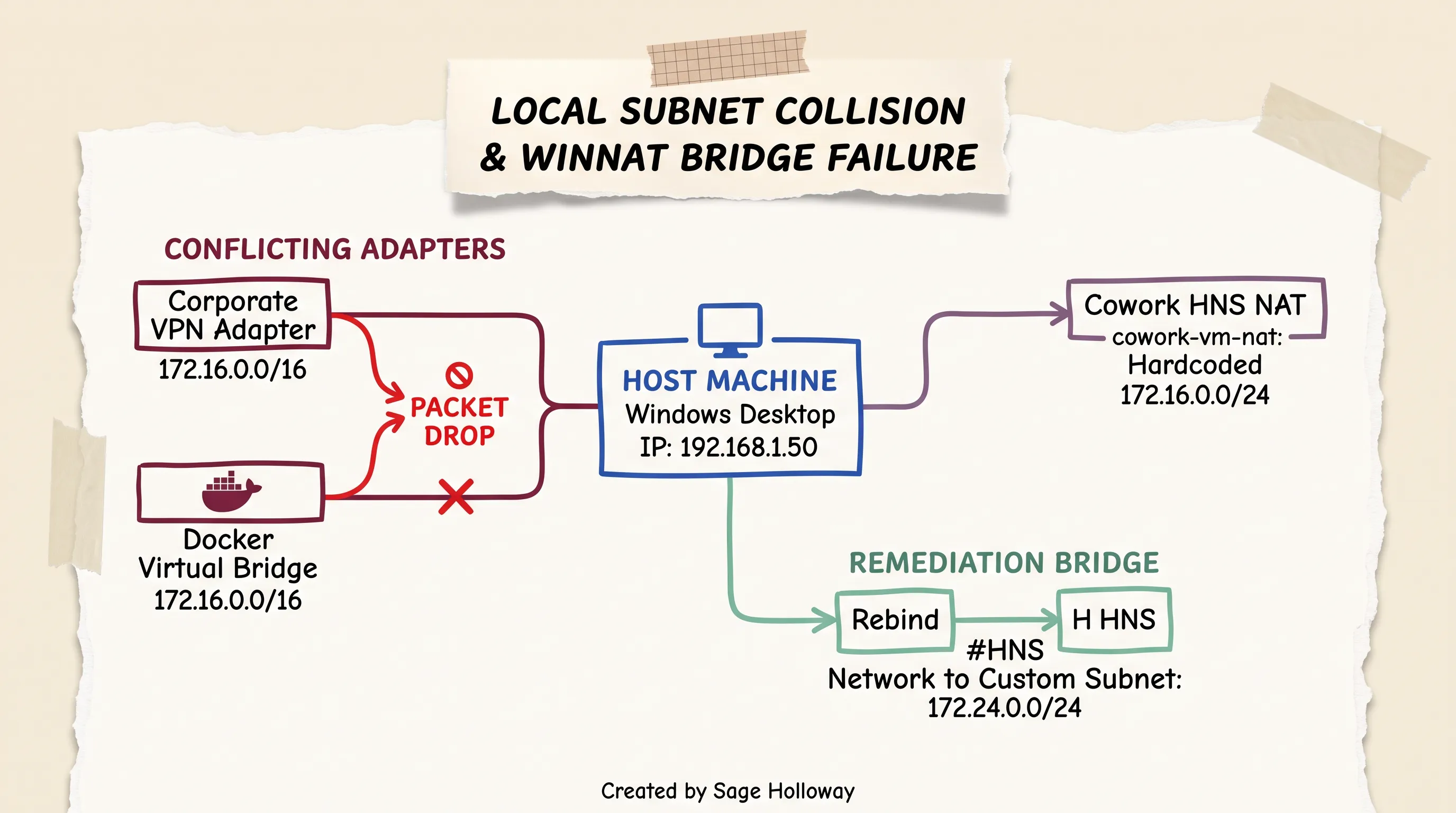
Network collision topology: The hardcoded 172.16.0.0/24 subnet clashes with VPN and Docker virtual adapters, blocking local API routing.
To connect the guest Linux virtual machine to the internet, Claude Desktop's virtualization layer creates a Host Network Service (HNS) NAT network named cowork-vm-nat. By default, this virtual network adapter is assigned a hardcoded private IP subnet: 172.16.0.0/24.
Here is where the architecture breaks down:
Corporate VPN software (such as Cisco AnyConnect, GlobalProtect, or Tailscale) frequently claims the entire
172.16.0.0/16class B IP block.Docker Desktop and standard WSL2 virtual bridges frequently allocate subnets within the
172.16.x.xto172.20.x.xrange.
When two virtual network adapters on the same host machine claim identical IP address blocks, the Windows network stack drops the routing packets. The Linux utility VM cannot route outbound requests through the host machine's internet connection. When the guest container attempts to establish an outbound HTTPS handshake with api.anthropic.com, the request times out locally, triggering the misleading modal rather than a real Claude API server error.
Why local WinNAT drops masquerade as "Can't reach Claude API" or "Server is busy"
The desktop client's error reporting does not inspect whether the packet drop happened locally or in the cloud. It simply registers that the sub-agent inside the VM failed to complete its API handshake.

Network error modal: "Can't reach the Claude API from Claude's workspace" indicates a local WinNAT bridge failure, not a cloud outage.
Consequently, local packet drops are translated into generic connection error messages. If you are connected to an active corporate VPN, temporarily disconnecting the VPN tunnel and relaunching your Cowork task will immediately confirm whether a subnet collision is the culprit.
3-step WinNAT routing repair: resetting network adapters and recreating WinNAT rules
If you are not running a VPN or if the connection remains blocked after disconnecting, the underlying Windows NAT routing table is likely stalled.
To flush and recreate your local NAT routing rules:
Open PowerShell as Administrator.
Stop the Cowork service and remove stale HNS network endpoints:
Restart the Windows Host Network Service and rebuild the NAT stack:
Re-binding the HNS network to custom subnets (172.24.0.0/24)
For developers who must run corporate VPNs or Docker Desktop concurrently alongside Claude Cowork, you can permanently eliminate IP conflicts by manually provisioning the cowork-vm-nat network on an alternate, unallocated private subnet (such as 172.24.0.0/24):
Re-binding the HNS network to 172.24.0.0/24 isolates Cowork traffic from Docker and VPN tunnels, allowing autonomous tasks to execute without network drops. If your workflow requires connecting Claude to enterprise tools like Slack or Google Workspace, review our companion guide on Anthropic Connectors.
Windows Home storage traps: resolving the EXDEV cross-device link error
A particularly frustrating edge case occurs when users attempt to install or launch Claude Cowork, only to have the setup wizard freeze indefinitely at an 80% to 90% progress bar.
Diagnosing the 80%-90% setup spinner hang
During initial setup, Claude Desktop downloads a compressed base image archive (rootfs.vhdx.zst), extracts the 8 GB virtual hard disk into a temporary system directory (typically C:\Windows\Temp\), and attempts to move the extracted file into the user's local application data directory (%APPDATA%\Claude m_bundles\claudevm.bundle\).
Under standard configurations, this move operation executes instantly via an atomic filesystem rename pointer.
The secondary drive trap: why saving new apps to D: triggers EXDEV: cross-device link not permitted
Many PC users with small solid-state system drives configure Windows to automatically install new applications on a larger secondary hard drive (such as D: or E:).
When Windows Storage Settings is configured to store new applications on D:, the Claude MSIX package is deployed to D:\WindowsApps. However, temporary extraction routines continue to utilize C:\Windows\Temp.
When the Node.js initialization process attempts to move the extracted 8.2 GB virtual disk from the C: drive to the application directory on the D: drive using a standard filesystem rename call (fs.rename), the underlying operating system rejects the operation with the fatal error:
Because the Electron application fails to catch the EXDEV cross-device boundary exception gracefully, the setup progress bar hangs permanently at 80% to 90%.
Switching default app storage back to C: in Windows Settings
To permanently resolve the EXDEV cross-device installation trap:
Open Windows Settings (
Windows Key + I).Navigate to System > Storage.
Scroll down and click Advanced storage settings, then select Where new content is saved.
Locate the dropdown menu labeled "New apps will save to:".
Change the selected drive back to
C: (This PC)and click Apply.
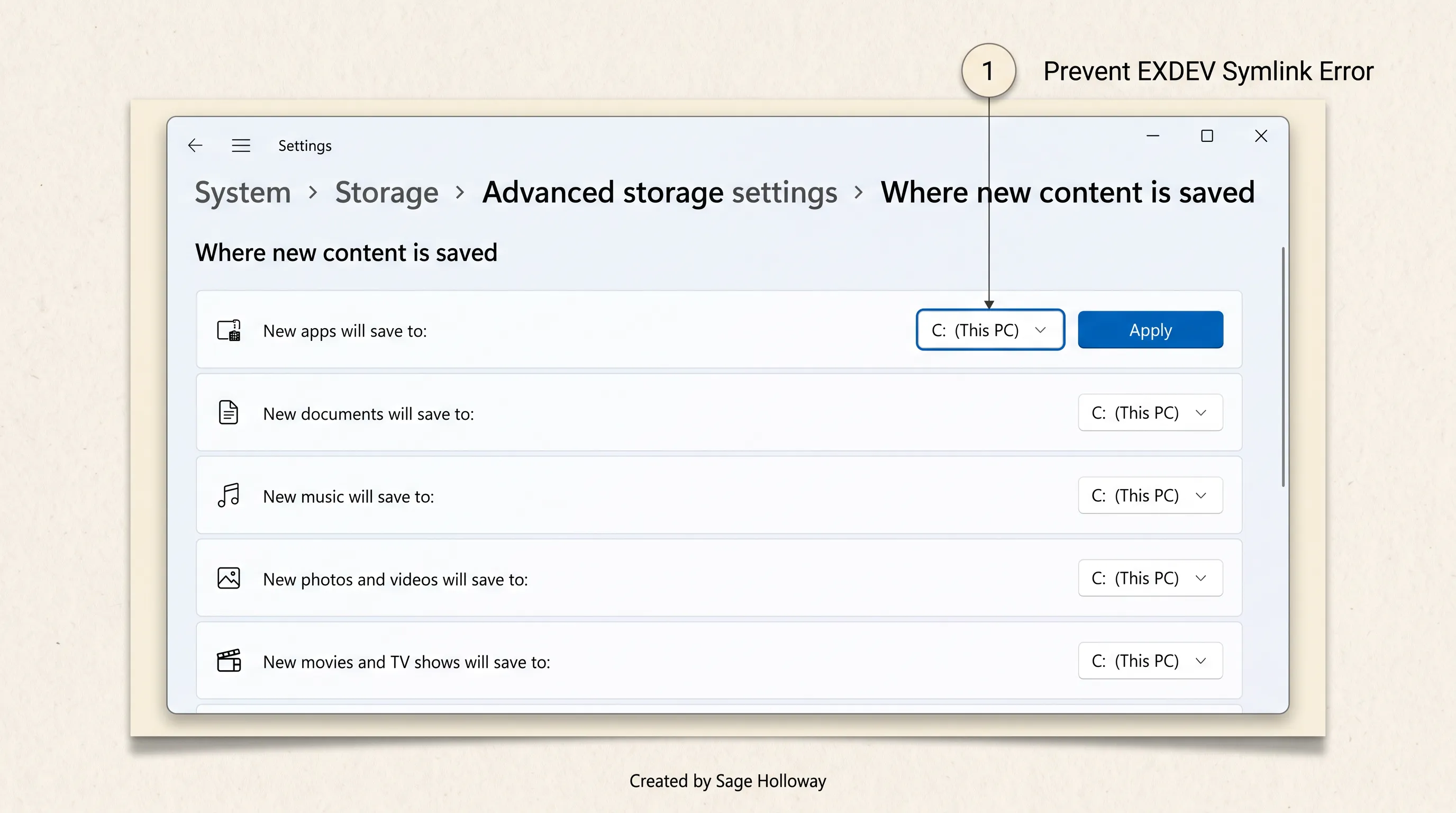
Storage configuration: Set "New apps will save to" back to C: (This PC) to prevent Node.js EXDEV cross-device symlink installation hangs.
Clearing MSIX temp packages in %LOCALAPPDATA%\Packages\Claude_* and executing clean reinstalls
After resetting your default application storage back to the C: drive, clean out corrupted temporary extraction fragments:
Fully close Claude Desktop.
Open File Explorer and navigate to:
Locate and delete any folders beginning with
Claude_(such asClaude_p6sw8e1d234...).Clear the local roaming cache:
Relaunch Claude Desktop and allow the workspace setup wizard to complete on your primary
C:drive.
Log diagnostics and disk maintenance: purging claudevm.bundle bloat
Even after resolving startup crashes, active Cowork users frequently discover an unexpected side effect: their primary drive is losing gigabytes of free space.
Inspecting diagnostic logs: locating cowork_vm_node.log and fixing the yukonSilver not supported platform bug
When unexpected failures occur, checking internal application logs provides immediate clarity. Claude Desktop logs all virtualization and container lifecycle events to a dedicated log file named cowork_vm_node.log.
To inspect your diagnostic log:
Windows Direct / MSIX:
%APPDATA%\Claude\logs\cowork_vm_node.logWindows Store App:
%LOCALAPPDATA%\Packages\Claude_*\LocalCache\Roaming\Claude\logs\cowork_vm_node.logmacOS:
~/Library/Logs/Claude/cowork_vm_node.log
A critical bug identified in community trackers involves the log entry:
"yukonSilver" is Anthropic's internal engineering codename for the Windows Cowork hypervisor configuration. In certain application releases, a platform detection flaw incorrectly flags compatible 64-bit Windows machines as unsupported, automatically deleting the local VM bundle.
If you observe this string in your logs, the permanent fix is to uninstall the outdated client build, delete %APPDATA%\Claude, and download the latest direct installation package from the official Anthropic Cowork collection portal.
The 10GB-16GB disk space leak: why claudevm.bundle retains unneeded .zst source archives
Why does the claudevm.bundle directory consume between 10 GB and 16.5 GB of disk space?
When Cowork downloads its virtualization environment, the bundle directory unpacks several massive files:
rootfs.vhdx(orrootfs.imgon macOS): The extracted base Linux filesystem, occupying approximately 8.2 GB.sessiondata.vhdx: The dynamic session state disk, expanding between 1.5 GB and 4.0 GB over time.rootfs.vhdx.zst: The original compressed Zstandard archive file (occupying roughly 2.3 GB to 3.0 GB).

Storage footprint breakdown: claudevm.bundle retains both extracted virtual disks and duplicate compressed .zst archives, consuming 10GB+.
In early client builds, the extraction routine fails to delete the compressed .zst source archive after expanding the .vhdx virtual disk. Furthermore, dynamic session disks fail to compact automatically after large file operations, causing unbounded storage creep on your system drive.
Safe directory cleanup procedures for Windows and macOS
You can safely reclaim this storage without damaging your user preferences or conversation history. Deleting the vm_bundles directory forces the application to rebuild a clean, compact virtual disk on next launch.

Diagnostic directory reference: Key file paths for inspecting cowork_vm_node.log and clearing claudevm.bundle storage on Windows and macOS.
To purge orphaned bundles and recover 10 GB+ of disk space:
On Windows (PowerShell):
On macOS (Terminal):
When you next launch Claude Desktop and initiate an autonomous task, the application will download and unpack a fresh, uncorrupted bundle in under two minutes.
Frequently Asked Questions
1. Why did the Cowork tab disappear from my Claude Desktop app after a recent update?
Anthropic updated the desktop interface in version v1.2581.0, removing the legacy top navigation tab bar ("Chat / Cowork / Code") and replacing it with an "Allow Claude to Act Autonomously" toggle switch located directly inside the Home chat input composer. If your app updated recently, you do not need to reinstall; simply toggle the autonomous switch on before submitting your prompt. Additionally, if your paid subscription lapses or you log in using a free account, the Cowork option is automatically hidden from the interface.
2. How do I fix the error "Failed to start Claude's workspace - VM service not running"?
This error occurs when the Windows background daemon (CoworkVMService) is stopped or configured to manual startup. To fix it, open PowerShell as Administrator, execute sc.exe start CoworkVMService to launch the daemon, and run Set-Service -Name "CoworkVMService" -StartupType Automatic to ensure it starts automatically after reboots. If the service fails to start, verify that hardware virtualization is enabled in your BIOS/UEFI firmware and that the Virtual Machine Platform feature is installed.
3. Why do I get "Can't reach the Claude API from Claude's workspace" when my internet is fine?
This error represents an internal Windows Host Network Service (HNS) subnet collision rather than an Anthropic server outage. Claude Cowork boots a local Linux virtual machine assigned to a hardcoded 172.16.0.0/24 subnet, which conflicts with corporate VPN adapters, Docker virtual bridges, or existing WSL2 networks. Disconnecting active VPN software, restarting the hns Windows service, or re-binding the HNS network to an alternate subnet (172.24.0.0/24) restores connectivity.
4. Does Claude Cowork work on Windows 11 Home or Windows 10 Home?
Windows Home editions do not include the full Hyper-V management stack (vmms) by default, causing native container initialization to fail. However, Windows Home users can run Cowork by installing Windows Subsystem for Linux (WSL2) from the Microsoft Store alongside the Virtual Machine Platform optional feature (wsl --install --no-distribution). Once the WSL2 hypervisor engine is present, Cowork initializes successfully without requiring a Windows Pro upgrade.
5. Why is the Cowork tab missing on my MacBook?
Claude Cowork on macOS strictly requires Apple Silicon hardware (M1, M2, M3, or M4 chips) running macOS Sonoma (14.0) or later. Intel-based Mac computers and older operating system versions (such as macOS Ventura or Monterey) lack the required Apple Virtualization Framework capabilities and are unsupported. If you are on an Apple Silicon Mac running Sonoma or newer, ensure your app is updated and look for the autonomous toggle inside the main chat composer.
6. What is the "yukonSilver not supported" error in Cowork logs, and how do I fix it?
"yukonSilver" is Anthropic's internal codename for Cowork's Windows virtual machine backend. The log string [cleanupVMBundleIfUnsupported] yukonSilver not supported indicates a platform-detection regression where the client misidentifies a valid 64-bit Windows PC as incompatible. To fix it, fully close Claude, delete %APPDATA%\Claude and %LOCALAPPDATA%\Packages\Claude_*, and download the latest desktop installer directly from the official Claude website.
7. Why is claudevm.bundle taking up 10-16 GB of disk space, and can I safely delete it?
The claudevm.bundle directory balloons in size because the app retains the extracted 8.2 GB base virtual disk (rootfs.vhdx), expanding session state disks (sessiondata.vhdx), and uncleaned compressed source archives (rootfs.vhdx.zst). You can safely delete the entire vm_bundles directory located under %APPDATA%\Claude\ (Windows) or ~/Library/Application Support/Claude/ (macOS) while Claude is closed; the app will recreate a clean, compact bundle on its next launch.
8. Why does Cowork setup get stuck on "Setting up Claude's workspace" at 80%-90% indefinitely?
This infinite progress spinner occurs on Windows when default storage settings are configured to save new applications to a secondary hard drive (such as D:). When Node.js attempts to move extracted virtual machine files across physical drive boundaries, the operating system raises an EXDEV: cross-device link not permitted error. Changing "New apps will save to" back to C: (This PC) in Windows Storage Settings resolves the installation freeze.
9. Can I use Claude Cowork on a Free Claude plan?
No. Claude Cowork is strictly gated to paid subscription tiers, including Claude Pro ($20/month), Claude Max ($100/month), Claude Team ($30/user/month), and Claude Enterprise plans. If you are logged into a Free plan account, all Cowork toggles, sidebar task buttons, and autonomous workspace features remain completely hidden.
Your 60-second recovery checklist: restoring Cowork access
When your autonomous workspace disappears, you do not need to spend an entire afternoon reinstalling operating systems or scouring community message boards. Most failures resolve in under two minutes when tackled in the right sequence.
Here is the exact 4-step recovery protocol to execute right now:
Verify the composer toggle: Open Claude Desktop, look inside the Home chat input box, and verify whether the "Allow Claude to Act Autonomously" toggle switch is present. If it is, enable the switch and run your prompt.
Confirm paid plan authentication: Open Settings > Account and verify that your profile reflects an active Pro, Max, Team, or Enterprise subscription. If you are signed into a free account, sign out and authenticate with your paid credentials.
Revive background daemons (Windows): If you are on Windows and the interface displays error modals, open PowerShell as Administrator and run
sc.exe start CoworkVMServicefollowed bySet-Service -Name "CoworkVMService" -StartupType Automatic.Isolate network adapters: If you encounter API connection errors despite a working internet connection, temporarily disconnect corporate VPN tunnels and close Docker Desktop to clear
172.16.0.0/24subnet collisions.
Once your background virtualization services are aligned with your account entitlements, autonomous desktop execution returns to doing what it does best: parsing data, organizing files, and executing multi-step workflows while you focus on higher-level strategy.
Until then...
Sage
PS. If you want to see a fascinating example of how virtualized sandbox networking functions under the hood, open PowerShell while a Cowork task is actively editing files and run Get-NetNatStaticMapping. You will see Windows dynamically bridging ephemeral ports between your host operating system and the hidden Hyper-V utility container in real time. Watching an Electron desktop client orchestrate enterprise-grade Linux virtualization on the fly makes you appreciate just how far desktop AI engineering has come over the past twelve months.
Author
Practical guides, tool teardowns & AI engineering workflows.
Related Articles

Claude Code
React Artifact to Production App: Local Builds, Live State, and Deployment

Claude Code
Claude Code Notifications: Complete Guide to Desktop Alerts, Remote SSH Hooks & Audio Cues (2026)

Claude Code
Claude Code Permissions: Stop Approval Prompts Safely with Auto Mode, Rules & Docker Bypass (2026)