Claude Code
How to Use Claude Cowork: Desktop Setup, Folder Architecture, and Daily Workflows

Sage Holloway
26 min read
Go back to blog
SHARE

You pasted a five-page brief into chat, asked for three formatted spreadsheets, and received two hundred lines of markdown in a scrolling window. You spent the next forty minutes copying fragments into Excel by hand.
To use Claude Cowork, open the Claude Desktop app on macOS or Windows, switch the mode selector from Chat to Cowork, select a designated local working folder, and enter an outcome-oriented prompt in plain English. Cowork executes multi-step tasks inside an isolated cloud VM, reading and editing local files, running background sub-agents, and requesting permission before taking sensitive actions.
Last verified: September 1, 2026 (NotebookLM sources, Anthropic Help Center documentation, and verified community implementations; no live CLI run on this pack).
Before this workflow clicked for me, my mornings followed an exhausting pattern. I would prompt a chat window for a competitive research memo, get twelve paragraphs of text, copy-paste snippets into Google Docs, manually clean up broken tables, and format charts in a separate tab. The model was capable. The interface was the bottleneck. After switching to Cowork, the exact same assignment runs inside a sandboxed folder: reading source PDFs, classifying raw data into clean spreadsheets, and dropping finished Word documents into an output directory.
This guide provides a comprehensive claude cowork overview and actionable operating manual for knowledge workers, researchers, and operators. Whether you are discovering claude cowork how to use fundamentals for the first time or looking for an advanced claude cowork guide, mastering desktop file delegation transforms your daily productivity. We cover cross-platform installation across macOS, Windows, and Linux, explain the 3-tier folder hierarchy that keeps projects organized, provide copy-paste Global Instructions, unpack token optimization tactics, and detail verified troubleshooting steps for virtual machine handshake drops.
This URL focuses specifically on mastering the native desktop Cowork interface for daily knowledge workflows. It does not cover deep Anthropic Agent SDK architecture design, which lives on Claude Cowork Architecture. It does not provide full SaaS connector setup tutorials, which belong on Anthropic Connectors. It is not a CLI developer guide; software engineers comparing command-line workflows against desktop operations should explore Claude Code vs Cowork. For commercial subscription breakdowns, visit Claude Cowork Pricing, and for resolving missing interface buttons, see Claude Desktop Cowork Tab Missing.
On this page
Core concept and mental model: what Claude Cowork is and how it differs from Chat
Platform availability and desktop environment setup: macOS, Windows, and Linux
Folder architecture and context engineering: structuring ABOUT ME/, OUTPUTS/, and TEMPLATES/
Standing instructions and permission controls: configuring Global Instructions and approval modes
End-to-end task execution: prompt structures and real-world daily workflows
Scheduled background tasks and remote dispatch: automating recurring jobs
Token economy and cost control: avoiding 5-hour rate limit exhaustion
Troubleshooting VM crashes and socket drops: resolving "Failed to start workspace" and RPC error -1
Frequently Asked Questions
Your first 20 minutes: a quick-start run

Claude Cowork shifts AI from conversational chat prompting to autonomous desktop file delegation.
Core concept and mental model: what Claude Cowork is and how it differs from Chat
Imagine hiring a junior operations coordinator and pointing them toward a room filled with two hundred unlabelled cardboard archive boxes. You hand them a master key, walk out into the hallway, and yell through the door to clean up the mess before Friday. By Tuesday afternoon, three banker boxes are empty, half the floor is covered in shredded invoices, and nobody knows whether the tax receipts were filed or pulped. Without a designated inbox, a clear trash bin, and a strict rule sheet pinned to the corkboard, raw enthusiasm turns into expensive chaos.
That is exactly what happens when you hand an autonomous desktop agent unrestricted access to your machine without structuring a workspace.
If you have ever wondered claude cowork what is it and why everyone in your feed is suddenly reorganizing their hard drive, the answer is simple. Claude Cowork is Anthropic's native desktop agent designed for non-coding knowledge workers. It is not an open-source clone like Composio Open Claude Cowork or OpenClaw. It is an official execution environment built directly into the Claude Desktop app. When claude cowork explained properly, it represents a fundamental shift: you stop chatting with a language model and start delegating operational outcomes to a sandboxed desktop colleague.
Autonomous task delegation vs conversational prompting
Standard conversational AI requires step-by-step micromanagement. You submit a prompt, review the generated text, copy the output, paste it into an external program, and return to request the next iteration. If a project involves forty research papers, you manually upload files one by one.
Cowork operates on autonomous task delegation. You give Claude an outcome-oriented goal: "Audit the quarterly sales files in this directory, reconcile regional totals against our central database, flag discrepancies greater than 5%, and generate a polished Word summary in the deliverables folder."
Instead of generating text inline, Cowork initializes a cloud-hosted virtual machine (VM) container, scans your designated local folder, devises a multi-step execution plan, launches sub-agents to inspect files concurrently, and writes formatted deliverables directly to your local drive.

Execution architecture: Tasks run in Anthropic's secure cloud VM while reading and editing files in your designated local directory.
Why does the cloud VM sandbox matter?
Because safety and stability depend on process isolation. Anthropic isolates all execution logic inside a secure cloud container on their infrastructure. A secure remote procedure call (RPC) bridge synchronizes file state between the cloud VM and your local directory. Claude can read, edit, create, and delete files inside your chosen workspace folder, but cannot reach external directories or alter system files without explicit authorization.
3-way product comparison: Claude Chat vs Claude Cowork vs Claude Code
Anthropic offers three distinct interfaces across its ecosystem. Choosing the right tool prevents frustration:
Claude Chat (Browser & Mobile): Designed for real-time conversational brainstorming, quick drafting, coding snippets, and ad-hoc question answering. File uploads are ephemeral and limited to session memory.
Claude Cowork (Desktop App & Cloud VM): Built for operational knowledge workers, business analysts, marketers, and researchers. It provides autonomous multi-step execution with full read and write access to a designated local folder.
Claude Code (Terminal CLI): Engineered specifically for software developers. It operates directly inside your local terminal shell, refactoring entire codebases, managing Git version control branches, and running shell scripts.

Product comparison: Chat handles conversational ideation, Cowork manages desktop file workflows, and Code targets CLI software engineering.
Understanding the distinction in claude chat vs cowork comes down to state persistence and execution. In any direct claude cowork vs chat evaluation, standard chat forgets your project structure the moment you close the tab. In Cowork, your folder architecture serves as persistent disk memory. When deciding between tools, a dedicated comparison between browser sessions and desktop agents is detailed on Claude vs Claude Cowork, while terminal-level distinctions are explored on Claude Code vs Cowork.
Tool execution hierarchy: Connectors -> Built-in Browser -> Screen Computer Use
When Cowork tackles a multi-step objective, it does not guess which mechanism to use. It follows a strict 3-tier fallback hierarchy defined by Anthropic's safety and performance specifications:
Priority 1: Direct Connectors (Fastest & Most Reliable): Claude first attempts to access information through direct Model Context Protocol (MCP) SaaS integrations, such as Google Drive, Gmail, Slack, and GitHub. API-level data exchange is deterministic and consumes minimal tokens.
Priority 2: Built-in Browser (Cloud-Hosted Web Navigation): If direct API connectors are unavailable, Cowork launches its sandboxed, headless cloud browser to navigate live websites, parse documentation, extract public data, and take screenshots.
Priority 3: Computer Use (Screen Interaction & Coordinate Clicks): When interacting with legacy desktop applications lacking API access (such as local accounting software or specialized offline databases), Claude uses screen perception to click coordinates and type keystrokes.

Tool execution priority: Cowork attempts direct API connectors first, falls back to its built-in browser, and uses screen control only when necessary.
This structured fallback sequence ensures that claude cowork uses the safest and most token-efficient method available before resorting to visual screen control.
Platform availability and desktop environment setup: macOS, Windows, and Linux
Early reviews in 2025 claimed Cowork was exclusive to Apple Silicon hardware and restricted to top-tier enterprise accounts. Those limitations are completely obsolete.
Anthropic officially rolled out cross-platform support across macOS, Windows (both x64 and ARM64 architectures), Linux, web, and mobile. Setting up your anthropic cowork claude desktop environment requires verifying your operating system requirements and subscription plan.
Plan eligibility and cross-platform rollout (Pro, Max, Team, Enterprise)
Cowork is included across all paid Anthropic subscription tiers:
Pro Plan ($20/month): Full access to desktop Cowork with standard 5-hour rolling token capacity. Ideal for individual operators managing personal projects.
Max Plan ($100 to $200/month): High-volume token thresholds offering 5x to 10x greater capacity per 5-hour window. Essential for power users running complex multi-agent workflows daily.
Team Plan ($30/user/month) & Enterprise: Centralized billing, administrative workspace provisioning, single sign-on (SSO), and dedicated data privacy compliance where organizational data is excluded from model training.
Free tier accounts do not have access to Cowork. For a comprehensive breakdown of tier limits and seat economics, review Claude Cowork Pricing.

Platform matrix: Desktop apps support full local file access, while Web and Mobile interfaces provide cloud execution and remote dispatch.
Windows installation and ARM64 compatibility
The official release of claude cowork windows launched in February 2026, delivering complete feature parity with macOS. Windows users no longer need third-party virtualization layers or WSL workarounds.
To install claude cowork on Windows:
Navigate to the official download portal at claude.com/download or the Anthropic Desktop Install Guide.
Download the native Windows installer (
Claude-Setup-x64.exeorClaude-Setup-arm64.exe).Run the installer and sign in with your paid Anthropic credentials.
Windows will automatically configure local app data paths under
%APPDATA%\Claude.
For specialized registry tweaks, enterprise group policy deployment, and Windows-specific path configurations, refer to our dedicated Claude Cowork Windows Hub. Mac users setting up permissions on Apple Silicon can reference Download Claude Cowork for Mac. Running anthropic claude cowork windows provides native file access across local directories with zero virtualization latency.
Linux beta installation: APT repository, KVM permissions, and QEMU prerequisites
Anthropic provides an official Linux beta package for Debian and Ubuntu distributions. Because Cowork executes isolated tasks inside virtualized sandboxes, Linux environments require hardware virtualization support (Kernel-based Virtual Machine, or KVM), at least 8 GB of system RAM (with 4 GB allocated during active runs), and 25 GB of free disk space.
To configure claude cowork linux on Ubuntu or Debian:
After adding your user to the KVM group, log out and log back in to apply the new group permissions.
For users on non-Debian distributions (such as Arch Linux, Fedora, or NixOS), community developer John Fitch maintains an automated installation script that packages dependencies:
Configuration files on Linux are stored under ~/.config/Claude/claude_desktop_config.json. Setting up claude cowork for linux allows engineers on Linux workstations to delegate file management without switching operating systems.
For visual learners wanting a complete step-by-step walkthrough of installation and mode selection, watch this helpful setup overview:
Watch the Desktop Installation Walkthrough on YouTube
This video demonstrates downloading the desktop installer, verifying account permissions, and configuring your first workspace folder.
Launching the app and switching from Chat to Cowork mode
Once installed, launch the claude cowork desktop app. When you open claude cowork for the first time, locate the mode selector tabs positioned near the top of the interface: Chat, Cowork, and Code.

Desktop navigation: Switch between Chat, Cowork, and Code modes directly from the top interface tab selector.
Click on Cowork. The prompt placeholder will update to read: "Describe the task you want Claude to complete."
If the Cowork button appears grayed out or is missing from your interface, consult our troubleshooting guide on Claude Desktop Cowork Tab Missing to clear Electron application cache files and refresh organization entitlements.
Folder architecture and context engineering: structuring ABOUT ME/, OUTPUTS/, and TEMPLATES/
The single biggest mistake new operators make is selecting their primary Documents or Downloads root folder as their working directory.
When you point Cowork at an uncurated directory containing three thousand random files, Claude burns thousands of tokens scanning unrelated file trees before executing a single line of work. Worse, broad permissions increase the risk of accidental file modifications.
Structured folder architecture is the foundation of high-leverage claude cowork setup. This claude cowork setup guide establishes a standardized framework that isolates files and optimizes context window usage.
Setting the local folder boundary: why root directory selection fails
When you initiate a Cowork session, click the Work in a Folder or Select folder button at the bottom of the task panel.

Directory boundary: Click "Work in a Folder" to restrict Claude's autonomous file operations to a designated local path.
Always create a dedicated parent folder on your drive, such as ~/Documents/Claude Cowork/. Restricting Claude to a purpose-built workspace establishes an airtight operational sandbox:
Claude cannot see, scan, or modify personal files stored outside this directory.
Background indexing stays fast, consuming minimal token overhead.
Your project deliverables remain clean, versioned, and easily backed up.
The 3-tier subfolder architecture: ABOUT ME/, OUTPUTS/, and TEMPLATES/
To create a self-sustaining agent workstation, structure your root workspace into three standardized subfolders:
ABOUT ME/(Persistent Identity & Business Context): Contains background profile documents (such asabout-me.mdandmy-company.md). These files explain your professional role, tone preferences, company positioning, target audience, and key terminology.OUTPUTS/(Deliverables & Final Work Product): The designated destination for all finished deliverables. Claude writes all newly created reports, reconciled spreadsheets, presentation decks, and Markdown summaries into this folder.TEMPLATES/(Standard Operating Procedures & Formatting): Stores reusable style guides, standard document templates, brand guidelines, and structured schemas. When you ask Claude to draft a weekly report, it reads your master template from this directory to mirror exact typography and layout standards.

Folder architecture: Structure your working folder into ABOUT ME, OUTPUTS, and TEMPLATES alongside CLAUDE.md for persistent context.
The bottleneck in autonomous AI was never the model's raw intelligence; it was always the boundary you forgot to draw around your filesystem.
Memory indexing with CLAUDE.md and context files under 2,000 tokens
Alongside your three subfolders, place a root navigation file named CLAUDE.md.
In the Claude ecosystem, CLAUDE.md acts as an executive summary and navigation index. It instructs Cowork on directory rules, naming conventions, and file routing logic. For teams with extensive knowledge bases, technical teams at PostHog recommend structuring a memory index under ~/Documents/Claude/Memory/ containing modular reference files:
CLAUDE.md: High-level operating principles, directory map, and priority rules.glossary.md: Company acronyms, internal product names, and industry definitions.people/[name].md: Key team members, stakeholder roles, and communication styles.
Crucial context engineering rule: keep individual profile and reference files under 2,000 tokens (approximately 1,500 words). Because Cowork injects these files into session memory during startup, bloated background documents consume valuable context space before your task even begins.
Standing instructions and permission controls: configuring Global Instructions and approval modes
Once your folder structure is established, configure your desktop environment settings to ensure every new session inherits your operational standards automatically.
Official claude cowork documentation from the Anthropic Cowork Help Center emphasizes that standing instructions eliminate repetitive prompting and protect critical files.
Global Instructions configuration (Settings > Cowork)
To configure persistent system rules, open Claude Desktop and navigate to Settings > Cowork. Under the Global instructions field, you can paste standing guidelines that govern every task.

Standing rules: Configure persistent session context under Settings > Cowork > Global instructions.
Copy-paste Global Instructions template for autonomous session startup
Here is an optimized, token-efficient production template for your Global Instructions field:
This compact instruction block consumes fewer than 250 tokens while enforcing strict file discipline across all automated runs.
Approval mode tradeoffs: Manual vs Auto vs Skip
Safety in agentic computing is about risk management. Cowork provides three distinct approval modes under session settings:
Manual ("Ask before acting"): The default and safest mode. Claude pauses execution and presents a confirmation dialog before reading sensitive files, creating new documents, editing spreadsheets, or executing web queries. Recommended for initial setup and high-stakes financial or legal workflows.
Auto ("Automatically approve"): Claude executes routine file reads, writes, and web searches autonomously. Background safety classifiers continuously evaluate tool calls against prompt injection attempts. If a potentially dangerous command is detected (such as batch file deletion), it escalates to a manual user prompt. Note: Auto mode introduces a 15% to 25% token overhead due to real-time safety classification.
Skip ("Skip all approvals"): Completely disables all confirmation gates. Claude executes all actions without pausing. Only recommended for throwaway testing inside completely isolated sandbox directories.

Approval modes: Manual mode offers full control, Auto mode screens actions via background safety classifiers, and Skip removes all confirmation gates.
For enterprise legal compliance and data protection guidelines regarding approval modes, visit Claude Cowork Legal & Compliance.
Enabling screen control via Computer use toggle
For workflows requiring Claude to interact with legacy desktop software lacking API connectors, enable screen control.
Navigate to Settings > General and toggle on Computer use (Allow Claude to interact with your screen) per Anthropic's Screen Control Guide.

Screen control: Enable "Computer use" in General Settings to permit Claude to interact with desktop applications and coordinates.
When Computer Use is active, Claude captures screenshots of your display, calculates UI coordinates, and executes mouse clicks. Operating system permission prompts (Accessibility and Screen Recording on macOS) must be granted before screen interaction can run.
End-to-end task execution: prompt structures and real-world daily workflows
Exploring real-world claude cowork use cases reveals where autonomous agents excel over standard prompting. When using claude cowork for daily file automation, understanding how to structure prompts determines whether you get polished deliverables or repetitive back-and-forth questions.
Outcome-oriented prompting: setting end-state goals over micro-steps
In conversational chat, users tend to write procedural micro-steps: "First read this file, then tell me what it says, then I will tell you what to write next."
In Cowork, write outcome-oriented prompts that define the exact deliverable, constraints, and destination:
Bad Prompt: "Help me sort out my messy downloads folder."
Good Outcome Prompt: "Scan my active folder. Identify all loose PDFs, spreadsheets, and Word documents. Organize them into categorized subfolders by topic (Financials, Research, Invoices). Extract all invoice dates and totals into a master spreadsheet named
OUTPUTS/2026_Invoices_Summary.xlsx. Ask me for confirmation before moving any files."
Cowork takes the outcome prompt, decomposes it into sub-tasks, displays an active progress checklist, and begins execution. Reviewing concrete claude cowork examples helps calibrate the level of autonomy to grant for each job.
Workflow 1: Organizing messy downloads and classifying local files
One of the highest-yield claude cowork daily tasks is local file classification and cleanup.
Prompt Example:
Cowork reads directory metadata, generates target folders, moves corresponding files, parses document text, and writes structured summary files to your output directory. Supported file formats include .docx, .pdf, .txt, .md, .html, .json, .csv, .xlsx, .pptx, .png, and .py.
Workflow 2: Multi-source research synthesis and executive briefing
When analyzing competitive markets or technical documentation, Cowork coordinates research synthesis without manual copy-pasting.
Prompt Example:
Claude launches parallel sub-agents to inspect each PDF simultaneously, extracts quantitative metrics, reconciles discrepancies, and uses its built-in document generation engine to produce a native Word deliverable.
Workflow 3: Reconciling financial spreadsheets and document generation
Financial reconciliations often consume hours of tedious manual cross-checking.
Prompt Example:
Claude parses cell data, validates calculations, formats new spreadsheet files, and drafts contextual memos in a single automated pass.
For an in-depth visual demonstration of these real-world file automation workflows, watch this masterclass walkthrough:
Watch the 1-Hour Claude Cowork Masterclass on YouTube
This complete masterclass walks through interface navigation, custom Skill creation, Gmail MCP connector setup, and real-world file classification.
In-session steering: approving file writes and using inline document editing
During task execution, Cowork displays live sub-agent progress. When Claude prepares to write or edit a file, a confirmation banner appears: "Allow Claude to write summary.docx? [Allow] [Deny]".

Task execution: Cowork breaks prompts into sub-agent steps, displaying live file modifications and requesting write approvals.
If a generated deliverable needs refinement, you can use the Edit with Claude inline feature to adjust specific paragraphs without re-running the entire multi-step prompt from scratch.
Scheduled background tasks and remote dispatch: automating recurring jobs
One of Cowork's most powerful capabilities is unattended automation. You do not need to sit at your desk while Claude gathers weekly data.
According to official Anthropic Scheduled Tasks Documentation, recurring workflows execute reliably in cloud sandboxes.
Setting up recurring automation with the /schedule slash command
To configure automated routines, type /schedule in the Cowork task composer.

Task scheduling: Use the /schedule command to define recurring automated runs with specified frequencies and folder scopes.
The configuration modal lets you define execution cadence, working directory, and the automated prompt:
Scheduled tasks appear under the Scheduled sidebar tab, where you can pause, edit, or delete active jobs.
Cloud-hosted background execution vs local computer sleep boundaries
Understanding runtime boundaries prevents missed automations:
Cloud-Hosted Tasks: Automated jobs that rely exclusively on cloud integrations (such as web research, Gmail monitoring, or Google Drive folder audits via MCP) run directly on Anthropic's cloud virtual machines. These tasks execute on schedule even if your laptop is closed and asleep.
Local Desktop Dependencies: If a scheduled task requires reading or writing files stored on your physical local disk or interacting with desktop screen applications, your computer must remain awake with the Claude Desktop app running.
Mobile Dispatch: triggering and monitoring desktop workflows via QR pairing
You can monitor and trigger desktop workflows while away from your computer using Mobile Dispatch.
In Claude Desktop, click Dispatch in the left navigation sidebar. A connection screen displays a secure pairing QR code.

Remote dispatch: Pair mobile devices via QR code under Dispatch to trigger and monitor desktop workflows on the go.
Open the Claude mobile app on iOS or Android, navigate to Settings > Dispatch, and scan the QR code. Once paired, you can trigger pre-configured workflows, review sub-agent progress in real time, and grant file write approvals directly from your phone.
Token economy and cost control: avoiding 5-hour rate limit exhaustion
Most tutorials treat Cowork as an unlimited playground. Then, twenty minutes into a complex task, the user hits a rate limit wall and is locked out for four hours.
Understanding agentic token mechanics is essential for sustainable daily operations.
Understanding agentic token consumption and the rolling 5-hour window
Paid Anthropic plans calculate usage capacity against a rolling 5-hour allocation window.
In standard single-turn chat, each question consumes a modest amount of context (roughly 2,000 tokens). If you ask ten independent questions, your total token consumption grows linearly.
In multi-step agentic Cowork workflows, token consumption compounds exponentially. Every time a sub-agent executes a step (reading a file, browsing a webpage, evaluating output), the model re-reads the entire conversation history, all active profile files, and previous tool execution logs. A single complex task involving twelve sub-agent steps can easily consume 50,000 to 100,000 tokens in under ten minutes.
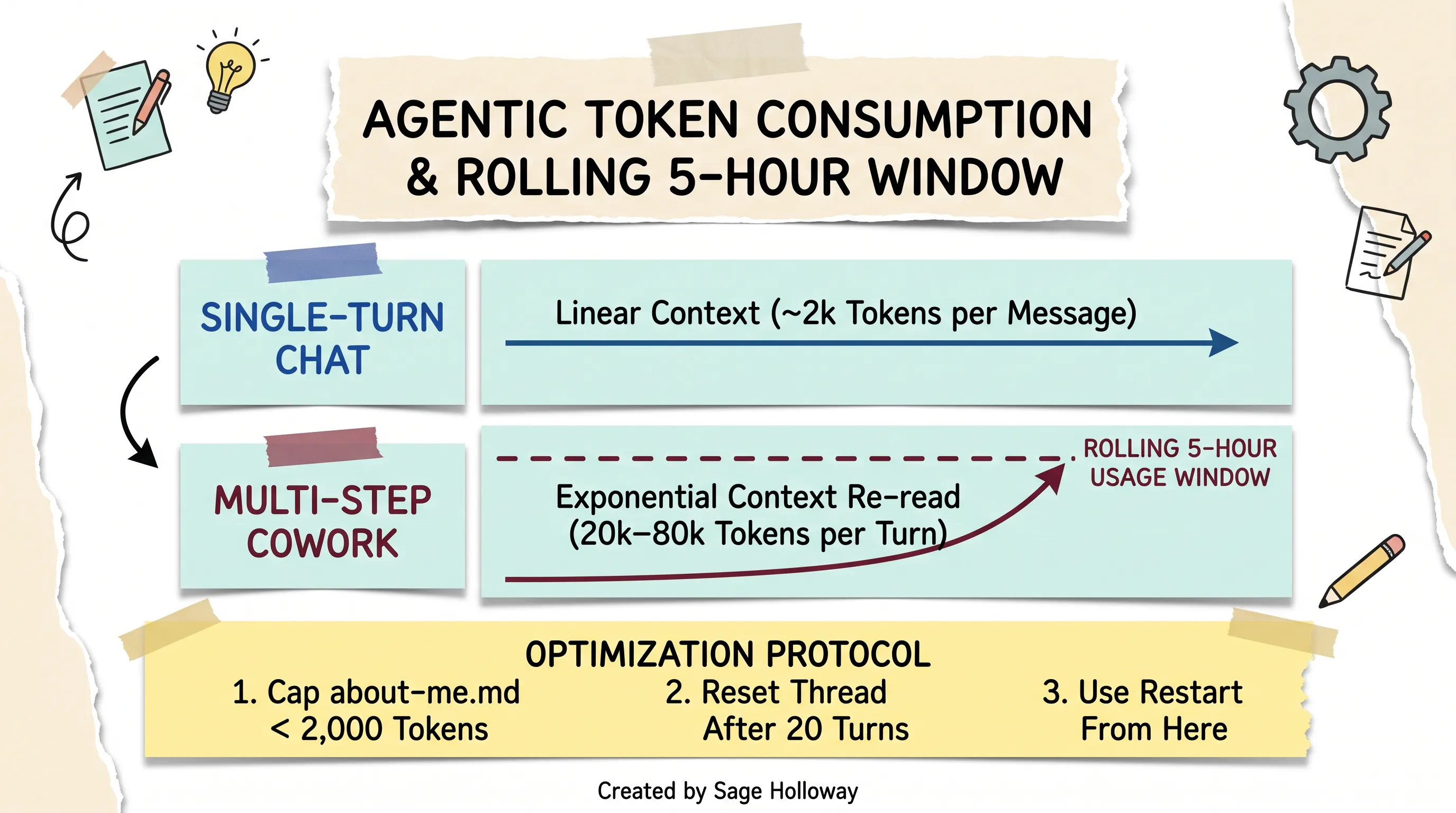
Token mechanics: Multi-step agentic tasks re-read full conversation history every turn, requiring context caps and periodic session resets.
Capping profile context files (about-me.md) under 2,000 tokens
Because files in ABOUT ME/ are loaded during session startup, bloated profile files act as a permanent tax on every subsequent turn.
Bad Practice: Dropping a 20-page employee handbook or full company history (15,000 tokens) into
ABOUT ME/.Best Practice: Summarize background profiles into concise bullet points capping total profile context under 2,000 tokens. Place detailed reference manuals into
TEMPLATES/or project subfolders where Claude only reads them on demand.
Session hygiene: resetting conversations after 20 turns and using mid-thread resets
Maintain strict session hygiene to preserve your usage allowance:
The 20-Turn Reset Rule: Never let a single Cowork conversation run past 20 messages. Once a specific deliverable is written to
OUTPUTS/, start a fresh task window for the next assignment.Use "Restart conversation from here": If a task takes a wrong turn or generates irrelevant output, do not argue with the model for five turns. Click the three dots on the last good message and select Restart conversation from here. This trims the failed execution branch from context memory, saving tens of thousands of tokens on subsequent steps.
Troubleshooting VM crashes and socket drops: resolving "Failed to start workspace" and RPC error -1
When pushing Cowork through heavy file processing, operators occasionally encounter virtual machine initialization errors. Almost zero mainstream tutorial guides explain how to resolve these issues.
Here is the verified troubleshooting protocol for common desktop VM errors based on Anthropic support logs and developer community benchmarks.
Diagnosing the VM initialization handshake: "Setting up Claude's workspace" vs timeout drops
When you initiate a Cowork session, Claude displays the status message: "Setting up Claude's workspace".
This indicates that Anthropic's infrastructure is provisioning an isolated cloud VM container, establishing the encrypted RPC session bridge, and mounting your local directory permissions. Under normal conditions, container provisioning takes 5 to 15 seconds.
If the handshake takes longer than 30 seconds, network latency or local socket contention can cause the connection to drop, returning the error: "Failed to start Claude's workspace" or "RPC error -1".

Troubleshooting matrix: Quick-reference fixes for VM handshake drops, permission errors, and session socket timeouts.
4-step recovery protocol for RPC error -1 and workspace initialization failures
If your Cowork task fails with an initialization timeout or RPC error -1, follow this numbered recovery procedure:
Pause and wait 20 seconds: Do not immediately spam the prompt submit button. Container teardown and re-provisioning in the cloud takes 15 to 20 seconds to clear stale socket allocations.
Click Retry once: Click the inline Retry button in the task panel without restarting the entire desktop application. In roughly 80% of cases, the secondary handshake connects instantly to the warm container.
Verify folder path permissions: If the failure persists, confirm that your designated working folder path has not been renamed, unmounted, or locked by external cloud sync software (such as Dropbox or OneDrive file locks).
Flush application session state: If the workspace remains unresponsive, quit Claude Desktop, delete the temporary session cache located under
%APPDATA%\Claude\Session Storage(Windows) or~/Library/Application Support/Claude/Session Storage(macOS), and re-launch the application.
Avoiding duplicate session tabs to prevent socket disconnects
A frequent cause of unexpected socket drops is opening identical Cowork sessions across multiple desktop windows or browser tabs.
Because each session establishes a dedicated RPC tunnel to your local working directory, running duplicate active tasks against the same folder creates port collisions. Always maintain exactly one active Cowork session per working folder.
Resolving Linux permission errors: fixing /sessions directory symlinks (EACCES)
On Linux installations, users occasionally encounter the error: "EACCES: permission denied, mkdir '/sessions'". This occurs when the Electron client attempts to create runtime socket directories in root rather than user space.
To resolve this on Linux:
For persistent interface errors where buttons disappear after an update, review our targeted fix guide on Claude Desktop Cowork Tab Missing.
Frequently Asked Questions
1. Who gets Claude Cowork?
Claude Cowork is available to all paid subscribers across Pro ($20/month), Max ($100 to $200/month), Team ($30/user/month), and Enterprise tiers. Free tier accounts do not have access to Cowork mode.
2. What is Claude Cowork and what does it do?
Claude Cowork is an autonomous desktop AI agent built into the Claude Desktop app. Unlike conversational chat, Cowork reads, edits, and creates files directly within local directories you designate, executing complex multi-step workflows like research synthesis, data reconciliation, and document formatting.
3. Is Claude Cowork available for Windows?
Yes. Anthropic officially released native Windows desktop support in February 2026 for both x64 and ARM64 systems, delivering full feature parity with the macOS application.
4. How to access and get Claude Cowork?
Download and install the official Claude Desktop application from claude.com/download. Sign into your paid Anthropic account and click the Cowork tab located at the top of the main message box.
5. How to set up Claude Cowork?
To set up Cowork, create a dedicated working directory on your computer, click Work in a Folder to set your file boundary, structure subfolders for ABOUT ME/, OUTPUTS/, and TEMPLATES/, and configure your persistent rules under Settings > Cowork > Global instructions.
6. How does Claude Cowork work behind the scenes?
Cowork runs tasks inside secure cloud virtual machines on Anthropic servers while maintaining an encrypted bridge to your designated local folder. It breaks goals into sub-agent steps, runs tool calls, navigates sandboxed browsers, and asks for explicit user confirmation before modifying or deleting files.
7. Can I run Claude Cowork on Linux?
Yes. Anthropic offers an official Linux beta package for Debian and Ubuntu distributions via APT (sudo apt install claude-desktop), requiring KVM hardware virtualization support and QEMU dependencies. Community scripts support Arch, Fedora, and other distributions.
8. Will Claude Cowork consume my plan usage faster than standard Chat?
Yes. Because Cowork coordinates multi-step sub-agents that re-read conversation context, tool results, and local files on every turn, it consumes 5-hour rolling token allowances significantly faster than single-turn chat. Capping profile context files under 2,000 tokens and resetting threads every 20 turns helps prevent rate limits.
9. Does Claude Cowork share memory with Claude Chat?
No. Standalone Cowork sessions run in isolated execution environments and do not automatically share active memory with browser chat windows. However, you can maintain persistent cross-session knowledge by grouping related tasks into Cowork Projects or placing structured CLAUDE.md and context.md files in your working directory.
Your first 20 minutes: a quick-start run
If you want to experience the leverage of autonomous desktop work without getting overwhelmed, do not begin by automating your entire quarterly roadmap. Start small, build the habit, and let the system prove its reliability.
Here is the exact 4-step sequence to run during your first twenty minutes:
Create your root workspace: Open your file manager and create a dedicated directory named
Claude Coworkunder your Documents folder. Inside it, create three empty subfolders:ABOUT ME,OUTPUTS, andTEMPLATES.Seed your identity: Create a simple text document named
ABOUT ME/about-me.mdcontaining five bullet points: your professional title, your primary job goals, your preferred tone (direct and concise), and your top two active projects. Keep it under 300 words.Configure standing rules: Open Claude Desktop, navigate to Settings > Cowork, and paste the production Global Instructions template provided in this guide into the text box.
Execute your first file task: Drop three unorganized PDFs or receipts into your root folder. Click Work in a Folder, select your
Claude Coworkdirectory, and enter this prompt: "Audit the loose files in this folder. Group them into categorized subfolders by topic, and generate an executive summary table in OUTPUTS/first_audit.docx summarizing what each file contains."
Watch Claude decompose the plan, review each sub-agent step as it runs, approve the file write when prompted, and open your polished Word document in OUTPUTS/.
Once you see a sandboxed agent organize files, format tables, and produce clean deliverables while you sip your morning coffee, conversational chat windows feel like typing on a typewriter.
Until then...
Sage
PS. A fun experiment to test Claude's spatial computer use reasoning: open a blank spreadsheet in Excel, enable Computer Use in General Settings, point Cowork at the window, and ask it to color-code all cells containing prime numbers between 1 and 100 in light pastel green. Watching an AI agent calculate coordinates and click cells in real time is the fastest way to understand where desktop computing is heading over the next twenty-four months.
Author
Practical guides, tool teardowns & AI engineering workflows.
Related Articles

Claude Code
React Artifact to Production App: Local Builds, Live State, and Deployment

Claude Code
Claude Code Notifications: Complete Guide to Desktop Alerts, Remote SSH Hooks & Audio Cues (2026)

Claude Code
Claude Code Permissions: Stop Approval Prompts Safely with Auto Mode, Rules & Docker Bypass (2026)