AI Coding Tools
Install GitHub Copilot on Code-Server: The Merged-VSIX and Device-Auth Method

Sage Holloway
22 min read
Go back to blog
SHARE

You deploy a fresh remote development container, open code-server in your browser, search the Extensions panel for GitHub Copilot, and find a completely empty results list. Before you start editing system manifests, running brittle sed scripts against product configs, or chasing outdated dual-package tutorials, step back and look at the licensing perimeter. The solution is straightforward once you know how the package delivery pipeline actually works.
To install GitHub Copilot on code-server, obtain the official GitHub Copilot Chat VSIX package (exported from desktop VS Code or downloaded from Microsoft's asset CDN), upload it to code-server, and select "Install from VSIX…" in the Extensions menu. Once installed, sign in to GitHub and complete authentication by entering the generated 8-character verification code manually at github.com/login/device.
Last verified: 1 September 2026
That is the direct answer. If your remote instance runs a modern core version and you already have the exported package ready, those steps will get your inline completions running in under two minutes.

Unlocking GitHub Copilot on code-server: the manual VSIX and device-auth workflow
The practical reality is that setting up install github copilot on code server trips up hundreds of engineers every week. They open code-server in a browser tab, search the Extensions panel, and find nothing. When they search online for help, they land on fragmented forum threads from 2022 and 2023 recommending deprecated dual-extension packages, brittle product.json regex patches, or manual environment variable exports that silently fail in background daemons.
The landscape changed significantly in late 2025. GitHub merged its core completion and chat extensions into a single unified package, altering the entire installation and version-matching equation.
This technical guide walks through why Copilot is missing from default search, how to obtain the correct post-merge VSIX package, how to install it via web GUI or CLI, how to complete the device code authentication flow, how to diagnose and resolve engine compatibility errors, and when you should consider Microsoft's official code serve-web architecture instead.
What this guide covers
Why GitHub Copilot never appears in code-server's default Extensions search
The late-2025 extension merger: moving from dual packages to unified GitHub Copilot Chat
How to acquire the correct VSIX: desktop VS Code export vs. direct Marketplace CDN download
Web GUI vs. CLI installation methods: permissions, paths, and Dockerfile automation
The OAuth device flow: copying the 8-character code to
github.com/login/deviceResolving the engine version mismatch error (
Microsoft.VisualStudio.Code.Engine)Brittle hacks to avoid: why
product.jsonpatching andpackage.jsonspoofing failArchitecture decision: code-server vs. Microsoft's official
code serve-webdaemonWhy Copilot Chat frequently stays blank in web forks while inline completions work
Quick-reference comparison: GitHub Copilot across Emacs (
copilot.el), Neovim, and IntelliJNine verified troubleshooting FAQs
Why GitHub Copilot doesn't show up in code-server's Extensions search
When a specialized manufacturing robot operates inside an isolated cleanroom facility, it cannot connect to external public supply catalogs. The facility runs on strict air-gapped security protocols. If the robot requires a specialized welding arm manufactured by an external vendor, the cleanroom operators cannot simply tell the machine to order the part over the open internet. They must obtain the exact physical component outside the cleanroom, verify its specifications against the robot mounting bracket, carry it through the airlock, and bolt it into place manually.
That cleanroom boundary is the exact relationship between code-server and Microsoft's extension ecosystem.
When you launch Visual Studio Code on your local desktop, the application connects directly to Microsoft's proprietary Visual Studio Marketplace. Every extension published by Microsoft, GitHub, and independent developers is indexed and ready for one-click installation.
code-server, maintained by Coder, is an open-source project that compiles the open-source core of Visual Studio Code (Code - OSS) to run in a web browser on remote servers. Because code-server is a third-party binary, it cannot legally query or download packages directly from Microsoft's Visual Studio Marketplace.
Microsoft's Marketplace Terms of Use explicitly restrict access to official Microsoft products and services. To respect these licensing terms, code-server points its extension search engine to Open VSX, an independent, open-source extension registry managed by the Eclipse Foundation.
Because GitHub Copilot is a proprietary commercial product developed by GitHub and Microsoft, it is not published to Open VSX. When you type GitHub Copilot into the code-server search bar, the editor queries the Open VSX API, finds no record under that publisher ID, and returns an empty list.

Why Copilot is missing from search: Open VSX vs. Microsoft Marketplace licensing
Attempting to force an installation via the command line without providing a local package file produces an immediate error:
This is not a bug in your code-server installation, nor is it a network connectivity failure. It is an intentional licensing boundary. To run GitHub Copilot on code-server, you must manually bridge the gap by providing the extension package (.vsix) yourself.
Get the right VSIX: merged extension vs the old two-package flow
Before downloading any files, you need to understand an important architectural update.
Historically, using GitHub Copilot required downloading two distinct extensions:
GitHub.copilot: The foundational code completion engine responsible for inline ghost-text suggestions.GitHub.copilot-chat: The companion extension providing the interactive sidebar chat panel and inline command prompts.
In the December 2025 platform update, GitHub consolidated these two codebases into a single unified extension named GitHub Copilot Chat (extension identifier: GitHub.copilot-chat). The standalone GitHub.copilot extension was deprecated.
Many online guides and enterprise setup scripts (such as older Domino Data Lab documentation) still instruct engineers to download and chain both packages sequentially. Following those legacy guides today introduces extension dependency conflicts, version desync, and engine compatibility failures. You only need a single .vsix package.
There are two primary methods to acquire the official package.
Variant A: Export from desktop VS Code (recommended)
The cleanest and most reliable way to obtain a compatible VSIX is to export it directly from a working desktop installation of Visual Studio Code. This method guarantees that the package includes all required bundled runtime dependencies and matches standard extension architecture.
Open your local desktop Visual Studio Code application.
Open the Extensions sidebar by clicking the Extensions icon in the Activity Bar or pressing
Ctrl+Shift+X(orCmd+Shift+Xon macOS).Search for
GitHub Copilot Chatin the marketplace search field.If it is already installed, locate it in your installed extensions list. If not, install it on your desktop editor first.
Click the small gear icon (Manage) adjacent to the extension title.
In the context menu, select Download VSIX.
When prompted to select a version, choose Default.
Save the exported
.vsixfile to your local computer (for example,GitHub.copilot-chat-latest.vsix).

Exporting the unified GitHub Copilot Chat VSIX from desktop VS Code
This export gives you a production-ready package that you can immediately transfer to your remote server.
Variant B: Direct download via Marketplace asset URL or API
If you work on a headless server without a desktop development machine, you can download the VSIX package directly from Microsoft's content delivery network.
Microsoft distributes gallery assets through predictable CDN endpoints based on extension publisher and version strings. The direct download endpoint follows this URL structure:
You can also query the Visual Studio Marketplace extension query API directly using curl to dynamically resolve and download the latest published build:
Note on version matching: When using direct download endpoints, the CDN serves the bleeding-edge release. If your remote code-server instance lags behind current VS Code core engine releases, this latest package may trigger an engine version mismatch error during installation. Variant A is strongly recommended because desktop VS Code automatically resolves an engine version compatible with standard releases.
Install the VSIX in code-server: GUI vs CLI
Once you have downloaded the .vsix file, transfer it to your remote code-server instance.
You can upload the file using several standard methods:
Web File Explorer: Drag and drop the
.vsixfile directly from your local desktop into the code-server Explorer file tree in your browser window.SSH / SCP: Securely copy the package from your local terminal to the server:
Container Volume: For containerized environments (such as Docker or Kubernetes), place the file into your mapped workspace directory or container
/config/path.
With the package on your server, choose between web GUI installation or command-line installation.
Web GUI install (recommended)
Installing via code-server's web interface is the most resilient approach because the internal extension manager handles file permissions, archive extraction, and path registrations under the running server user process automatically.
Open your code-server web interface in your browser.
In the left Activity Bar, click the Extensions icon (
Ctrl+Shift+X).Locate the ⋯ (More Actions) menu button in the top-right corner of the Extensions panel header.
Click ⋯ and select Install from VSIX… from the dropdown menu.
In the file picker dialog, navigate to the folder where you uploaded the package, select
GitHub.copilot-chat-latest.vsix(or your uploaded filename), and click Install.Alternatively, locate the uploaded
.vsixfile in the Explorer file tree, right-click the file, and select Install Extension VSIX.

Extensions -> ⋯ -> Install from VSIX… in the code-server web interface
A notification will briefly appear in the bottom right corner confirming that the extension was installed successfully.
Video walkthrough of the manual installation workflow
If you prefer to see the manual file transfer and GUI menu installation in action, community members have documented the end-to-end visual workflow:
Watch: Step-by-step manual VSIX installation on code-server
This video demonstrates dragging the VSIX archive into the code-server file tree, executing the Install from VSIX menu action, and initiating the GitHub account connection.
CLI install
If you manage headless systems, build automated server setup scripts, or configure custom Docker images, you can perform the installation via the code-server command line.
Open a terminal session inside code-server (or an SSH shell on the host) and run:
For custom environments or multi-user enterprise servers where the extensions directory is isolated, pass the explicit extensions path:
Automating in a Dockerfile
To bake GitHub Copilot directly into a custom Docker image, download the package and trigger the CLI installer during the image build phase:
The corrupt archive / gzip decompression workaround
Occasionally, downloading a VSIX package directly from Microsoft's CDN via curl results in a raw gzip-compressed payload. When code-server attempts to unpack this file, it throws an extraction error:
This error indicates that the downloaded file is a compressed tarball or gzip wrapper rather than a standard zip container. To resolve this on the command line, decompress the payload before invoking the installer:
Finish sign-in: the GitHub device code flow
Once the extension is installed, you must connect your GitHub account to validate your Copilot subscription.
In a standard desktop IDE, clicking the sign-in prompt opens an automated OAuth loopback redirect (http://127.0.0.1:<port>/?code=...). In remote browser environments, Docker containers, and reverse proxy setups, this automated redirect almost always hangs or fails because the remote server cannot open a local browser window on your client machine.
To complete authentication reliably, use GitHub's manual device authorization flow.
Step-by-step device authentication procedure
Follow this exact five-step sequence:
Trigger the prompt: After installing the VSIX, reload the code-server browser window. A notification card will appear in the bottom right corner:
"Sign in to Github to use Copilot".Generate the code: Click the Sign in to GitHub button. A modal dialog will appear displaying an 8-character alphanumeric code formatted as
XXXX-XXXX, alongside options to "Copy Code" and "Open".Do not click Open: Clicking "Open" attempts an automatic webview redirect that frequently times out. Instead, click Copy Code (or manually write down the 8-character string).
Authorize in a separate tab: Open a new tab in your local web browser and navigate directly to:
Complete authorization: Paste your 8-character verification code into the input field on GitHub's verification card, click Continue, and select Authorize Visual-Studio-Code. Once the green checkmark appears confirming success, close that browser tab.

The device-code authentication loop: copying the 8-character code to github.com/login/device
Verifying activation
Return to your code-server tab. The extension host will receive the validated OAuth token from GitHub's backend within five to ten seconds.
To confirm that Copilot is active and operational:
Look at the bottom blue status bar in the bottom right corner of code-server. You should see the GitHub Copilot icon. Hovering over it displays Status: Ready.
If the icon indicates disabled, press
Ctrl+Shift+P(orCmd+Shift+P), typeGitHub Copilot: Enable, and select it.Open or create a new code file (for example,
server.jsorapp.py).Type a function declaration such as
function calculateTotal(items) {and pause for one second.Copilot will render an inline ghost-text code completion in light gray text. Press
Tabto accept the suggestion, orEscto dismiss it.

Verification: bottom-right Status: Ready indicator and inline code completions
Fix "not compatible with VS Code": the engine-version mismatch
The single most common error encountered when installing GitHub Copilot on code-server is the engine compatibility mismatch.
When you attempt to install a newly downloaded VSIX package, code-server may abort the operation with an explicit error dialog:
You are not fighting a broken installer. You are bridging two software ecosystems moving at different release cadences.
Visual Studio Code publishes major updates monthly. code-server regularly updates its codebase, but its stable releases can lag behind desktop VS Code by several weeks. Meanwhile, GitHub's extension developers constantly update the Copilot VSIX to require the absolute latest VS Code core engine.
When the required engine version listed inside the VSIX manifest exceeds the core version compiled into your code-server binary, code-server refuses to install the package to prevent runtime crashes.

The engine compatibility check: manifest version vs. code-server core release
Read the engine manifest
Inside every .vsix archive sits an XML manifest file (extension.vsixmanifest) and a JSON package descriptor (extension/package.json). These files contain an explicit compatibility requirement defined by the Microsoft.VisualStudio.Code.Engine property:
To determine what engine version your code-server instance supports:
Open code-server in your browser.
Click the top application menu (or Application hamburger icon).
Select Help -> About.
Note the core VS Code version string (for example,
1.96.2or1.101.2).
If your downloaded VSIX requires ^1.107.0 and your code-server binary runs on core 1.101.2, the installation will fail every single time.
Query the Marketplace API for a matching build
To fix the mismatch, you do not need to wait for a code-server update. You can query Microsoft's Gallery API to find and download the exact VSIX version whose engine property matches your running code-server release.
Run this curl and jq command in your terminal:
This output lists recent Copilot builds alongside their required VS Code engine versions and direct download URLs. Locate the newest version whose engine requirement is less than or equal to your code-server core version, copy its .source URL, download that specific VSIX package, and install it.

Engine compatibility matrix: matching code-server releases to Copilot VSIX builds
Dangerous hacks to avoid
When troubleshooting engine mismatches on forums, you will encounter two legacy workarounds. Both are brittle and should not be used:
Sed-patching
product.json(Do not use): Older threads recommend modifying/usr/lib/code-server/vendor/modules/code-oss-dev/product.jsonwith regex substitution to force-whitelistGitHub.copilot. Maintainers confirmed in Coder Discussion #4363 that this internal configuration structure changed completely in 2023. Patchingproduct.jsontoday does not resolve marketplace blocks and frequently corrupts code-server runtime initialization.Unpacking and spoofing
package.json(Do not use): Some guides suggest unzipping the.vsixarchive, editingextension/package.jsonto change"vscode": "^1.107.0"to"vscode": "^1.84.0", re-zipping the archive, and installing it. While this bypasses the initial installer check, the extension inevitably calls internal VS Code APIs that do not exist in your older engine, leading to silent activation crashes and broken language server processes.
The stable fix is always to match the version cleanly via the Marketplace API or upgrade your code-server host binary.
code-server vs Microsoft's official code serve-web: pick your architecture
Before investing significant engineering time customizing code-server for a large team, you should consider an architectural fork that many self-hosters overlook.
code-server is an independent, community-driven web port. Microsoft also distributes its own official, first-party headless server binary called code serve-web (bundled directly with the official VS Code CLI).
Understanding the differences between these two solutions helps you pick the right tool for your requirements:

Architecture fork: code-server vs. Microsoft official code serve-web
The core decision criteria
Choose
code-serverif: You need an open-source, vendor-neutral web IDE built on MIT-licensed software, you operate in strict self-hosted or air-gapped homelabs, you use Coder workspace orchestrators, and your primary requirement is inline code autocompletions.Choose
code serve-webif: You require full, interactive GitHub Copilot Chat, integrated subagent workflows, multi-file editing features, and native one-click extension installation directly from the official Microsoft Visual Studio Marketplace.
If you decide that native marketplace access and interactive chat are mandatory for your workflow, deploying Microsoft's official headless binary on a Linux server is remarkably straightforward.
Setting up official code serve-web via systemd
To run Microsoft's official headless server as a persistent background service:
Install the official VS Code CLI binary on your Linux host:
Create a systemd service file at
/etc/systemd/system/code-server-official.service:
Enable and start the service:
When you open http://your-server-ip:8080 in your browser, the official interface connects directly to Microsoft's Marketplace. You can search for GitHub Copilot, install it with one click, and use both inline completions and interactive Chat without manual VSIX handling.
Why Copilot Chat stays blank even after a clean install
One of the most frequent frustrations reported across Coder issue trackers is the "blank chat syndrome": you install the VSIX successfully, inline ghost-text autocompletions work flawlessly, but opening the Copilot Chat panel results in a blank, unresponsive window.
To understand why this happens, look at how the extension divides its workload.
GitHub Copilot operates across two completely different technical channels:
Inline completions: Powered by a background Node.js Language Server Protocol (LSP) process. The editor passes the active document buffer over standard IPC channels, queries GitHub's prediction endpoints, and renders ghost text using standard Monaco editor decoration APIs. Because
code-servermaintains standard LSP compatibility, inline completions work reliably.Copilot Chat & Interactive Panels: Powered by complex, proprietary VS Code webview iframe containers. Chat panels rely on private editor authentication provider APIs, webview message passing protocols, and internal token brokering handshakes that are tightly coupled to Microsoft's closed-source desktop workbench.
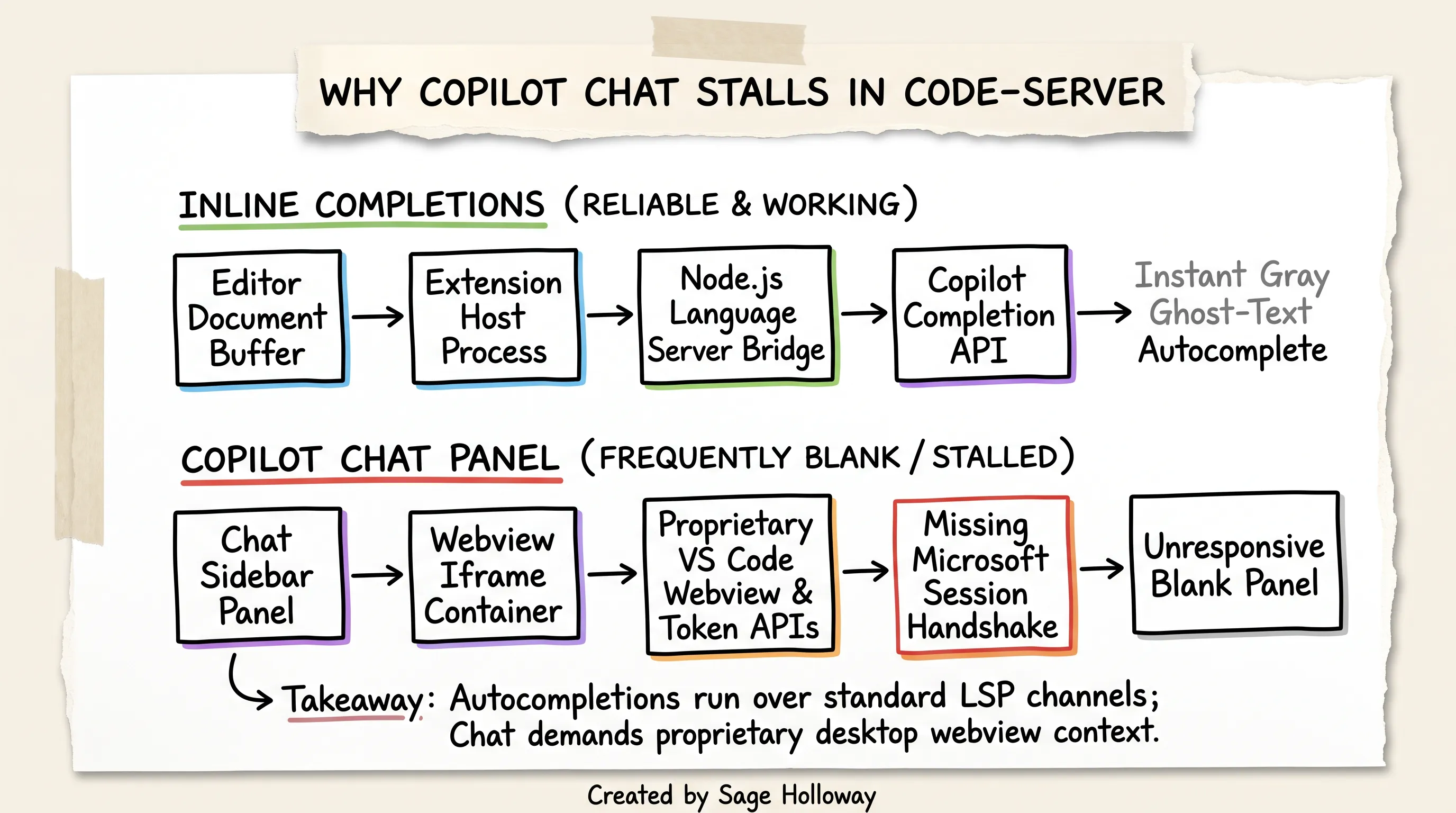
Why completions work but Chat stalls: LSP process vs. proprietary webview context
Because code-server runs in a browser tab rather than an Electron desktop window, the browser sandbox often blocks or fails to resolve the internal webview communication bridge required by Copilot Chat.
While some users have reported working chat sessions on specific version pairings (such as code-server v4.107.0 paired with an exported VSIX from desktop VS Code v1.107.1), chat stability on third-party web forks remains inconsistent across container environments.
The EXTENSIONS_GALLERY export trap
To work around marketplace limitations, many developers attempt setting the EXTENSIONS_GALLERY environment variable:
While running this export command in your shell allows code-server to search Microsoft's marketplace temporarily during that interactive terminal session, it does not solve the underlying problem:
Daemon isolation: If code-server runs as a background
systemddaemon or Docker service, shellexportcommands executed in a terminal session are never inherited by the parent server process. To make it reach the server, you must explicitly injectEnvironment=EXTENSIONS_GALLERY=...into/etc/systemd/system/code-server.serviceunder the[Service]block.Webview API limitation: Pointing code-server to Microsoft's gallery does not provide the missing proprietary webview runtime APIs needed for Copilot Chat.
Licensing violation: Maintainers explicitly remind developers that querying Microsoft's gallery from third-party binaries breaches Microsoft's Marketplace Terms of Service.
For reliable inline completions, the manual VSIX side-loading method remains the supported standard. If interactive chat is essential, deploy code serve-web.
Copilot in other editors: quick reference (Emacs, Neovim, IntelliJ)
While code-server brings VS Code to the browser, many developers work across alternative terminal and desktop IDE environments. Each ecosystem uses its own dedicated package architecture to interface with GitHub Copilot's language servers.
If you work in a heterogeneous engineering environment, here is how Copilot integrates across non-default editors:

GitHub Copilot in alternative environments: Emacs, Neovim, IntelliJ, and code-server
Key architectural differences across editors
Emacs (
copilot.el): Emacs users integrate Copilot via the community-maintained copilot.el package (available on MELPA). It acts as an Elisp wrapper around GitHub Copilot's standalone Node.js language server binary. Authentication is handled viaM-x copilot-login, which initiates the same 8-character device code flow used on code-server. Companion community packages likecopilot-chat.elprovide experimental buffer-based chat interfaces.Neovim (
neovim github copilot): Neovim supports official inline suggestions via copilot.vim, developed directly by GitHub. It runs as a lightweight Vim script and Node process. For interactive chat, the Neovim community heavily relies on CopilotChat.nvim, a powerful Lua-based plugin integrated withnvim-cmpand standard window buffers. Setup is performed via package managers like Lazy or Packer, followed by executing:Copilot setup.IntelliJ IDEA (
intellij github copilot): JetBrains IDEs (including IntelliJ IDEA, PyCharm, and WebStorm) feature an official plugin distributed through the JetBrains Marketplace. Unlike code-server, JetBrains environments support full Copilot Chat, multi-line refactoring, and Agent Mode natively without manual package side-loading. Installation is performed directly via Settings -> Plugins -> Marketplace -> GitHub Copilot.
For developers comparing workflow capabilities across broader toolsets, explore our in-depth comparisons on Claude Code vs GitHub Copilot and modern GitHub Copilot alternatives, or see how GitHub Copilot Agent Mode in VS Code compares with browser-based completions.
Frequently asked questions
Why doesn't GitHub Copilot show up when I search Extensions in code-server?
code-server routes extension queries through the open-source Open VSX registry by default rather than Microsoft's Visual Studio Marketplace. GitHub Copilot is unavailable on Open VSX because Microsoft's Marketplace Terms of Service prohibit third-party editor binaries from downloading or distributing its proprietary assets. Consequently, searching for github.copilot inside code-server returns zero results.
How do I fix "Unable to install extension... not compatible with VS Code"?
This error occurs when the downloaded Copilot VSIX package requires a newer VS Code engine than the core version compiled into your code-server release. Inside the extension manifest, the Microsoft.VisualStudio.Code.Engine property enforces this minimum version check. To resolve it, either update your code-server installation to the latest release or query the Visual Studio Marketplace API to download an earlier VSIX build whose required engine matches your running code-server version.
Why does the GitHub sign-in redirect hang or fail during activation?
Browser-based code-server instances frequently fail to handle automated OAuth callback redirects, particularly when running inside Docker containers or behind reverse proxies. To bypass this failure, do not click the automated redirect button in the notification dialog. Instead, copy the provided 8-character verification code, open a separate browser tab, navigate directly to https://github.com/login/device, enter the code, and complete authorization manually.
Why is Copilot Chat blank or unresponsive even though completions work?
Inline code completions run over standard Language Server Protocol (LSP) channels, which code-server supports out of the box. In contrast, Copilot Chat relies on proprietary VS Code webview iframe containers, internal authentication providers, and token-passing protocols that frequently fail to initialize in remote browser environments. While inline ghost text works reliably, full chat functionality on code-server remains brittle.
Can I bypass manual VSIX downloads by setting EXTENSIONS_GALLERY?
Exporting the EXTENSIONS_GALLERY environment variable tells code-server to query Microsoft's marketplace API, but doing so in an interactive shell session will not persist for background systemd daemons or Docker services unless explicitly injected into the service definition. Furthermore, using Microsoft's marketplace API inside third-party binaries directly violates the Visual Studio Marketplace Terms of Service. Manual VSIX side-loading is the stable, supported workflow.
What is the difference between code-server and Microsoft's official code serve-web for Copilot?
code-server is an open-source, community-maintained web port of VS Code that defaults to Open VSX and requires manual VSIX side-loading for Copilot. code serve-web is Microsoft's official headless web binary bundled with the VS Code CLI. It connects natively to Microsoft's Visual Studio Marketplace, enabling one-click installation and fully functional Copilot Chat out of the box.
How do I automate the GitHub Copilot install in a Dockerfile?
You can automate the installation during image builds by using curl to fetch the VSIX package from Microsoft's asset CDN, running code-server --install-extension /tmp/copilot.vsix --force, and deleting the temporary file. Alternatively, you can write a build script that queries the Marketplace API with curl and jq to dynamically pull the newest version-matched package.
Does GitHub Copilot still need two separate VSIX files?
No. In earlier versions, users had to download and install GitHub.copilot (for completions) and GitHub.copilot-chat (for chat) separately. In late 2025, GitHub consolidated both tools into a single unified extension named GitHub Copilot Chat. Modern installations on code-server require only a single .vsix file.
How to use copilot cli?
To use GitHub Copilot in the terminal, install the GitHub CLI (gh) along with the official gh-copilot extension. The CLI provides two primary commands: gh copilot suggest to generate shell commands or scripts from natural language prompts, and gh copilot explain to break down complex command syntax and flags. Note that the Copilot CLI is a standalone terminal utility and operates independently of the code-server editor extension. For local command-line installations, see our guides on how to install Copilot CLI and installing Copilot CLI on Windows. If you run into backend connection failures or model timeouts after installation, follow our guide on fixing GitHub Copilot language model unavailable.
Taking your remote development workspace further
Once your VSIX package is installed and your device authentication is validated, your browser-based code-server instance delivers the same responsive inline autocompletions you expect on a desktop workstation.
If you want to stress-test your setup this week, try this: spin up a fresh disposable Docker container with code-server, apply the automated Dockerfile snippet from this guide, and complete the device login in under sixty seconds. Then, test a multi-step refactor across several files to see where inline completions accelerate your velocity and where webview chat limitations emerge.
If your daily engineering workflow demands deep interactive chat, agentic workspace reasoning, and terminal automation, test Microsoft's official code serve-web daemon alongside code-server. Having both tools in your DevOps arsenal ensures that licensing boundaries never dictate your development velocity.
Until then...
Sage
PS. The first time I tried setting up Copilot in a remote container back in 2022, I spent three hours writing regex scripts to patch internal product.json manifests, convinced that the server binary was actively blocking my account. When I finally realized that all it took was copying an eight-character code into a separate browser tab at github.com/login/device, I laughed out loud in an empty office at 2:00 AM. Sometimes the simplest door is the one nobody thinks to push.
Author
Practical guides, tool teardowns & AI engineering workflows.
Related Articles

AI Coding Tools
Best GitHub Copilot Alternatives in 2026: Choose by Coding Surface, Not a Top-10 List

AI Coding Tools
GitHub Copilot Agent Mode in VS Code: How It Works, How It Differs From Ask and Edit, and How to Control It

AI Coding Tools
How to Cancel GitHub Copilot: The Irreversibility Trap, the Missing Button Fix, and Every Cancellation Path