Claude Code
Claude Code Slash Commands: The Complete Guide to Settings, Skills, and Permissions

Sage Holloway
29 min read
Go back to blog
SHARE
Somewhere around the fortieth approval prompt of the day, you stop reading them. You just hit yes, because the alternative is reading the same "Claude wants to run npm test, allow?" dialog for the ninth time this hour. The tool is not broken. You just never told it, in writing, what it is allowed to do without you standing over its shoulder.
The fortieth prompt of the day is not a bug. It is the default. A fresh Claude Code install starts in the most cautious permission mode available, asks before every tool call, and has no idea which of your fifty daily commands are safe to auto-approve and which one is a git push --force waiting to happen. That is the before picture, and most people searching for slash commands are standing in the middle of it, mid-fatigue, looking for the door out.
The after picture is quieter. You type /deploy staging instead of retyping the same four-paragraph prompt about how your CI pipeline works. Claude auto-approves your test runner, prompts you on anything destructive, and drops into a read-only research mode on its own for the kind of multi-file change that deserves a second look. None of that is magic. It is four things working together: custom commands, the skills system they merged into, a five-file settings hierarchy, and a permission mode you actually chose on purpose instead of inheriting by default.
Claude Code slash commands are keyboard-first shortcuts, typed at the start of a message, that trigger saved Markdown prompts or built-in actions like /clear and /compact. Custom commands saved in .claude/commands/ now work identically to Agent Skills at .claude/skills/<name>/SKILL.md. They accept $ARGUMENTS, inject live shell output with a ! prefix, and run inside whatever permission mode (manual, plan, auto, dontAsk) the session is set to.
Everything below comes from Claude Code's official documentation (commands, settings, permissions, and skills) plus NotebookLM research dated 16 August 2026, drawn from those docs alongside reference gists and hands-on tutorials. Where a Reddit thread or blog post disagreed with the docs, the docs won, and I say so explicitly below. There is no live CLI verification pass on this draft; treat version-specific numbers (v2.1.92, v2.1.75) as accurate to the sources cited, and worth a quick /doctor check on your own install before you build a workflow around them.
This will not work if you are still running a Claude Code build from before the commands-to-skills merge, or if your team has never agreed on who owns the shared .claude/settings.json file. Slash commands and skills read straight from the filesystem. If two people edit the same project settings file without talking, the last save wins and nobody notices until a deny rule quietly disappears.
This page will not cover installing the CLI itself (see Install Claude Code), connecting external tools (see Claude Code MCP servers), or the mechanics of /resume and session branching (see Claude Code sessions). Those are different jobs with different searchers. This one is the settings, skills, and permissions catalog.
Custom commands in .claude/commands/ and skills in .claude/skills/ now create the same /name command.
What Counts as a Slash Command Now: Commands, Skills, and the .claude Directory Map
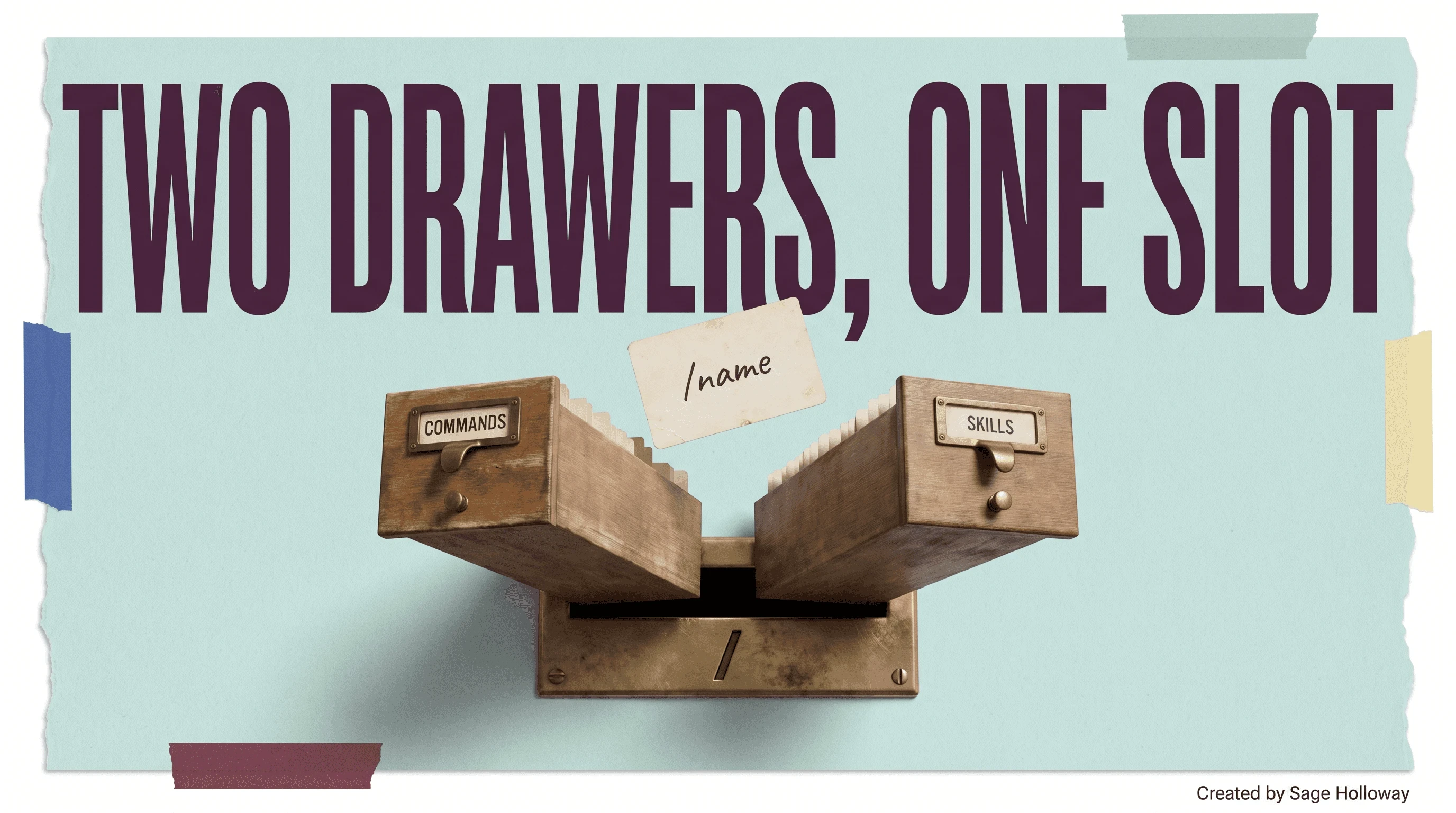
Picture an old library card catalog, the wooden kind with two drawers side by side. One drawer is labeled in faded ink; the other was added later, in a slightly different hand, and for years the librarians treated them as separate systems, filing under one or the other depending on which decade they'd learned the rules in. Then someone realized both drawers pointed at the same shelf the whole time, and started routing every new card through a single slot regardless of which drawer a person reached for first. That is roughly what happened to Claude Code's command system in 2026.
For a long stretch, "custom commands" meant a Markdown file dropped into .claude/commands/. Filename becomes command name; deploy.md becomes /deploy. That still works exactly as before. But Claude Code also shipped a newer, richer format called Agent Skills, and rather than force a migration, Anthropic merged the two. A file in .claude/commands/ and a folder at .claude/skills/<name>/SKILL.md now both create /name and behave identically at runtime, according to the skills documentation.
Legacy .claude/commands/ vs. .claude/skills/<name>/SKILL.md
The practical difference is packaging, not behavior. A legacy command is one file: prompt text, optional YAML frontmatter, done. A skill is a folder, which means you can bundle the prompt alongside helper scripts, reference schemas, or example data the model can read when the skill triggers. If your command is a single reusable prompt, the legacy format is fine and faster to write. If it needs supporting files, the skills format is where that capability actually lives.
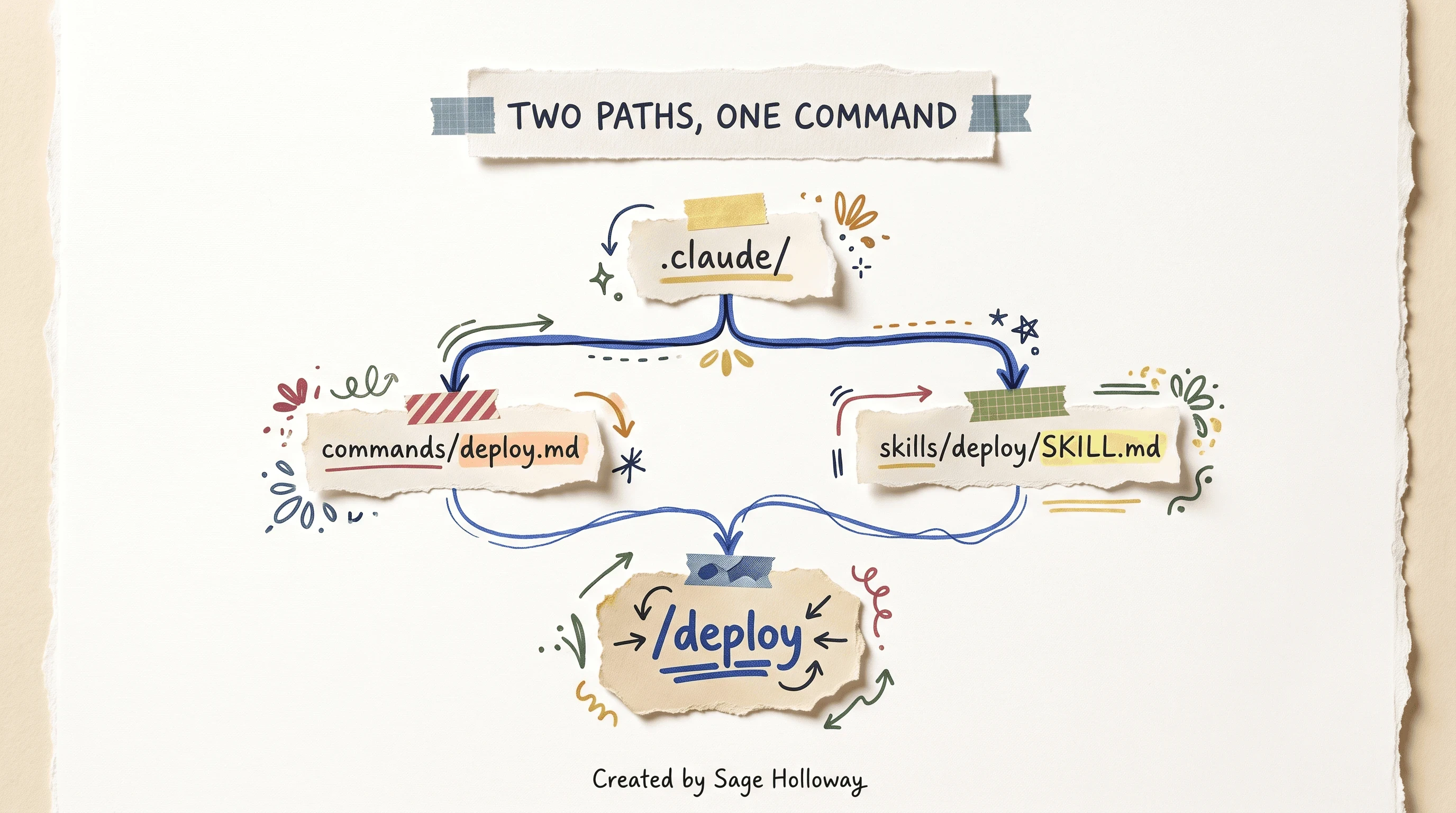
A file in .claude/commands/ and a folder in .claude/skills/<name>/ both register the same /name command.
Both formats produce identical frontmatter behavior, which is worth seeing side by side once instead of guessing:
Type /deploy in either project and you get the same result. The folder just gives you somewhere to put deploy/check_migrations.py next to the prompt, if your deploy skill ever needs one.
One deprecation worth flagging while you're here: /pr-comments was removed in v2.1.91. If an old cheatsheet still lists it, stop hunting for the flag and just ask Claude directly to pull up pull request comments; it does that natively now without a dedicated command.
Should you migrate every old command to the folder format? Not automatically. If a command has never needed a supporting file and probably never will, leave it as a single .md file. Converting it buys you nothing except an extra layer of directories to maintain.
Build Your First Custom Command (Step-by-Step)
This is the one section on this page that is a straight procedure, so it stays a straight procedure. Five steps, in order, from an empty project to a working command you can call by name.
Create the directory. Decide whether the command belongs to just this project or to every project on your machine, then make the folder.
Write the frontmatter. At the top of your Markdown file, an optional YAML block controls how the command behaves before the model ever reads your prompt.
description is what shows up when you list your commands. allowed-tools pre-approves exactly which tools this command can use without a permission prompt, which is the whole point of writing a command instead of retyping a prompt. disable-model-invocation stops Claude from triggering the command on its own judgment; it only runs when you type it yourself.
Add dynamic inputs. A static prompt is useful exactly once. Three mechanisms make a command reusable:
$ARGUMENTS captures whatever text you type after the command name, so /review src/auth.ts passes src/auth.ts straight into the prompt. A line starting with ! runs that shell command and injects its live output. An @ reference pins a specific file's current content, autocompleting as you type the path.
Skip the manual writing if you want. You can also ask Claude to write the command for you, inside an active session:
It writes the Markdown file, frontmatter and all, and drops it in .claude/commands/. Useful for a first draft; still worth reading before you trust it with allowed-tools.
Verify it loaded. Save the file, then confirm Claude Code actually sees it before you build a workflow around it.
That is the whole loop: a directory, a file, frontmatter that pre-approves the boring parts, and a way to check your work. One thing worth knowing before you build a library of these: a single message can chain up to six skills at once, so a set of small, well-scoped commands composes better than one enormous do-everything prompt.
Claude Code Settings: The Five-Scope Precedence Stack
Commands tell Claude what to do. Settings tell it how much rope it gets while doing it. Claude Code reads configuration from five places, and when the same key shows up in more than one of them, a fixed precedence order decides which value wins.
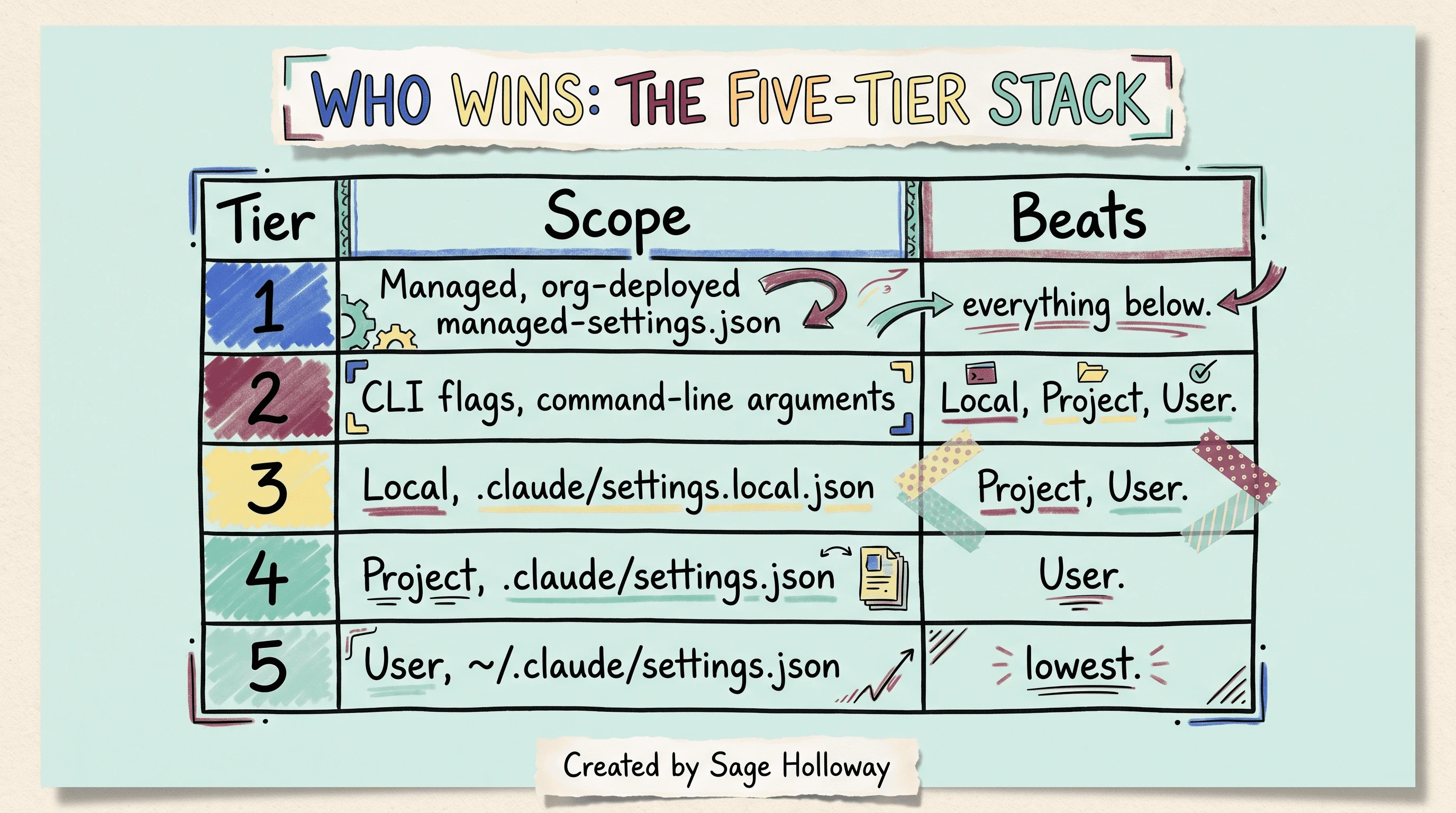
When the same key appears in more than one file, the higher tier in this stack wins; array settings merge instead of override.
Managed settings, deployed by an organization, beat everything. Command-line flags beat every settings file. Local project overrides beat the shared project file, which beats your personal user file. There is one exception worth remembering: scalar values (a string, a number, a boolean) get overridden cleanly by the higher tier, but array values, like lists of allowed tools or deny rules, generally concatenate across scopes instead of replacing each other. A deny rule set at the user level does not vanish just because the project file adds its own.
If you manage machines for a team, the managed settings file lives at a different filesystem path depending on the operating system, and one of those paths quietly stopped working.
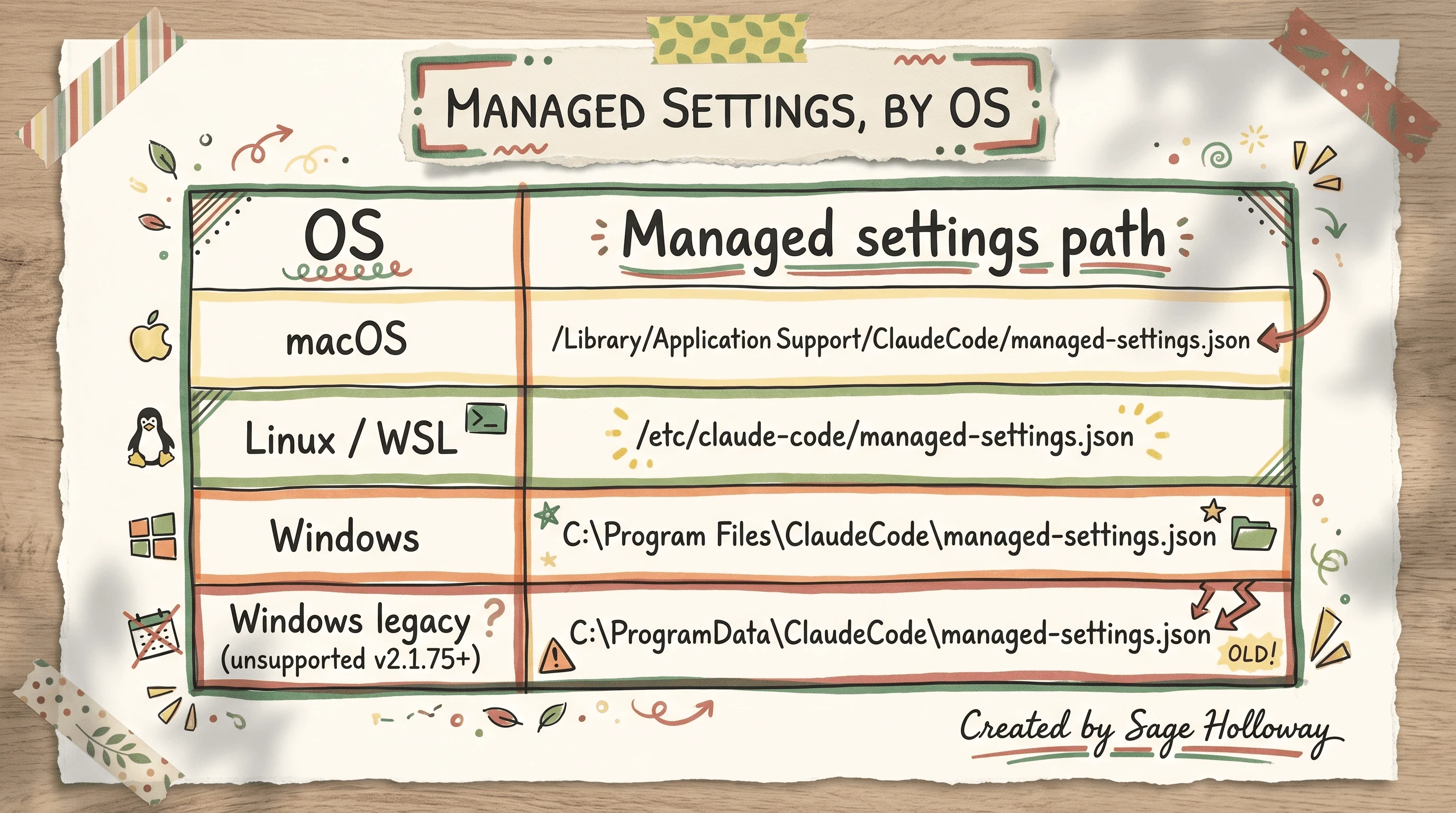
The legacy Windows ProgramData path stopped working in v2.1.75; use the Program Files path instead.
The four files people actually confuse, spelled out once so you never have to guess again:
That last file causes the most confusion, mostly because its name sits one character away from the folder that holds everything else. ~/.claude.json is not a settings file you're meant to open with intent. It holds your login session and various caches, and if you create an empty one by hand, or edit it wrong, the CLI throws errors that have nothing to do with whatever setting you were actually trying to change. If a forum thread tells you to "just check your .claude.json," they almost certainly mean ~/.claude/settings.json.
Here's the honest admission: I broke a shared project setup once by editing .claude/settings.json directly instead of adding my override to .claude/settings.local.json. Everyone on the repo inherited my personal deny rule for a linter they actually needed running. It took a confused Slack thread and a git blame to figure out why. The local file exists precisely so that mistake only happens to you once.
Permission Modes: Manual, Plan, Auto, dontAsk, and bypassPermissions
Six modes exist, and most people only ever hear about two of them: the default that asks about everything, and the flag a forum told them to add so it stops asking about anything. Neither extreme is where the actual value lives.
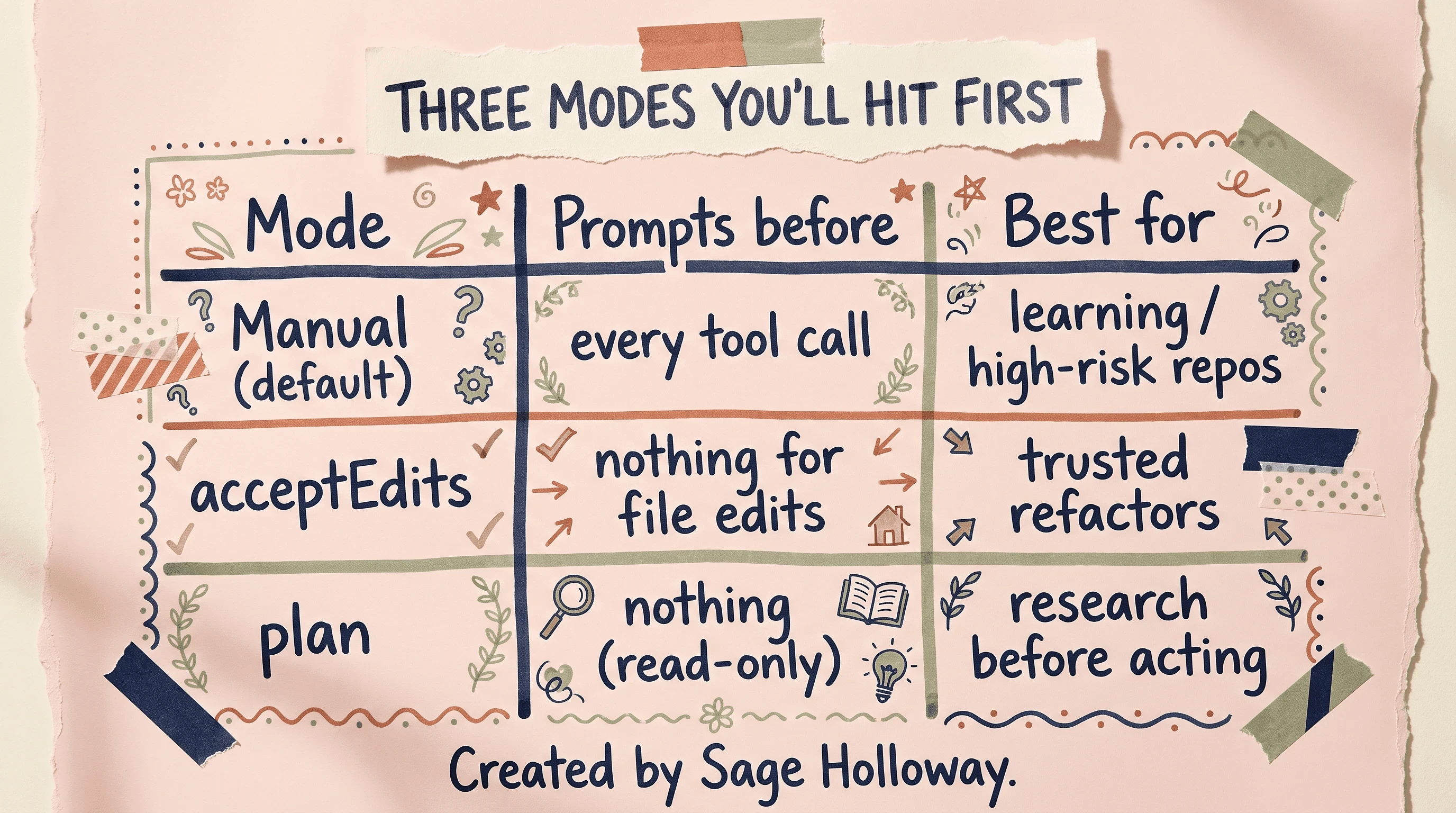
Manual prompts on everything; acceptEdits auto-approves file edits only; plan is fully read-only for research before acting.
Manual is the default: a prompt before every tool call. It's the right mode for a repo you don't fully trust yet, or for your first week inside a new team's codebase. acceptEdits auto-approves file edits specifically, so you stop clicking through diffs you were going to accept anyway, while everything else still asks. Plan mode goes the other direction: fully read-only, useful when you want Claude to research and propose before anything touches disk.
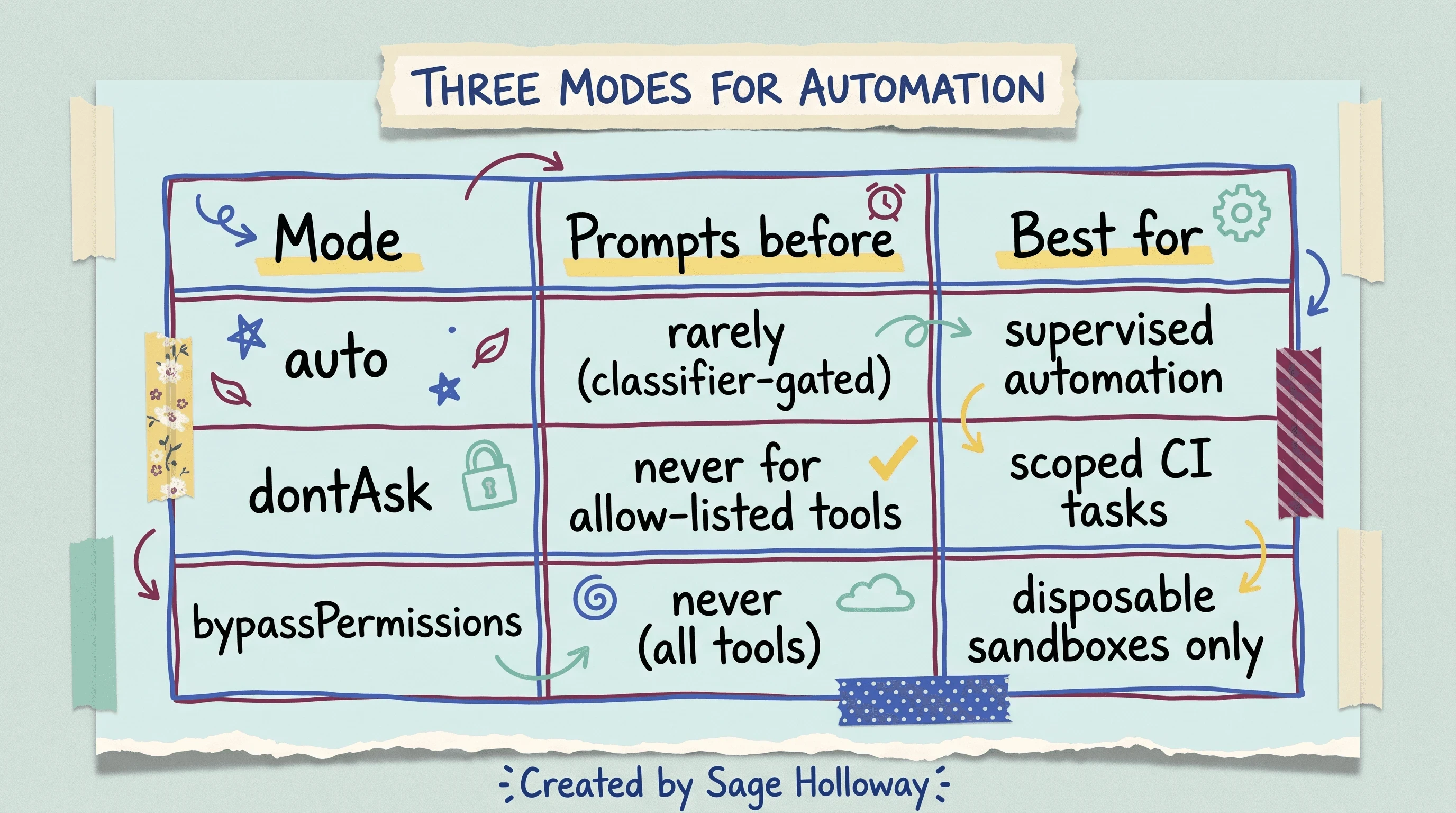
bypassPermissions skips every prompt; reserve it for disposable sandboxes, not real repos.
auto mode is the newest, and the most interesting: it rarely prompts, but not because it stopped checking. dontAsk skips confirmation only for tools you've explicitly allow-listed; everything outside that list still stops and asks. bypassPermissions skips every check on every tool, which is exactly as dangerous as it sounds and belongs in disposable sandboxes, not a repo you'd mind losing.
Why does auto mode get to skip so many prompts without being reckless about it? Because it isn't trusting the model's own judgment about safety. Anthropic built a background classifier that screens tool calls before they run, and the engineering writeup on how they built it lays out the tradeoff space it's actually optimizing for.
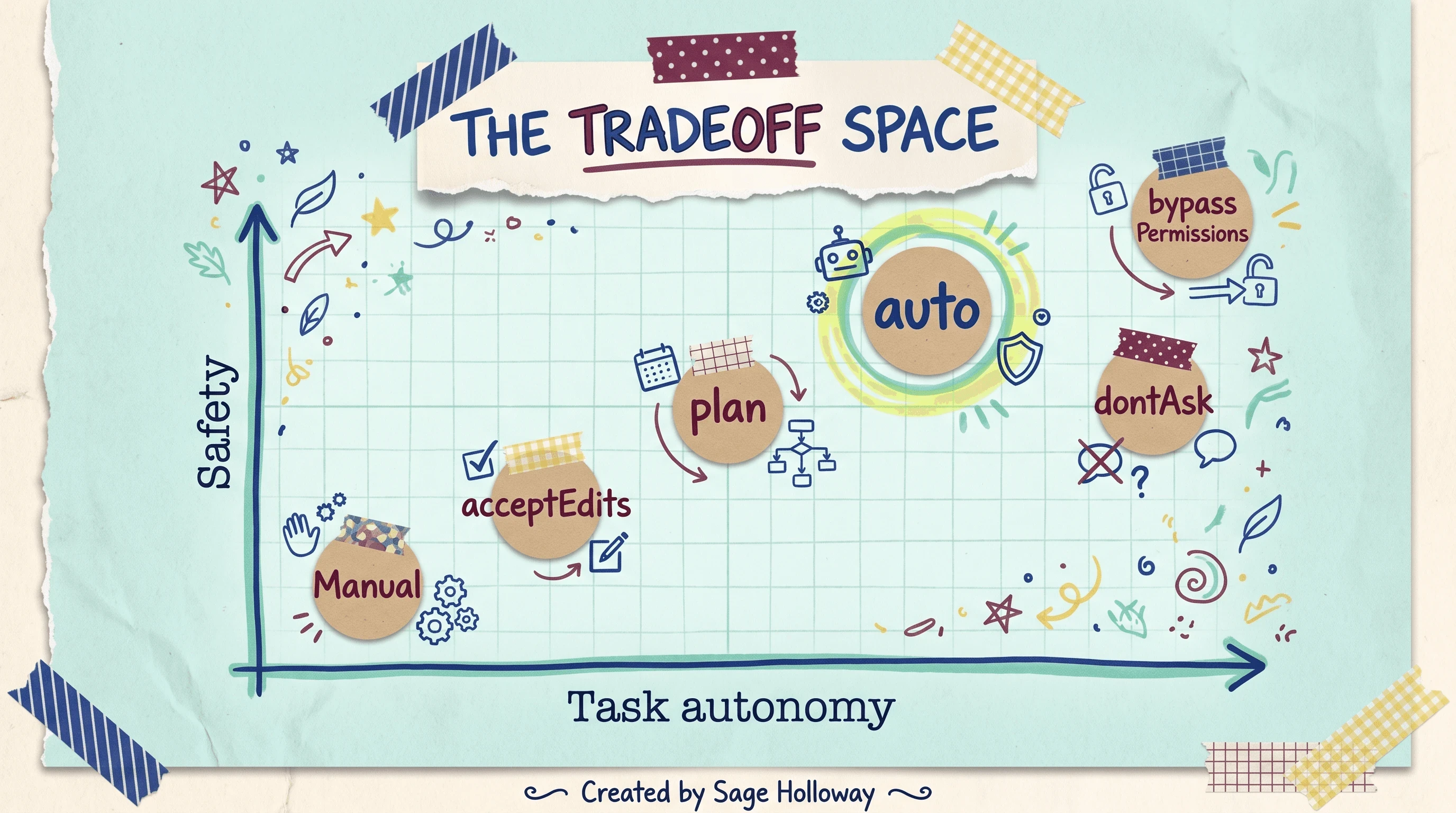
Anthropic's own tradeoff map: auto mode targets the high-autonomy, still-safe corner other modes can't reach.
Here's the part most permission-fatigue threads get backwards. The tempting fix for "Claude keeps asking permission for everything" is a blanket rule: allow Bash(*) and move on with your life. Don't. Auto mode automatically drops blanket wildcard rules like Bash(*) the moment you enter it, specifically because a wildcard that broad is also a wildcard an injected prompt could ride on. Write the narrow version instead.
Tempted to reach for the CLI's ejector seat, --dangerously-skip-permissions, instead? Know what it actually does first: every check, gone, for the whole session, no classifier, no deny rules, nothing. It exists for isolated containers and throwaway sandboxes. It is not a settings fix. It is turning the safety system off.
The permission system was never really about trust in the model. It was about trust in whichever human configured the deny rules three months ago and then left the team.
Deterministic Hooks vs. Auto Mode: Enforcing Rules Without Trusting the Model
Auto mode's classifier is fast and generally right, but "generally right" is a probability, not a guarantee, and some rules shouldn't be probabilistic at all. That's the job hooks do instead.
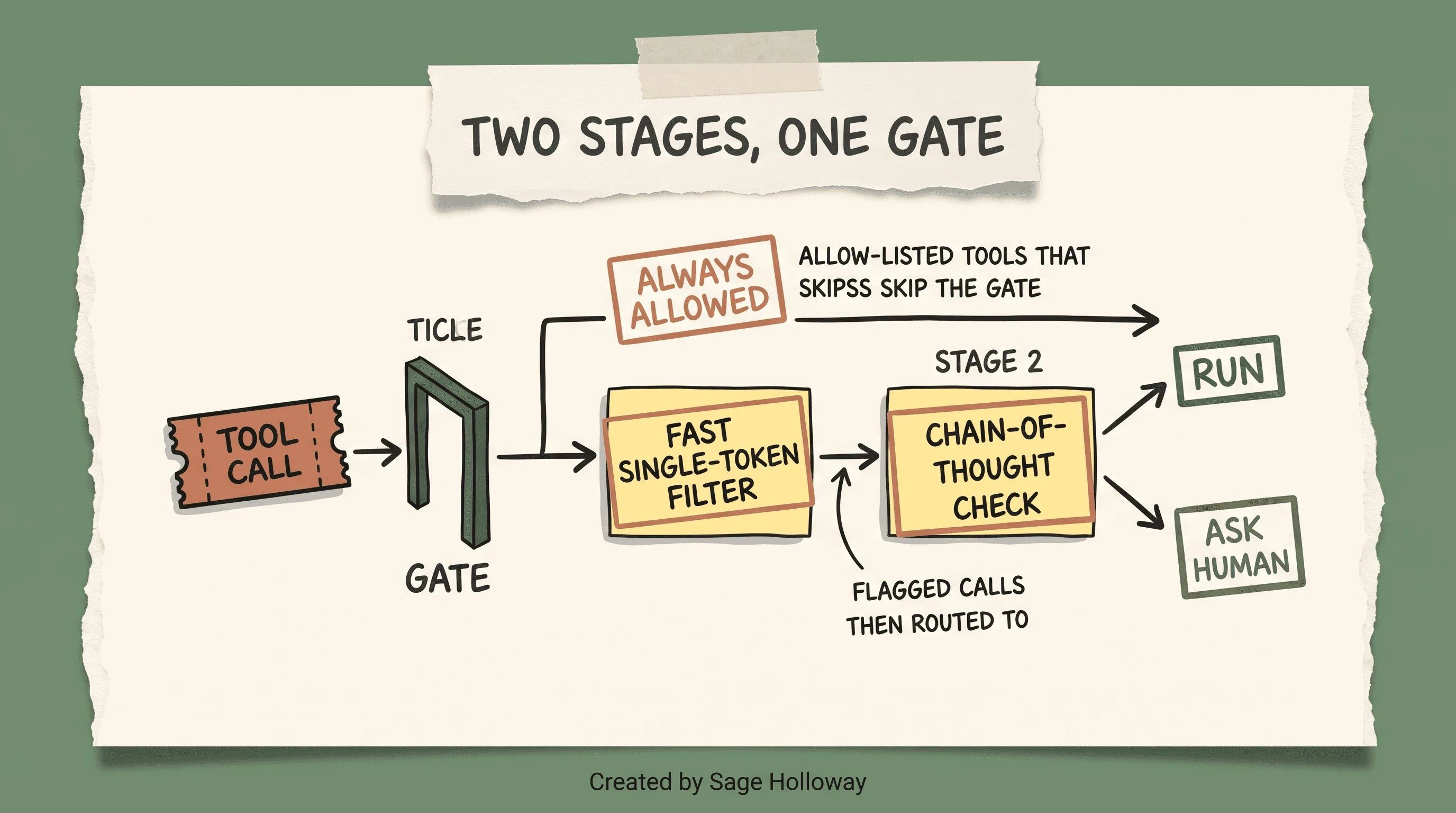
Allow-listed tools skip the gate; everything else passes a fast filter, and uncertain calls get a deeper chain-of-thought check.
Here's how a tool call actually gets approved under auto mode. Anything on your allow list skips the gate entirely; you already decided it's fine. Everything else passes through a fast, single-token classifier first, cheap and quick. If that first pass flags anything uncertain, the call escalates to a second, slower stage that runs an actual chain-of-thought check before deciding. Two speeds, one gate, and most calls never need the slow lane.
That system is still a model judging another model's proposed action. Hooks skip the judgment entirely.
A PreToolUse hook is a script you write once that can veto a command before Claude ever attempts it, with zero AI involved in that specific decision. Want to guarantee nobody, model or human, runs a force push against main from inside a session? Don't write a prompt asking Claude to be careful. Write a PreToolUse hook that checks the command string and exits nonzero if it matches git push --force. The classifier is a very good filter. A hook is a wall.
When should you reach for a hook instead of just trusting the permission system? Any time the cost of being wrong once outweighs the convenience of asking every time. Deploy scripts, anything touching production credentials, anything that deletes data: hooks first, classifier second, model judgment a distant third.
Vim Mode and Keyboard-Native Controls
Searching for vim mode and expecting to type /vim? That command is gone. It was removed in v2.1.92. Plenty of still-circulating cheatsheets never got the memo, so if yours lists /vim as a live toggle, it's out of date.
The replacement lives in settings, not in a command:
Set that key in ~/.claude/settings.json, or run /config and pick Editor mode from the menu, and modal editing (Normal mode for navigation, Insert mode for typing) persists across every session on that machine instead of needing to be toggled each time. If you're coming from a real Vim setup and Escape feels a key too far away, remap it:
[EMBED: YouTube - https://www.youtube.com/watch?v=R-1qcNpxuXg ] Pack-verified: HAMY LABS, "How to use Vim in Claude Code." Watch modal editing land inside a real Claude Code prompt, then set it as your default above.
Worth knowing before you commit to this workflow: vim mode in Claude Code covers the prompt input box only. There is no visual mode for selecting text, and vim motions won't scroll you through terminal output or previous responses; that's outside what the input box controls. If you need keyboard navigation across your whole terminal rather than just the prompt, that's a terminal multiplexer's job, not this setting's.
[EMBED: YouTube - https://www.youtube.com/watch?v=C7ZiGmU0XJM ] Pack-verified: ProgrammingKnowledge2's deeper keybinding walkthrough, for the full remap tour beyond jj to Escape.
One more keyboard shortcut worth knowing that has nothing to do with Vim: Shift+Tab cycles through permission modes mid-session without touching a settings file, which is the fastest way to drop into plan mode for one risky request and cycle back out afterward.
Context and Token Budget: CLAUDE.md, Auto-Compact, and Cleanup
Slash commands and skills are only as useful as the context Claude has to work with, and context is a budget, not an unlimited resource. Five numbers are worth memorizing before you fight with any of this.
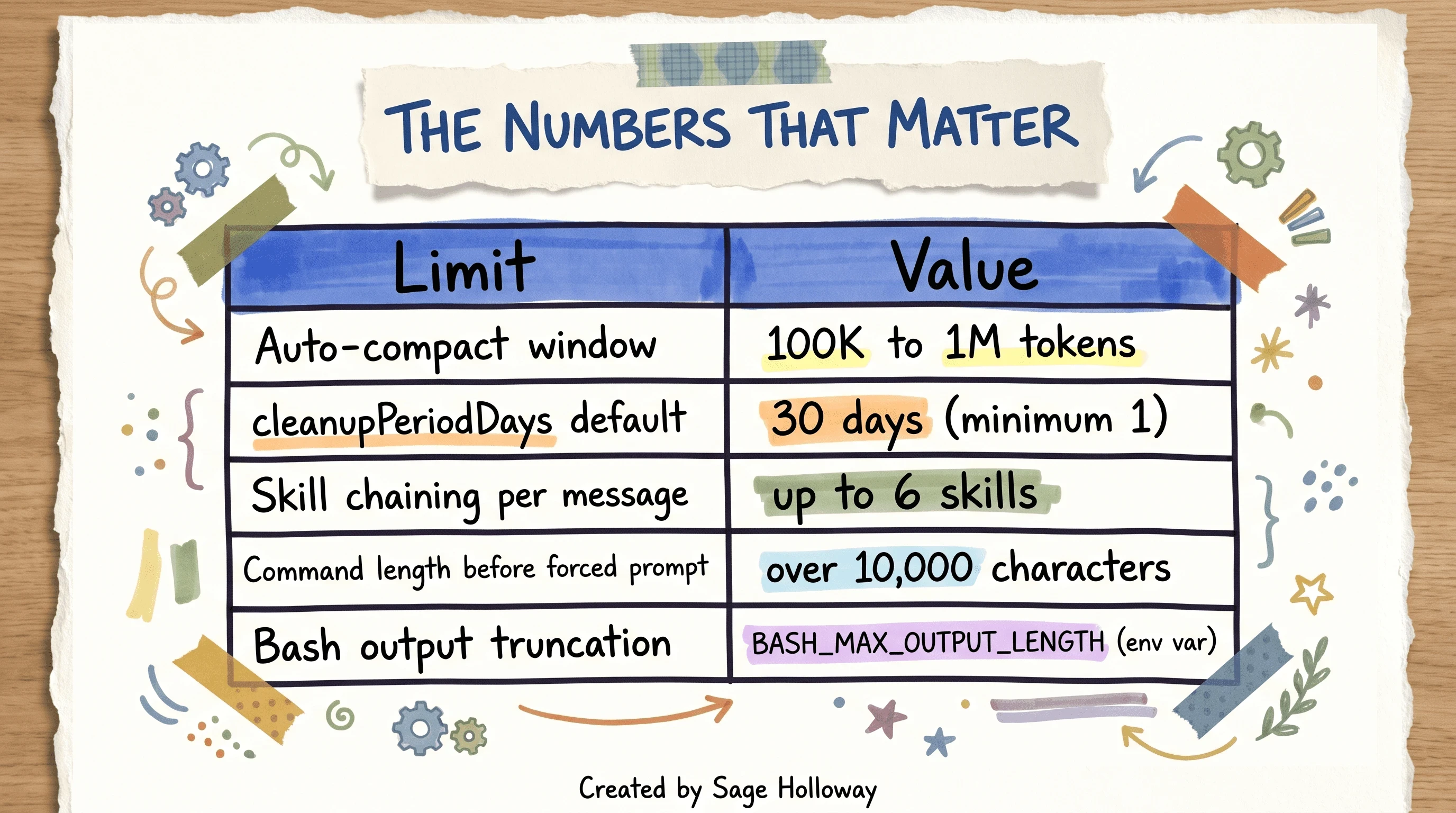
Five numbers worth memorizing before you fight with context, cleanup, or output-length settings.
CLAUDE.md, placed at your project root, is the file Claude reads at the start of every session as standing instructions: tech stack, conventions, off-limits files, how your tests run. A global version at ~/.claude/CLAUDE.md applies your personal defaults across every project on the machine. Neither file is a command. Both shape what every command and skill does once it's running.
When context does fill up, /compact summarizes the conversation instead of erasing it, keeping the conceptual thread while dropping heavy tool transcripts. Most people run it bare and hope for the best. You can direct it instead:
That one line tells Claude what to protect during the summary, so the parts of the conversation you'll actually need in the next ten minutes survive the compression instead of getting flattened along with everything else.
Claude Code also runs a startup cleanup sweep that prunes old session history after a set number of days, controlled by cleanupPeriodDays (default 30, minimum 1). If you're on a long-running project and want history to survive past a month, raise that number in your user settings; the default assumes most sessions age out of relevance faster than that.
While you're cleaning up settings files, two older keys are worth retiring if you find them in an inherited config: includeCoAuthoredBy has been replaced by attribution.commit, and the ANTHROPIC_SMALL_FAST_MODEL environment variable has been replaced by ANTHROPIC_DEFAULT_HAIKU_MODEL. Neither one will break anything left in place. Neither does anything useful going forward, either.
Locking Down Credentials: Sandbox Files and Env Var Masking
This is the section most guides skip, and it's the one that matters most the first time a command goes wrong. None of the permission modes, hooks, or settings above matter much if a misbehaving command can just read your .env file and print an API key into a log Claude then summarizes for you.
The most direct lever you have is a deny list for commands you never want executed, model judgment or not:
Anything on that list gets refused outright, before the classifier even weighs in. Pair it with PreToolUse hooks (covered above) for anything more specific to your stack than a flat string match can catch.
Running commands from a project you haven't explicitly trusted triggers a specific, easy-to-miss warning: "this workspace has not been trusted" printed to stderr. That's Claude Code refusing to apply project-level settings, including your deny rules, until you've confirmed the directory is one you actually opened on purpose. Don't silence that warning reflexively. Read it, and only trust directories you meant to trust.
There is no dedicated "mask this environment variable" flag documented for Claude Code as of this research pass, and I'm not going to invent one just because it would make a tidier paragraph. The practical version of credential masking here is the same discipline you'd apply anywhere: keep secrets in .env files that are .gitignored, never paste them into CLAUDE.md or a command's prompt text where the model reads them as instructions, and lean on your deny rules to keep the model from touching .env files it has no reason to open.
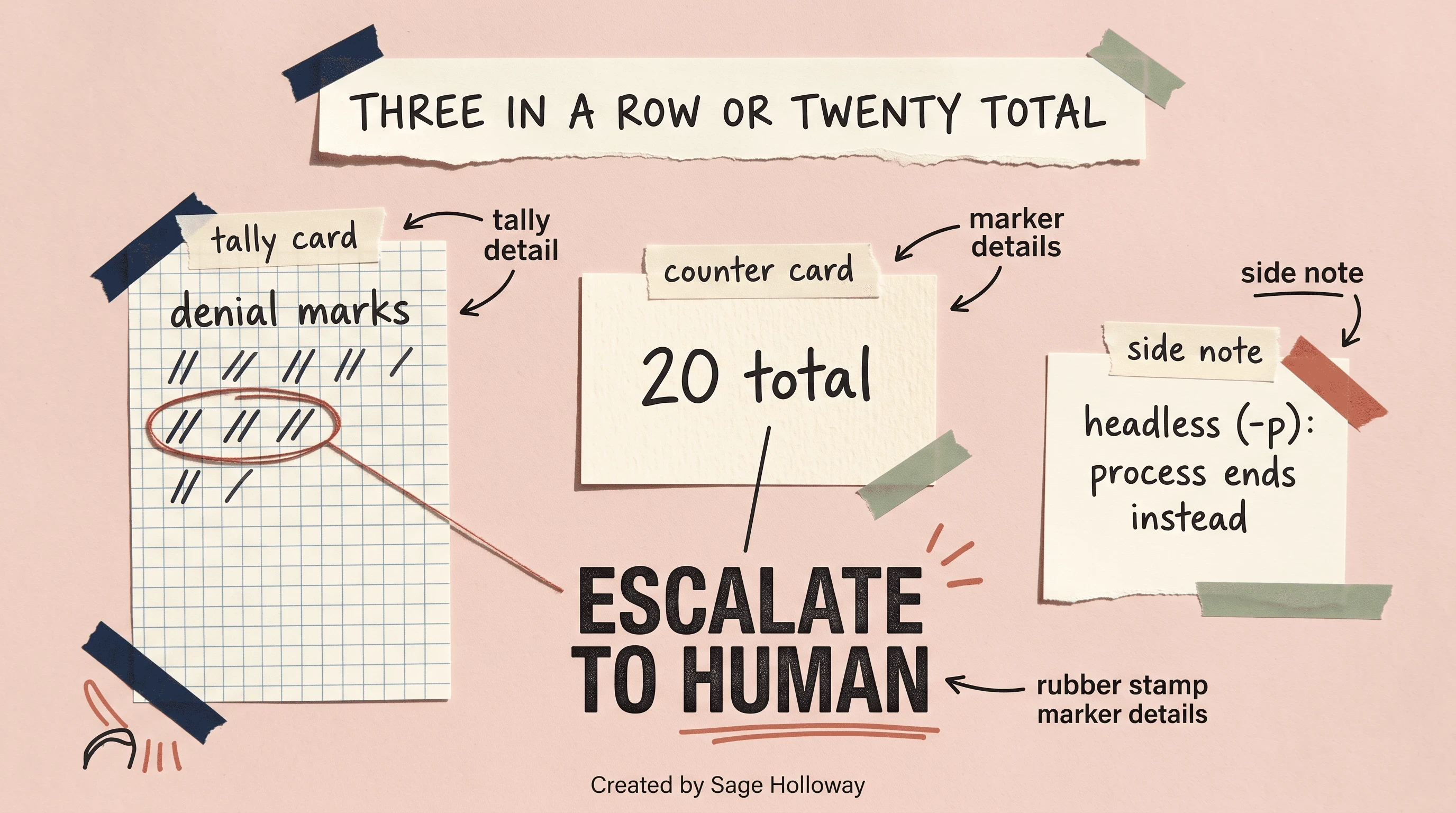
Auto mode stops itself before you have to: three denials in a row or twenty total hands control back to you, or ends the process in headless mode.
Auto mode has a safety net worth knowing about even if you never hit it: if a session accumulates three consecutive denials or twenty total, execution stops and control escalates back to you. In headless mode (claude -p), there's no human on the other end of a terminal to escalate to, so the process just terminates instead. That's not a failure state. That's the system noticing it's stuck and refusing to guess its way through.
FAQ
How do I access Claude Code settings?
Edit ~/.claude/settings.json for machine-wide changes, or create .claude/settings.json in a project root for settings scoped to that repo. Inside an active session, /config opens an interactive menu for the same options without leaving the terminal. Run /status afterward to confirm your changes actually loaded; a typo in the JSON fails silently more often than you'd like.
What is CLAUDE.md and how does it work?
CLAUDE.md is a Markdown file at your project root that Claude Code reads at the start of every session as persistent, project-specific instructions: your stack, conventions, off-limits files, how tests run. A global ~/.claude/CLAUDE.md applies the same idea to every project on your machine. Think of it as the standing brief every command and skill inherits before it does anything else.
How do I create a custom slash command?
Make a Markdown file in .claude/commands/ (or a folder at .claude/skills/<name>/SKILL.md); the filename becomes the command name. Add optional YAML frontmatter for a description and pre-approved tools, write your prompt, and use $ARGUMENTS for anything the user types after the command name. The full walkthrough with code is in the "Build Your First Custom Command" section above.
What is the Shift+Tab shortcut for?
Shift+Tab cycles through permission modes mid-session, without editing a settings file. It's the fastest way to drop into acceptEdits for a batch of trusted edits, or into plan mode for one request you want researched before anything touches disk, then cycle back to your default afterward.
Can I run Claude Code in CI/CD?
Yes, using print mode (-p) for non-interactive output, typically combined with either narrowly scoped allow rules or, in a fully isolated environment like a throwaway container, --dangerously-skip-permissions. Either approach bypasses the interactive prompts that would otherwise halt an unattended pipeline. Pair it with strict bash.deniedCommands rules regardless of which flag you choose; unattended does not mean unsupervised.
Can I prevent Claude Code from running dangerous commands?
Yes. Add specific commands to the bash.deniedCommands array in your settings file (rm -rf, git push --force, sudo, and anything else specific to your stack), and Claude Code refuses to run them regardless of what the task logic seems to require. For anything a flat string match can't catch cleanly, a PreToolUse hook gives you a programmatic veto instead.
What is the auto-compact threshold in Claude Code?
It's the context-fill percentage that triggers automatic compression of earlier conversation history. Several sources put the default somewhere around 80 to 90 percent, though Anthropic hasn't published an exact figure in the settings docs as of this research pass, so treat that range as a reasonable estimate rather than a guaranteed number. What is documented precisely is the configurable window itself, in the model configuration docs: you can set it anywhere from 100K to 1M tokens depending on your model and plan.
My team has a shared settings file. How do I adjust permissions for my own workflow without affecting everyone else?
Create .claude/settings.local.json in the project root. It's gitignored by convention, and any rules you add there override the shared .claude/settings.json file for your sessions only. That's exactly the mistake described earlier in the settings section: edit the shared file directly and your personal preference becomes everyone's problem.
What is the difference between /compact and /clear?
/clear wipes your conversation context completely and forces Claude to reread CLAUDE.md and project files from scratch on the next turn. /compact summarizes history instead of erasing it, dropping heavy tool transcripts while preserving the conceptual thread so you can keep working. If you've seen a claim somewhere that /clear preserves project context, that's incorrect; the official docs are explicit that it's a full reset, not a partial one.
Related guides
Install Claude Code for getting the CLI running before any of this applies
Claude Code sessions for
/resume,/continue, and session branchingClaude Code MCP servers for connecting external tools and APIs
Claude Code QA automation for
SKILL.mdpatterns inside a testing workflowClaude Code Plan Mode for the read-only research state before a change
Zero-trust sandbox architecture and OS-level policy engineering: a deeper companion guide
None of this is a one-sitting project, and it shouldn't be. Start with one command you retype more than twice a week and turn it into a real .claude/commands/ file with pre-approved tools. Watch how many fewer permission prompts you get that week. Then, once that feels boring instead of novel, add one narrow bash.deniedCommands rule for the command you'd least want run without you in the room.
Where this goes next probably isn't more modes. Auto mode's classifier is still new enough that its false-positive and false-negative rates will keep shifting as Anthropic tunes it against real traffic, and the honest answer is nobody outside that team knows yet whether three consecutive denials is the right threshold or just the first one that shipped. Watch the changelog more than you watch the settings docs.
Until then...
Sage
PS. Open ~/.claude/settings.json right now, before you close this tab, and count how many keys in it you could not explain to a coworker in one sentence. Most people find at least two they copied from a gist eighteen months ago and never revisited. That is not a criticism. It is just today's honest starting number.
Author
Practical guides, tool teardowns & AI engineering workflows.


