Claude Code
Claude Code Plan Mode: Plan First, Then Ship

Sage Holloway
20 min read
Go back to blog
SHARE
You asked Claude to “just ship the feature.” Twenty minutes later you have fourteen half-wrong files and a git checkout you don’t want to explain. The model wasn’t evil. You skipped the part where you agree on the building before anyone swings a hammer.
Claude Code Plan Mode is a read-only permission state where Claude explores your repo and drafts an implementation plan without editing files. You use it to stop the redo loop on multi-file work, then approve the plan and switch into implementation. Activate it with Shift+Tab (or Alt+M on many Windows terminals), /plan, or claude --permission-mode plan. Use it when the change touches roughly three or more files or needs a real architectural choice, not for one-line typos.
For current labels and flags, always cross-check Claude Code docs and best practices. Permission surfaces drift by version.
Plan first. Then touch the files.
What is Claude Code Plan Mode?
Claude Code Plan Mode (you’ll also see people search plan mode Claude Code or Claude Code planning mode) is a permission posture, not a separate “smart brain.” Claude can read, search, and reason, and it should not start rewriting your tree until you leave that posture.
Think of two roles on one desk.
The architect walks the building, asks what’s load-bearing, and writes the sequence on a sheet you can argue with. The builder only picks up tools after that sheet exists.
Plan Mode is how you force the architect phase in Claude Code. Default “just do it” prompting collapses both roles into one eager intern with write access.
Permission modes in Claude Code are a ladder of oversight. Plan sits near the careful end. Auto (when your build exposes it) sits in the middle. YOLO sits at the far edge. Same agent, different leash lengths.
Posture | Edit behavior (rough) | Best for |
|---|---|---|
Plan | Prefer no file writes until you leave the mode | Design, multi-file, unfamiliar code |
Normal / accept-edits | Edits with prompts or accept flow | Day-to-day changes |
Auto | Fewer interruptions; still some guardrails | Trusted repetitive chores |
YOLO | Skip permission prompts | Sandboxed / disposable environments only |
(Labels and exact behavior drift by CLI version. Treat the table as a mental model, then confirm in your footer indicator.)
The problem it solves: the redo loop
Without a plan, a typical failure looks like this:
You describe a feature in one paragraph.
Claude edits auth, routing, and a random utility “for completeness.”
Half of it is wrong.
You spend longer undoing than you would have spent aligning.
The expensive part is usually the second and third attempts that inherit the first wrong assumption. Plan Mode attacks that failure mode. The deliverable of the first phase is a plan you can edit, not a surprise diff.
A concrete example: you ask for “rate limiting on the API.” Without a plan, Claude might invent middleware in the wrong layer, skip tests, and touch a shared client used by three services. With a plan, you see “add middleware in api/, reuse existing Redis helper, add integration test in X,” and you can cut the Redis idea if your stack uses in-memory limits in staging. That cut takes thirty seconds on paper. It takes an afternoon in a dirty working tree.
If you want the philosophy from the people building the tool, this thread is worth two minutes:
[EMBED: X - https://x.com/bcherny/status/2007179832300581177 ] Boris Cherny on starting sessions in a plan-first posture. Read it as intent, then verify behavior in your installed CLI.
Prerequisites
CLI ready, project open
You need Claude Code installed and authenticated, running inside a real project directory. If install is fuzzy, do that first (separate guide: install Claude Code). Plan Mode assumes you’re already past “hello world.”
Run Claude from the repo root you care about. Planning against the wrong cwd produces plans that “look smart” and point at the wrong tree.
CLAUDE.md as the compass
Plan quality tracks instruction quality. A thin or missing CLAUDE.md produces vague plans. A sharp one (stack, test commands, “never touch X,” folder ownership) produces plans you can actually approve.
You don’t need a novel. You need constraints Claude would otherwise invent. Minimum useful contents for planning sessions:
How to run tests / typecheck / lint
Package manager and runtime
Folders that are off-limits (generated code, vendor, secrets)
Non-negotiable libraries (“we use Zod, not Yup”)
“Prefer smallest diff” if that’s your culture
When CLAUDE.md and Plan Mode disagree with your gut, fix the doc. The next plan inherits the correction.
Terminal + editor split
Plans often land as markdown you can open in VS Code, Cursor, or another editor. A split layout (CLI + editor) makes the “edit the plan before implement” loop painless. That’s where Ctrl+G / open-plan workflows earn their keep (see below).
If you only ever skim the plan inside the terminal scrollback, you’ll approve noise you would have deleted in an editor. Treat the plan file like a short design note, because that’s what it is.
The four-phase workflow
Pros treat Claude Code planning mode as a loop, not vibes:
Explore → Plan → Implement → Commit
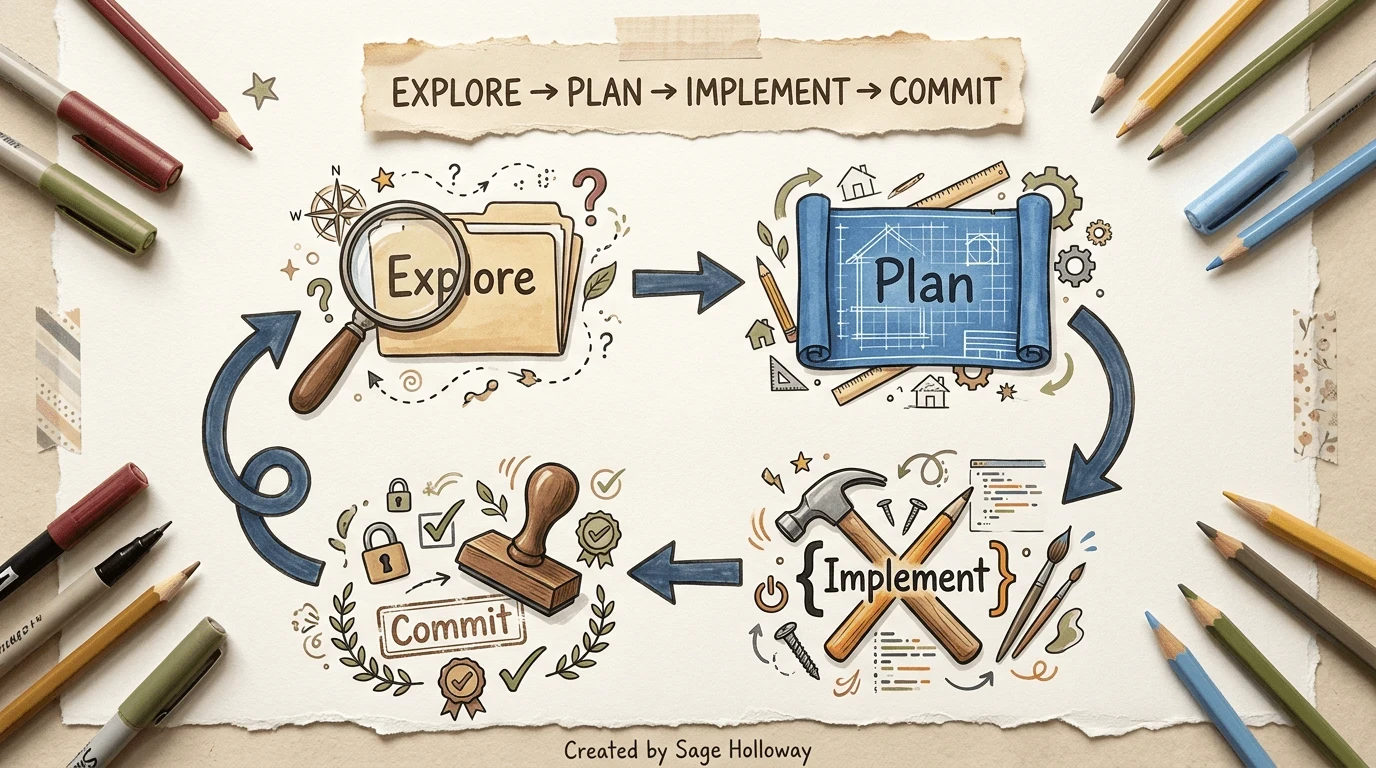
The loop: research read-only, lock the plan, then build.
Explore
In Plan Mode, Claude should map the ground: relevant files, patterns, existing tests, sharp edges. This is reconnaissance. If your CLAUDE.md says “we use X for auth,” the explore phase should reflect that instead of proposing Y.
Good explore outputs sound boring: “existing rate limit helper in lib/limits.ts; tests under tests/api; payments module unrelated.” Boring is useful here. You’re buying a map, not a TED talk.
If explore skips half the modules you know are involved, stop. Tell it which paths to read. Don’t “hope implementation notices.”
Plan
Claude drafts a technical sequence: files to touch, order of operations, risks, tests. Your job is not to rubber-stamp. Your job is to argue with the sheet while it’s still cheap.
A usable plan usually includes:
Goal in one sentence
Out of scope (what you are not doing)
Ordered steps with file paths
Test or verification commands
Risks / rollback notes
If the plan has no “out of scope,” invent one. Scope creep loves blank margins.
Implement
You leave Plan Mode (cycle permissions or accept the transition your build uses) and let Claude execute against the agreed plan. If it drifts, stop and re-anchor:
Implement the plan exactly as written. If you need a change, stop and update the plan first.
That sentence keeps the architect sheet from becoming fiction mid-build.
Commit
Close the loop with commits or a PR description that mirrors the plan. The plan becomes a lightweight decision record for humans who weren’t in the session. Future you (the one who forgets why the middleware lives where it does) will thank present you.
For a longer live walkthrough of planning in practice:
[EMBED: YouTube - https://www.youtube.com/watch?v=w9IL2-M9BHA ] Pack-verified Plan Mode walkthrough (Semrush SERP + oEmbed). Skim for the plan loop; skip fluff.
How to activate Plan Mode
Searchers asking how to enter plan mode usually need one of these entry points. Exact labels can shift by version, so confirm on your binary before you publish internal runbooks.
Keyboard: Shift+Tab (and Windows reality)
On many setups, Shift+Tab cycles permission modes until you land on Plan Mode. Watch the terminal footer / mode indicator. That’s your ground truth. If the footer doesn’t say you’re in plan, you’re not in plan, no matter what you intended.
[EMBED: YouTube - https://www.youtube.com/watch?v=QlWyrYuEC84 ] Pack-verified: Dan Vega on Plan Mode as the “hidden superpower.” Watch for how the mode shows up in a real session.
Windows caveat: some terminals steal Shift+Tab for accessibility or pane focus. If cycling fails, use Alt+M if your build supports it, or jump straight to /plan / the CLI flag below. Don’t fight the terminal for ten minutes; switch entry points.
Slash command: /plan
Mid-conversation, /plan (when available in your version) is the cleanest “stop coding, start architecting” move. Useful when you realized too late that the task is bigger than a one-liner, Claude already started exploring, and you want to freeze write access before the first edit lands.
CLI flag: start already planning
Use this when you know the session is a design session. No temptation to accept a drive-by edit in the first thirty seconds. This is the right default for “new feature,” “refactor,” and “I don’t know this codebase yet.”
Default in settings (verify keys)
Some workflows set Plan Mode as the default permission mode in .claude/settings.json so every session starts read-only for edits. Verify the exact key names against current docs; config surfaces move. Pattern (illustrative):
If your installed docs show a different schema, trust the docs over this snippet. The habit matters more than the JSON: start careful, then loosen.
Edit and keep the plan
A plan you can’t edit is just a longer prompt.
Open the plan in your editor
When Claude has a draft plan, open it with Ctrl+G or the open-plan command your build exposes (sometimes described as /plan open). Edit priorities, kill scope creep, add “do not touch payments.” Save. Return. Claude should continue from your sheet.
[EMBED: YouTube - https://www.youtube.com/watch?v=FoRIj5qcslg ] Pack-verified GritAI walkthrough. Use it for plan-mode habits and editing the plan before you build.
Edit like a tech lead reviewing a design doc:
Delete steps that solve problems you don’t have
Reorder so tests land early enough to catch damage
Add file paths Claude omitted
Mark “human decision needed” where product choices aren’t technical
Persist plans like decision records
Default plan files can feel temporary. Power users keep plans under something like ./docs/plans and commit them. If your settings support a plansDirectory (or current equivalent), point it at the repo (again, verify the key).
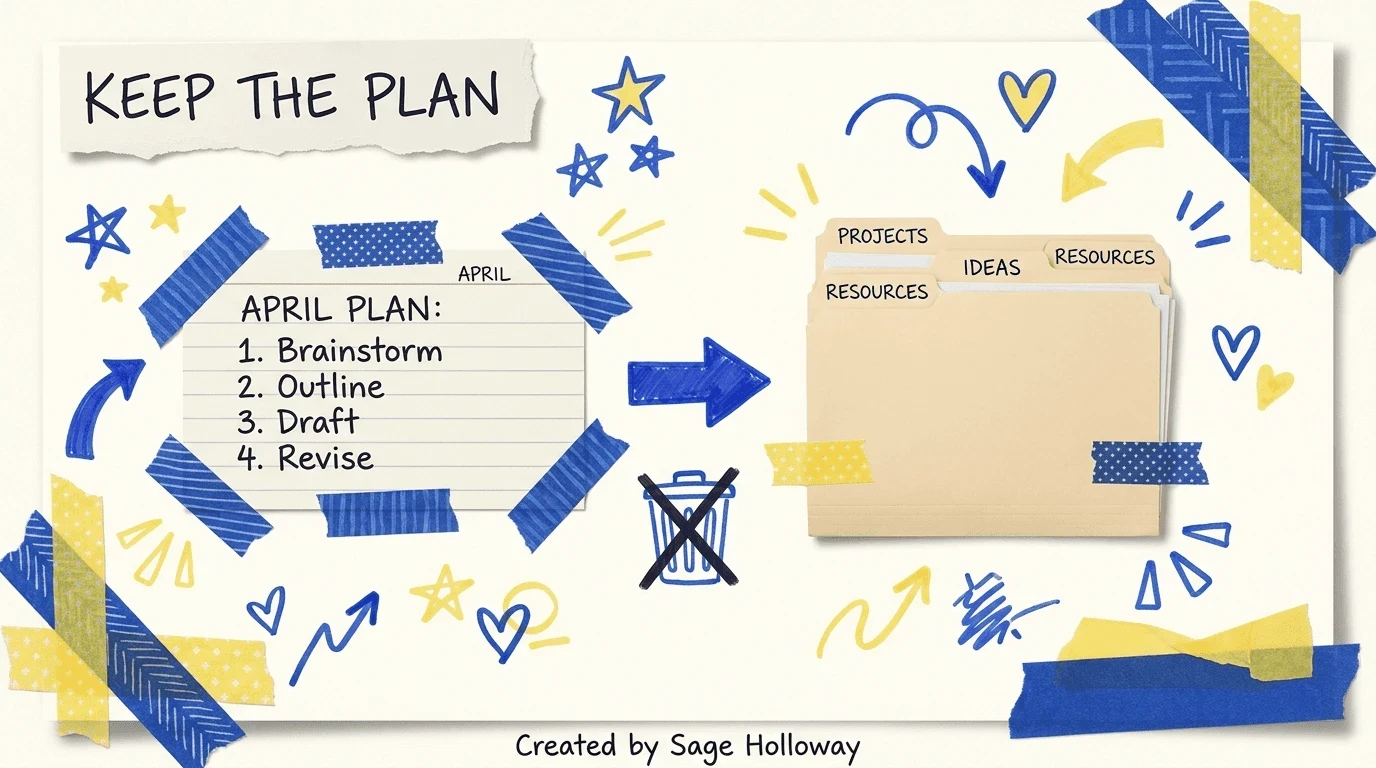
Treat the plan like a decision record, not scrap paper.
Naming tip: YYYY-MM-DD-short-slug.md beats plan-final-v3-really.md. The date is for humans. The slug is for search.
Fight plan drift
During implementation, Claude may improvise: add a “quick helper,” rename for elegance, expand scope because a neighboring file looked lonely. Pull it back with the exact-as-written instruction above. If the plan was wrong, update the plan first, then continue. Don’t silently endorse a better-sounding detour unless you’ve consciously accepted it.
CLAUDE.md, models, and planning quality
Constraints beat vibes
Before a hard Plan Mode session, tighten CLAUDE.md. You’re not writing for the blog. You’re writing for the planner.
Weak: “Be careful with the database.” Strong: “All migrations go through pnpm db:migrate. Never edit production dump files in ./backups.”
Model choice for planning
Some teams prefer a stronger model for planning and a faster one for execution. You may see aliases like /model opusplan discussed in the wild. Model names and aliases change, so check what /model offers in your CLI today. Don’t cargo-cult a version string from a six-month-old blog.
When planning quality is the bottleneck (weird edge cases, multi-service design), spend the tokens on thinking. When the task is mechanical (“rename this field everywhere”), don’t.
Does Plan Mode burn more tokens?
Usually yes: exploration and multi-step reasoning cost more up front. The bet is that you burn fewer tokens than three failed implementation loops. If the change is a one-sentence fix, Plan Mode is the expensive way to feel professional.
Rule of thumb many people land on: if you can’t describe the exact files and change in one clear sentence, plan first. If you can, just implement.
Sessions: resume, continue, branch
People searching claude code sessions often want continuity: long plans, interrupted work, parallel threads. Claude Code sessions are the CLI’s memory of a conversation, not the same thing as Claude.ai chat history, even when the branding overlaps.
Typical tools (names verified against your CLI help):
Fork / branch session features (when available) let you try an alternate plan without destroying the original thread. Useful when two designs are both plausible and you want separate implementation paths.
Use sessions so a careful plan doesn’t die when Slack interrupts you. Practical pattern:
Start with
--permission-mode planLock the plan; edit in editor
Implement in the same session
If you must stop mid-implement, resume later. Don’t paste the plan into a brand-new chat and hope context returns
If --resume shows nothing you recognize, check that you’re in the same machine/user profile and project path you used before. Session lists are local convenience, not a cloud time machine for every install.
Plan Mode vs Auto vs YOLO
This is where claude code yolo mode searches collide with Plan Mode. Same family of permission choices; opposite risk appetite.
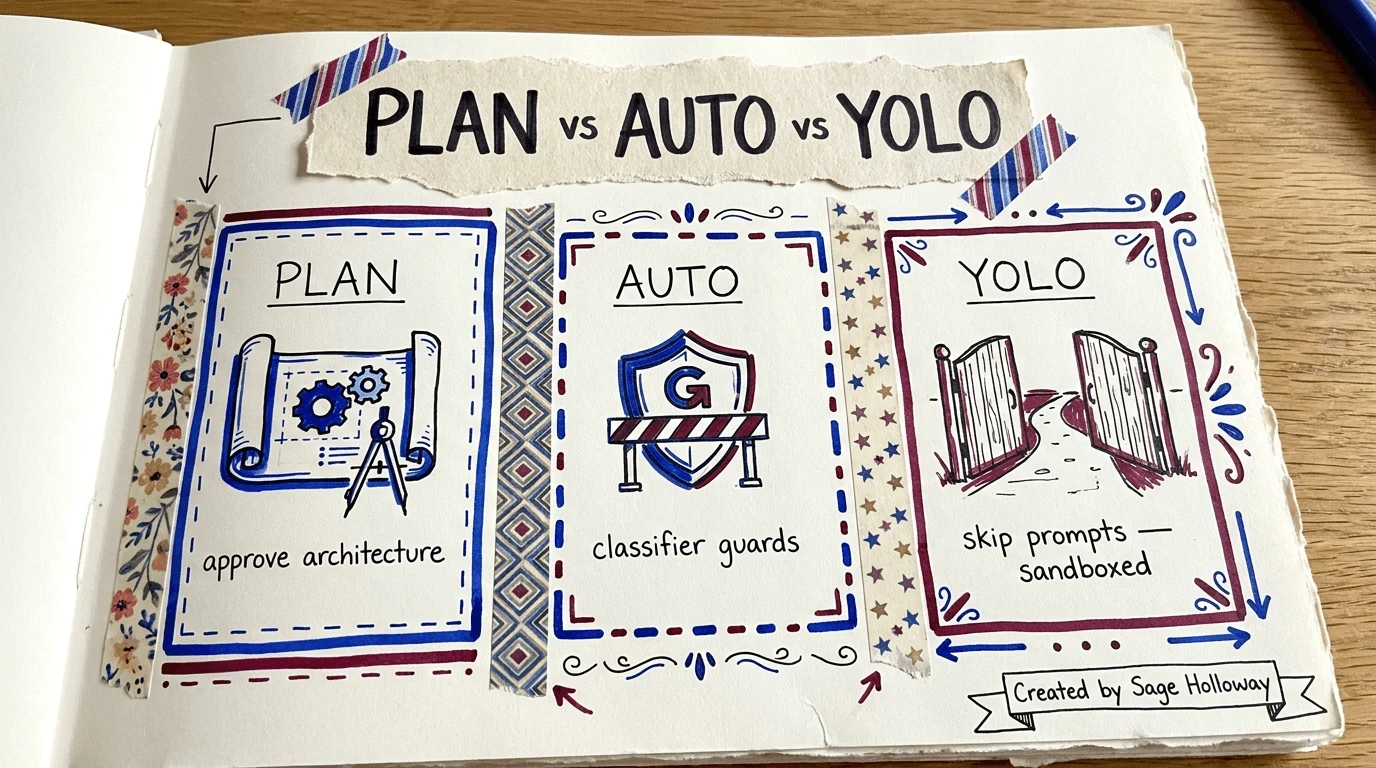
Same product, three risk postures.
Posture | Rough idea | Use when |
|---|---|---|
Plan | Read-only for edits; design first | Multi-file / architecture / unfamiliar code |
Auto (if available) | Fewer prompts; still some guardrails | Trusted repetitive chores |
YOLO ( | Skip permission prompts | Sandboxed environments only |
YOLO is not a cooler Plan Mode. It means you accept that this agent can act with your privileges. The flag name is the warning: --dangerously-skip-permissions. If you use it, pair it with containers, throwaway dirs, or other hard walls. Without those walls, you don’t have a YOLO strategy. You have a story for your security channel.
A sane progression for a new teammate:
Plan Mode until they trust the repo map
Normal accept-edits for small work
Auto only for chores they’ve watched succeed
YOLO never on a laptop with production credentials
Permission-mode nuance from the builder side:
[EMBED: X - https://x.com/bcherny/status/2007179845336527000 ] Permission modes as a hierarchy of oversight. Map it to your own risk.
Troubleshooting
Symptom | Likely cause | What to try |
|---|---|---|
Shift+Tab does nothing useful | Terminal steals the shortcut |
|
Claude edits files “while planning” | Not actually in Plan Mode / mode flipped | Check footer indicator; re-enter |
Plan ignores your stack | Weak | Add hard constraints; restart plan |
Implementation ignores the plan | Plan drift | “Implement exactly as written”; re-open plan and tighten |
Huge token burn on tiny tasks | Overusing Plan Mode | Skip planning for one-sentence diffs |
Can’t find old work | Session not resumed |
|
Plan is vague / generic | Goal was vague | Restate goal + constraints; ask for file paths |
Plan keeps asking the same questions | Missing answers in repo or CLAUDE.md | Answer once in the plan file or CLAUDE.md |
If Claude asks clarifying questions before locking a plan, that’s a feature. Watch how the interview UI appears:
[EMBED: YouTube - https://www.youtube.com/watch?v=MO_h4McvCNw ] Pack-verified AI Coding Daily “Plan Mode trick”: interview / bigger-spec flow before the plan hardens.
Answer those questions seriously. A wrong multiple-choice click becomes a wrong architecture with confidence.
When not to use Plan Mode
Situation | Prefer |
|---|---|
Rename a symbol / fix a typo | Normal / accept-edits flow |
Exact patch already specified line-by-line | Just implement |
You’re exploring for learning, not shipping | Plan Mode optional |
Multi-file feature, schema change, auth, unclear ownership | Plan Mode |
Unfamiliar repo area | Plan Mode |
“Make it faster” with no profile data | Plan Mode (plan must demand measurement) |
Decision matrix
Scenario | Plan Mode? |
|---|---|
One-file copy tweak | No |
New endpoint + test + route wiring | Yes |
Refactor across modules | Yes |
Update a comment | No |
Touch auth / payments / migrations | Yes |
Generate boilerplate you already specified fully | Usually no |
Plan Mode is a tool for expensive uncertainty. If uncertainty is cheap, skip the ceremony.
Worked mini-session (pattern, not a script)
Use this as a mental script the first week you adopt the habit:
cdinto the repo. SkimCLAUDE.md. Add one constraint you always forget.claude --permission-mode planPrompt: “Add rate limiting to the public API. Prefer existing helpers. Include tests. Out of scope: billing.”
Let explore + plan run. Open the plan (
Ctrl+G/ open-plan). Delete anything about billing. Add the real test command.Leave Plan Mode. “Implement the plan exactly as written.”
Run the verification commands yourself.
Commit with a message that mirrors step 1 of the plan.
If interrupted at step 5,
--resumetomorrow. Don’t restart from a blank chat.
That is the loop. The rest is mythology.
FAQ
(FAQ count target: 8-9. Items marked [data] are Semrush-backed ranked targets from Overview on claude code plan mode. Other items are same-job fillers for completeness, not Semrush keyword targets.)
How to use plan mode in Claude Code? [data]
Enter Plan Mode with Shift+Tab (or Alt+M on many Windows terminals), /plan, or claude --permission-mode plan. Confirm the footer shows plan mode. Then describe the goal, let Claude explore read-only, edit the plan if needed (Ctrl+G / open-plan), leave Plan Mode, and implement exactly as written. Use it for multi-file or architectural work, not for one-line typos.
Does Claude Code Plan Mode use more tokens? [data]
Often yes, up front: exploration and multi-step planning cost tokens. The bet is fewer tokens than two or three failed implementation loops. For a one-sentence fix, skip Plan Mode.
How to plan with Claude Code? [data]
Start in Plan Mode, give a clear goal plus out-of-scope constraints, tighten CLAUDE.md first if the stack matters, then treat the written plan as the contract before any file edits. Persist useful plans under something like docs/plans/ when they capture a real decision.
When should I use Plan Mode vs just implementing?
Use Plan Mode when the change spans multiple files, needs a design tradeoff, or sits in code you don’t know well. Skip it when you can specify the exact one-file change in a single clear sentence.
Can I edit the plan before Claude starts coding?
Yes. Open the plan in your editor (Ctrl+G / open-plan), change scope and file paths, save, then implement. If your build uses a different chord, check current docs. The habit matters more than the shortcut.
What’s the difference between Plan Mode and YOLO mode?
Plan Mode delays edits until you agree on architecture. YOLO (--dangerously-skip-permissions) skips permission prompts, and only belongs in sandboxed environments you can afford to burn. Plan vs Auto is about interruption frequency. Plan vs YOLO is about blast radius.
Why is Claude still editing files while I’m “planning”?
You’re probably not actually in Plan Mode, or the mode flipped mid-session. Check the footer indicator, re-enter /plan or restart with claude --permission-mode plan.
How do sessions relate to planning?
Long plans survive interruptions if you resume the right Claude Code session (--resume / --continue). Don’t confuse CLI sessions with Claude.ai web chat history. Full sessions coverage lives in a dedicated sessions guide.
Should I commit plans to git?
If the plan captures a real decision, yes. Treat it like a short design note under something like docs/plans/. If it’s throwaway noise, don’t pollute history.
Related guides
Claude Code slash commands & settings
Claude Code sessions & memory
Try this on your next change that touches three files: start in Plan Mode, edit the plan once, then implement. If the plan can’t survive a skeptical read, the code wouldn’t have either.
The teams that win with agents will not be the ones with the flashiest prompts. They will be the ones who refuse to let write access outrun agreement.
Until then, make the sheet honest before you make the diff loud.
Sage
PS. The first time Plan Mode feels “slow,” time the alternative: one wrong multi-file edit plus the emotional cost of git checkout -p. The stopwatch lies less than your impatience.
Author
Practical guides, tool teardowns & AI engineering workflows.


